


To fix Windows stuck on the Welcome screen, restart the PC, disconnect unnecessary accessories, and try Safe Mode if normal sign-in still fails. Start with repairs you can perform from the sign-in screen, then choose the next fix based on when the problem began.
These steps focus on Windows 11. Desktop settings and repair commands require a usable Windows session, which you may reach through another account, a successful restart, or Safe Mode where the tool supports it.
The short version
- Restart first: Select Power > Restart, or Update and restart when offered.
- Remove accessories: Shut down and disconnect unnecessary USB devices, docks, SD cards, and external displays before trying again.
- Use Safe Mode: Hold Shift while selecting Power > Restart to reach recovery tools.
- Match the repair: Investigate startup software, recent updates, drivers, or a damaged account before resetting Windows.
- Protect your files: Back up accessible data and obtain your BitLocker recovery key before a reset.
| Fix | When to try it | Access needed |
|---|---|---|
| Restart Windows | First attempt or pending updates | Sign-in or security screen |
| Force a restart | Normal restart controls do not respond | Physical power button |
| Disconnect accessories | Unnecessary devices are attached | Powered-off PC |
| Restore connectivity | Account authentication needs internet access | Sign-in screen |
| Use a password | PIN or Windows Hello fails | Password sign-in option |
| Reset the PIN | Microsoft account PIN malfunctions | Sign-in screen and account verification |
| Try another account | Another usable account exists | Sign-in screen |
| Safe Mode | Normal sign-in keeps hanging | Recovery tools and account password |
| Startup Repair | Windows still cannot start properly | Recovery tools |
| Disable a startup app | A suspect app opens automatically | Usable desktop |
| Clean boot | You need to isolate a software conflict | Working administrator session |
| Uninstall conflicting software | You have identified the offending app | Usable desktop and functioning uninstaller |
| Install Windows updates | Fixes are available | Working Windows Update session |
| DISM and SFC repair | Windows components may be damaged | Administrator session in installed Windows |
| Remove a Windows update | Failure began immediately after an update | Recovery tools |
| Roll back a driver | Failure followed a driver change | Administrator session and previous driver |
| System Restore | A restore point predates the failure | Recovery tools |
| Go back after an upgrade | A recent feature upgrade caused trouble | Desktop and available rollback option |
| Replace the profile | Failure is confined to one account | Another administrator account |
| Repair reinstall | Earlier repairs failed but Windows opens | Desktop, power, and internet |
| Reset Windows | Less disruptive repairs failed | Recovery tools and backed-up data |
| Installation media recovery | Built-in recovery will not open | Another PC and compatible USB media |
Restart Windows and remove accessories
At the sign-in screen, select Power > Restart. Choose Update and restart when offered, then try signing in again after Windows restarts. Do not interrupt an update while it is installing.
When the screen does not respond, press Ctrl + Alt + Delete. If the security screen opens, select Power > Restart there. Work through the available controls to restart an unresponsive computer before forcing a shutdown.
If neither screen responds, hold the physical power button for approximately 20 seconds, then turn the PC back on. Follow your manufacturer's shutdown instructions when they differ. Never force a restart during an active reset, restore, firmware installation, or update.
Should the hang return, shut down and disconnect unnecessary USB devices, SD cards, docks, and external displays before starting again. On a Surface, disconnect the Type Cover during this test as well. If its battery needs charging, connect the correct charger and allow at least 15 minutes.
Check connectivity and account access
Select Network on the sign-in screen and connect to the internet, especially when account authentication needs a connection. Try Ethernet if Wi-Fi is unreliable, or reseat an existing Ethernet cable. Check whether another device can access the internet to help identify a connection problem.
For a PIN or Windows Hello failure, select Sign-in options, then select Enter your password and enter your account password. For a malfunctioning Microsoft account PIN, select I forgot my PIN and complete account verification. These steps address authentication trouble; they do not directly repair a Welcome spinner that continues after your credentials have been accepted.
Another existing account can also provide a way into Windows. Select that account in the lower-left corner of the sign-in screen and sign in. If it opens normally while your usual account keeps hanging, continue to the profile repair steps once you have ruled out a sign-in problem.
Enter recovery and try Safe Mode
From the sign-in screen, hold Shift while selecting Power > Restart. This opens Windows Recovery Environment, where you can access Safe Mode and repair tools. Some tools require your BitLocker recovery key.
If sign-in controls cannot be used, start the PC and hold its power button until shutdown when the Windows or manufacturer logo appears. Repeat that interruption once, then start the PC a third time. On Automatic Repair, select Advanced options; do not perform these interruptions during an active installation or restore.
In recovery, select Troubleshoot > Advanced options > Startup Settings > Restart. Press 4 or F4 for Enable Safe Mode, or 5 or F5 for Enable Safe Mode with Networking. Sign in with your account password because PIN and biometric sign-in are unavailable in Safe Mode.
If Safe Mode also fails, return to recovery and select Troubleshoot > Advanced options > Startup Repair > Restart. Supply your BitLocker recovery key if requested and allow diagnosis and repair to finish. Startup Repair targets startup failures, so it may not resolve trouble confined to one account.
Remove software that interferes with sign in
Once you have a usable desktop, investigate apps that start with Windows, especially when the problem followed a software installation. Open Settings > Apps > Startup and turn the suspect app Off, then restart normally. To stop apps from opening on startup through Task Manager instead, right-click Start, select Task Manager > Startup apps, select the app, and choose Disable.
If the culprit is unclear, a clean boot can help isolate a software or service conflict. You need a working administrator session to perform it. Search for msconfig and open System Configuration, then select Services. Check Hide all Microsoft services before selecting Disable all > Apply.
Next, select Startup > Open Task Manager. Under Startup apps, record the enabled items and disable them, then close Task Manager, select OK, and restart. Re-enable items in groups to identify the cause, then restore normal startup with the conflicting item disabled.
After identifying the offending software, open Settings > Apps > Installed apps. Beside the app, select More > Uninstall. If the app will not uninstall normally, perform a clean boot and try uninstalling it again.
Repair Windows files and install fixes
From a working Windows session, open Settings > Windows Update and select Check for updates. Install offered updates and restart. Safe Mode alone may not provide a functioning Windows Update session.
To repair Windows components, search for cmd, right-click Command Prompt, and select Run as administrator. Complete the approval prompt, then run this command and wait for it to finish.
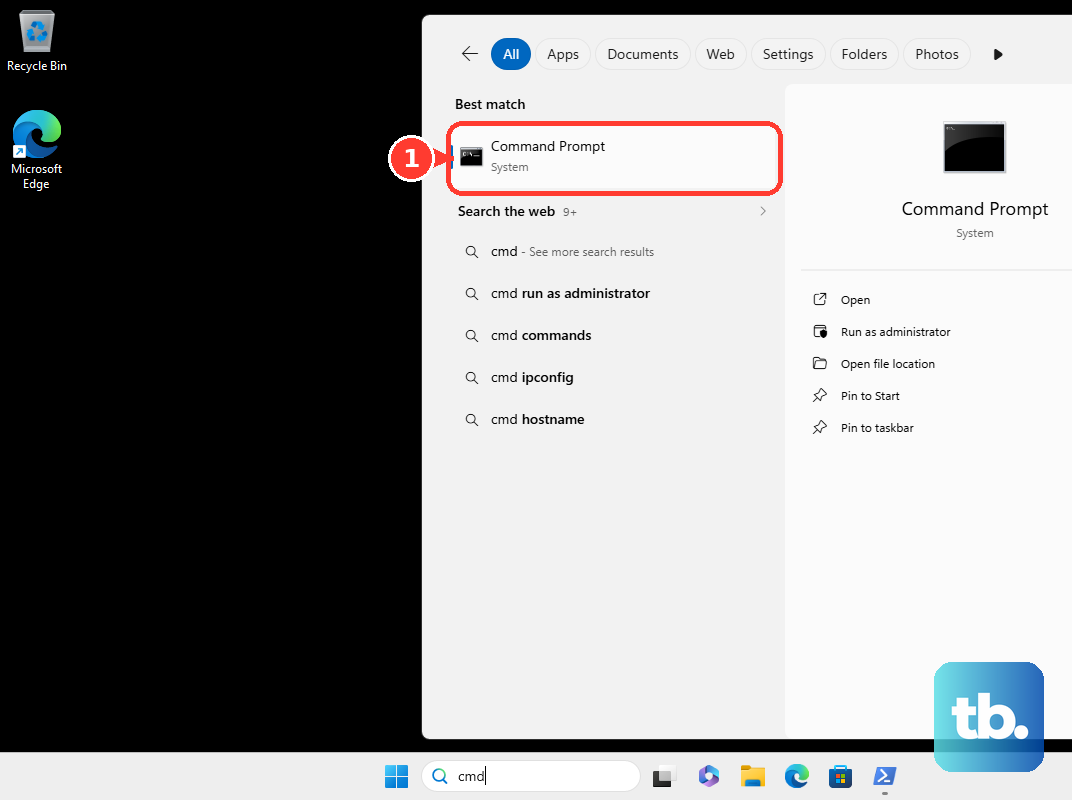
DISM.exe /Online /Cleanup-image /RestorehealthNext, run the following system file repair command. Keep the window open until verification finishes.
sfc /scannowAfter verification finishes, restart and retry signing in. These commands belong in the installed Windows environment: /Online targets the running Windows installation, so opening Command Prompt in recovery does not make it repair your offline Windows installation. Offline repair requires identifying the correct Windows and boot volumes, whose drive letters can differ in recovery.
Undo a recent update or driver change
If the hang began immediately after a Windows update, try removing that update before making unrelated changes. Return to recovery and select Troubleshoot > Advanced options > Uninstall Updates > Uninstall latest quality update. Complete the removal and try starting Windows again. Some updates cannot be removed.
For a problem that followed a device driver change, open a usable Windows session, right-click Start, and select Device Manager. Expand the relevant category, right-click the device, and select Properties > Driver > Roll Back Driver. Choose the applicable reason, select Yes, and restart when prompted. Rollback requires administrator access and an available previous driver.
System Restore is another option when a restore point predates the failure. In recovery, select Troubleshoot > Advanced options > System Restore, choose the earlier point, and select Scan for affected programs to review the impact. Select Next > Finish, then select Restart after restoration. System Restore retains personal files while rolling back affected system changes, drivers, and applications.
If the issue followed a Windows feature upgrade and you can reach the desktop, open Settings > System > Recovery, select Go back, and complete the rollback wizard. You can revert to a previous Windows version while that option remains available, usually within 10 days. Keep windows.old and $windows.~bt, and remove accounts added after the upgrade if the wizard requires it. This retains personal files but removes apps, drivers, and settings changes made after upgrading.
Replace a damaged user profile
If another account works and the failure is confined to your usual profile, use that working administrator account to create a replacement. Open Settings > Accounts > Other user > Add account. For a local account, select I don't have this person's sign-in information, then select Add a user without a Microsoft account and complete setup.
Expand the new account, select Change account type, choose Administrator, and select OK. Sign in to the new account and open the old profile folder under C:\Users in File Explorer, using the actual Windows drive if it differs. Copy its visible personal files and folders into the new profile without enabling hidden or protected operating-system files.
Restart and sign in to the replacement account, then reconfigure affected apps and reconnect your Microsoft account as needed. This route requires another usable administrator account and accessible old files. If neither is available, continue with Windows recovery instead.
Repair or reset Windows as a last resort
With a working desktop, try the repair reinstall before a reset. Open Settings > System > Recovery, then under Fix problems using Windows Update, select Reinstall now and select OK. This preserves applications, files, and settings; keep power and internet connected and restart when installation finishes. The option is usually unavailable when your organization manages Windows updates.
If earlier repairs fail, back up accessible data and obtain your BitLocker recovery key before resetting. In recovery, select Troubleshoot > Reset this PC. Choose Keep my files to retain personal files while removing apps and settings, then choose Cloud download or Local reinstall, review the removal summary, and complete the reset.
Choose Remove everything only when you intend to delete personal files as well. Follow the same precautions when you reset a laptop without signing in. Keep power connected and allow lengthy blank-screen periods without forcing a restart.
If the built-in recovery environment will not open, create compatible installation media on another working PC using Microsoft's Windows 11 download page. The x64 media tool requires a blank USB drive with at least 8 GB and does not support Arm PCs, which need matching Arm media. Boot the affected PC using its manufacturer's instructions, choose language and keyboard preferences, then select Repair my PC > Next to reach recovery tools.
Frequently Asked Questions
How do you find the BitLocker recovery key?
Record the recovery-key ID shown on the PC, then check the recovery keys saved to your Microsoft account from another device and match that ID. Also check saved printouts or USB files for the matching 48-digit key.
What if the Welcome screen changes to a black screen?
Press Windows + Ctrl + Shift + B to reset graphics. If a Windows session exists, press Ctrl + Shift + Esc, right-click Windows Explorer, and select Restart. These steps address a blank display or stalled desktop shell rather than a continuously visible Welcome spinner.
Is Point-in-time restore the same as System Restore?
No, Point-in-time restore can also roll back your local personal files along with Windows, apps, settings, and passwords. Changes made after the selected snapshot are lost. You need a compatible Windows installation and an existing usable snapshot.
Can you check for hardware trouble without signing in?
On a Dell with supported preboot diagnostics, turn it on and repeatedly press F12 at the Dell logo, then select Diagnostics. Record any error and validation codes and arrange repair for failed components. Other manufacturers use different diagnostic entry methods.