

To fix USB error Code 43 in Windows, reconnect the device, try another USB port, restart your PC, then update or reinstall the affected device’s driver. Start with connection checks before changing drivers or power settings. These steps cover Windows 11 and Windows 10, with version and hardware requirements noted for each fix.
The short version
- Confirm the error: Check the affected device’s status in Device Manager before using Code 43 fixes.
- Check the connection: Try another USB port and connect directly to the PC without a hub.
- Repair the driver: Update the affected device’s driver, roll back a recent change, or reinstall it.
- Match the symptoms: Use power and manufacturer fixes only when they apply to your hardware.
| Check or fix | When to use it |
|---|---|
| Confirm Code 43 | Before changing drivers or settings |
| Disconnect and reconnect | USB mouse, keyboard, or wireless receiver fails |
| Change ports and bypass the hub | Peripheral connects through a suspect port or hub |
| Inspect the cable and port | Dell Windows 11 computer with connection problems |
| Test on another computer | You need to check whether the peripheral fails elsewhere |
| Restart Windows | Connection checks do not help |
| Connect external power | Windows 11 USB-C device reports insufficient power |
| Reset the power warning | Dell computer displays a USB power-surge notification |
| Use a powered hub | Peripheral needs more power |
| Check USB-C compatibility | Windows 11 connection has protocol, cable, or adapter requirements |
| Install Windows updates | Updates are available for your installation |
| Install optional drivers | Windows 11 offers a matching driver package |
| Search automatically for a driver | Affected device still reports Code 43 |
| Install a manufacturer driver | A matching driver package is available |
| Roll back the driver | Error began after a driver change and a previous driver is available |
| Reinstall the affected device | Updating or rolling back does not help |
| Rescan hardware | You have uninstalled the affected device |
| Reinstall USB root hubs | ASUS Windows 11 or Windows 10 computer needs further USB troubleshooting |
| Change root-hub power management | Your hardware exposes the relevant tab |
| Temporarily disable selective suspend | Dell computer has a power-related USB fault and the setting is present |
| Disable Fast Startup | USB failure relates to startup and the setting is present |
| Update through SupportAssist | Supported Dell Windows 11 computer has the application |
| Download Dell packages | You need drivers or BIOS packages for an exact Dell model |
| Open MyASUS for updates | Supported ASUS computer has System Update |
| Download ASUS packages | You need packages matching your ASUS model and operating system |
| Run Dell USB diagnostics | Supported Dell computer has SupportAssist |
| Enable ports in BIOS | Applicable Dell model has disabled USB ports |
| Reset Windows | Other USB troubleshooting has failed |
Confirm Code 43 and reconnect the device
Search Start for Device Manager and open it. Right-click the affected USB device, select Properties, then open General. Read Device status and confirm that it reports Code 43 before continuing.
For a USB mouse or keyboard, unplug the device and wait briefly for Windows to unload its driver. Reconnect it, then check whether it works and whether Code 43 remains in Device status. If reconnecting does not help, continue with the port and hub checks.
Try another port and check the hardware
Connect the peripheral to another USB port on the PC. Remove any intervening USB hub and connect the device directly to the computer. When a hub is necessary, check that it has power.
On a Dell Windows 11 computer, disconnect the device and inspect the cable, connector, and port for damaged pins, loose connections, or debris. Try another suitable cable. Dell permits upright canned compressed air in short bursts to remove debris; arrange repair for physical damage.
Test the peripheral on another computer with its required driver installed. If it fails there too, contact the device manufacturer or replace it. If it works on the other computer, continue troubleshooting the original PC.
Restart Windows and address power warnings
Save your work, then right-click Start, select Shut down or sign out, and choose Restart. Reconnect the USB device after Windows starts and check it again. If Code 43 returns, continue with updates unless you also have a USB power warning.
For a Windows 11 USB-C device reporting insufficient power, connect the peripheral’s external power supply if the hardware supports one. Connect the PC to external power and disconnect unused USB devices. Use these steps when the device reports insufficient power.
If a Dell Windows computer displays a USB power-surge notification, disconnect the USB devices before selecting Reset in that notification. Restart the PC, then reconnect the peripheral. For a power-demanding peripheral, Dell also recommends a powered USB hub. Connect its AC adapter to a wall outlet, connect the hub to the PC, then connect the peripheral to the hub.
Install Windows updates and the correct driver
On Windows 11, open Settings > Windows Update and select Check for updates. Install available updates and restart the computer. Check the USB device again before making another change.
On Windows 10, open Settings > Update & Security > Windows Update and select Check for updates. Update availability depends on your Windows 10 servicing entitlement. Install available updates and restart.
Next, press Windows + X, select Device Manager, and expand Universal Serial Bus controllers. If the affected device appears under its own hardware category instead, open that category. Right-click the device, select Update driver, then choose the option that begins Search automatically and restart if requested.
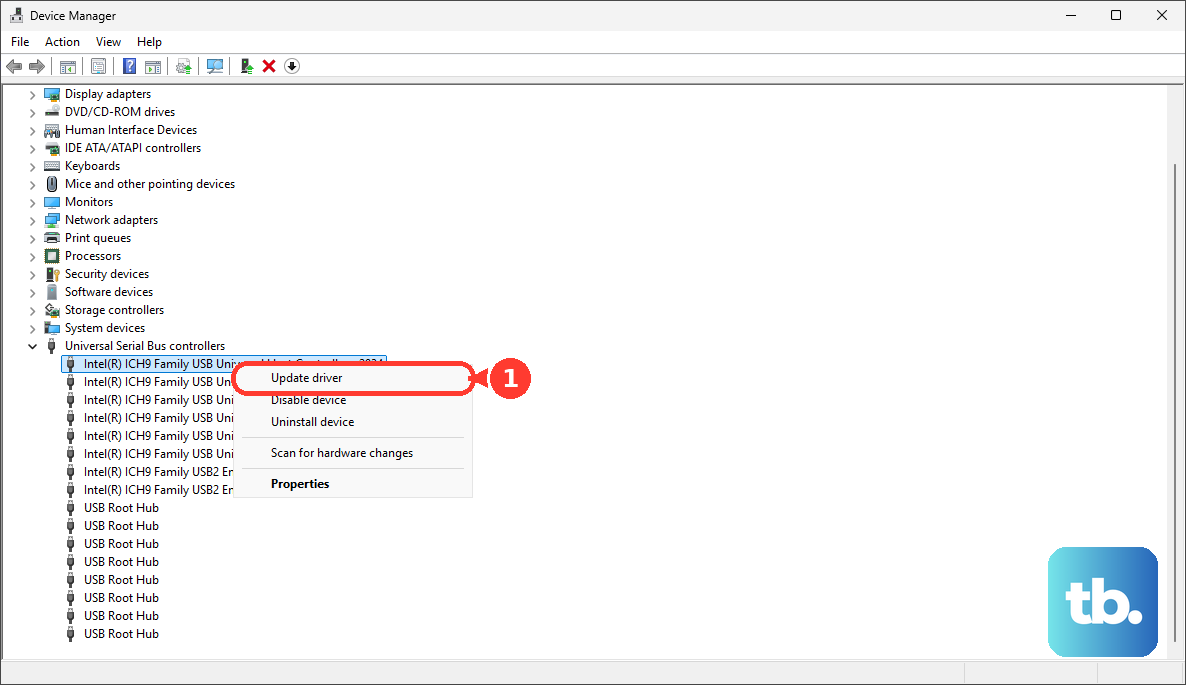
When the manufacturer provides a driver package, download and extract the version matching your hardware, Windows version, and architecture. In Device Manager, right-click the device, select Update driver, then select Browse my computer for drivers. Select Browse..., choose the extracted folder, and select OK, Next, then Close.
For a USB keyboard, follow the same device-specific approach to update or reinstall keyboard drivers. If updating does not resolve Code 43, choose the next step based on whether the problem started after a recent driver change.
Roll back or reinstall the affected device
Rolling back replaces the current driver with an available previous driver; use it if the error began after a driver update. As an administrator, open Device Manager, right-click the device, and select Properties > Driver > Roll Back Driver. Choose the applicable reason, select Yes, and restart if requested. When a previous driver is unavailable, continue with reinstallation.
Uninstalling removes the affected device from Device Manager, and Windows attempts to reinstall its driver after a restart. Right-click that device in Device Manager, select Uninstall device, then select Uninstall. Restart Windows and check the device again.
Microsoft also recommends rescanning hardware after uninstalling a device with Code 43. In Device Manager, select Action > Scan for hardware changes. If the error remains, move to the power settings that apply to your computer.
Check power management and startup settings
On Windows 11 or Windows 10 hardware with a Power Management tab, open Device Manager > Universal Serial Bus controllers. Right-click USB Root Hub, select Properties, and open Power Management. Uncheck Allow the computer to turn off this device to save power, select OK, and repeat for other applicable hubs before restarting. If the tab is missing, skip this adjustment.
For a Dell PC with a power-related USB fault and the corresponding controls, open Control Panel > Hardware and Sound > Power Options > Change plan settings > Change advanced power settings. Expand USB settings > USB selective suspend setting. Set On battery and Plugged in to Disabled where present, select Apply > OK, and restart. Restore Enabled if this does not help; skip this method when the controls are absent.
For startup-related USB failures on Windows 11 or Windows 10, open Control Panel > Hardware and Sound > Power Options > Choose what the power buttons do. Select Change settings that are currently unavailable, uncheck Turn on fast startup (recommended), and select Save changes. Shut down the PC, turn it back on, and check the device again. Skip this method on systems that do not expose the setting.
Use troubleshooting for your computer model
On supported Dell Windows 11 computers with SupportAssist, open SupportAssist and run its scan for driver and BIOS updates. Install applicable offered updates and restart when requested. For a manual download, open Dell Drivers & Downloads and identify your exact product. Choose driver and BIOS packages matching your model and operating system.
On supported ASUS computers, open MyASUS and select System Update. Select applicable packages by their displayed names, choose Update selected items, and check Update History afterward. If your computer lacks that feature, use the ASUS Download Center for packages matching the exact computer or motherboard model and operating system.
For USB hardware diagnostics on a supported Dell computer, open SupportAssist > Support, then select I want to troubleshoot my PC. Next, select I want to check a specific piece of hardware and choose USB Ports. Complete the test and follow its repair result.
If disabled USB ports are the issue on an applicable Dell model, get to BIOS on Windows by restarting and repeatedly pressing F2. Find Integrated Devices > USB Configuration or USB Ports, then check Enable USB Ports; some models instead use Enable External USB ports. Save and exit using the model’s documented controls. Skip this method when disabled ports are not the issue.
Consider a Windows reset only as a last resort
ASUS recommends resetting Windows after other USB troubleshooting fails. Before choosing that step, use the result of the second-computer test: a peripheral that also fails there should go to its manufacturer for support or be replaced.
A Windows reset removes apps and settings even when you retain personal files, so back up your files and obtain any required BitLocker recovery key first. To reset Windows while keeping files on Windows 11, search for Reset this PC, select Open, then select Reset PC. On Windows 10, select Get started instead of Reset PC.
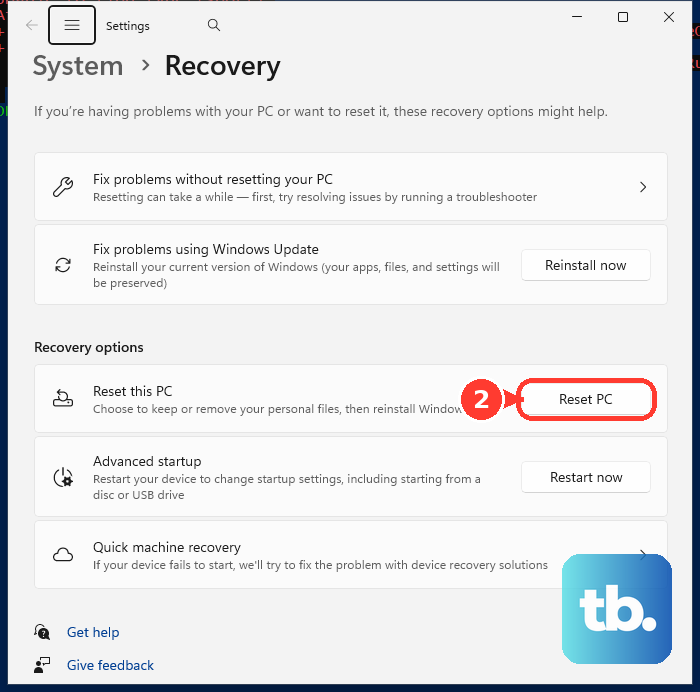
Select Keep my files, then choose Local reinstall or Cloud download. Review the settings and select Next. Select View apps that will be removed, review the list, select Back, then select Reset.
Frequently Asked Questions
How long should I leave a wireless USB receiver unplugged?
Wait about 10 seconds before reconnecting a wireless USB receiver. For a battery-powered mouse or keyboard, also check its batteries or charging.
Can a USB-C cable or adapter cause a connection problem?
On Windows 11, your port must support the protocol your peripheral requires. For USB4, use the manufacturer’s cable or a certified USB4 cable and connect directly or through a USB4 dock. Replace an unsupported analog USB-C audio adapter with a digital adapter.
Does Windows install optional driver updates automatically?
Windows 11 does not install optional drivers automatically. On Windows 11, open Settings > Windows Update > Advanced options and turn on Receive updates for other Microsoft products. Under Additional options, open Optional updates, select the applicable driver package by its displayed name, then select Download and install.
Should I uninstall all USB root hubs on an ASUS computer?
ASUS includes root-hub reinstallation in its Windows 11 and Windows 10 USB troubleshooting, but removing hubs can temporarily disconnect your USB input devices. Disconnect USB peripherals and open Device Manager > Universal Serial Bus controllers. Right-click each USB Root Hub, select Uninstall device, then select Uninstall. Restart Windows to reinstall the hubs.