


To fix two-finger scrolling on Windows 11, open Settings > Bluetooth & devices > Touchpad > Scroll & zoom, then check Drag two fingers to scroll. If the gesture is already enabled, restart, reset the touchpad settings and check for a compatible driver update. These steps use Windows 11 menus, and the available touchpad controls depend on your hardware and driver.
The short version
- Check the gesture: Enable Drag two fingers to scroll and make sure the touchpad itself is on.
- Try the basics: Clean the touchpad, save your work and restart with your fingers off the pad.
- Fix the driver: Install a compatible update, or roll back the driver when scrolling stopped after a driver change.
- Narrow the problem: Use application repairs only when scrolling works in other apps, and leave Windows recovery until last.
| Fix | When to use it |
|---|---|
| Enable two-finger scrolling | The scrolling gesture is switched off |
| Enable the touchpad | The touchpad is off or stops working with a mouse connected |
| Clean the touchpad | Your fingers or touchpad have moisture, grease or debris |
| Restart and allow calibration | Scrolling still fails with the gesture enabled |
| Disconnect peripherals and docks | A connected device may be interfering with a Dell touchpad |
| Reset touchpad settings | Your touchpad exposes the Windows reset control |
| Install optional driver updates | Windows Update offers a compatible driver |
| Ask IT to approve an update | An Intune driver policy controls updates on your PC |
| Update through Device Manager | The touchpad needs a driver update |
| Get ASUS driver packages | Your ASUS model has compatible downloads |
| Get Dell driver packages | Your Dell model has applicable downloads |
| Get Lenovo driver packages | Your Lenovo model has compatible downloads |
| Install a downloaded driver manually | You have the correct manufacturer driver |
| Roll back the driver | Scrolling stopped after a driver change |
| Reinstall the touchpad device | Updating the driver did not help |
| Check the ASUS touchpad lock | Your ASUS notebook offers the lock setting |
| Install updates through the ASUS app | Your ASUS computer supports its update feature |
| Enable ASUS touchpad-related devices | An applicable device is disabled in Device Manager |
| Check Surface updates | You use a compatible Surface device |
| Run Dell touchpad diagnostics | Your supported Dell laptop has SupportAssist |
| Check Firefox Troubleshoot Mode | Scrolling fails only in Firefox |
| Repair the affected application | Scrolling fails only in an app with a repair option |
| Reset Windows | Other relevant fixes have failed |
Turn on the touchpad and scrolling gesture
Press Windows + I to open Settings, then select Bluetooth & devices > Touchpad. On laptops exposing the switch, set Touchpad to On. Open Scroll & zoom, check Drag two fingers to scroll, and try scrolling again.
If you use an external mouse, expand Touchpad and check Leave touchpad on when a mouse is connected, if that option appears. If the touchpad page or scrolling control is missing, continue with the driver checks below. These controls depend on compatible hardware and drivers.
Clean the touchpad and restart
Remove moisture, grease and debris from your fingers and the touchpad. Dell recommends a soft microfiber cloth lightly dampened with water, without harsh cleaning chemicals. Try scrolling again after cleaning.
Save your work before you restart your Windows computer. Select Start > Power > Restart, then keep your fingers off the touchpad until startup finishes so calibration can complete. Test two-finger scrolling once Windows has started.
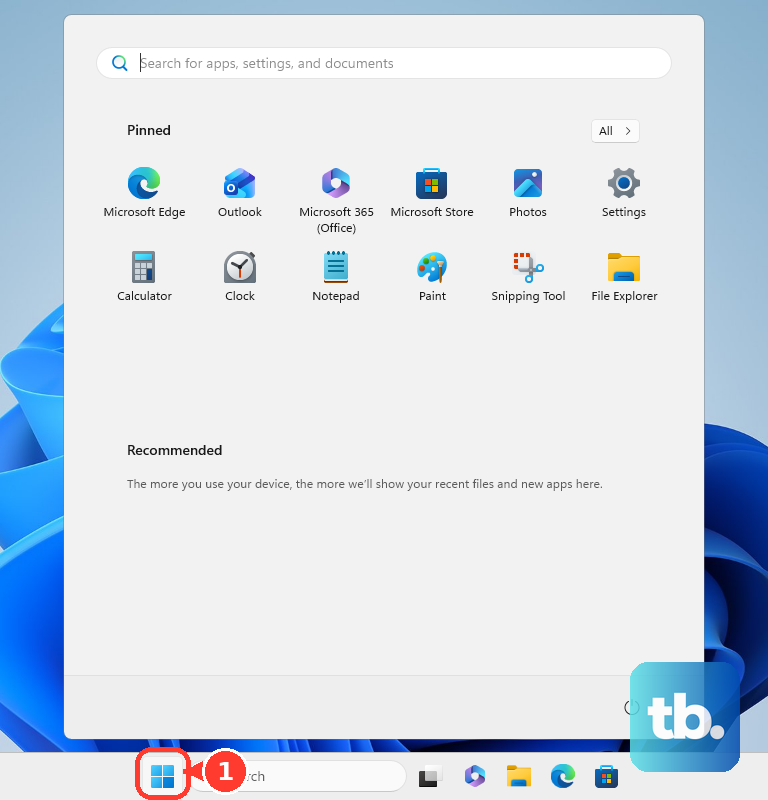
On a Dell laptop, check whether a connected device or dock is interfering. Shut down, disconnect peripherals and undock the laptop, leaving its power supply connected. Restart and test the touchpad, then reconnect devices individually to identify which connection brings the problem back.
Reset the touchpad settings
Resetting the touchpad returns its settings and gestures to their defaults. On touchpads exposing the Windows reset control, open Start > Settings > Bluetooth & devices > Touchpad, expand Touchpad, and select Reset. If Reset is disabled, change a touchpad setting first, then select it.
Return to Scroll & zoom and check Drag two fingers to scroll before testing again. If your touchpad does not expose the reset control, or resetting does not help, continue with its driver.
Update the touchpad driver
Open Start > Settings > Windows Update > Advanced options > Optional updates. When a compatible touchpad driver update is offered, select it and choose Download and install. Restart afterward, then test scrolling.
On a work or school PC managed through Microsoft Intune driver-update policies, optional drivers may be hidden and require approval before installation. Ask IT to review the policy and approve the applicable touchpad driver. On other PCs, continue with Device Manager if Windows Update does not offer a compatible update.
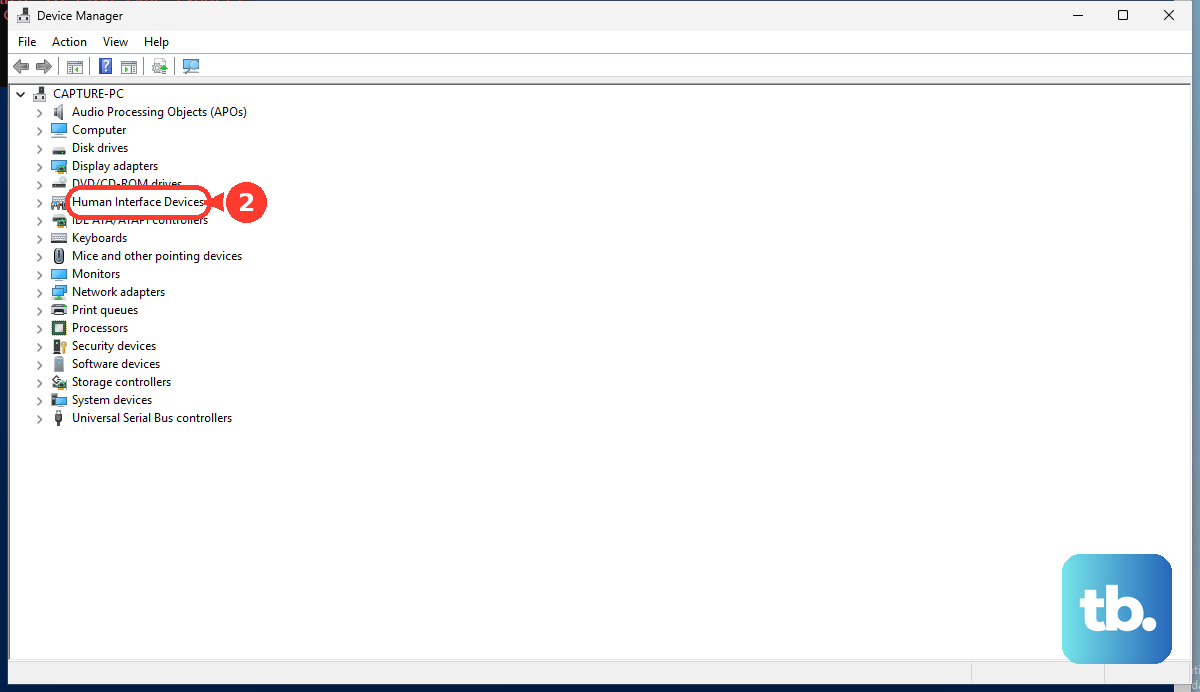
Right-click Start and select Device Manager. Look for the touchpad under Human Interface Devices or Mice and other pointing devices; if it is not in one category, check the other. Right-click the touchpad, select Update driver, and choose the automatic driver-search option.
If those checks do not help, obtain a driver from your laptop manufacturer that matches your laptop model, Windows version and processor architecture. For ASUS laptops, identify your exact model in the ASUS Download Center and use only its offered Windows 11 touchpad and applicable chipset or I2C packages. Intel-specific packages do not apply to AMD laptops.
For a Dell laptop, enter its Service Tag or model at Dell Drivers & Downloads, then select Search to find applicable driver and firmware packages. Some Dell Precision Touchpad models receive their drivers exclusively through Windows Update, so use that route for those models.
For a Lenovo laptop, identify your model on Lenovo Support and open Drivers & Software. Choose Select Drivers under Manual Update or Scan Now under Automatic Update to obtain compatible updates.
To install a downloaded driver manually, extract it first if necessary. In Device Manager, right-click the touchpad, select Update driver, then select Browse my computer for drivers. Select Browse..., choose the driver's folder, select OK, and select Next.
Roll back or reinstall the touchpad driver
When scrolling stopped after a driver change, rolling back replaces the current driver with its previous version. This requires administrator permissions and an available previous driver. In Device Manager, right-click the touchpad and select Properties > Driver > Roll Back Driver, choose the applicable reason, and select Yes. Restart if requested, then test scrolling again.
If a previous driver is not available, use the compatible manufacturer driver or continue with device reinstallation. Uninstalling removes the touchpad device, and Windows will attempt to reinstall its driver after a restart. To proceed, right-click the touchpad in Device Manager, select Uninstall device, and select Uninstall.
Restart Windows, then test the gesture. If automatic reinstallation fails, install the manufacturer's compatible driver using the model-matching download and manual installation steps above.
Check controls specific to your laptop
On an ASUS notebook offering the touchpad lock setting, open MyASUS > Device Settings > Input Device Settings > Touchpad, then select Unlock. For updates on supported ASUS computers, open MyASUS > System Update. Choose applicable driver or firmware packages, select Update selected items, and follow their restart instructions.
On ASUS models containing the relevant devices, open Device Manager and expand Human Interface Devices. Right-click the disabled ASUS Precision Touchpad or Microsoft Input Configuration Device and select Enable device. On applicable Intel models, also check System devices > Intel(R) Serial IO I2C Host Controller and select Enable device if it is disabled. This Intel step does not apply to AMD models.
For a compatible Surface running Windows 11, open Surface > Help & support > Check for updates. Install applicable Windows Update offerings, then test the touchpad again.
On a supported Dell laptop with SupportAssist, open the app, select its three-bar menu, and select Support. Under Test my hardware, select Get started, find HID-compliant touch pad, and select Run Test > Start. Complete the test and select Done or Fail to match the result.
Fix scrolling that fails in one app
When scrolling works in other applications, focus on the affected app. For Firefox, close the browser, hold Shift while launching it, and select Open to test in Troubleshoot Mode. If scrolling works there, investigate extensions, themes and hardware acceleration individually.
For a Windows app providing a repair option, open Start > Settings > Apps > Installed apps. Select the affected app's More menu, choose Advanced options, and select Repair. This repairs the affected application rather than changing the touchpad driver.
For a desktop program, open Control Panel > Programs > Programs and Features. Right-click the program and select Repair or Change. These routes apply to programs that provide a repair option.
Leave a Windows reset until last
After the relevant settings, driver and model-specific fixes have failed, you can consider using Windows recovery options. ASUS includes resetting Windows late in its touchpad troubleshooting sequence, so treat it as a last resort.
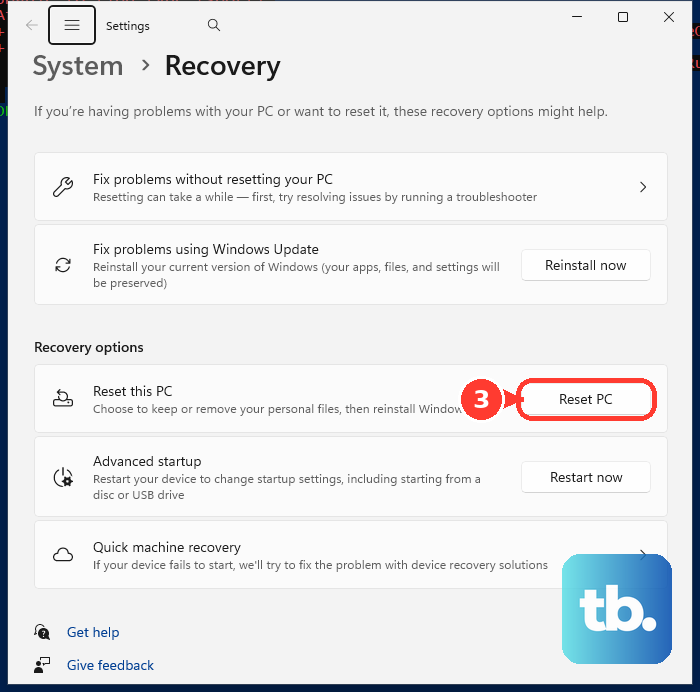
Resetting Windows removes installed applications and resets settings even when personal files are retained, so back up your files and retain your BitLocker recovery key if applicable. To reset Windows while keeping personal files, search for Reset this PC and open it, select Reset PC, then select Keep my files and choose Local reinstall. Review Change settings, then select Confirm > Next.
Select View apps that will be removed and review the list before proceeding. Select Back, then select Reset when you are ready to start.
Frequently Asked Questions
Why does scrolling work only after I click a window?
Windows 11 has a separate setting for scrolling over inactive windows, which Microsoft documents in its mouse settings. Open Start > Settings > Bluetooth & devices > Mouse and turn on Scroll inactive windows when hovering over them, then test with the pointer over the intended window. Microsoft's page describes this setting for the mouse and does not say that it changes touchpad gestures, so it will not turn on a disabled two-finger scrolling gesture.
Can a keyboard shortcut turn the touchpad back on?
On ASUS Windows 11 notebooks with a touchpad hotkey, press the touchpad icon key, together with Fn if the keyboard's hotkey mode requires it. ASUS commonly uses F6 or F9, but check your model's manual for the correct key.
Can I enable an HP touchpad by tapping its corner?
On HP models supporting the corner gesture, double-tap the touchpad's upper-left corner to toggle it back on. If your model does not support that gesture, use the Windows touchpad switch if your laptop exposes it.
What should I check on a Surface with a detachable keyboard?
For a Surface Pro or Surface Go with a supported attached keyboard or Type Cover, unplug the Surface and detach the keyboard. Inspect the connector for debris or damage, then reattach the keyboard so the magnetic connector seats fully. These steps concern the attached connection; Surface Pro Flex Keyboard wireless troubleshooting is separate.
What if two-finger scrolling works but is too slow?
Precision touchpads with the controls introduced in Windows 11 24H2 and 25H2 update KB5101684 or subsequent updates can offer scroll-speed and Accelerated scrolling controls. Open Settings > Bluetooth & devices > Touchpad and adjust the available controls for excessively slow scrolling or unexpected acceleration. Availability varies with rollout, and these adjustments do not repair a missing driver.