Windows recovery options are for the moments when your PC will not start normally, keeps crashing, or needs more than a restart. Windows 11 gives you repair tools, reset options, update removal, backup restore, and full reinstall paths. Start with the lighter fixes first, then move to reset or reinstall when Windows needs a deeper repair.
Open Windows Recovery From Settings
This gets you into Windows Recovery Environment when Windows still opens. Open Start.
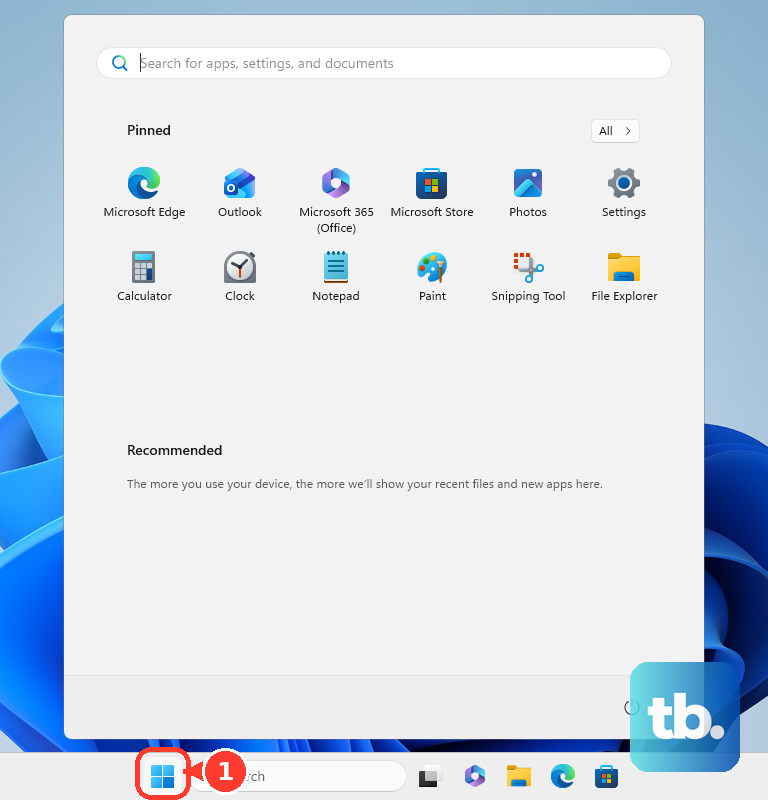
Select Settings, go to System, and choose Recovery. Under Recovery options, find Advanced startup, then select Restart now. After the PC restarts, choose Troubleshoot.
You can also hold Shift while selecting Power, then Restart. This works from Windows and from the sign-in screen.
Let Windows Open Recovery Automatically
Windows Recovery Environment can open on its own after repeated startup trouble. That includes two failed Windows starts, two unexpected shutdowns soon after startup, certain Secure Boot errors, or a BitLocker error on touch-only devices.
When the recovery screen appears, select Troubleshoot. From there, use Startup Repair, Uninstall Updates, System Restore, Reset this PC, or any other recovery tool shown for your device.
If this method fails, start the PC from Windows installation media or a recovery drive and open the repair tools from there.
Run Startup Repair First
Use Startup Repair when Windows reaches boot errors, repair loops, or a blank startup path.
- 1.Open Windows Recovery Environment.
- 2.Select Troubleshoot.
- 3.Choose Advanced options.
- 4.Select Startup Repair.
- 5.Select Restart and let Windows attempt the repair.
Remove a Bad Windows Update
A recent update is the most common cause when the PC worked before but now crashes, freezes, or fails to boot.
If Windows still opens, go to Start, then Settings, then Windows Update. Open Update history, then under Related settings, select Uninstall updates. Choose the update and select Uninstall.
If Windows will not start, enter Windows Recovery Environment and select Troubleshoot. Open Advanced options, choose Uninstall Updates, then select Uninstall latest quality update or Uninstall latest feature update.
Some updates cannot be removed. When that option is blocked, move to System Restore, Reset this PC, or a repair reinstall.
Restore Windows to an Earlier State
System Restore can roll Windows system files and settings back when restore points already exist. From Windows, open Control Panel, choose Recovery, then select Open System Restore. Pick a restore point, select Scan for affected programs if you want to see what will change, then select Next and Finish.
From Windows Recovery Environment, choose Troubleshoot, then Advanced options, then System Restore. Select a restore point, continue through the prompts, and restart when Windows finishes.
Windows 11 also includes Point-in-time restore. Go to Settings, then System, then Recovery, then Point-in-time restore, choose View or edit, approve User Account Control with Yes, and turn the toggle On. Restore points for this feature are short term, up to 72 hours.
Point-in-time restore needs a current Windows 11 build, version 24H2 build 26100.8737, version 25H2 build 26200.8737, or later, so the option may not appear on every PC yet. Only local administrators can view or edit its configuration. It is on by default on personal devices that an organization does not manage, and off by default on organization-managed devices until Windows 11, version 26H2.
If this method fails, use Reset this PC for a broader Windows repair.
Back Up Before Resetting or Reinstalling
This protects files, app pins, and Windows settings before a reset, reinstall, or new PC setup. Windows Backup is focused on consumer devices signed in with a personal Microsoft account, such as an outlook.com or live.com address. Work or school Microsoft accounts will not work with it.
Folder backup syncs the folders you pick to OneDrive, so it is bounded by your OneDrive storage, and a free Microsoft account includes 5 GB. Personalization preferences are skipped when OneDrive storage runs short, so keep a separate backup for anything outside the folders you turn on.
Open Start, type backup, and select Windows Backup. Expand Folders and turn on the folders you want backed up, including Desktop, Documents, Pictures, Videos, and Music.
Expand settings categories such as Installed apps, Accessibility, Accounts, Wi-Fi, network passwords, Personalization, Language preferences and dictionary, and Other Windows settings. Select the items you want, then choose Back up.
For OneDrive folder backup, select the OneDrive cloud icon in the notification area. Open Help & Settings, then Settings, then Sync and backup, then Manage backup. Turn on folders marked Not backed up, then select Save changes.
Reset This PC for a Fresh Start
Windows that still runs badly after repair attempts is the most common reason to use Reset this PC. Open Start, then select Settings. Go to System, then choose Recovery.
Under Recovery options, select Reset PC. Choose Keep my files to preserve personal files, or choose Remove everything for a cleaner reset. Choose Cloud download or Local reinstall, then follow the on-screen instructions.
If Windows will not open, enter Windows Recovery Environment, select Troubleshoot, then choose Reset this PC. BitLocker-encrypted devices may ask for the BitLocker recovery key.
Reinstall or Repair Windows From USB
Use USB installation media when the PC cannot reach its internal recovery tools, or when you need a repair install, clean install, or external repair menu.
On a working PC, open Microsoft’s Windows 11 download page and use Create Windows 11 Installation Media. Run MediaCreationTool.exe and follow the prompts to create a USB drive, DVD, or ISO.
Connect the installation media to the broken PC and start it from the USB or DVD. The boot menu key depends on the PC maker.
To reach recovery tools, choose your language and preferences on the first setup screen, select Next, then choose Repair my PC and Next.
If Windows can still start normally, run setup from the installation media. Choose Keep personal files and apps, Keep personal files only, or Keep nothing, then select Install.
For a clean install, boot from the installation media, select language and keyboard settings, choose Install Windows 11, agree that files, apps, and settings will be deleted, then continue through setup.
Find Your BitLocker Recovery Key
This applies when Windows recovery asks for a BitLocker recovery key before it unlocks the drive. That can happen during recovery actions on encrypted PCs.
On another device, open Microsoft’s personal BitLocker recovery key page at aka.ms/myrecoverykey. Sign in with the Microsoft account used on the PC, match the key ID shown on the locked PC, and enter the related recovery key.
For a work or school device, open aka.ms/aadrecoverykey and sign in with the work or school account. Open Devices, expand the device, then select View BitLocker Keys. Match the key ID and use the matching key. If the device is managed, contact IT when a recovery option or key is blocked.
Frequently Asked Questions
What is Windows Recovery Environment?
Windows Recovery Environment is the repair menu Windows uses for Startup Repair, Reset this PC, System Restore, uninstalling updates, Startup Settings, Command Prompt, and recovery from external media.
Will Reset this PC delete my files?
Choose Keep my files to preserve personal files. Choose Remove everything when you want the cleaner reset path that removes more from the PC.
Can I use Windows recovery without a USB drive?
Yes. Open recovery from Settings, use Shift while selecting Restart, or let Windows enter recovery automatically after repeated startup failures. Use USB when the internal recovery tools are not reachable.
What should I do before reinstalling Windows?
Run Windows Backup, turn on the folders and settings you want saved, and use OneDrive folder backup for important folders before you reset or reinstall.