


To fix “There was a problem connecting to OneDrive,” check your internet connection and account sign-in, restart OneDrive, then unlink and reconnect your account or reset the app if needed. Start with browser access to help distinguish an account problem from a desktop app problem. Use the Windows or Mac steps that match your computer.
The short version
- Check access: Test browser sign-in and check for a Microsoft service incident before changing the installation.
- Start small: Restart OneDrive and repair a faulty internet connection.
- Reconnect: Unlink and reconnect your account if the desktop app still cannot sign in.
- Reset later: A Windows desktop reset disconnects sync connections and starts a full synchronization while keeping cloud files.
| Fix | When to use it | Action |
|---|---|---|
| Check service health | Before changing the installation | Check for an incident affecting OneDrive |
| Test browser sign-in | You need to check account access | Sign in to OneDrive and the appropriate account service |
| Check the connected account | Credentials fail or the wrong account appears | Review the account in OneDrive |
| Restart OneDrive | The desktop app will not connect | Close and reopen it |
| Finish setup | The Windows cloud icon is missing | Launch OneDrive and sign in |
| Resume syncing | The cloud icon shows a pause | Select Resume syncing |
| Pause and resume | Processing changes persists | Pause synchronization, then resume it |
| Restore Wi-Fi | The underlying connection is faulty | Check Wi-Fi and airplane mode controls |
| Check network equipment | The router, modem, or cable may be involved | Restart equipment or test another connection |
| Run network diagnostics | Windows still cannot connect | Use Get Help |
| Restart Windows | Connectivity troubleshooting requires a restart | Save your work and restart |
| Update OneDrive | You need the current sync application | Install the release for your platform |
| Update Windows | System updates are available | Check Windows Update |
| Reconnect your account | Desktop sign-in still fails | Unlink, then sign in again |
| Clear sign-in information | Credential problems persist | Remove the specified configuration or cached credential |
| Reset desktop OneDrive | Earlier app repairs fail | Use the Windows command or Mac reset script |
| Reinstall OneDrive | The desktop application still fails | Remove and reinstall the sync app |
| Correct network filtering | A firewall, VPN, or proxy blocks access | Have the provider or administrator correct the configuration |
| Run Microsoft 365 diagnostics | Windows work or school authentication fails | Run the matching Get Help diagnostic |
| Use guided troubleshooting | The connection error remains | Choose your device or status icon in Microsoft’s troubleshooter |
Check service health and account access
Open Microsoft’s page titled “Fixes or workarounds for recent issues in OneDrive” and follow the Service Health portal link. If Microsoft reports an incident affecting OneDrive, wait for service recovery before changing your installation.
For a personal account, sign in at OneDrive, then test the Microsoft account dashboard. If account sign-in fails there too, resolve the account problem through Microsoft Support before resetting the desktop app. For a work or school account, test your credentials in Microsoft 365 separately from your personal Microsoft credentials.
Start sign-in only from Microsoft’s own OneDrive or Microsoft 365 app or website; a work or school account can redirect you to your organization’s own sign-in page. Never share a code, password, or remote access with someone who contacts you. Successful browser access helps distinguish a desktop problem from a service problem and lets you use OneDrive to access files.
Check that the desktop app displays the account you intend to use. On Windows 11 or Windows 10 22H2, select the OneDrive cloud and open Help & Settings > Settings > Account. On Mac, select the cloud, open its menu, and select Preferences > Account, then check the displayed account.
Restart OneDrive and resume syncing
Select the OneDrive cloud in the Windows taskbar or Mac menu bar, then choose Help & Settings > Close OneDrive. Reopen OneDrive from Start on Windows or Applications on Mac. Check whether the connection error returns.
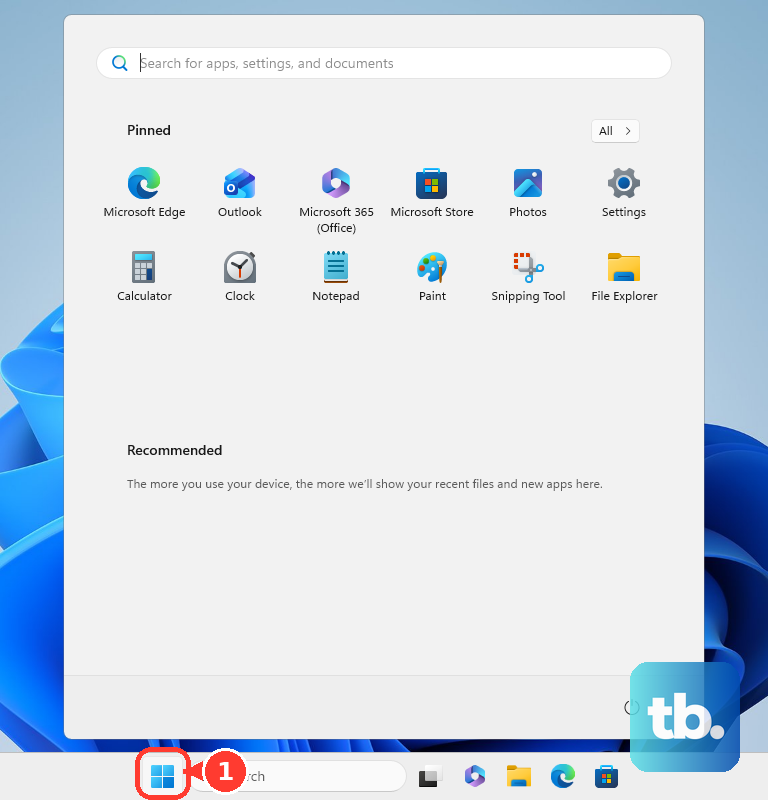
If the cloud icon is missing on Windows, start OneDrive and finish its account setup. Open Start, search for OneDrive, and launch it. Enter your account email address and select Sign in.
For a paused cloud icon, select it and choose Resume syncing. If OneDrive remains on Processing changes, right-click the OneDrive cloud (Control-click it on Mac) and choose to pause for 2, 8, or 24 hours. Then select the paused cloud and choose Resume syncing. Resuming a paused sync does not repair an authentication failure, so continue if the sign-in error remains.
Restore a working internet connection
When the underlying connection is faulty, turn on the computer’s physical Wi-Fi switch if it has one. On Windows 11, open Settings > Network & internet, turn on Wi-Fi, and turn off Airplane mode. Connect to a working network.
On Windows 10 22H2, open Settings > Network & internet. Turn on Wi-Fi, turn off Airplane mode, and connect to a working network.
For a router or modem connection problem, disconnect their power for at least 30 seconds. Restore modem power first, followed by router power. You can also test another Wi-Fi band, another device, or a different Ethernet cable to narrow down the network fault.
On Windows 11, open Get Help and search for connect to network and internet. Select Run network diagnostics and follow the results. If you need to restart Windows, save your work first, then select Start > Power > Restart.
Update OneDrive and Windows
Install the current OneDrive release from Microsoft’s official OneDrive download page. Choose your platform and obtain the sync application for desktop synchronization. Open OneDrive afterward and check whether it connects.
On Windows 11, open Start > Settings > Windows Update, then select Check for updates. Install available updates and restart when required, saving your work before restarting.
On Windows 10, open Settings > Update & Security > Windows Update. Check for available updates; availability depends on the computer’s servicing entitlement.
Unlink and reconnect your account
Unlinking disconnects your OneDrive account from the computer. You can also use unlinking to turn off OneDrive syncing, but reconnect afterward when using it as a repair.
On Windows 11 or Windows 10 22H2, select the OneDrive cloud and open Help & Settings > Settings > Account. Select Unlink this PC, then select Unlink account. Reopen OneDrive, sign in, and select Use this folder.
On Mac, select the menu-bar cloud, open its menu, and select Preferences > Account. Unlinking disconnects the account from your Mac. Select Unlink this Mac, sign in again, and select Use this folder. If the sign-in problem remains, continue with the credential cleanup for your platform.
Clear stale OneDrive sign-in information
On Windows, unlink the account before clearing its pre-sign-in configuration. Press Windows + R, enter the following path, and select OK.
%localappdata%\Microsoft\OneDrive\settingsDeleting PreSignInSettingsConfig.json removes OneDrive’s pre-sign-in configuration. Delete PreSignInSettingsConfig.json from that folder. Start OneDrive and sign in again.
On Mac, use this cleanup for stale credentials or an already-syncing-account message. Open Keychain Access using Spotlight and search for OneDrive. Deleting OneDrive Cached Credential removes that cached OneDrive credential. Delete OneDrive Cached Credential, then reopen OneDrive for a stale credential.
If the message is “You’re already syncing this account,” also open /Users/<username>/Library/Group Containers/ after deleting the credential. Delete UBF8T346G9.OneDriveSyncClientSuite.plist and UBF8T346G9.OfficeOneDriveSyncIntegration.plist, then restart OneDrive.
Reset the desktop sync app
A Windows desktop OneDrive reset disconnects sync connections and initiates a full synchronization; files stored in the cloud remain. Press Windows + R, enter this command, and select OK.
%localappdata%\Microsoft\OneDrive\onedrive.exe /resetIf Windows cannot find that location, try the following command in the same Run window. It targets an alternative installation location for the desktop sync app.
C:\Program Files\Microsoft OneDrive\onedrive.exe /resetIf Windows cannot find that location either, try the next command. Use it in the Run window and select OK.
C:\Program Files (x86)\Microsoft OneDrive\onedrive.exe /resetAfter the reset, open Start, search for OneDrive, and launch it again. These commands reset the desktop sync application; the OneDrive Microsoft Store viewer has a separate reset procedure.
On Mac, quit OneDrive, then open Applications. Hold Control and click OneDrive, select Show Package Contents, then open Contents > Resources.
Resetting OneDrive on Mac requires you to configure the app again. Run ResetOneDriveApp.command, or ResetOneDriveAppStandalone.command for the standalone edition. Reopen OneDrive and complete its configuration.
Reinstall the desktop application
Uninstalling the Windows sync app removes the application while cloud files remain available; take care with unsynchronized local changes. On Windows 11, open Start > Settings > Apps > Installed apps. Find Microsoft OneDrive, open More, and select Uninstall.
On Windows 10, open Settings > Apps > Apps & features to remove OneDrive. Alternatively, right-click OneDrive in Start and select Uninstall, or open Control Panel > Programs > Programs and Features, select Microsoft OneDrive, and choose Uninstall. Reinstall the sync app from Microsoft’s download page linked above, then sign in.
Removing OneDrive on Mac removes the application. Drag the OneDrive application to Trash, download its replacement from Microsoft’s OneDrive download page, and install it. Sign in again and check whether the connection succeeds.
Resolve filtering and persistent sign-in errors
If a firewall, VPN, or network filter blocks OneDrive, ask your network administrator or security-product provider to allow the destinations in Microsoft’s “Required URLs and ports” table over outbound TCP ports 80 and 443. Work or school accounts need the separate Microsoft 365 endpoint rules linked from that page. OneDrive does not support authenticated proxies, so have IT check the proxy configuration for errors 0x80048823, 0x8004de42, or 0x8004de44.
For Windows Microsoft 365 authentication problems, especially with a work or school account, open Get Help and search for sign in to Microsoft Office. Follow the diagnostic steps. For a Microsoft 365 connectivity problem, search in Get Help for Microsoft 365 network connectivity test and follow its results.
For guided OneDrive troubleshooting, open Microsoft’s “Fix OneDrive sync problems” page. Choose the matching device or status icon, or select Start troubleshooter.
If the problem continues, open Microsoft’s “OneDrive system requirements” page and select Contact Microsoft Support. Describe the problem, then select Get Help. For a work or school account, contact your IT helpdesk.
Frequently Asked Questions
What should you try if sign-in fails only through a shared link?
Sign in at onedrive.com first. Then reopen the shared file or folder link.
Should you enable TLS 1.0 or TLS 1.1 to fix OneDrive?
No, Microsoft 365 has disabled TLS 1.0 and TLS 1.1. Use software supporting TLS 1.2 or later instead of following older instructions to enable those protocols.
Does a frozen OneDrive account need a connection reset?
A frozen-account or storage-quota message needs storage troubleshooting. Open Microsoft’s frozen-account page, select Manage your OneDrive storage, and sign in to the affected account to review its storage.
How can you contact OneDrive support from a phone?
Open the OneDrive app and gently shake the device to access support. Support availability depends on your account and organization policy.
Should you install Support and Recovery Assistant for this error?
Use the relevant Get Help troubleshooter instead. Instructions to install the standalone Microsoft Support and Recovery Assistant are deprecated.
How do you reset the OneDrive Microsoft Store viewer?
This resets the installed OneDrive Store viewer. Open Start, search for apps:onedrive, select App settings, then select Reset.
Why do Microsoft’s OneDrive reset instructions include wsreset.exe?
The command resets Microsoft Store state and is a supplementary Store troubleshooting step. Microsoft lists it before the desktop OneDrive reset. To reset Store state, press Windows + R, enter wsreset.exe, and select OK.