

To fix The Sims 4 not responding on Mac, quit and relaunch the game, repair it through the EA app, then test without mods if it still freezes. If freezing began after a game update, give the mod checks particular attention. The settings paths below use the current macOS System Settings interface.
The short version
- Restart the game: Try quitting normally before using Force Quit, which can lose unsaved progress.
- Repair the installation: Open the game tile’s three-dot menu in the EA app and select Repair.
- Check your mods: Test without third-party files, but do not save an existing household while its required custom content is absent.
- Protect your saves: Keep a backup of your Sims 4 user folder before resetting settings, changing packs, or reinstalling.
| Fix or check | When it applies |
|---|---|
| Quit and relaunch | The game stops responding |
| Force Quit | Normal quitting fails |
| Activity Monitor | A game, launcher, or competing application needs closing |
| Restart the Mac | The frozen application cannot be closed |
| Repair the game | The installation repeatedly fails to load |
| Clear the EA app cache | Loading, downloads, or updates stall |
| Update the EA app | The launcher needs its automatic update |
| Enable game updates | Game updates are pending |
| Get current Memory Boost | The game needs the implementation included in updates |
| Update macOS | A compatible system update is offered |
| Check hardware and storage | Compatibility or installation space is uncertain |
| Laptop Mode | The game opens on hardware near minimum requirements |
| Isolate mods | A modded game freezes, especially after updates |
| Disable the startup mod list | The installed-mods popup slows startup |
| Test fresh user data | Existing personal data may be involved |
| Remove the local thumbnail cache | You have removed an offending mod |
| Reset configuration files | Graphics settings or custom overrides cause trouble |
| Recover a manual save | One save fails but the main menu works |
| Deactivate unused packs | You want to free resources without uninstalling packs |
| Clear Marketplace images | Marketplace images fail while the game still responds |
| Restore Documents access | Launch fails or an already-running error appears |
| Give the game Full Disk Access | Normal Documents permission cannot be enabled |
| Give the EA app Full Disk Access | The launcher has loading or installation problems |
| Keep iCloud data downloaded | Your user data is stored in iCloud Documents |
| Stop Desktop and Documents syncing | Cloud-only user data prevents access |
| Reconnect an external user-data drive | You previously moved your user folder externally |
| Check external-drive format | The game or launcher is installed externally |
| Correct file permissions | Your account lacks write access |
| Test another Mac account | The problem may be specific to your account |
| Use safe mode | You need to investigate startup-software conflicts |
| Check login items | Software opening at login may conflict |
| Check EA service status | Sign-in, activation, or online launching fails |
| Try offline mode | The installation previously launched online |
| Reinstall The Sims 4 | Repair and fresh-folder checks fail |
| Remove individual DLC folders | You need to remove installed pack files |
| Reinstall the EA app | The launcher itself remains faulty |
| Download the EA app installer | You are reinstalling the Mac launcher |
| Download The Sims 4 | You are reinstalling the Mac game |
| Reset a stuck Sim | One character is stuck while the application responds |
Quit the game and restart if necessary
With The Sims 4 active, press Command + Q, then reopen it through the EA app. If the game will not close normally, you can force quit a frozen Mac app.
Force quitting can lose unsaved progress. Press Option + Command + Esc, select The Sims 4, and click Force Quit, then relaunch the game. Alternatively, open Apple menu > Force Quit; the same method applies if the EA app freezes.
Open Activity Monitor to close a frozen game or launcher process, or quit unnecessary applications before retrying. Select the application under Process Name, click Stop, and select Quit. Forcing an application to stop can lose unsaved progress. If normal quitting fails, select Force Quit.
If the application still cannot be closed, choose Apple menu > Restart. If restarting fails, you can restart a computer that is unresponsive using its power button.
A forced shutdown can lose unsaved work. Hold the Mac’s power button for up to 10 seconds until it shuts down, then press and release it to start the Mac. On a Mac laptop with Touch ID, use the Touch ID button.
Repair the game and clear launcher problems
Close The Sims 4 and open Library in the EA app. Open the three-dot menu on The Sims 4 tile and select Repair. Wait for repair to finish before launching again.
If the EA app stalls while downloading, updating, or preparing the game, clearing its cache removes the launcher’s cached data. With the EA app active, choose Help > App Recovery from the macOS menu bar, then select Clear Cache. If EALaunchHelper requests authentication, enter your Mac login password.
For sign-in, activation, or online-launch failures, open EA’s Server status page in your browser and check EA app. If an outage is listed, wait for service recovery before repeating launcher repairs. This check does not diagnose an offline simulation freeze.
The EA app has replaced Origin on Mac, so use its repair and cache recovery controls instead of old Origin instructions. If repair does not help, continue with updates and the mod checks.
Update the game and your Mac
Exit the EA app completely, reopen it, and sign in so its automatic update can run. For game updates, choose EA app > Settings > Download in the macOS menu bar. Under Updates, turn on Update games automatically and let pending updates finish before testing. To allow downloads while the launcher is closed, also turn on Enable background downloads.
Updating also gives you the current Memory Boost implementation. EA says it is enabled across platforms in Mac game version 1.126.58.1230 and later to improve responsiveness and reduce memory-related crashes.
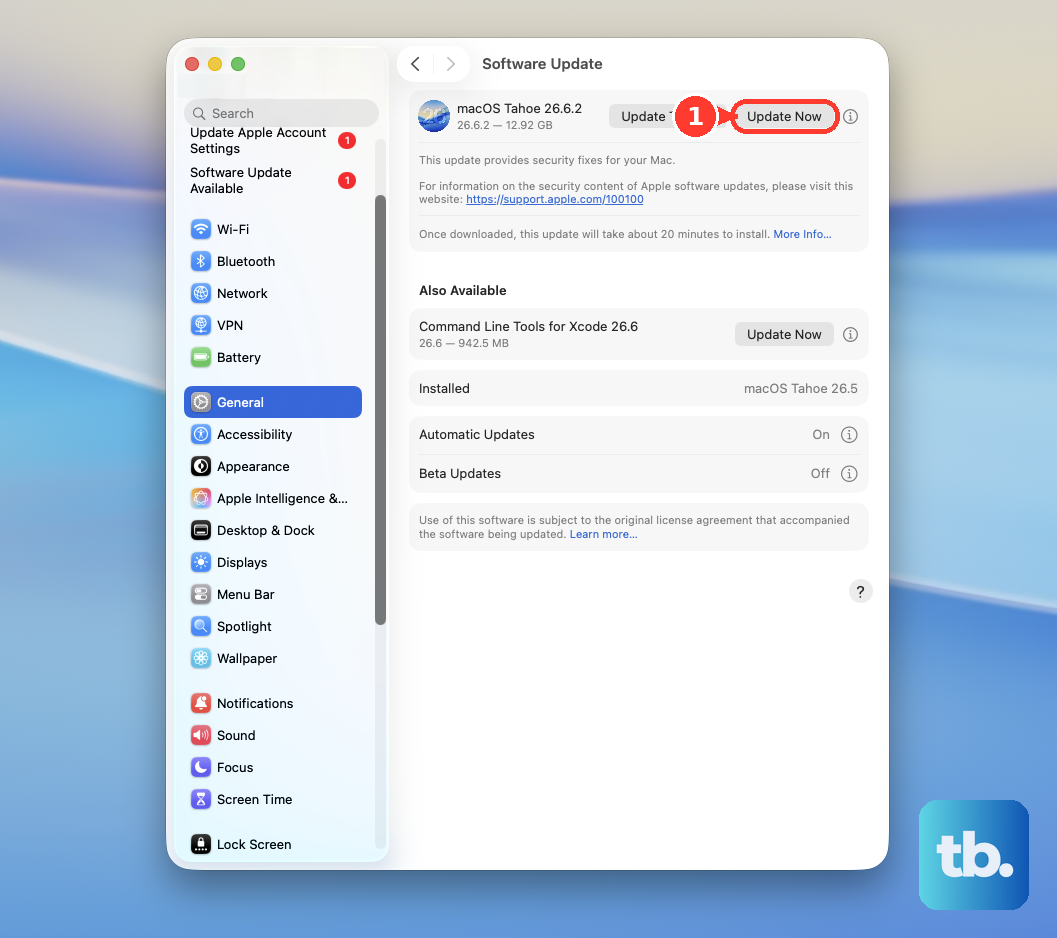
Choose Apple menu > System Settings > General > Software Update, then install the compatible update offered for your Mac. Alternatively, search for Software Update through Spotlight or the Siri AI menu-bar surface and open the result.
Test without mods and custom content
Do not save an existing household while its required custom content is absent. Close the game, move third-party files out of Documents > Electronic Arts > The Sims 4 > Mods, and launch the game to test without them.
If the game works, restore compatible files in batches and test between batches. When a batch brings the problem back, split that batch in half and test again, repeating until you identify the offending file. Get an updated version from its creator or leave it out of the Mods folder.
Removing localthumbcache.package deletes the game’s local thumbnail cache file. After removing an offending mod, close the game and remove that file from Documents > Electronic Arts > The Sims 4, then relaunch and test.
Try a fresh user folder or reset settings
A fresh user folder starts without your existing personal data, so keep the original folder as your backup. Close the game and, in Finder, open Documents > Electronic Arts. Rename the The Sims 4 folder to The Sims 4 OLD.
Launch the game so it generates fresh data, then test a new household. If that works, restore saves and other personal data from the original folder in small batches, testing between batches. Keep the original folder as your backup while you work through those checks.
If the problem involves graphics or interface settings, try a configuration reset. Removing Options.ini resets those settings, so close the game and back up its user folder first. Remove Options.ini from Documents > Electronic Arts > The Sims 4.
Removing custom graphics overrides returns the game to its own graphics files, so keep that user-folder backup before proceeding. If you installed custom graphics overrides, remove ConfigOverride or its contents while the game is closed. Relaunch to check whether the configuration change helps.
Check access to your game folders
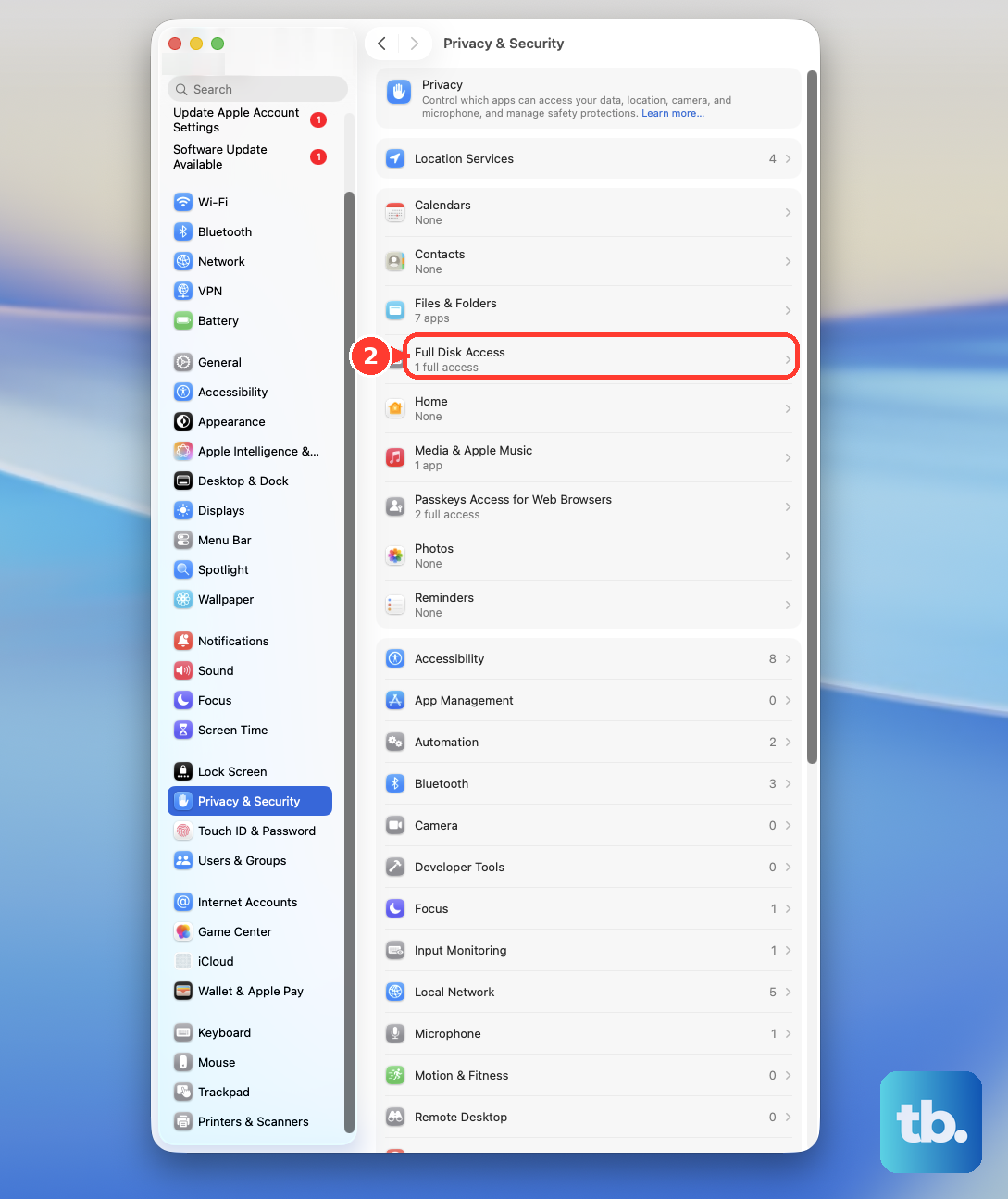
For failed launches or misleading already-running errors, open System Settings > Privacy & Security > Files & Folders. Expand The Sims 4 and enable Documents Folder. Use an administrator account if required.
If that permission cannot be enabled, open System Settings > Privacy & Security > Full Disk Access. Click +, select The Sims 4 from its installation location, click Open, and turn on its switch. For launcher loading or installation problems, EA also recommends turning on EA app under Full Disk Access.
If your Sims data is in iCloud Drive’s Documents folder, keeping it downloaded locally may help with cloud-file access problems. In Finder, locate Electronic Arts > The Sims 4 inside that Documents folder. On Macs offering this control, hold Control and click the folder, choose Keep Downloaded, and let downloading finish before launching.
If cloud-only data remains a problem, you can stop syncing Desktop and Documents. Turning off this syncing leaves existing files in iCloud, so back up your Electronic Arts folder before switching. Open System Settings, select your name, then open iCloud > Drive, or iCloud Drive. Turn off Desktop & Documents Folders and click Done.
Copy the backed-up Electronic Arts folder into the new local Documents folder before resuming an existing game. Your existing files remain in iCloud after you turn off syncing.
If you previously moved the Sims user-data folder to an external drive, reconnect it and confirm it appears in Finder. Open System Settings > Privacy & Security > Files & Folders and enable Removable Volumes for The Sims 4.
For a game or launcher installed externally, hold Control and click the drive in Finder, then choose Get Info to check its format and write access. EA warns that macOS cannot write to an NTFS drive. Changing permissions does not add NTFS write support.
For a permission problem on a writable disk or folder, select it in Finder and choose File > Get Info. Expand Sharing & Permissions, unlock the settings, select your user, and set its privilege to Read & Write. An administrator may need to make this change.
Check hardware and reduce the graphics load
Open Apple menu > About This Mac to review your hardware and check how much RAM you have. EA lists Metal graphics, at least 4 GB of RAM, and 25 GB of available storage plus 1 GB for saves and custom content as minimum requirements. Repairing game files cannot make a non-Metal Mac compatible. If your Mac cannot meet the requirements, use compatible hardware.
If the game opens far enough to reach its options, open the in-game … menu > Game Options and check Laptop Mode. This is particularly relevant to laptops and hardware near the minimum requirements.
You can also deactivate unused packs to free resources without uninstalling them. Disabling packs can lose pack-dependent content from an existing save, so back up your saves and use a new save for testing. Disable mods first, open Marketplace, then open My Collection and choose Pack Selection. Clear the unlabeled checkbox at the top-left of each unwanted pack tile, select Confirm, and restart if requested.
Check for account and startup software conflicts
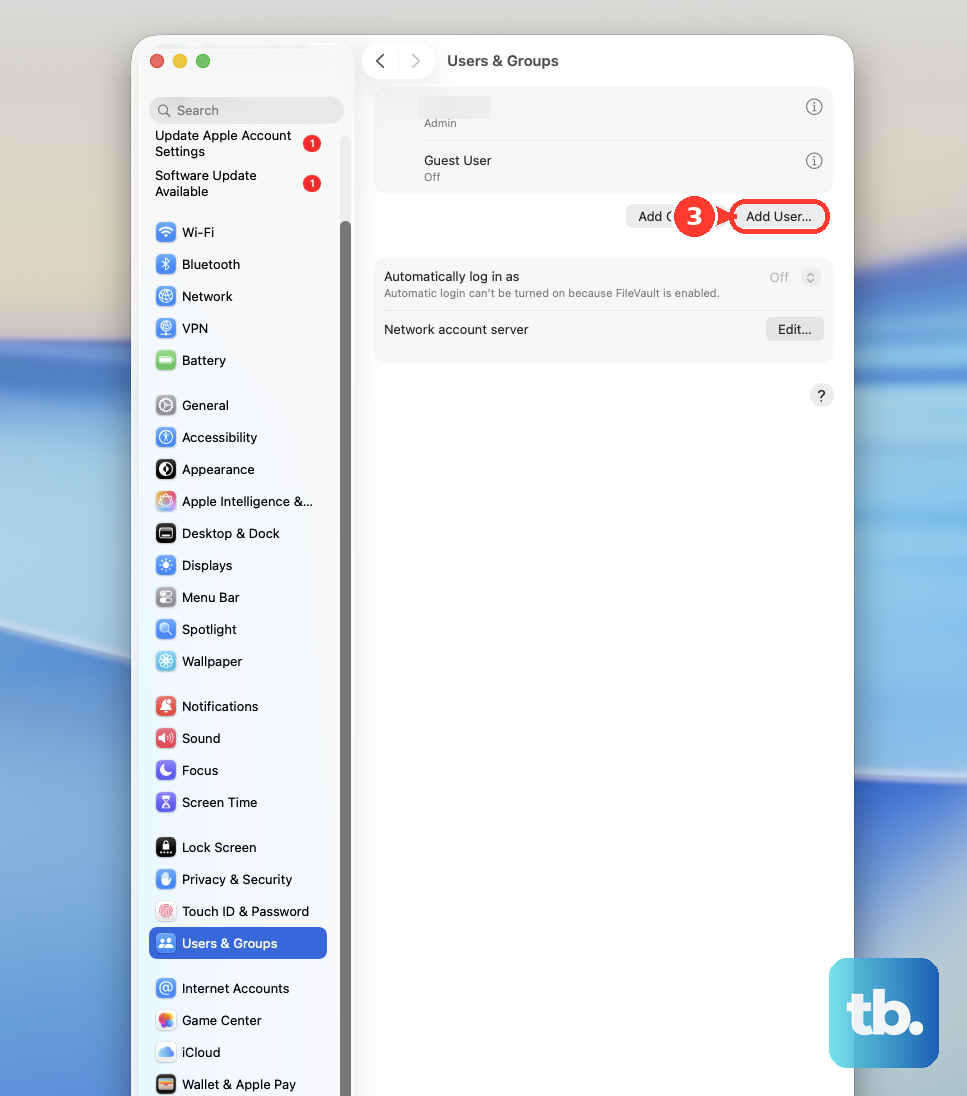
To check for account-specific data or permission problems, use an administrator account and open System Settings > Users & Groups > Add User. Choose Administrator, complete Full Name, Account Name, and the password fields, then click Create User. Log into that account and test the game.
Safe mode can help investigate startup-software conflicts. On Apple silicon, shut down, hold the power button until startup options appear, select the startup volume, hold Shift, and click Continue in Safe Mode. On Intel, restart and immediately hold Shift until the login window appears, then log in. Use safe mode for diagnosis and restart normally afterward.
To investigate login items, open System Settings > General > Login Items & Extensions. Removing entries changes the Open at Login list, so record that list first. Select its items, click Remove, and restart. If the problem disappears, restore items individually, restarting between checks to identify the conflict.
Reinstall after the earlier fixes fail
Save a game reinstall for when repair and fresh-user-folder checks fail. Uninstalling removes the game installation, so back up Documents > Electronic Arts > The Sims 4 to preserve your personal game data. In the EA app, select The Sims 4 > Manage > Uninstall, then select Yes if prompted.
If the launcher cannot uninstall the game, the Finder alternative removes the game application, so keep that backup before proceeding. Open Applications in Finder, hold Control and click The Sims 4, then select Move to Trash. Reinstall from the official Sims 4 product page by selecting Download on EA app for Mac.
If you need to remove individual installed packs, deleting a DLC folder removes that installed content, so back up your user data before changing packs. In the EA app, open Settings > Application and turn off Application updates. Open the game’s installation folder, normally under Applications > EA Games, hold Control and click the relevant DLC folder, then select Move to Trash. Return to the game tile’s three-dot menu and select Repair; use Pack Selection when you only need temporary deactivation.
Reinstalling the EA app removes its existing application copy. Close the EA app, open Applications in Finder, hold Control and click EA app, then select Move to Trash. Open the official EA app download page, select macOS under Download the EA app, and use the Mac installer. Sign into the same EA Account after reinstalling.
Frequently Asked Questions
What should you do if only one saved game fails to load?
If the main menu works, open Main Menu, select Load Game, choose the affected manual-save slot, and select Recover Save. Choose an earlier save point and select Play. This procedure cannot recover previous autosaves.
Can you launch The Sims 4 offline?
Yes, if that installation has previously launched online, open the EA app and choose Account > Go offline, then launch The Sims 4. EA’s offline allowance lasts 30 days after that online launch. This helps investigate online-service involvement but is not a cure for every freeze.
Can the installed mods popup slow startup?
Yes, the installed-mods popup can contribute to unusually slow startup in a modded game. When it appears, uncheck Show at Startup. This applies when you can reach the popup.
What if only Marketplace images are having problems?
On Mac version 1.127.41.1230 and later, you can clear the Marketplace image cache while the game still accepts input. This removes the cached Marketplace images. Press Control + Shift + C, enter clearonlinethumbnailcache true, and press Enter. This command addresses image problems rather than an unresponsive application.
How do you reset a stuck Sim when the game still responds?
Resetting affects the named Sim and does not fix macOS reporting the entire application as unresponsive. Press Control + Shift + C, enter resetSim Firstname Lastname with the affected Sim’s name in place of Firstname Lastname, and press Enter. The alternative resetSim * attempts to reset all Sims but may not find every Sim.
Should you install The Sims 4 Legacy Edition on an older Mac?
No, EA says Legacy Edition became unavailable on December 12, 2022. Use the supported standard edition on a compatible Metal-capable Mac instead.