Your computer slows down, an app asks for more memory, or you need to confirm what a device actually has installed. The fastest answer is already inside Windows, macOS, ChromeOS, or Linux, and the deeper screens show live use, speed, slots, and module details. Start with the simplest view for your device, then use the matching advanced option when you need more than a total RAM number.
1. Check installed RAM in Windows Settings
On Windows 11, right-click Start, then open Settings > System > About. Under Device specifications, read Installed RAM to see the amount of memory installed in the PC. The same path exists on Windows 10 systems that remain covered through a supported or ESU route, while Windows 10 is out of support for most consumers after October 14, 2025.
2. See RAM use and speed in Task Manager
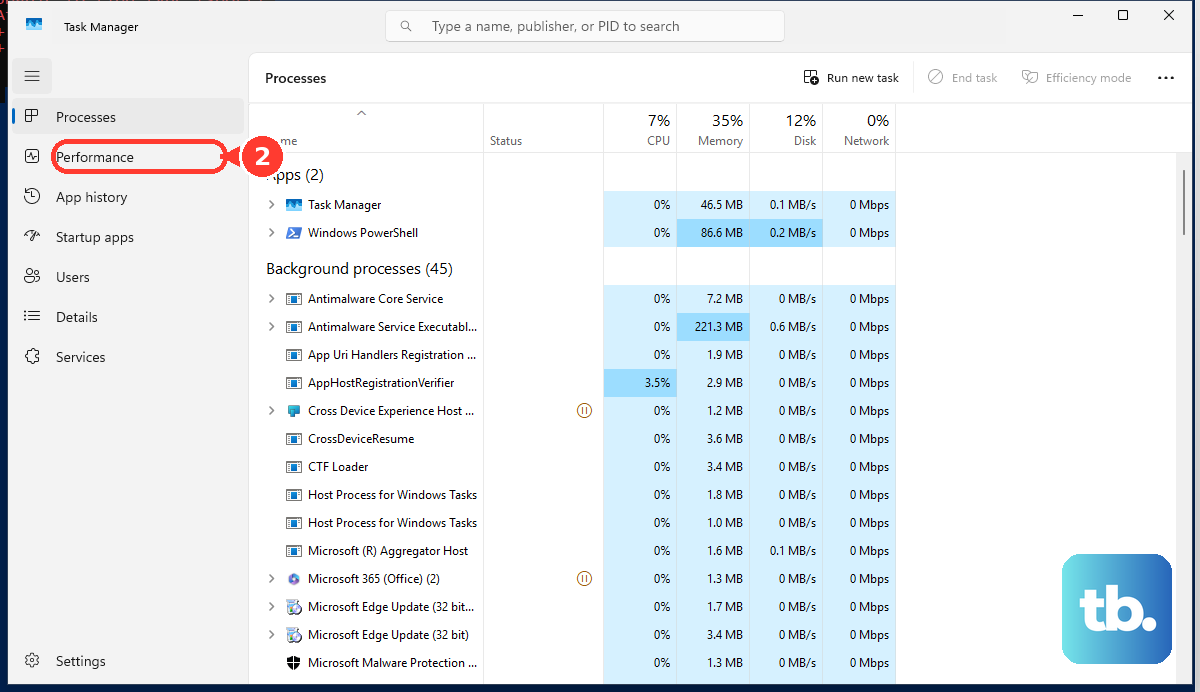
Press Ctrl + Shift + Esc, or right-click Start and choose Task Manager. Select Performance, then select Memory. Read the total memory, in-use memory, available memory, speed, slots used, form factor, and hardware reserved values.
3. Get Windows RAM details from a command
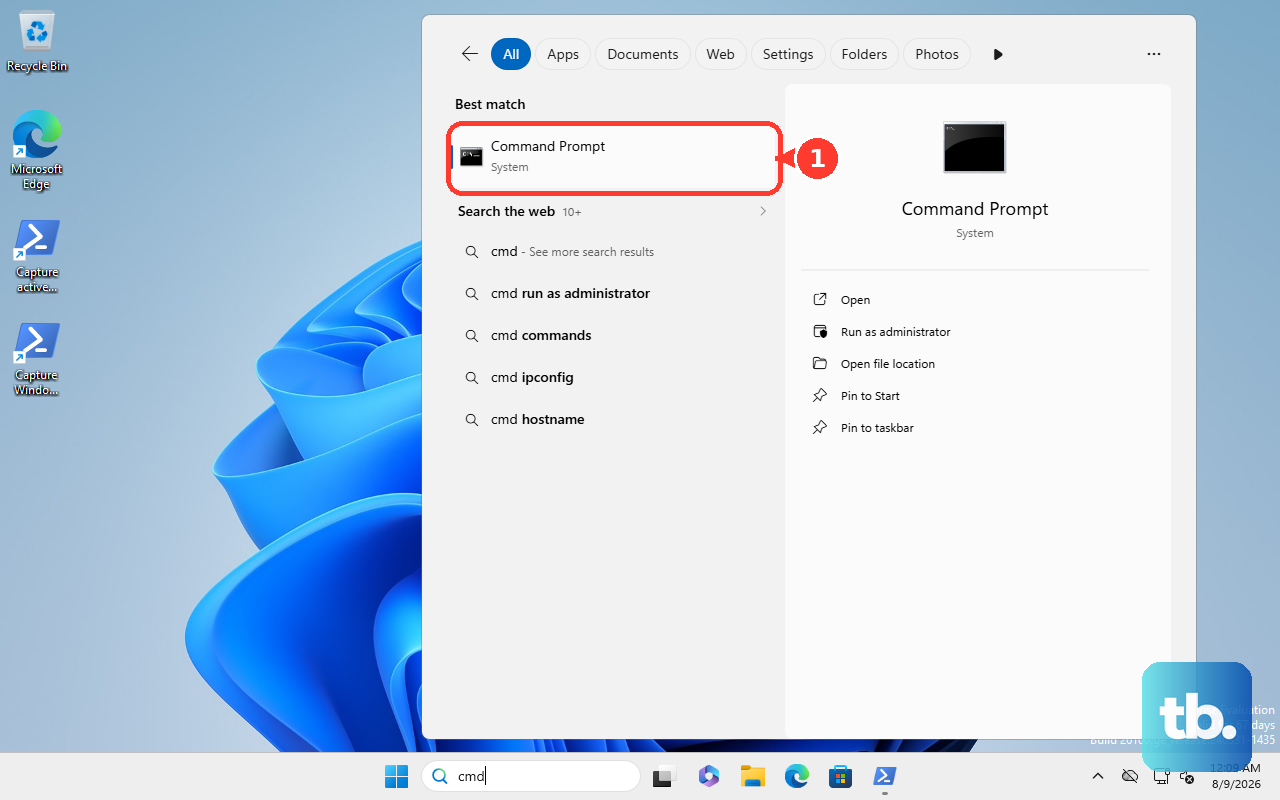
This fixes the problem of needing RAM numbers you can copy, paste, or compare. Open Start, type Command Prompt, and open Command Prompt. Run systeminfo, then read Total Physical Memory and Available Physical Memory in the output.
4. Find memory information on a Mac
Choose Apple menu > System Settings > General > About to view your Mac's basic system information. For deeper hardware detail, click System Report. You can also press and hold Option, then choose Apple menu > System Information.
5. Check current memory pressure on macOS
Open Activity Monitor, then click Memory. Read Physical Memory for installed RAM. Check Memory Used, Cached Files, Swap Used, and Memory Pressure to see how your Mac is using memory right now.
To check upgradeable slots, press and hold Option, choose Apple menu > System Information, then select Memory under Hardware. If Memory Slots does not appear, upgradeable memory is not available for that Mac.
6. Look up RAM on a Chromebook
Select the status area at the bottom right, then open Settings. Select About ChromeOS, select Diagnostics, and review Memory. Run the memory test for a hardware check.
Diagnostics is only available on Chromebooks running ChromeOS version 90 and up. You can also press Shift + Alt + s to open the status area before going to Settings.
7. Check RAM on Linux
On Ubuntu, open Activities and start typing System. Select Settings > System > About, then read Memory in the hardware list.
For a terminal view, open Terminal and run free -h. Read the Mem row for total, used, free, shared, buff/cache, and available memory. For exact bytes, run free -b.
On GNOME desktops, open System Monitor and use Resources for memory usage. Use Processes to sort apps by memory use.
8. Check how much memory Chrome tabs use
This fixes browser slowdowns when you need to identify a heavy tab instead of checking total computer RAM. In Chrome, select More, then open Settings > Appearance. On Windows, Linux, and Chromebook, under Tab hover preview card, turn Show tab memory usage on. On Mac, turn Show memory usage on tab hover preview card on.
Hover over a tab to see that tab's memory usage. To change Chrome's memory behavior, open More > Settings > Performance. Turn Memory Saver on or off.
9. Use admin tools only for work devices
For a managed Windows or Mac device, an IT admin can check device hardware in the Microsoft Intune admin center under Devices > All devices > Hardware. For managed ChromeOS devices, an admin can open Google Admin console > Devices > Chrome > Devices, select a device, and review Hardware > Memory.
Some hardware attributes stay blank until reporting is on, so turn on Report device hardware information under Devices > Chrome > Settings > Device settings > User and device reporting. Older Windows guides recommend WMIC commands for RAM, but Microsoft marks WMIC as deprecated and being removed, so use PowerShell CIM commands such as Get-CimInstance for module-level Windows memory details.
Frequently Asked Questions
What is the fastest way to check total RAM?
Use the operating system's About screen. On Windows, open Settings > System > About. On Mac, open Apple menu > System Settings > General > About. On Ubuntu, open Settings > System > About.
Where do I check RAM speed on Windows?
Open Task Manager with Ctrl + Shift + Esc, select Performance, then Memory. That page lists memory speed, slots used, form factor, and hardware reserved values when the PC reports those fields.
How do I see RAM sticks and part numbers on Windows?
Open PowerShell and run Get-CimInstance -ClassName Win32_PhysicalMemory | Select-Object Capacity, Manufacturer, Speed, ConfiguredClockSpeed, DeviceLocator, PartNumber. Sum the Capacity values and divide bytes by 1GB for gigabytes.
Does Chrome memory usage show my total computer RAM?
No. Chrome's tab hover memory feature shows memory used by individual Chrome tabs. Use your operating system's settings or system tools to check total installed RAM.