


To fix screen resolution settings you cannot change in Windows 11, select the affected monitor in Settings > System > Display, check its connection, and update the graphics driver if the resolution remains locked. Start with the display selection and connection checks before reinstalling a driver. These steps use Windows 11 menus.
The short version
- Choose the right screen: Select the affected monitor before changing Display resolution.
- Check external connections: Test a direct connection and a different cable when an external monitor has missing resolution options.
- Update the graphics driver: Check Windows Update, optional driver updates, and the manufacturer's compatible driver.
- Match the symptom: Roll back a recent driver update or use low-resolution startup when the desktop is unusable.
| Fix or option | When to use it |
|---|---|
| Select the affected display | You need to check that monitor's resolution choices |
| Open resolution settings through search | You want another route to the same setting |
| Detect the external monitor | The monitor is missing from the display diagram |
| Change projection mode | Mirroring constrains the display configuration |
| Reset the graphics driver | A previously working configuration suddenly fails |
| Restart Windows | A temporary display or driver failure persists |
| Check cables and video outputs | An external screen has connection problems |
| Bypass the dock or adapter | You need to check a direct monitor connection |
| Check hardware specifications | The requested resolution or display configuration may exceed support |
| Reconnect the wireless display | You use a compatible wireless display adapter |
| Install Windows updates | Resolution changes unexpectedly |
| Install optional graphics updates | An applicable driver update is offered |
| Update through Device Manager | A compatible graphics driver is available |
| Install a manufacturer driver manually | You have the matching Windows 11 driver package |
| Roll back the graphics driver | The problem began after a driver update |
| Reinstall the graphics device | The driver installation is damaged or malfunctioning |
| Choose a compatible refresh rate | The resolution and refresh rate are constrained |
| Use List All Modes | You need to select an existing driver-exposed mode |
| Adjust an HDR connection or refresh rate | An external HDR display has a connection-related limitation |
| Use low-resolution video startup | An invalid display mode makes the desktop unusable |
| Repair Windows system files | Windows components are also malfunctioning |
| Check model-specific firmware and monitor updates | An Intel graphics system lacks the external monitor's native resolution |
| Adjust scaling | Text or interface size is the actual problem |
| Use NVIDIA App display controls | A supported display is connected to the NVIDIA GPU |
| Use Safe Mode for diagnosis | You suspect a driver or software conflict |
Select the affected display first
Open Start > Settings > System > Display. Select the affected screen in the monitor diagram, then find Scale & layout. Open Display resolution and choose a supported option, preferably the one marked (Recommended).
Select Keep changes when prompted to retain the new resolution. You can also search Windows for Change the resolution of the display and select Open to reach the setting.
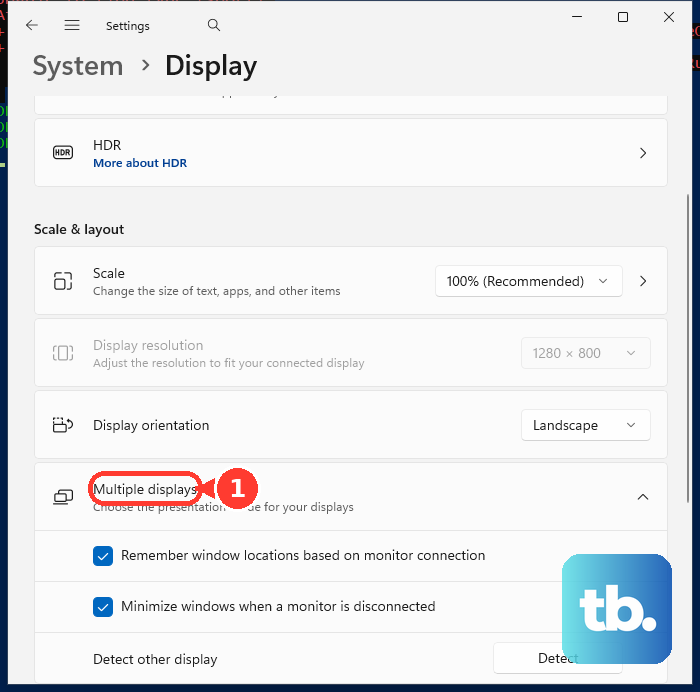
If an external monitor is missing from the diagram, open Multiple displays and select Detect. Select the detected monitor before changing its resolution. Available choices depend on the display, graphics driver, and connection.
For multiple monitors, press Windows + P and select Extend to configure the screens independently. Mirroring can constrain the available display configuration. You can also select Second screen only to test the external monitor alone, then return to Display and select that monitor.
Reset the graphics driver and restart Windows
If a previously working display configuration suddenly fails, press Windows + Ctrl + Shift + B to reset the graphics driver. Recheck Display resolution afterward.
If the problem persists, save your work before restarting Windows. Right-click Start, select Shut down or sign out, then choose Restart. Once Windows starts, return to the affected monitor's resolution setting and check its choices again.
Check the external monitor connection
For an external screen, secure both ends of the display cable and test again. Try a different cable, then another video output on the PC if it has one. Test the monitor on another computer to help isolate the failing component.
If the monitor connects through a dock, dongle, adapter, or converter, disconnect accessories and connect one external monitor directly to the PC. Check its resolution choices before reconnecting other devices.
Check the monitor's specifications for the resolution and refresh rate you want, along with the PC or graphics card and connection specifications. If several monitors are connected, test just one. The requested display configuration must fit the hardware and connection's capabilities.
For a compatible wireless display adapter, connect the adapter to the television's HDMI port. Press Windows + K on the PC and select the adapter, then configure the connected display under Settings > System > Display. The wireless hardware determines which display modes it supports.
Install Windows and graphics driver updates
Open Start > Settings > Windows Update and select Check for updates. Install applicable updates and restart when required, saving your work first. Microsoft recommends checking graphics-driver updates when the resolution changes unexpectedly.
Next, open Windows Update > Advanced options and turn on Receive updates for other Microsoft products. Under Additional options, select Optional updates. When an applicable graphics-driver update is offered, select it, choose Download and install, and restart Windows after saving your work.
Optional drivers are not installed automatically, so this check is separate from installing regular updates. If an applicable graphics update is not offered, continue through Device Manager. Right-click Start, select Device Manager, and expand Display adapters.
Right-click your graphics card, select Update driver, then choose Search automatically for drivers. This depends on a compatible driver being available. You can also find and update your graphics driver using the manufacturer's matching package.
Prefer the PC manufacturer's customized Windows 11 driver when one is available. Otherwise, obtain the compatible package for your exact graphics product from NVIDIA driver downloads, AMD Drivers and Support, or Intel Download Center. Follow the matching product's installation instructions.
To install an extracted driver manually, return to Device Manager > Display adapters, right-click the graphics card, and select Update driver. Choose Browse my computer for drivers, then select Browse.... Select the extracted driver folder, choose OK, and select Next.
Roll back or reinstall a malfunctioning driver
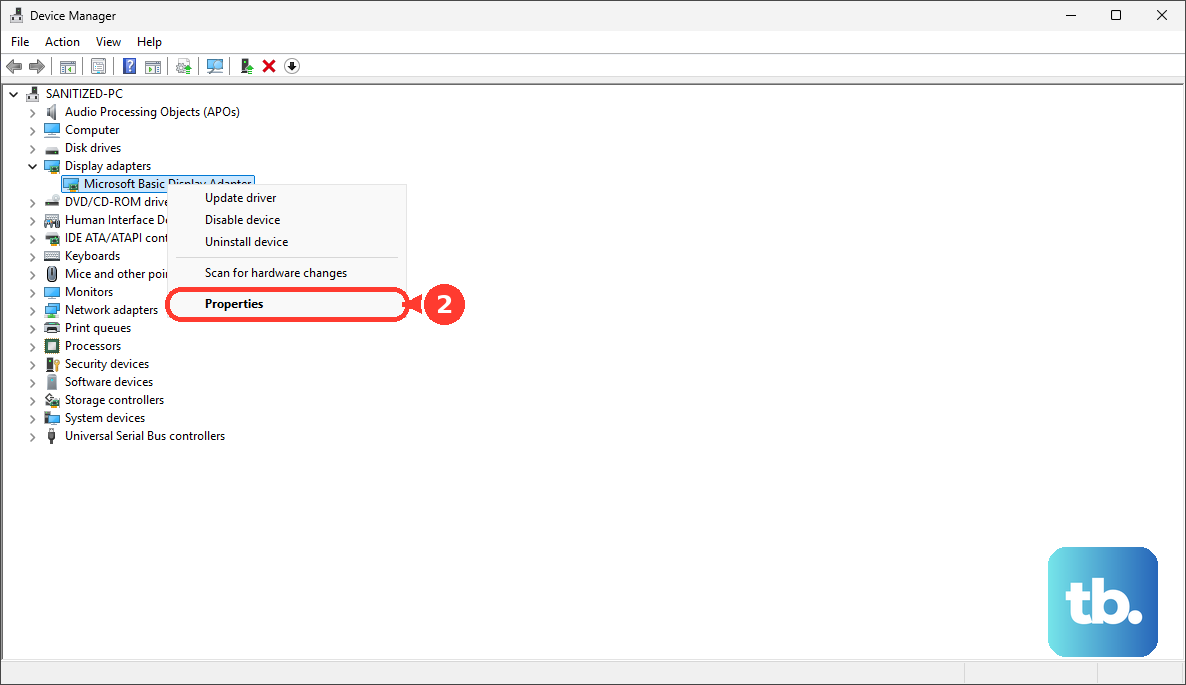
If the problem began after a graphics-driver update, rolling back replaces the current driver with the previous version. Open Device Manager, expand Display adapters, and right-click the graphics card. Select Properties > Driver > Roll Back Driver, choose the applicable reason, and select Yes.
Save your work and restart if prompted. Rollback requires administrator permissions and an available previous driver. If those requirements are not met, use a compatible manufacturer driver instead.
Uninstalling removes the graphics device's driver installation, and Windows attempts to reinstall the driver after a restart. For a damaged or malfunctioning installation, save your work, open Device Manager > Display adapters, and right-click the graphics card. Select Uninstall device, select Uninstall, then restart Windows and recheck the resolution.
Check refresh rates and supported display modes
Open Settings > System > Display > Advanced display and select the affected monitor. Under Choose a refresh rate, select a supported rate. Microsoft says rates marked with an asterisk require a resolution change, so avoid those if you want to retain the current resolution.
You can also inspect the driver's existing mode list from Advanced display by opening Display adapter properties. On the Adapter tab, select List All Modes, choose a supported resolution and refresh-rate combination, and select OK. This selects modes exposed by the driver; it does not create arbitrary resolutions.
For an external HDR display with a connection-related limitation, try DisplayPort instead of HDMI if both devices support that connection. Alternatively, select 30 Hz under Choose a refresh rate when that rate is available. These workarounds apply to HDR connection limitations.
Recover an unusable desktop
If an invalid display mode makes the normal desktop unusable, use low-resolution video startup to regain access and adjust the settings. An encrypted device may require its BitLocker recovery key. Save any accessible work before restarting.
Hold Shift while selecting Power > Restart to access the Windows Recovery Environment. Select Troubleshoot > Advanced options > Startup Settings > Restart. Press 3 or F3 for Enable low-resolution video.
After Windows starts, restore display settings in Windows 11 by opening Settings > System > Display. Select the affected monitor and choose a supported resolution, preferably the recommended option.
Check model updates and repair malfunctioning Windows components
On Intel graphics systems where the external display's native resolution is still missing, identify the exact monitor, PC, and dock models. Obtain the manufacturer's current monitor INF and applicable monitor firmware, PC BIOS, or dock firmware packages, then follow that model's installation instructions. For a Thunderbolt dock, also check for a Thunderbolt firmware update.
If Windows components are also malfunctioning, system-file repair is a further troubleshooting option. These tools repair Windows components, but Microsoft does not establish them as a resolution-specific fix. Install Windows updates and restart first, saving your work beforehand.
Search for Command Prompt, right-click it, choose Run as administrator, and select Yes. Run the following command and wait for it to complete successfully before proceeding to System File Checker.
DISM.exe /Online /Cleanup-image /RestorehealthNext, run SFC to repair Windows with the command below. Wait for verification to finish.
sfc /scannowFrequently Asked Questions
Should you change resolution or scaling to make text larger?
Use scaling when the actual problem is text or interface size. Open Settings > System > Display, select the display, and adjust Scale under Scale & layout, preferably to the recommended value. Scaling does not unlock a disabled resolution selector.
Why are resolution controls missing from Intel Graphics Command Center?
Intel says it removed the general display page's resolution and refresh-rate controls from newer versions of Intel Graphics Command Center. To adjust your Windows 11 display, open Settings > System > Display.
Can an HDMI splitter give each monitor its own resolution settings?
A splitter duplicates a signal and does not create independent display outputs. Check your PC or graphics card's specifications for support for the display configuration you want.
Can you change resolution through NVIDIA App?
On supported NVIDIA hardware with the current NVIDIA App, open System > Displays to change the resolution of a connected display. The display must be connected to the NVIDIA GPU. Availability varies on hybrid laptops.
Will Safe Mode restore every resolution choice?
Safe Mode is a diagnostic option and may itself offer limited resolutions. You can use it to investigate a driver or software conflict, but it does not unlock the monitor's full mode list.