


To fix Presenter View not working in PowerPoint, enable Presenter View and extend your desktop so your notes and audience slides appear on separate screens. If the screens are reversed, swap them from Presenter View. For rehearsal on one screen, open Presenter View directly.
These steps cover PowerPoint for Microsoft 365 and PowerPoint 2024 for Windows and Mac. Windows display and repair instructions use Windows 11 menus. Start with PowerPoint’s settings, then check the display connection if your second screen remains missing or blank.
The short version
- Enable the view: On Windows, open Slide Show and check Use Presenter View.
- Separate the screens: On Windows 11, press Windows + P and select Extend.
- Swap reversed output: Select Display Settings > Swap Presenter View and Slide Show on Windows or Swap Displays on Mac.
- Rehearse directly: Press Alt + F5 on Windows or Option + Return on Mac.
| Fix or check | When to use it |
|---|---|
| Open in desktop PowerPoint | You are using the browser or mobile edition |
| Enable Use Presenter View | Windows opens slides without presenter controls |
| Start Presenter View directly | You want to check the view or rehearse on one screen |
| Restore automatic startup on Mac | Presenter View does not start with two displays |
| Check the full-screen show type | The presentation uses a different show configuration |
| Extend the Windows desktop | Both screens show identical content |
| Restore automatic desktop extension | A Windows laptop or tablet does not extend its displays |
| Extend the Mac desktop | The external display mirrors your Mac |
| Swap presenter and audience output | The audience sees your notes |
| Restore automatic monitor selection | Windows PowerPoint routes notes to the wrong display |
| Identify, detect, and arrange Windows displays | A screen is missing or its position is confusing |
| Check the slide’s speaker notes | Presenter View opens with an empty notes area |
| Undo a blank-screen toggle | The running show turns black or white |
| Check Windows cables and display limits | The external monitor remains missing |
| Reconnect a wireless display | A compatible wireless audience display is disconnected |
| Restore Mac display detection | Your Mac cannot detect the external screen |
| Allow the Mac display accessory | An Apple silicon Mac laptop requests connection approval |
| Reset Windows graphics or restart | A previously working display setup fails |
| Try Optimize for compatibility | PowerPoint behaves abnormally across monitors |
| Disable slide-show graphics acceleration | Transitions flash or turn black on Windows |
| Restore slide-show graphics acceleration | Presentation performance is poor |
| Roll back or reinstall the display driver | A driver update causes external-display trouble |
| Let PowerPoint finish or restart it | Windows PowerPoint is busy or unresponsive |
| Update PowerPoint on Windows | Restarting does not resolve the application problem |
| Install Windows updates | Display problems persist on Windows 11 |
| Update PowerPoint on Mac | The Mac application needs an update |
| Check for an add-in conflict | The problem disappears in Office Safe Mode |
| Repair Office on Windows | Settings and updates have not resolved the problem |
| Reinstall Office on Windows | An installation problem persists after repair |
| Reinstall PowerPoint on Mac | You need to replace the Mac application |
Open the presentation in desktop PowerPoint
Microsoft lists Presenter View as unavailable in PowerPoint for the web, Android, and iOS. In the browser version, select Editing > Open in Desktop App near the upper-right corner. You need licensed desktop PowerPoint installed to use this route.
On a phone or tablet, move the presentation to a supported Windows or Mac desktop edition. If you need one, use the official PowerPoint product page and choose an edition that includes desktop apps. The free browser edition does not provide desktop Presenter View.
Enable Presenter View and check the show type
On Windows, connect your second display and open Slide Show. In Monitors, check Use Presenter View, then select From Beginning to start your PowerPoint presentation.
To open Presenter View directly on Windows, press Alt + F5. Alternatively, start the slide show, open its bottom-left options menu, and select Show Presenter View. During a Windows slide show, you can also press Shift + F10, followed by R.
On Mac, select Slide Show > Presenter View or press Option + Return. To restore automatic startup with two displays, open PowerPoint > Preferences > Output and Sharing > Slide Show. Check Always start Presenter View with 2 displays, close the dialog, and restart the show.
On Windows or Mac, check the show configuration by opening Slide Show > Set Up Slide Show. Under Show type, select Presented by a speaker (full screen), select OK, and start again. This checks the show type; it does not guarantee that every Presenter View problem will be resolved.
Extend your desktop for separate screens
Separate presenter and audience output needs two displays using an extended desktop. On Windows 11, press Windows + P and select Extend. Selecting Duplicate shows identical content on both screens.
On a Windows laptop or tablet connected to another display, PowerPoint can extend the desktop automatically. Open File > Options > Advanced > Display. Check Automatically extend display when presenting on a laptop or tablet and select OK.
On current macOS, open the Apple menu > System Settings > Displays. Select the external display, open Use as, and choose the option for an extended desktop. A desktop Mac without a built-in screen needs at least two displays for separate presenter and audience output. Start the presentation again after extending the desktop.
Put Presenter View on the correct screen
If your audience sees notes while your screen shows only slides, swap the outputs. In Windows Presenter View, select Display Settings > Swap Presenter View and Slide Show. On Mac, select Swap Displays.
To restore automatic monitor selection on Windows, open Slide Show > Set Up Slide Show. Set the slide-show monitor selection to Automatic and select OK. PowerPoint places notes on the laptop display when one is available; otherwise, it uses the system’s main display.
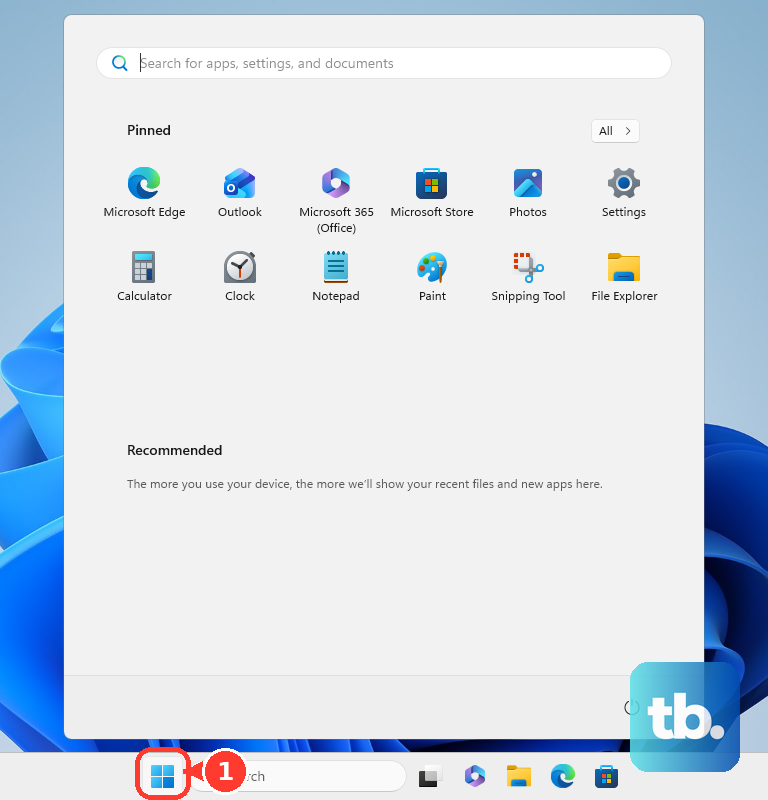
To match screen numbers to physical displays, on Windows 11 open Start > Settings > System > Display and select Identify. Drag the display rectangles to match their physical arrangement, then select Apply.
Restore missing notes or an accidentally blanked show
If the notes area is blank, check whether the selected slide has speaker notes. On Windows or Mac, open View > Normal, select the affected slide, and select Notes at the bottom if the notes pane is hidden. Select Click to add notes and add speaker notes to the slide.
Restart Presenter View after entering your notes. Use its note-size buttons to adjust the text, or scroll through longer notes.
A black audience screen can also result from a slide-show toggle. Press B on Windows or Mac to toggle a black screen back to the presentation. On Windows, . also toggles black, while W or , toggles a white screen.
Reconnect a missing external display
For a missing monitor on Windows 11, open Settings > System > Display > Multiple displays and select Detect. Reseat the video cable, then try another cable or output port. Bypass docks and adapters, and test the display with another computer to narrow down the connection problem.
Check your PC manufacturer’s supported display count if you are connecting several screens. A basic video splitter duplicates one signal and cannot create independent presenter and audience desktops.
For compatible wireless display hardware on Windows 11, connect the wireless adapter to the television or projector. Press Windows + K and select the adapter in Cast. Once connected, press Windows + P and choose Extend. Alternatively, on Windows 11 open Settings > System > Display > Multiple displays and select Connect to connect the wireless display.
On Mac, reconnect the display’s video and power cables, and bypass the hub or dock. Open the Apple menu > System Settings > Displays, hold Option, and select Detect Displays. If detection still fails, put the Mac to sleep and wake it, or restart it.
On a Mac laptop with Apple silicon, unlock the Mac, reconnect the display or adapter, and select Allow when prompted. To inspect the connection setting, open the Apple menu > System Settings > Privacy & Security > Accessories > Allow accessories to connect. On a supervised Mac, ask your administrator whether this setting is managed.
If the Mac display remains missing, check your model’s supported display count and the cable’s capabilities. For closed-lid operation, connect power and an external keyboard and mouse.
Fix flashing output and graphics problems
For a Windows 11 display setup that previously worked, press Windows + Ctrl + Shift + B to reset the graphics driver. If that does not help, select Start > Power > Restart. If necessary, select Start > Power > Shut Down, then turn the computer back on.
For abnormal behavior across multiple monitors in Windows PowerPoint, open File > Options > General. Under User Interface options > When using multiple displays, select Optimize for compatibility. Restart PowerPoint if requested.
For flashing or black transitions on Windows, open File > Options > Advanced > Display. Check Disable Slide Show hardware graphics acceleration, select OK, and try the presentation again. If performance is poor, return to the same setting, uncheck Disable Slide Show hardware graphics acceleration, and select OK. Microsoft recommends acceleration for presentation performance, so disabling it is a check for rendering problems.
If an external-display problem began after a driver update on Windows 11, open Device Manager > Display adapters. Right-click the adapter, then select Properties > Driver > Roll Back Driver. For help identifying the adapter, follow the steps to find and update your graphics driver.
If rollback is unavailable or does not help, right-click the adapter in Device Manager and select Uninstall device. Select Attempt to remove the driver for this device, select Uninstall, and restart if requested. Return to Device Manager > Display adapters, right-click the adapter, and select Update driver. Driver removal may require administrator access.
Restart and update PowerPoint
When Windows PowerPoint’s status bar shows another operation running, let it finish. Otherwise, save your work, close PowerPoint, reopen it, and try Presenter View again. Move on to updates if restarting does not help.
On Windows, open File > Account. Under Product Information, select Update Options > Update Now; select Enable Updates first if needed. If Update Options is missing and only About appears, contact your organization’s help desk because volume licensing or Group Policy may control updates.
For display-related updates on Windows 11, open Start > Settings > Windows Update > Check for updates. Install applicable updates, restart when required, and check the external display again.
On Mac, the update route depends on where you installed PowerPoint. For a Microsoft installation, select Help > Check for Updates, then select Update. For a Mac App Store installation, open App Store > Updates and select Update beside PowerPoint or Update All.
Repair PowerPoint if the problem persists
On Windows, Office Safe Mode can help identify an add-in conflict. Press Windows + R, enter the following command, and select OK.
powerpnt /safeIf the problem disappears in Safe Mode, open File > Options > Add-Ins. Select COM Add-ins, select Go, and uncheck each installed add-in’s checkbox. Select OK, restart PowerPoint normally, and enable add-ins individually to identify the conflict.
For Microsoft 365 or Office 2024 Click-to-Run installations on Windows 11, right-click Start and select Installed apps. Find Microsoft 365 or Office, open its ellipsis menu, and select Modify. Choose Quick Repair for an initial repair, or Online Repair > Repair for a fuller repair. This repairs the suite unless PowerPoint is installed as a standalone product.
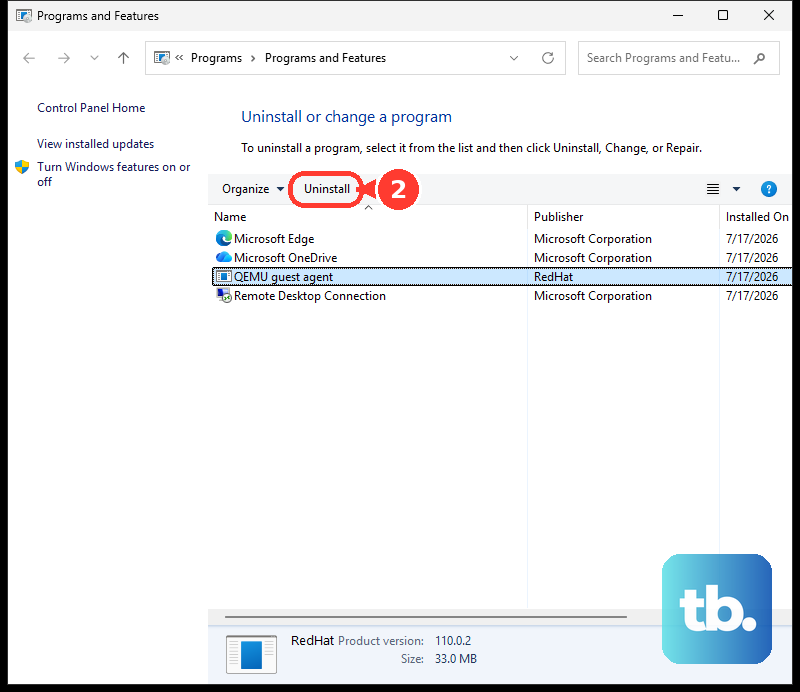
Reinstallation is a last resort for an installation problem. On Windows, open Control Panel > Programs > Programs and features, select your Office product, and select Uninstall. Complete the prompts, then use Microsoft’s Office installation page and sign in with the account associated with your license. Suite installations generally require removing the suite rather than PowerPoint alone.
On Mac, quit PowerPoint and open Finder > Applications. Select Microsoft PowerPoint, hold Control while clicking it, and select Move to Bin, then reinstall from your original Microsoft or Mac App Store source. Administrator credentials may be required.
Frequently Asked Questions
Why can Zoom participants see my speaker notes?
In a Zoom desktop meeting with multiple monitors, select New Share and choose the screen displaying the slide show. Keep Presenter View on the other screen so participants receive the audience slides.
Can an iPad serve as the second screen for Presenter View on a Mac?
Yes, a Sidecar-compatible Mac and iPad can provide the additional display while PowerPoint runs on the Mac. Sign both devices into the same Apple Account and enable Wi-Fi, Bluetooth, and Handoff. On the Mac, open System Settings > Displays > Add Display, select the iPad, then select it in Displays and use Use as to extend the desktop. You can also connect through Control Center > Screen Mirroring by selecting the iPad.
What should I do if the slide-show toolbar and right-click menu are missing?
In PowerPoint for Microsoft 365 or PowerPoint 2024 on Windows, open File > Options > Advanced > Slide Show. Enable Show menu on right mouse click and Show popup toolbar, then select OK and restart the slide show. Open the restored menu to access Show Presenter View.
Why is my external Mac display detected but nearly black?
The display’s brightness may be too low. Open the Apple menu > System Settings > Displays and adjust brightness where available. With a supported Apple display and Apple keyboard, press Brightness Up. For other displays, use the display’s physical brightness controls.