


To fix no bootable device on an Acer Nitro 5, disconnect peripherals, reset power, then press F2 during startup to check drive detection and restore the original boot settings. If the drive is accessible but Windows still cannot start, run Startup Repair. If storage remains missing or disappears intermittently, arrange hardware diagnosis.
Record existing boot and storage-controller settings before changing the BIOS. Back up accessible personal files before resetting Windows, deleting partitions, or replacing storage. If the drive appears to be failing, seek data recovery before repairs that write heavily to it.
The short version
- Start simply: Remove peripherals and perform a power-button reset before changing firmware settings.
- Check the drive: Press F2 at startup and distinguish missing storage from a missing Windows boot entry.
- Restore the configuration: Correct the boot order, UEFI mode, and original storage-controller settings.
- Repair Windows: Use Startup Repair first, then consider boot-file repair when the Windows drive is accessible.
- Know when to stop: Recovery tools cannot repair a drive that the laptop cannot access.
| Fix | When to use it | Main limitation |
|---|---|---|
| Disconnect peripherals | First startup check | Cannot repair damaged boot files |
| Reset power | Error persists with accessories disconnected | Cannot rebuild boot files |
| Use the battery-reset pinhole | Your model has a labeled reset hole | Not fitted to every model |
| Correct boot order | Windows boot entry is present | Cannot restore a missing entry |
| Select a device with F12 | Choose Windows or recovery media once | Menu must be available and enabled |
| Restore controller settings | Error follows a BIOS update or reset | Must match the original installation |
| Restore UEFI mode | Windows was installed in UEFI mode | Setting may already be fixed to UEFI |
| Restore BIOS defaults | Firmware settings need resetting | Record controller settings first |
| Restore Secure Boot settings | Settings changed or recovery media is incompatible | Disabling it is only conditional |
| Run Startup Repair | Windows drive is accessible | Cannot repair inaccessible storage |
| Use System Restore | Failure follows a software change | Requires an existing restore point |
| Uninstall a quality update | Failure follows a Windows update | Update must support removal |
| Run Quick machine recovery | Known widespread Windows boot failure | Requires feature availability and internet |
| Repair boot files with BCDBoot | Windows files are intact but boot files are damaged | Requires correct volume identification |
| Reset Windows | Earlier repairs fail on accessible storage | Removes apps and settings |
| Clean-install Windows | Working drive needs a fresh installation | Erases the selected installation disk |
| Load a storage driver | Setup cannot see an Intel RST/VMD drive | Requires the matching model's driver |
| Reseat or replace storage | Storage needs a connection check or replacement | Requires model-specific hardware instructions |
| Arrange hardware diagnosis | Storage stays missing or unreliable | Windows repairs cannot resolve inaccessible hardware |
Disconnect accessories and reset power
Turn the Nitro 5 off and disconnect USB storage, docks, and other peripherals. Turn it on again with those devices disconnected. If the error remains, try a power-button reset.
Hold the power button until the laptop is completely off. Unplug the power adapter and peripherals, then hold the power button for at least 30 seconds. Reconnect the adapter and turn the laptop on.
A battery-reset pinhole is another option only when your chassis or model-specific manual identifies a hole labeled Battery Reset. Turn the laptop off, unplug the charger, and gently press the internal button with a paperclip for 10 to 15 seconds. Remove the clip, reconnect power, and retry startup.
Check the internal drive and boot entry
Power off, turn the laptop on, and immediately press F2 to enter the BIOS. Check whether the firmware detects the internal SSD or hard drive, then open Boot and look for the intended Windows boot entry. If recovery loads, you can also get to BIOS on Windows by selecting UEFI Firmware Settings and restarting.
A detected drive and a valid boot entry are separate checks. Detection alone does not prove the SSD is healthy, and a missing Windows Boot Manager entry cannot be fixed simply by moving another entry higher. If storage remains absent or disappears between startups, move to hardware diagnosis instead of resetting Windows.
With a detected drive and a selectable Windows entry, highlight that entry under Boot and press F6 to move it first. Press F10, then Enter to save and exit. Retry startup before making another change.
For a one-time boot selection, open Main > F12 Boot Menu, press Enter, choose Enabled, and save with F10. Restart, repeatedly press F12, select Windows Boot Manager or the intended boot drive, and press Enter. Acer says this menu is not available on every notebook.
Restore the original BIOS settings
If the error began after a BIOS update or reset, check the storage-controller configuration. Enter the BIOS with F2, open Main, and press Ctrl + S to reveal hidden settings where supported. Locate SATA Mode or VMD Controller and restore the configuration used when Windows was installed. Press F10, choose Yes, and press Enter.
The controller must match the original AHCI or RAID/VMD configuration. Intel VMD instructions do not apply universally to AMD Nitro 5 models. If you do not know the original setting, get help identifying it before changing the controller.
For Windows originally installed in UEFI mode, open Boot > Boot Mode and select UEFI, if selectable. Save with F10 and confirm the change. Some firmware is already UEFI-only, so you may have no mode to change.
Restoring defaults is another option after you record the existing boot and controller settings. In the BIOS, press F9, then Enter; press F10, then Enter to save and exit. If the reset changes the controller configuration away from the one Windows used, restore that original configuration.
Restore Secure Boot to its previous configuration if it changed. Temporarily disabling it may be necessary for incompatible recovery media, but you should enable Secure Boot on your PC again afterward. Disabling it permanently is not a general fix for this error.
Open recovery and run Startup Repair
With accessible storage, try Acer recovery before reinstalling Windows. Hold the power button for five seconds to turn off, power on, and press Alt + F10 together at the Acer logo. After Please Wait, select Troubleshoot on the Choose an option screen.
Choose Advanced options > Startup Repair > Restart. Supply your BitLocker recovery key when requested. On another device, open your Microsoft account recovery keys, sign in to the account holding the key, and match the displayed key ID.
If Acer recovery does not load, create installation media on another working Windows PC. Open Microsoft's Windows 11 download page, select Download Now under Create Windows 11 Installation Media, and run the tool as administrator. Select Accept, choose the installation-media options, and select USB flash drive using an empty USB drive of at least 8 GB.
Boot that USB through the F12 menu on a Windows 11-compatible Nitro 5. Select your language preferences, choose Next > Repair my PC > Next, and open the recovery tools. Older installers label the repair option Repair your computer.
Automatic Repair provides another route only when Windows loading actually begins. Interrupt that loading twice by holding the power button to shut down, then select Advanced options on the third startup. Repeated shutdowns will not open Windows recovery when firmware cannot launch Windows at all.
Undo a recent Windows change
When storage is accessible and the failure followed a software change, open Troubleshoot > Advanced options > System Restore. Select a suitable restore point, use Scan for affected programs to review the changes, then choose Next > Finish. System Restore preserves personal files but requires an existing restore point.
If startup failed after a Windows quality update, open Troubleshoot > Advanced options > Uninstall Updates > Uninstall latest quality update. This applies only to an update that supports removal. It cannot repair an SSD missing from firmware.
On Windows 11 version 24H2 or later, Quick machine recovery can address known widespread Windows boot failures when the feature is available. Select Troubleshoot > Advanced options > Quick machine recovery, connect to the internet, and let Windows search for an available Microsoft remediation. If no solution is available or the repair fails, continue with the next applicable repair.
Rebuild missing Windows boot files
BCDBoot can repair missing or damaged UEFI boot files and firmware boot entries when Windows files are intact and accessible. Open Command Prompt in recovery, or press Shift + F10 after booting Windows installation media. Recovery does not necessarily assign your Windows volume C:, so identify it before repairing anything.
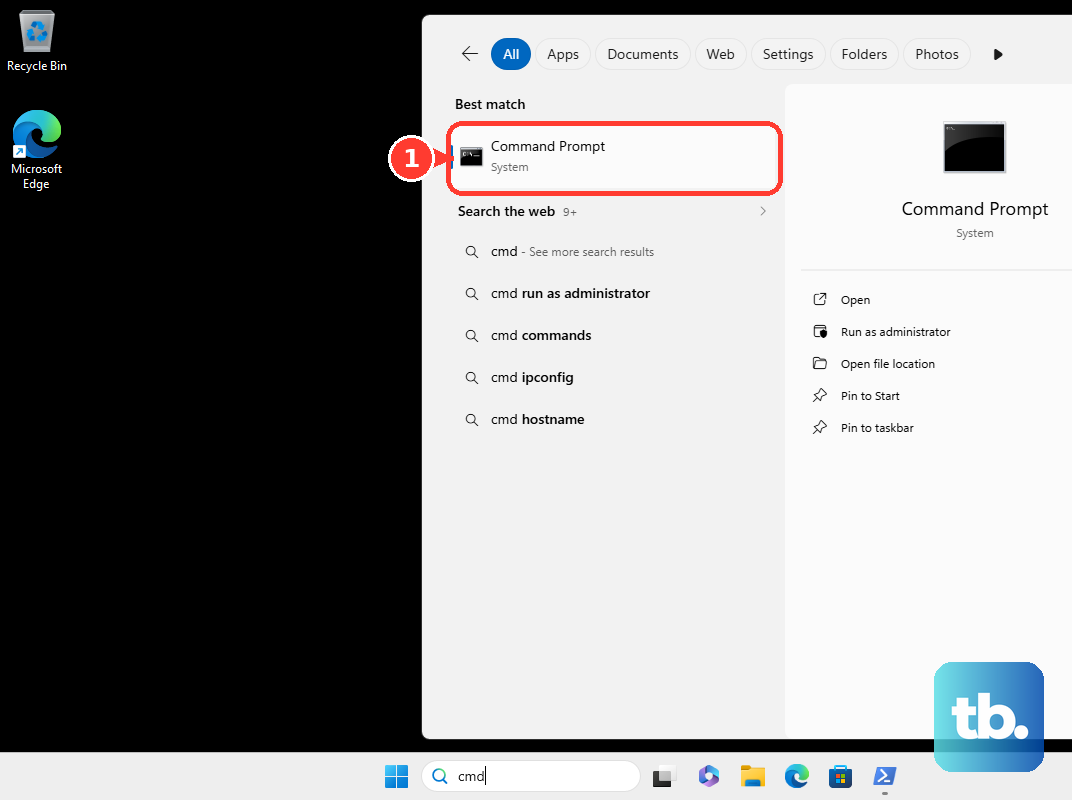
Run these commands in order to start DiskPart, list the volumes, and exit to the regular command prompt. Inspect the volume list before exiting, and proceed only if you can confidently identify the volume containing Windows.
diskpart
list vol
exit
If your Windows folder is on D:, use the following command to recreate the boot files and firmware entry. Replace D: with the actual Windows volume letter, then restart the laptop.
bcdboot D:\WindowsThis repair requires accessible Windows files and an existing system partition. If you cannot identify the Windows volume or the repair fails, get assistance before attempting further partition changes.
Reset or reinstall Windows on working storage
After the applicable repairs fail, you can reset your Acer laptop through Alt + F10 recovery. Choose Troubleshoot > Reset this PC, then follow the prompts to choose Keep my files or Remove everything. Keeping files still removes installed apps and settings; removing everything deletes personal files.
Select Cloud Download or Local Reinstall, then choose Reset. Cloud download requires internet access. A reset needs accessible storage and recovery, so it cannot solve a drive that the laptop cannot access.
A clean installation is the next option for working storage or a blank replacement SSD. Boot Windows installation media, choose the language and keyboard settings, then select Install Windows 11 and acknowledge that files, apps, and settings will be deleted. Choose your licensed edition and accept the terms.
At Select location to install Windows 11, identify the intended operating-system disk, then select each of its partitions in turn and choose Delete Partition until only that disk's unallocated space remains. Leave the partitions on any other disk untouched. Select that disk's unallocated space, choose Next, then Install. Back up accessible files first because this erases the selected installation disk.
If firmware detects the drive but Windows Setup cannot see it, an Intel RST/VMD configuration may need its storage driver. Get the exact model's driver package from Acer Drivers and Manuals, extract the driver files onto USB, then select Load driver > Browse in Setup. Open the extracted folder, choose OK, select the compatible driver, and choose Next. Continue once the drive appears; this Intel-specific fix does not apply universally to AMD models.
Get help for missing or unreliable storage
If storage stays missing, disappears intermittently, or you cannot access firmware, arrange hardware diagnosis. Gather your laptop's Serial Number or SNID and contact Acer to check warranty status and arrange service. If the drive appears to be failing and you need its files, seek data recovery before further write-heavy repairs.
Storage reseating and replacement must follow your exact Nitro 5 model's hardware instructions. For the AN515-58, power off and disconnect cables, then follow Lower Case Removal to remove the 11 screws and release the cover latches. Follow Battery Removal before SSD 1 Module Removal or SSD 2 Module Removal, then remove the retaining screw and disconnect the SSD.
Reinstall the SSD securely or fit an Acer-certified compatible replacement, then restore the battery and cover. Do not apply that disassembly sequence to a different Nitro 5 model. Use the exact AN515 or AN517 model identity when obtaining parts or instructions, rather than instructions for a Nitro V ANV model.
A replacement SSD needs Windows installed or restored before it can boot. If the error continues after a replacement-drive test, arrange further hardware diagnosis.
Frequently Asked Questions
Can I update the BIOS from the No Bootable Device screen?
Acer's Nitro BIOS update workflow requires running Windows, so you cannot use it directly from the error screen. After regaining Windows, check BIOS Version/Date in System Information and obtain an applicable update for your exact model under BIOS/Firmware in Acer's downloads. In File Explorer, choose Extract All > Extract, then run the extracted executable. Keep the adapter connected, follow the firmware tool, and allow its restart.
What should I do if Secure Boot is locked in the BIOS?
On applicable firmware, open Security > Set Supervisor Password and record the temporary password before changing anything. Locate Secure Boot under Security, Boot, or Authentication, choose Enabled or Disabled as needed, and save with F10 > Yes. Restore the previous configuration if the change prevents booting, and re-enable Secure Boot after temporary troubleshooting. To remove the temporary password, return to Set Supervisor Password, enter the current password, leave the new password fields blank, then save and exit.
Does Point-in-time restore keep my latest personal files?
No, Point-in-time restore returns the entire system drive, including personal files, to the selected earlier state. It requires an available snapshot and the feature on a supported Windows 11 installation. Enabling it after a failure cannot create an earlier snapshot.
Can I create a recovery drive after Windows starts working again?
Yes, search Start for Recovery Drive, then select Back up system files to the recovery drive > Next. Connect an empty USB drive, select it, then choose Next > Create. The process erases the USB and does not back up your personal files.
Can a recovery USB made on another PC restore the Nitro's factory software?
A device-specific recovery USB created on an unrelated PC is not equivalent to your Nitro's factory recovery image. A previously created recovery drive for the Nitro can restore it after drive replacement, but removes personal files, apps, and settings. Acer also offers original factory recovery media for eligible models, with availability depending on model and region.
Can I open recovery without the startup keyboard shortcuts?
When Windows or its sign-in screen is accessible, hold Shift while selecting Power > Restart. In Windows 11, you can also open Settings > System > Recovery > Advanced startup > Restart now. These routes are useful for intermittent failures but require access beyond the firmware error screen.