

To fix Microsoft Word when it isn’t working, save accessible work, restart Word, install updates, and repair Office if the problem continues. If only one document fails or editing is blocked, start with the document or licensing fixes. The desktop steps cover Microsoft 365 and Word 2024, and Windows instructions use Windows 11 menus.
The short version
- Start small: Save accessible work, reopen Word, and restart your computer if necessary.
- Match the symptom: Check document damage, editing restrictions, or licensing when files open but cannot be edited.
- Test add-ins: On Windows, start Word in Safe Mode to investigate startup conflicts.
- Repair Office: Try Quick Repair, then Online Repair if Word still fails.
| Fix | When to use it | Platform |
|---|---|---|
| Close and reopen Word | Word stops responding normally | Windows and Mac |
| Force-close Word | The app will not close | Windows and Mac |
| Restart the computer | Reopening Word does not help | Windows and Mac |
| Recover your work | A crash leaves changes missing | Windows and Mac |
| Update Office | App failures continue | Windows and Mac |
| Update Windows | System updates are pending | Windows 11 |
| Open the file inside Word | Double-clicking opens the wrong app | Windows |
| Fix default-app associations | Word files launch incorrectly | Windows 11 |
| Use Open and Repair | One document is damaged | Windows |
| Import with Text from File | Document repair fails | Windows |
| Use Recover Text | You need text from a damaged document | Mac |
| Check editing mode and permissions | A document opens without editing access | Desktop and web |
| Review Protected View | A trusted document opens with a warning | Windows |
| Check licensing | Word shows Unlicensed Product | Licensed desktop installations |
| Update the OS before Office | The July 2026 issue blocks editing or saving | Affected Mac, iPhone, and iPad installations |
| Start Office Safe Mode | Word fails during startup | Windows |
| Disable conflicting add-ins | Word works in Safe Mode | Windows |
Start with winword /a | Templates or saved settings may be involved | Windows |
| Run Quick Repair | Word still fails after earlier fixes | Windows Click-to-Run Office |
| Run Online Repair | Quick Repair fails | Windows Click-to-Run Office |
| Update device drivers | Crashes or device problems persist | Windows |
| Reload or switch browsers | Word for the web fails to load | Supported browsers |
| Update Edge | The browser needs an update | Microsoft Edge |
| Disable browser extensions | An extension may interfere with Word | Microsoft Edge |
| Close and reopen mobile Word | The app becomes unresponsive | iPhone and iPad |
| Update mobile Word and the OS | Mobile app trouble continues | iPhone, iPad, and Android as specified |
| Clear Word’s cache | Android app problems persist | Pixel |
| Clear Word’s storage | Clearing the cache fails | Pixel, after preserving local documents |
| Uninstall and reinstall Office | Office repair fails | Windows |
| Use Word for the web | You need to work during desktop troubleshooting | Supported browsers |
| Contact Microsoft support | The failure remains unresolved | Current Word products |
Restart Word and recover your work
Save any document you can still access, close Word, and open it again. On Mac, press Command + Q to quit normally. If reopening does not help, save work in your other apps and restart the computer.
Force-closing Word can discard unsaved changes, so save accessible work first. On Windows, press Ctrl + Shift + Esc, select Word in Task Manager, and select End Task. On Mac, press Option + Command + Esc, select Microsoft Word, and select Force Quit.
Reopen Word and review Document Recovery on Windows, checking timestamps before opening and saving the most appropriate version. On Mac, Word normally opens an available AutoRecover file automatically after an unexpected shutdown. If your work is still missing, follow the steps to recover an unsaved Word document; recovery depends on available saved or AutoRecover data.
Update Word and your operating system
For Microsoft 365 or Office 2024 installed through Click-to-Run on Windows, open Word or another working Office app and create a document. Select File > Account > Update Options > Update Now. When updates are disabled, select Enable Updates first; if no Office app opens, continue to Office repair.
If Update Options is missing on a managed work or school computer, contact your organization’s help desk. Ask them to check the managed update source and your assigned desktop-app license.
On Windows 11, open Start > Settings > Windows Update and select Check for updates. Install available updates and restart, then reopen Word.
For Mac Office installed from Microsoft, open Word or another Office app and select Help > Check for Updates. Select Automatically keep Microsoft apps up to date, then select Update, or Update All when offered. For Word installed from the Mac App Store, open the App Store, select Updates, and select Update beside Word.
Check whether only one document is affected
Create a new blank document and try opening another existing file. If Word works with those files, focus on the affected document. On Windows, when double-clicking a file opens the wrong program or produces an association error, start Word directly and use File > Open.
To fix that file association on Windows 11, open Settings > Apps > Default apps. Search for .docx, select the file-type result, and choose Word. Repeat for .doc if that file type is also affected.
For a damaged file in Windows Word, select File > Open > Browse and select the document. Open the arrow beside Open, then select Open and Repair. Use Browse rather than opening the file from Recent.
If repair fails, select File > New > Blank Document. Select Insert > Object > Text from File, choose the affected document, and select Insert.
On Mac, text recovery may not preserve formatting. Select Word > Preferences > General, select Confirm file format conversion at Open, and close the dialog. Next, select File > Open, choose Recover Text from the Open menu, and open the document.
Fix blocked editing and licensing errors
When a document opens but you cannot type, open the upper-right Viewing or Reviewing menu and select Editing. If Editing is unavailable, request edit permission from the owner. On Windows desktop Word, also check File > Info > Protect document and uncheck Always Open Read-Only if appropriate.
For a document whose source and content you trust, select Enable Editing on the yellow Protected View message bar. A red validation warning can appear for a malicious file created to infect your computer with a virus or steal important information. Select File > Edit Anyway only if you trust the file’s source and content. If policy prevents leaving Protected View, contact your administrator; disabling protection globally is not a general crash fix.
For an Unlicensed Product message, open your Microsoft account subscriptions and sign in with the account used to buy Office. Under Services & subscriptions, confirm that the product is present and active, renewing it if expired. Reopen Word and sign in with that same account, or use your assigned work or school account for an organization license.
Sign in only through Microsoft’s own app or website, and never share a code, password, or remote access with someone who contacts you. If your organization license still does not allow editing, ask your help desk to check the assigned desktop-app license.
Microsoft identified a July 2026 issue affecting some Microsoft 365 installations on Mac, iPhone, and iPad that could open or print files but could not edit, save, or create them. On an affected Mac, first select Apple menu > System Settings > General > Software Update; on iPhone or iPad, open Settings > General > Software Update. Update Office afterward through Help > Check for Updates on Mac or the App Store on iPhone or iPad, then restart the app.
Test Windows Word in Safe Mode
Office Safe Mode helps investigate add-ins when Word fails to start or keeps crashing. Press Windows + R, enter the following command, and select OK.
winword /safeTry using Word in Safe Mode. If it works, select File > Options > Add-Ins. Under Manage, select Word Add-ins or COM Add-ins, then select Go.
Uncheck one installed add-in and select OK; each checkbox uses that add-in’s name. Close Word, reopen it normally, and test again. Repeat with the remaining add-ins to identify the conflict, then update the offending add-in or leave it disabled.
If Word still fails, another Windows diagnostic starts it without automatically loaded templates and add-ins and prevents settings files from being read or changed. Close Word, press Windows + R, enter the following command, and press Enter.
winword /aIf Word works this way, investigate templates, add-ins, and saved settings, or give that result to Microsoft support. If neither startup test helps, continue with Office repair.
Repair the Office installation
For Microsoft 365 and Office 2024 Click-to-Run on Windows 11, right-click Start and select Installed apps. Find Microsoft 365 or Office, open its ellipsis menu, and select Modify. Choose Quick Repair, then select Repair.
Repair affects the installed Office suite even when only Word is malfunctioning. If you installed Word as a standalone app, select that installation instead. Complete the repair and test Word again.
When Quick Repair does not resolve the problem, return to the same dialog and choose Online Repair > Repair. This option requires an internet connection. Complete the process and restart if requested; if your organization controls installation options, contact its help desk.
Check device drivers when crashes continue
Outdated device drivers can contribute to Office crashes. After installing Windows updates, check your computer or device manufacturer’s support site for graphics, printer, mouse, and keyboard driver updates. For graphics-related trouble, follow the steps to find and update your graphics driver.
If the remaining trouble involves keyboard input, follow the driver update steps in update or reinstall keyboard drivers. Microsoft recommends updating the affected Intel graphics driver for its documented older graphics-related Office failures.
Troubleshoot Word in a browser or mobile app
For Word for the web, close unnecessary browser tabs and other apps, pause downloads, and reload the Word tab. If it still fails, try a current version of Edge, Chrome, Safari, or Firefox. When multiple browsers cannot connect, investigate the network or service.
In Edge, select Settings and more > Settings > About Microsoft Edge and apply an available update. To test an extension conflict, select Extensions > Manage extensions and turn off the suspected extension. Reload Word and test again.
For an organizational account with persistent cloud problems, ask an administrator to check Health > Service health in the Microsoft 365 admin center. The Microsoft 365 Admin mobile app also provides Service health.
On iPhone or iPad without a Home button, swipe up from the bottom and pause to open the App Switcher on iPhone or Exposé on iPad (iPadOS 26 and later); on models with a Home button, double-click Home. Swipe Word’s preview upward, then reopen it, restarting the device if needed. Open the App Store, select your profile icon, then select App Updates and update Word; update iOS or iPadOS if an app update does not resolve the issue.
On Android, open Google Play Store, select your profile icon, and select Manage apps & devices. Under Updates available, update Word. On Pixel, check Settings > System > Software update for Android updates and restart; other manufacturers use different operating-system menus.
For persistent trouble on Pixel, open Settings > Apps > See all apps > Word > Storage & cache and select Clear cache. Clearing storage erases app data, so preserve local documents and ensure you can sign in again before proceeding further. If clearing the cache fails, return and select Clear storage or Clear data, then select OK.
Reinstall Office or continue with Microsoft support
Uninstalling a Windows Office suite removes its installed apps, generally including more than Word. If repair has failed, open Control Panel > Programs > Programs and features, select the affected Microsoft 365 or Office product, and select Uninstall. Complete removal and restart.
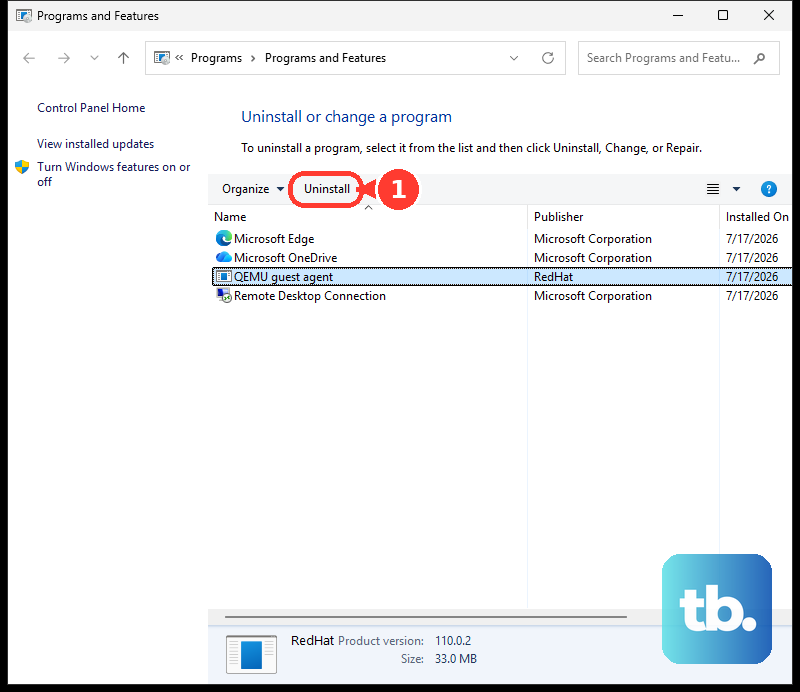
Use Microsoft’s Office download and installation page to reinstall the edition associated with your licensed account. Select Install apps, then Install when offered for a personal account or Microsoft 365 apps for a work or school account, and run the downloaded installer. On Windows, select Yes when User Account Control requests permission. Managed volume-license installations may require your IT team to deploy Office.
To keep working while troubleshooting, open the Microsoft Word product page, select Open Word on Web, and sign in. Basic web editing is available without a paid subscription, though desktop-only features remain limited. Microsoft says updating or reinstalling Office 2019 for Mac cannot fix its July 2026 reduced-functionality issue; use Word for the web or a supported Microsoft 365 installation.
If Word still fails, open Microsoft’s support site and select Get Help on the web or Get Help in Windows. Provide your platform, Word version or build, exact error wording, and whether a new blank document works. Follow the offered diagnostic or contact route, including the results of your Safe Mode and repair attempts.
Frequently Asked Questions
Why does Word work normally but refuse to print?
Print another document and try printing from another app to narrow down the failure. In Windows Word, select File > Print, choose the intended printer, and check that its status is Ready. Check page size, orientation, page range, and layout; if printing still fails only in Word, repair Office and update the printer driver.
How do you fix spell check without repairing Word?
On Windows, open File > Options > Proofing and select Check spelling as you type. On Mac, open Word > Preferences > Spelling & Grammar and select Check spelling as you type and Check grammar as you type. For selected text with the wrong proofing language, use Review > Language > Set Proofing Language and choose the correct language.
Should you delete the Office document cache to stop Word crashing?
Microsoft warns that manually deleting OfficeFileCache can cause crashes and unrecoverable data loss. For Windows Office accessing OneDrive or SharePoint documents, select Free Up Space when Word displays that option in a low-disk-space warning.
Why is Dictate not working when the rest of Word works?
Check the microphone connection, physical mute control, selected microphone, and audio input, and sign in with the required Microsoft 365 entitlement. For microphone-access errors in Word for the web, close other apps using the microphone, reload the page, select Dictate, and grant microphone permission.