


To fix keyboard input not working in Gmail on a computer, press Esc, click the message body, and try typing again; on a phone, close and reopen Gmail first. If typing still fails, follow the fixes for your browser or mobile app below. Gmail’s optional keyboard shortcuts have a separate setting, and enabling them does not enable ordinary typing. The Windows settings below use Windows 11 menus.
The short version
- Restore focus: On Gmail desktop, press Esc and click the message body before typing.
- Check the browser: Try an updated supported browser, then isolate extensions and stored browsing data.
- Fix the mobile app: Update Gmail and troubleshoot the keyboard separately if it also fails outside Gmail.
- Keep working: Switch between Gmail web and the official mobile app while you troubleshoot.
| Fix | When to use it |
|---|---|
| Restore compose focus | Desktop typing misses the message body |
| Reopen Gmail or restart the device | The editor remains unresponsive |
| Try another connection or device | Gmail web also loads incompletely |
| Check Gmail service status | A service incident may affect Gmail |
| Free browser resources | The entire desktop browser freezes |
| Update or switch browsers | Gmail fails in your usual desktop browser |
| Reload Safari | The Gmail page is unresponsive on Mac |
| Compare Chrome Incognito | Session data or extensions may interfere |
| Disable or restrict Chrome extensions | An extension interferes with Gmail |
| Use Firefox Troubleshoot Mode | Firefox customizations may interfere |
| Check Firefox extensions and theme | Typing works in Troubleshoot Mode |
| Check Firefox hardware acceleration | Text rendering or graphics are affected |
| Check Safari extensions and private browsing | Gmail input fails in Safari on Mac |
| Clear Chrome browsing data | Session or cached page problems persist |
| Clear Edge cached files | Cached page problems persist |
| Allow JavaScript in Chrome | Scripting has been disabled |
| Allow Chrome site storage | On-device site data has been blocked |
| Try a fresh Chrome profile | Profile settings may interfere |
| Update Gmail and Android | Input fails in the Android app |
| Force-stop Gmail and clear its cache | The Android editor is unresponsive |
| Force-stop or enable Gboard | Gboard fails or needs enabling |
| Switch the Galaxy keyboard | You need to isolate the installed keyboard |
| Clear Gmail’s Android storage | Less disruptive app fixes have failed |
| Reopen and update Gmail on iPhone or iPad | Input fails in the mobile app |
| Switch the iPhone keyboard | A particular keyboard or layout fails |
| Show the iPad software keyboard | An external keyboard is attached |
| Check Windows keyboard hardware | Typing also fails outside Gmail |
| Check Windows accessibility settings | Keystrokes are ignored or delayed |
| Update the Windows keyboard driver | Input failure affects other applications |
| Check Mac hardware and accessibility settings | Input failure extends beyond Gmail |
| Check ChromeOS keyboard settings | Keystrokes are ignored or altered |
| Switch between Gmail web and mobile | You need another editor while troubleshooting |
| Use an onscreen keyboard | You need a physical-keyboard workaround |
| Ask your administrator | Enforced browser settings block a change |
| Send Gmail feedback | The desktop editor problem persists |
Restore focus and reopen Gmail
On Gmail desktop, press Esc to focus the latest chat or compose window, then click inside the message body. With several compose windows open, use Ctrl + . or Ctrl + , to move between them. This addresses misplaced focus rather than a failed keyboard.
Reopen Gmail if the editor remains unresponsive. When Gmail web also loads incompletely, turn Wi-Fi or mobile data off and back on, try another network, or open Gmail on another device. Restart your device if necessary.
Open the Google Workspace Status Dashboard and inspect Gmail for a service incident. Open any relevant incident for Google’s workaround and recovery updates. If the entire desktop browser freezes, close other tabs and applications, pause downloads, and reload Gmail.
Use an updated supported browser
Open Gmail in an updated Chrome, Firefox, Safari, or Microsoft Edge browser. Google recommends the newest or immediately preceding browser version, with cookies and JavaScript enabled. Try another supported browser if composition fails in your usual browser.
In desktop Chrome, open More > Help > About Google Chrome and allow the update check to finish. Select Relaunch when offered. Linux installations update through their package manager, while Chromebooks update Chrome through ChromeOS updates.
For Edge, open Settings and more > Settings > About Microsoft Edge to update. Safari updates on Mac arrive through macOS updates. To reload Gmail in Safari, choose View > Reload Page or press Command + R.
Check for interfering browser extensions
In desktop Chrome, select More > New Incognito window, open Gmail, and sign in. Compare typing with your normal window. This helps isolate session data or extension interference.
Open More > Extensions > Manage extensions, turn extensions off, and retest Gmail. Re-enable them individually to identify a conflict, especially with writing assistants, translators, or keyboard remappers. For an identified extension, open Details and restrict its site access.
In Firefox, open the browser menu > Help and Report > Troubleshoot Mode…, select Restart, then select Open. Some versions label the menu Help. This mode temporarily disables extensions, themes, hardware acceleration, and some customizations.
If typing works in Firefox’s diagnostic mode, open the menu > Extensions and Themes > Extensions and switch enabled extensions off. Test them individually to find the conflict. To check the theme, open Themes, find System, and select Enable, then restart Firefox and retest Gmail.
For text-rendering or graphics symptoms in Firefox, open Settings > Tabs and browsing > Performance; some versions use General as the panel name. Uncheck Use recommended performance settings, then uncheck Use hardware acceleration when available. Quit and reopen Firefox to compare the behavior.
On Safari for Mac, open Safari > Settings > Extensions, deselect installed extensions, and retest Gmail. You can also compare typing through File > New Private Window.
Clear browser data and check blocked settings
Deleting Chrome cookies and cached files resets site sessions and may remove locally stored website data. Open More > Delete browsing data, select All time, and check Cookies and other site data and Cached images and files. Leave unrelated categories unselected, select Delete data, and reopen Gmail.
Clearing Edge’s cache deletes cached images and files. For cached page problems, open Settings and more > History > Open history page > Delete browsing data. Set Time range to All time, select Cached images and files, then select Clear now.
If scripting has been disabled in Chrome, open More > Settings > Privacy and security > Site settings > Javascript. Select Sites can use Javascript and reload Gmail. Gmail requires JavaScript.
When site storage has been blocked, open Chrome’s More > Settings > Privacy and security > Site settings > Additional content settings > On-device site data. Select Allow sites to save data on your device and reopen Gmail. This setting is separate from allowing all third-party cookies.
To isolate persistent Chrome profile problems, select Profile > Add Chrome profile, choose its name and appearance, and test Gmail before adding extensions. Signing into Gmail does not require restoring all your Chrome profile customizations.
Fix Gmail and keyboard input on Android
Update Gmail through Play Store > profile icon > Manage apps & devices > Updates available. Restart your phone using its manufacturer’s power-menu procedure. Install available operating-system updates through the device’s System update or Software update settings.
For an unresponsive Gmail editor, open Settings > Apps > Gmail > Force stop, then reopen Gmail. If necessary, open Gmail’s Storage & cache settings; Android app-information labels vary by device. Clearing the cache deletes Gmail’s cached data. Select Clear cache.
If Gboard itself is failing, open Settings > Apps > Gboard > Force stop, then reopen the keyboard. When Gboard needs to be enabled again, open Settings > System > Keyboard > On-screen keyboard and enable Gboard. In a text field, hold Globe and select Gboard.
On a Samsung Galaxy device, you can test another installed keyboard through Settings > General management > Keyboard list and default > Default keyboard. Select the alternative and retest Gmail. Screens vary by model, carrier, and software version.
Clearing Gmail’s local storage can erase drafts, signatures, ringtones, and other local settings. Only after less disruptive fixes fail, open Settings > Apps > See All Apps > Gmail > Storage & cache > Clear storage. Restart the device afterward.
Restore input on iPhone and iPad
Open the App Switcher, swipe Gmail upward, and reopen it. Restart the device if necessary, then open App Store > profile icon > App Updates and update Gmail. If no app update is available, check for an iOS or iPadOS update.
On iPhone, hold the Emoji or Switch Keyboard button while entering text and choose another keyboard. You can manage installed keyboards under Settings > General > Keyboard > Keyboards. Switching helps isolate a particular keyboard or layout.
An attached external keyboard can leave the iPad software keyboard hidden. Tap the Keyboard Shortcut button in the bottom Shortcuts bar or, if you installed additional language keyboards, the language button beside predictive suggestions. Tap Show Keyboard to display the software keyboard.
Check the keyboard when other apps are affected
When typing also fails outside Gmail on Windows, reconnect a USB keyboard, try another port, and bypass any USB hub. Charge or replace batteries and check for obstructed keys. For a USB wireless receiver, disconnect it for about 10 seconds before reconnecting it. Test the keyboard on another computer if the problem persists.
On Windows 11, open Settings > Accessibility > Keyboard and turn off Filter Keys or Sticky Keys if they were unintentionally enabled. These settings are relevant when keystrokes are ignored, delayed, or produce unexpected combinations.
For system-wide input failure on Windows 11, you can also update your Windows keyboard driver. Open Windows Update and select Check for updates, or open Device Manager, locate and open the keyboard device, then choose Driver > Update Driver. Follow the available update workflow.
On Mac, recharge and reconnect an external keyboard, or test another port or keyboard. Open Apple menu > System Settings > Accessibility > Keyboard and turn off Slow Keys if unintended. Under Accessibility > Pointer Control, turn off Mouse Keys.
For Chromebook input problems, select the time > Settings > Accessibility > Keyboard and text input. Review Slow keys, Bounce keys, and Sticky keys when keystrokes are ignored or altered. Enable On-screen keyboard for an alternative way to enter text.
Keep writing and report a persistent problem
If browser composition still fails, use the official Gmail Android or iPhone/iPad app. If the app fails, try Gmail in a supported browser or on another device. Switching editors is a workaround while the original input problem remains, subject to your organization’s access restrictions.
On Windows 11, open Start > Settings > Accessibility > Keyboard and enable On-Screen Keyboard. Focus Gmail’s message field and click the displayed keys.
On Mac, open the Input menu > Show Keyboard Viewer, focus Gmail, and click the displayed keys. If the menu is absent, open System Settings > Keyboard > Text Input > Edit and enable Show Input menu in menu bar.
If Chrome prevents an extension or settings change, open More and look for Managed by your organization. Ask your administrator to investigate enforced extensions or restrictions that block the relevant troubleshooting change.
For a persistent Gmail desktop editor problem, select Help > Send feedback to Google. Describe the affected field, device, browser or app version, and whether typing works elsewhere. If you take a screenshot for feedback, check it for private message content before including it.
Frequently Asked Questions
Why can you type in Gmail but not use keyboard shortcuts?
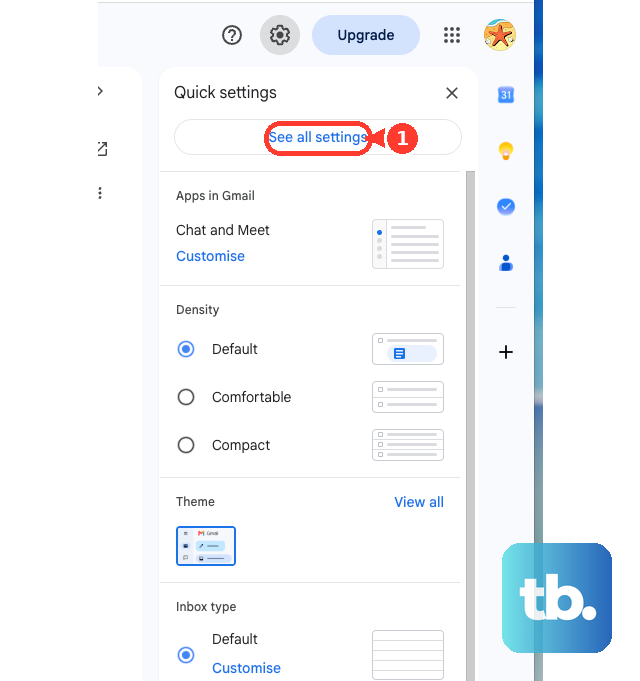
Optional Gmail shortcuts have their own setting. On desktop, open Settings > See all settings, find Keyboard shortcuts, select Keyboard shortcuts on, and select Save Changes. You can also press Shift + / to open shortcut help and select Enable or Disable.
Can Gmail shortcuts work with an external keyboard on iPad?
Yes, with an external keyboard connected, open Gmail > Menu > Settings and tap Enable keyboard shortcuts. Hold Command to inspect available shortcut descriptions. Gmail application shortcuts are not currently supported on iPhone.
Should you turn off Smart Compose when suggestions interfere with writing?
Turn off Smart Compose for unwanted writing suggestions. Open Gmail’s Settings > See all settings > General > Smart Compose and select Writing suggestions off. For personalized suggestions, find Smart Compose personalization and select Personalization off.
Can Gmail provide a virtual keyboard for another language?
Yes, Gmail desktop supports input tools for supported languages. Open Settings > See all settings > Language, check Enable input tools, select Edit tools, choose the required tool, select Ok, then Save Changes. Open Select input tool in the inbox toolbar and choose the tool; virtual-keyboard keys can be clicked with a mouse. Input tools cannot be configured in the Gmail mobile app.
Does switching to Basic HTML still fix Gmail input problems?
Google retired Basic HTML and redirects you to Standard view. Administrators cannot restore Basic HTML.