


To fix BF6 crashing on PC, restart Windows, install the current game update, and repair or verify Battlefield 6’s files before changing drivers or graphics settings. If crashes continue, disable overlays and unnecessary background apps, then check the graphics driver. Use the Javelin and Secure Boot fixes when the error names those components.
Change one thing at a time and relaunch the game after each change. Follow the repair route for your launcher, and stop when the crashes stop.
The short version
- Start here: Restart your PC, update Battlefield 6, and repair or verify its files.
- Remove conflicts: Temporarily disable launcher and Discord overlays, then close unnecessary background applications.
- Check graphics: Update the compatible GPU driver and test lower graphics settings.
- Follow the error: Use Javelin repairs for anticheat errors and check Secure Boot when the game flags it.
| Fix | When to use it |
|---|---|
| Restart Windows | First attempt, especially for DXGI_ERROR_DEVICE_HUNG |
| Update Battlefield 6 | A game update is available |
| Update Windows | Applicable system updates are available |
| Repair files in EA app | EA app manages your installation |
| Verify files in Steam | Steam manages your installation |
| Verify files in Epic Games Launcher | Epic provides a verification option |
| Disable the EA app overlay | EA app’s overlay is enabled |
| Disable the Steam overlay | Steam’s overlay is enabled |
| Disable the Discord overlay | Discord’s overlay is enabled |
| Close background applications | Recording, monitoring, or other apps may interfere |
| Perform a clean boot | Closing individual apps has not isolated a conflict |
| Update the graphics driver | A compatible driver update is available |
| Roll back the graphics driver | Crashes began after a driver update |
| Clean-install the NVIDIA driver | An ordinary driver update failed |
| Lower graphics quality | Crashes occur during gameplay |
| Enable Vertical Sync | You need to test frame limiting |
| Reset a settings category | Crashes followed settings changes |
| Select the high-performance GPU | A Windows 11 PC has multiple GPUs |
| Run EA app as administrator | Javelin reports a startup or service error |
| Address Javelin-blocked software | The error identifies incompatible software |
| Reinstall Javelin | Anticheat is damaged or missing |
| Check Secure Boot | The game reports a Secure Boot error |
| Check system requirements | Your hardware or security configuration may be unsupported |
| Restore CPU and memory defaults | Your CPU or RAM is overclocked |
| Enable NVIDIA Debug Mode | You need to test reference GPU clocks |
| Check firmware and CPU power defaults | Instability persists on an affected desktop system |
| Check GPU seating and power | You suspect desktop hardware instability |
| Reinstall Battlefield 6 | Earlier repairs have failed |
| Clear EA app cache | The launcher is stuck updating or downloading |
| Collect a DxDiag report | Crashes remain unresolved and support needs diagnostics |
Restart your PC and update Battlefield 6
Close Battlefield 6, open Start > Power, and select Restart. EA recommends a full restart for DXGI_ERROR_DEVICE_HUNG. If Windows has stopped responding, follow the steps to restart an unresponsive computer.
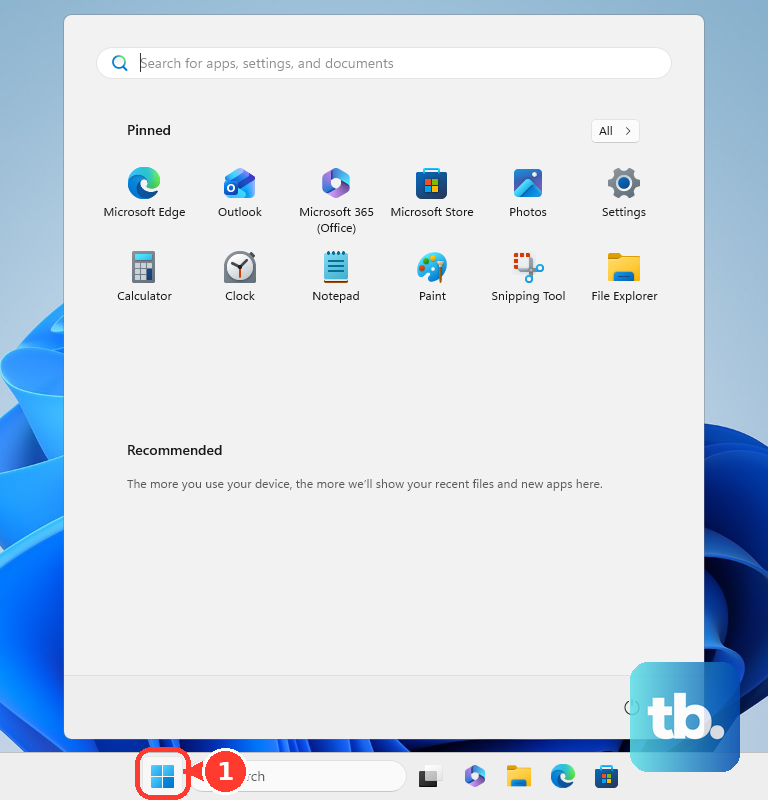
Open the launcher that owns your game and install the offered Battlefield 6 update before launching again. Update 2.1.1.0, released October 13, 2026, includes stability improvements. In EA app, enable future updates through the three-line menu > Application settings > Download, then turn on Update games automatically and Enable background downloads under Updates.
Install applicable Windows updates, then restart. On Windows 11, open Start > Settings > Windows Update > Check for updates. On Windows 10, open Start > Settings > Update & Security > Windows Update > Check for updates; availability depends on your servicing eligibility.
Repair or verify the game files
For an EA app installation, open Library and select Battlefield 6. Choose Manage > Repair, then wait for completion before launching. Continue to the overlay checks if the game still crashes.
For Steam, restart your PC and open Steam, then right-click Battlefield 6 in Library. Select Properties... > Installed Files > Verify integrity of game files. Allow verification to finish before launching again.
In Epic Games Launcher, open Library, select the three dots beside Battlefield 6, and choose Manage > Verify. Wait for validation to finish. If Epic delegates the installation to EA app and does not provide Verify, use EA app’s Repair route instead.
Turn off overlays and close background apps
Temporarily disable the overlay in the launcher you use. In EA app, select your profile thumbnail > Settings > Application, then turn off In-game overlay. EA recommends restoring it after troubleshooting because invitations and messages use it.
In Steam, open Library, right-click Battlefield 6, and select Properties... > General. Uncheck Enable the Steam Overlay while in-game, then relaunch Battlefield 6. Check whether this helps before disabling another overlay.
For Discord, select the cog beside your username to open User Settings. Open Overlay and turn off Enable Overlay. Also exit unnecessary recording, monitoring, download-management, and file-sharing applications, checking the game after each change.
If closing individual apps does not isolate the conflict, sign in as an administrator for a clean boot. Search Windows for msconfig, open System Configuration > Services, check Hide all Microsoft services, then select Disable all and Apply. Record your changes so you can restore them afterward.
Open Startup > Open Task Manager and disable enabled startup apps, recording those changes too. Close Task Manager, select OK, and restart. Required launcher or anticheat services may need re-enabling for the game to launch; managed-PC policies can also restrict this procedure. Restore normal startup after identifying the conflicting software.
Update or roll back your graphics driver
Identify your graphics adapter before choosing a driver. Press Windows, type dxdiag, press Enter, and open Display. Follow the steps to find and update your graphics driver, using a compatible package from the GPU maker or your PC manufacturer.
For NVIDIA, open NVIDIA app > Drivers, select Download for the compatible offered driver, then select Install. Restart when requested, then launch Battlefield 6 again.
For AMD, download the compatible package from AMD’s driver download page and run it. Select Yes, review the agreements, and select Accept & Express Install if you accept them. Select Close when installation finishes.
For Intel graphics, obtain the appropriate Intel or PC manufacturer package. Run the installer, select Begin Installation, and complete installation. Restart if requested before launching the game again.
If crashes began immediately after a graphics-driver update, sign in as an administrator and try restoring the previous compatible driver. Right-click Start > Device Manager, expand Display adapters, and right-click your GPU. Select Properties > Driver > Roll Back Driver, choose the applicable reason, and select Yes. Restart if prompted; rollback is available only when Windows retains a previous driver.
If an ordinary NVIDIA update fails, get the compatible installer from NVIDIA’s driver download page and close applications. Right-click the installer, select Run as administrator, select Yes, then select OK for extraction. Choose NVIDIA Graphics Driver and NVIDIA App, then select AGREE AND CONTINUE > Custom (Advanced) > NEXT. Check Perform a clean installation, finish installation, and restart.
Reduce graphics load and reset changed settings
When you can reach the game menus, select the Settings cog > Graphics, then select Modify beside Graphics. Lower quality settings to Low and launch the game again. You can reduce effects, lighting, shadows, volumetrics, undergrowth, and post-processing.
To test frame limiting, open the game’s Settings > Graphics > Display and turn on Vertical Sync. This matches rendering to the display refresh rate as a stability check. If crashes followed settings changes, open Settings, choose the affected category, and select Reset Category at the bottom-right. Check the game before making further changes.
On a Windows 11 PC with multiple GPUs, open Start > Settings > System > Display > Graphics. Under Custom options for apps, select Battlefield 6 > Options, choose High performance, and select Save. Restart the game to use the selected GPU.
Fix Javelin and Secure Boot errors
Follow this route when the error names EA Javelin or an anticheat startup service. Close EA app, right-click its shortcut, and select Run As Administrator, then launch Battlefield 6 directly from EA app. EA specifies this route for startup errors including error 94, even for Steam or Epic purchases.
If Javelin identifies incompatible software or a driver, update that software and restart. Disable or uninstall it using its maker’s instructions if the block continues. Errors 119 and 95 can involve software conflicts, so address the named application before reinstalling the game.
For damaged or missing anticheat, open C:\Program Files\EA\AC\EAAntiCheat.Installer.exe. Choose Battlefield 6 and select Uninstall. Obtain the current installer through EA’s Javelin installer page, choose Battlefield 6, and select Install. You must reinstall anticheat before playing.
For a Secure Boot error, press Windows + R, type msinfo32, and press Enter. Under System Summary, check that BIOS Mode reads UEFI and Secure Boot State reads On. Follow the steps to enable Secure Boot on your PC using your manufacturer’s firmware instructions. TPM 2.0, a GPT system disk, and UEFI prerequisites must also be met.
Check requirements and hardware stability
Compare your PC with Battlefield 6’s requirements before continuing with deeper repairs. EA lists Windows 10 as the minimum, with Windows 11 recommended, plus 16GB RAM, DirectX 12, supported discrete graphics with at least 6GB of VRAM, TPM 2.0 enabled, and UEFI Secure Boot enabled. Your PC must also be HVCI capable and VBS capable, and EA’s requirements page lists the minimum CPU and storage too. You can check your computer’s installed RAM before deciding whether hardware needs upgrading. Correct unmet requirements before continuing with software troubleshooting.
Restore manual CPU overclocking to default speeds and check the game without an enabled XMP or EXPO memory profile. Use your motherboard’s documented firmware procedure and default-profile label, then save your changes. For supported NVIDIA graphics, open NVIDIA app > System > Advanced and enable Debug Mode to check stability at reference GPU clocks.
Persistent instability can require model-specific firmware or hardware checks. Current motherboard firmware and manufacturer-recommended CPU power defaults are particularly relevant to affected Intel desktop systems. Use firmware for your exact motherboard and follow its maker’s installation instructions.
For a desktop GPU, power off the PC before checking the card’s seating and power connections. Follow the system or card maker’s physical installation instructions. If you use a PCIe riser, check whether connecting the card directly to the motherboard slot resolves the instability.
Reinstall only after the earlier fixes fail
For an EA app-managed installation, select Battlefield 6 > Manage > Uninstall, then select Yes when prompted. Reinstall through the launcher that owns the game. Save this step until after the file repair, driver, and software-conflict checks.
If EA app itself is stuck updating, preparing, or downloading, clear its cache before reinstalling. Open its three-line menu > Help > App recovery > Clear cache, then reopen the launcher. Cache cleanup addresses these launcher problems and is not a general graphics-crash fix.
For unresolved crashes, collect system information for EA support. Search Windows for dxdiag, let it finish, and select Save All Information to save the text report. Supply it when support requests diagnostics, and describe the error and which changes affected the crash.
Frequently Asked Questions
Can you fix BF6 crashes by forcing DirectX 11?
EA lists DirectX 12 in both the minimum and recommended Battlefield 6 requirements, and its Battlefield 6 error guide says DirectX errors can mean a driver issue, so check your graphics driver and the game’s minimum requirements. Microsoft’s supplemental DirectX runtime libraries can address missing components needed by EA app, but they do not replace the game’s DirectX 12 requirement.
What should you do about Javelin installer error 41?
On an affected Windows 11 Insider Preview build, install the latest available Insider Preview update. On Windows 11, open Settings > Windows Update > Check for updates, install the update, and restart.
How do you clear potentially corrupted NVIDIA shader caches?
In NVIDIA app, open Graphics > Global Settings > Shader Cache Size, select Off, select Apply, and restart. Press Windows + R and open %USERPROFILE%\AppData\Local, then delete the contents of NVIDIA\DXCache, NVIDIA\GLCache, and NVIDIA Corporation\NV_Cache where present. Restore Driver Default in NVIDIA app, select Apply, and restart. This is a conditional cache repair, not a guaranteed BF6 fix.
Can an EA account error look like a crash?
EA lists authentication and login errors for Battlefield 6, including an EA Account that’s logged in on multiple devices. Sign into the EA Account that owns the game, sign out on other devices, and restart the launcher and EA app. These steps address account-session failures rather than graphics crashes.
Can EA Error Reporter repair Battlefield 6 automatically?
EA Error Reporter submits diagnostics for game or EA app issues rather than automatically repairing the game. Open the EA app’s three-line menu > Help > EA Error Reporter, or search for the reporter from Start if the app cannot open. Describe the issue, check By clicking this box, you agree to share diagnostic information with EA, and select Submit report. Retain the report identifier for support.