


To fix Apple Maps on your iPhone, enable location access, check your Wi-Fi or cellular connection, and close and reopen Maps if it is unresponsive. Start with the symptom: an incorrect position needs location checks, while maps that will not load need connection checks. Try Maps again after each change.
The short version
- Wrong position: Turn on Location Services and give Maps permission to access your location.
- Nothing loads: Check your connection and make sure Maps can use cellular data.
- Frozen app: Close and reopen Maps, then restart your iPhone if necessary.
- Persistent trouble: Install available updates before reinstalling Maps or resetting settings.
| Fix | When to try it | What to know |
|---|---|---|
| Enable location access | Maps cannot locate you | Check location permission and precise positioning |
| Improve GPS reception | Your position jumps around | Satellite acquisition can take several minutes |
| Recenter the map | The map stopped following you | The location arrow restores tracking |
| Correct date and time | Location or connection trouble persists | Enable automatic settings when available |
| Restore internet access | Maps will not load | Check Wi-Fi and Maps cellular permission |
| Check service status | A service problem may explain the failure | Retry after an acknowledged incident is resolved |
| Review network filtering | A VPN or security app may affect connectivity | Ask your administrator about managed configurations |
| Reopen Maps | The app is frozen | Close its preview and open it again |
| Restart your iPhone | Reopening Maps does not help | Force restart only if normal shutdown is unavailable |
| Install updates | App failures keep returning | Check for an app update and update iOS |
| Repair offline coverage | Downloaded areas are missing or incomplete | Offline maps depend on regional availability |
| Restore spoken directions | Your route is silent | Start navigation from your actual location |
| Review route preferences | Routes or arrival estimates look wrong | Check travel mode, avoidance, and departure settings |
| Reinstall Maps | Failures continue after updates | Deletion can remove app data |
| Reset location permissions | Location access still fails | Other apps lose their location and privacy permissions too |
| Reset network settings | Connection failures persist | Saved Wi-Fi passwords and network configurations are removed |
| Report map information | A road, address, or place is wrong | Corrections require Apple’s review |
| Use Maps in a browser | You need a temporary alternative | Web features vary by platform, language, and region |
| Contact Apple Support | Relevant fixes have not helped | Describe the failure, device, and iOS version |
Check location access and GPS reception
Open Settings > Privacy & Security > Location Services and turn on Location Services. Tap Maps, then select While Using the App or Widgets. Start here when Maps cannot locate you correctly.
On iPhones with the Apps settings menu, open Settings > Apps > Maps > Location and turn on Precise Location. On iOS 27, you can also reach that switch through Settings > Privacy & Security > Location Services > Maps. Maps may display an alert directing you to enable it.
A position that jumps around can reflect poor GPS reception. Move somewhere with an unobstructed view in several directions and allow several minutes for satellite acquisition. Buildings, mountains, walls, and vehicle roofs can obstruct GPS.
If the map stopped following you after you manually moved or rotated it, tap the location-arrow control to center your position. Tap it again to follow your heading, or tap the compass to put north at the top.
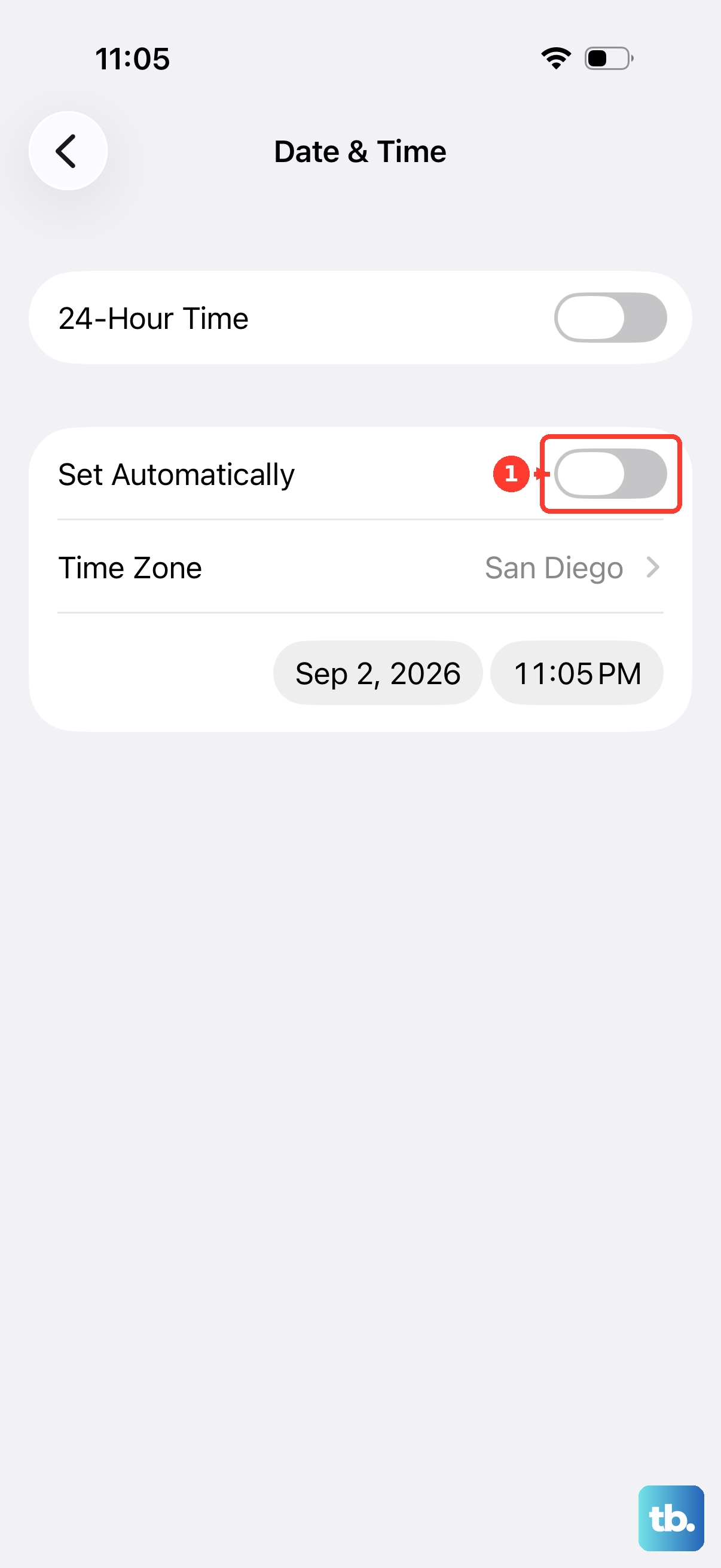
Check your date and time settings if location or connection trouble continues. Open Settings > General > Date & Time and check the date, time, and time zone. Turn on Set Automatically when that control is available.
Restore your internet connection
For maps that will not load, open Settings and turn off Airplane Mode. Open Wi-Fi, turn it on, and select a working network. Try another Wi-Fi network or cellular data to narrow down the connection problem.
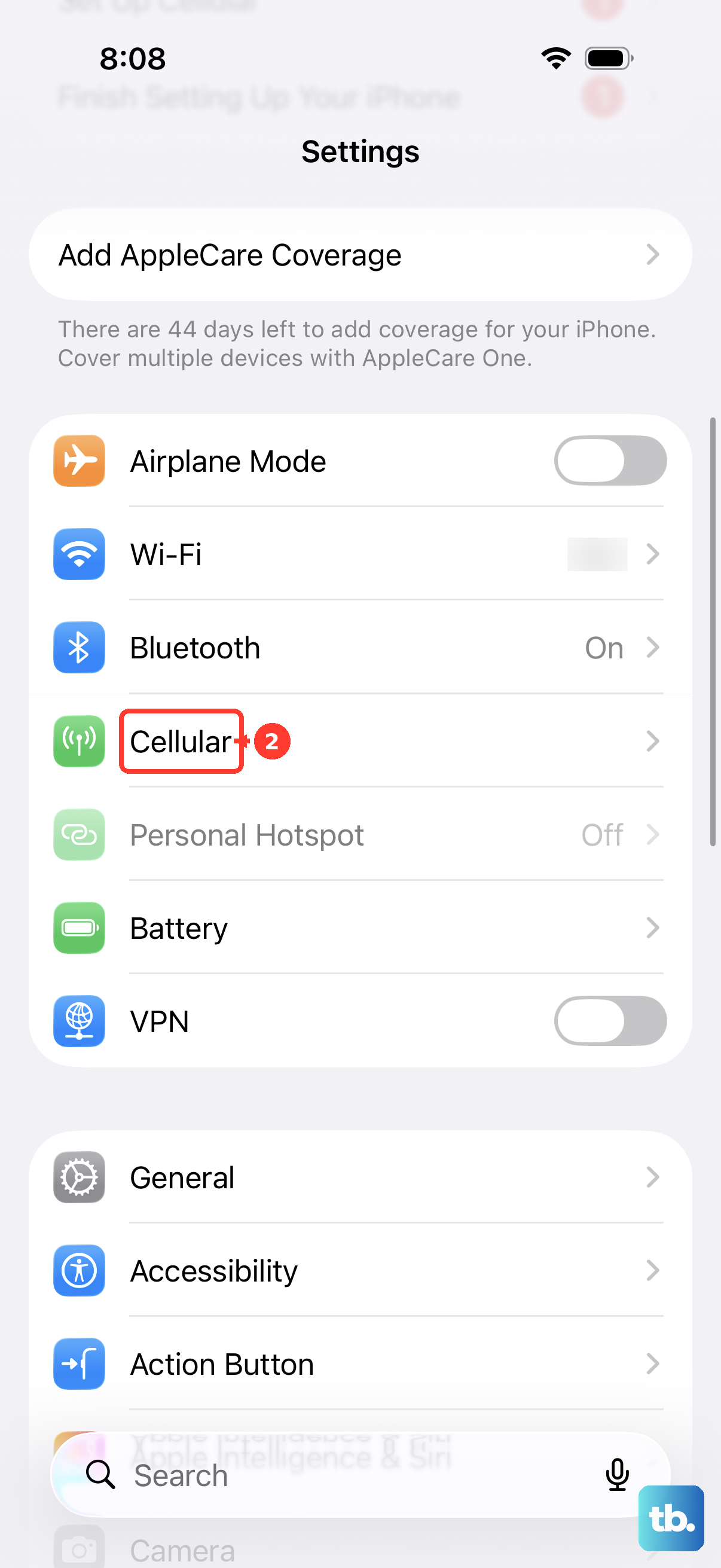
If Maps works at home but fails when you leave, open Settings > Cellular on an iPhone with an active cellular data plan. Turn on Cellular Data, then enable Maps in the app list. Tap Show All if you need to expand the list to find it.
When only your home network fails, move within range and restart the router and modem. Check the router’s firmware, and contact your internet provider if other devices also cannot get online. If connection problems persist and your iPhone shows Connectivity Assist under Settings > Wi-Fi, Apple says to turn it off.
Before making broader changes to your phone, check Apple System Status for any Maps-related incident displayed. If Apple acknowledges an incident, retry after it is resolved.
Third-party VPN or security filtering can interfere with connectivity. Open the relevant app and temporarily disable its filtering features, then restart your iPhone and retest. Search Settings for VPN, profile, firewall, and filter to locate related controls. For a managed configuration, ask your organization’s administrator to review it.
Reopen Maps and restart your iPhone
Close Maps when it is frozen or unresponsive. On a Face ID iPhone, swipe up from the bottom and pause; on an iPhone SE with a Home button, double-click Home. Find the Maps preview, swipe it upward, and open Maps again.
If Maps still fails, restart the phone. On Face ID models, hold Side and either Volume Up or Volume Down until the shutdown slider appears; on iPhone SE models from the second or third generation, hold Side. Drag the slider, wait 30 seconds, then hold Side until the Apple logo appears.
On iOS 27, you can also open Settings > General > Shut Down and drag the slider. Alternatively, open Control Center, hold its top-right power button, and drag the slider. After shutdown, hold Side until the Apple logo appears.
If the whole phone is frozen and normal shutdown is unavailable, force restart your iPhone. For models covered by Apple’s iOS 27 instructions, quickly press and release Volume Up, then quickly press and release Volume Down, and hold Side until the Apple logo appears. Release the button when the logo appears; on iPhone Duo, Volume Up is the volume button nearest Side.
Install available software updates
Check for an app update by opening App Store, tapping your profile icon, and selecting App Updates. You can update apps on your iPhone from this screen, including Maps if an update is offered. If Maps has no separate update, update iOS instead.
Back up your iPhone, connect it to power and Wi-Fi, then open Settings > General > Software Update. Tap Download and Install if offered and complete the installation. Install the newest update offered for your particular iPhone.
When wireless updating fails, you can use a computer. On a Mac running macOS Catalina or later, back up and connect the iPhone, select it in Finder, then open General > Check for Update and click Download and Update. Enter your passcode if requested.
On a Windows computer running Apple Devices, connect the phone, open Apple Devices, and select your iPhone in the sidebar. Select General, choose Check for Update if necessary, then select Update. If you need to install Apple Devices first, open Microsoft Store, search for Apple Devices, select Apple Devices, and select Get.
Check offline maps and downloaded coverage
On iOS 27, searches or routes outside downloaded areas can fail when offline-only mode is enabled. Open Maps, tap your picture or initials, select Offline Maps, and turn off Only Use Offline Maps to restore online use. During a connection failure, you can instead turn that setting on to use previously downloaded coverage on iOS 17 or later.
To prepare coverage on iOS 27 while you have connectivity, open Offline Maps and tap Add Offline Map. Enter a place or tap Current Location, adjust the area, and tap Download. Offline maps depend on regional availability and do not repair GPS problems or app crashes.
On iOS 17 or later, another download route is to search for a place and open its result. Tap Download, or choose More > Download Map, adjust the coverage, and tap Download. Use this route if your offline-map menu differs from the iOS 27 menu.
For stale or incomplete downloads on iOS 27, open Offline Maps and turn on Automatic Updates. Select a downloaded map, tap Resize, adjust its area, and tap Download to expand coverage. If unused downloads keep disappearing, turn off Optimize Storage and redownload the missing areas.
If you need to download over cellular on iOS 27, open Offline Maps, tap Wi-Fi Only, and select Wi-Fi + Cellular. Cellular charges can apply.
Restore spoken directions and check the route
Silent directions can come from a route preview that begins somewhere else. Choose My Location as the route origin and tap Go to start navigation. A route beginning elsewhere displays Steps and does not speak directions.
On iOS 27, tap the map’s Audio Control button during navigation and choose the unmuted option. For default loudness, open Settings > Apps > Maps > Spoken Directions and select an option under Voice Volume. If spoken audio competes with directions, enable Directions Pause Spoken Audio on that screen.
Unexpected routes need a different check. In Maps, tap your picture or initials, open Preferences, and choose the intended travel mode and review its preferences. Tap Maps Settings for additional controls.
On iOS 27, request driving directions and tap Options below Directions to review the choices under Avoid. Review Leave at or Arrive by if the departure time or arrival estimate seems wrong, then tap Done.
Delete and reinstall Maps if failures continue
Deleting Maps can remove app data and temporarily removes Maps from CarPlay and a paired Apple Watch. To delete an app on iPhone, touch and hold Maps, select Remove App, then tap Delete App and Delete. Apple lists Maps as a deletable built-in app on iOS 14 or later.
Next, reinstall the deleted iPhone app by opening App Store, searching for Apple Maps, and tapping the redownload button. You can also open the official Apple Maps download page and use its installation or redownload control. Reopen Maps and grant location access again.
Reset the settings related to the failure
Resetting location and privacy permissions also resets permissions for other apps. For persistent location-access trouble, open Settings > General > Transfer or Reset iPhone > Reset > Reset Location & Privacy. Reopen Maps and grant location access again.
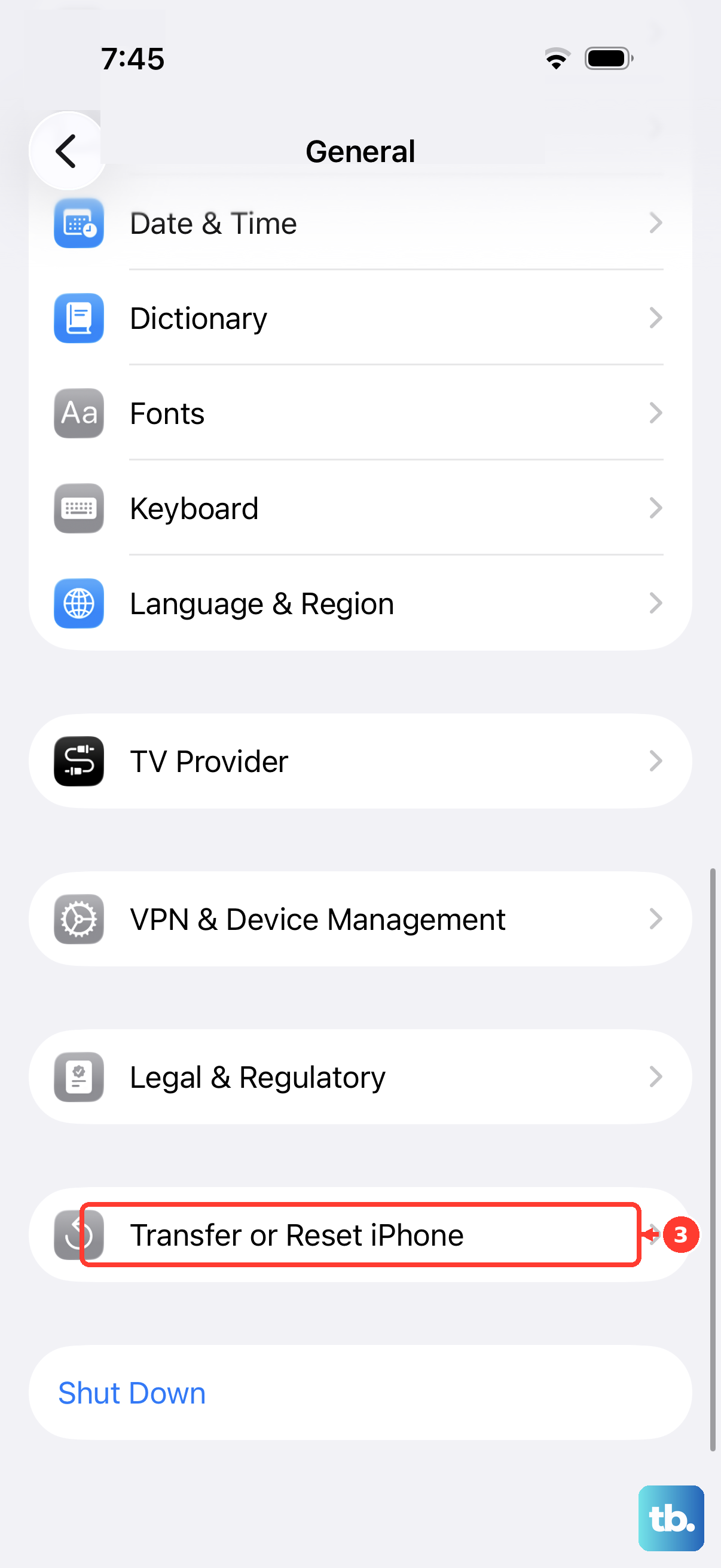
Resetting network settings removes saved Wi-Fi passwords and network configurations. If your iPhone is managed by work or school, consult IT before proceeding. For continuing connection failures, open Settings > General > Transfer or Reset iPhone > Reset > Reset Network Settings. Reconnect afterward and try Maps again.
Report incorrect information or get further help
A wrong road, missing business, or incorrect address needs a map-data report. On iOS 27, tap your picture or initials in Maps, then select Reports > Report a New Issue. Choose the issue and provide the requested details; corrections require Apple’s review.
While the app remains unusable, open Apple Maps in your browser and select Search or Directions. Use the latest version of Safari, Edge, Chrome, or Firefox on iPhone. Web features vary by platform, language, and region.
For persistent crashes, location failures, or suspected device problems, open Apple’s Maps troubleshooting page and select Get suggestions. Describe the failure, the affected locations, your iPhone model, and the installed iOS version.
Frequently Asked Questions
Do you need to reinstall Maps if its Home Screen icon disappeared?
Open Maps from App Library first. Choosing Remove from Home Screen keeps the app installed, so that action alone does not require a reinstall.
Why does Maps work on the iPhone but not through CarPlay?
Check the CarPlay connection separately. For wired CarPlay, try another cable or USB port and avoid problematic adapters. For wireless CarPlay, enable Bluetooth and Wi-Fi in Settings, select the CarPlay network, and enable Auto-Join. Select the CarPlay logo on the vehicle display if necessary.
How do you correct the saved home marker in Maps?
In Maps, find Places, hold the saved location, and select Edit Details, then Refine Location on the Map. Move the marker and tap Done. On iOS 18 and later, the home address saved in Maps can differ from the address on your contact card.
How do you change the voice or language used for directions?
On iOS 27, open Settings, select Siri, then choose Language or Voice and select the option you want. Maps spoken directions use Siri’s language and voice.
Why does Maps fail to mark where you parked at home?
Maps does not mark parking at familiar places such as home or work. For detection elsewhere, pair your iPhone with a compatible vehicle through Bluetooth or CarPlay and turn on Show Parked Location under Settings > Apps > Maps. Enable Location Services and the significant-location setting under Location Services > System Services; on iOS 27, the latter is labeled Significant Locations & Routes.