

To fix an iPhone that won’t scan QR codes, open Camera, select Photo, frame the code, and tap the detected link. If no link appears, try Scan Code in Control Center, add light, and clean the camera lenses. If scanning still fails, check camera permissions, restart your iPhone, and update its software.
Choose the next fix based on where scanning stops. An app that cannot access the camera needs a permission check, while a detected website that will not load needs connection troubleshooting.
The short version
- Start with Camera: Select Photo, keep the QR code inside the frame, and tap the link that appears.
- Try Code Scanner: Open Scan Code from Control Center and use its flashlight button when the code needs more light.
- Check app access: Allow camera access for an affected scanner app in Settings > Privacy & Security > Camera.
- Separate loading problems: Check your internet connection when the code is recognized but its online destination will not open.
| Fix | When to use it |
|---|---|
| Camera in Photo mode | Your first scanning attempt |
| Scan Code | You need another built-in scanner |
| Scanner flashlight | The code needs more light |
| Screen brightness and scanning distance | A Google Account sign-in code is difficult to scan |
| Lens cleaning and accessory removal | The camera image is blurry or obstructed |
| App camera permission | A third-party scanner cannot access the camera |
| Safari camera permission | A scanner website needs camera access |
| Screen Time restrictions | Camera is restricted |
| Device-management check | A work or school policy disables the camera |
| Close and reopen the app | The camera or scanner app is unresponsive |
| Restart your iPhone | Scanning trouble persists |
| Force restart | Your frozen iPhone cannot restart normally |
| iOS update | A compatible system update is available |
| App update | An App Store scanner app malfunctions |
| Delete and redownload the app | Simpler app troubleshooting has failed |
| Connection troubleshooting | A detected online destination will not load |
| Camera checks and service | Ordinary photos also fail |
Start with Camera in Photo mode
Open Camera from the Home Screen and select Photo. Position the QR code inside the camera frame, then tap the link that appears at the bottom of the screen. Tapping that link opens the detected destination.
You can also open Control Center and tap Camera, then select Photo and frame the code. For the basic scanning sequence, follow the steps to scan a QR code. If no link appears, try the separate scanner next.
Try Code Scanner and add light
On iOS 18 and later, open Control Center, touch and hold its background, then tap Add a Control. Select Scan Code and tap outside the gallery. Tap the Scan Code control, frame the QR code, and tap the detected link.
If the code needs more light, tap the flashlight button inside Code Scanner and frame it again. If the camera image remains blurry or obstructed, clean the lenses and check for interfering accessories next.
For Google Account sign-in QR codes displayed on another screen, increase that screen’s brightness and hold the scanning phone upright. Keep the code in the viewfinder while slowly moving closer or farther away. Google suggests starting about a foot away and moving closer.
Clean the lenses and remove obstructions
Remove any case, film, lens attachment, or magnetic accessory that obstructs or interferes with the camera. Clean the front and rear camera lenses with a microfiber cloth. Open Camera again, select Photo, and retry the code.
If the camera image is still blurry, try taking an ordinary photo. Use the rotate-camera button to check the front and rear cameras separately. If ordinary photos also fail, continue with the restart and update steps before seeking service.
Check camera access and restrictions
When scanning fails inside a third-party app, open Settings > Privacy & Security > Camera. Turn on access for the affected app, then reopen its scanner. Only apps that have requested camera access appear in this list.
For a website that uses your camera, open Settings > Apps > Safari > Camera and select Ask. For a particular trusted scanner website on iOS 27, open it in Safari and tap the Page Menu button. Select Website Settings > Camera and choose Allow. On iOS 26, tap Page Menu > More > Camera instead; on iOS 18, tap Page Settings > Details > Camera.
If Screen Time restricts Camera on iOS 27, open Settings > Screen Time > Content & Privacy Restrictions > Other Features and allow Camera. The person managing Screen Time must authorize changes protected by its passcode.
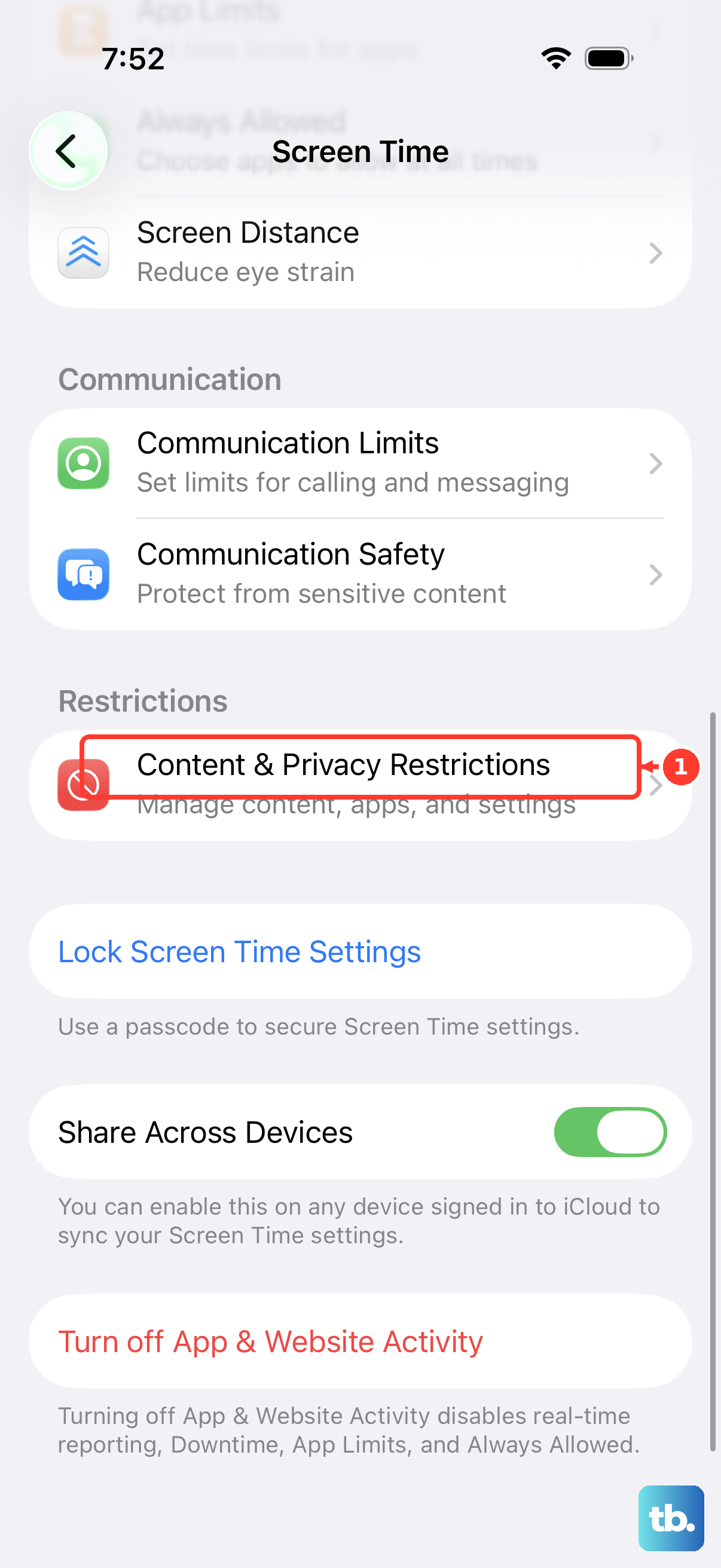
The older iOS 26 path was Settings > Screen Time > Content & Privacy Restrictions > Allowed Apps & Features. For a child’s restrictions, that version required selecting the child’s name in Screen Time first. On iOS 27, look under Other Features for the Camera restriction.
On a managed work or school iPhone, open Settings > General > VPN & Device Management to inspect installed profiles. If a policy disables Camera, ask your administrator to change the restriction. Deleting a profile also deletes its associated settings, apps, and data, so profile removal is not a general QR-scanning fix.
Reopen an unresponsive app and restart
Close and reopen the camera or scanner app only when it is unresponsive. On an iPhone without a Home button, swipe up from the Home Screen and pause midway; on an iPhone with a Home button, double-click Home. Find the affected app, swipe its preview upward, and reopen it.
For a normal restart on iPhone X and later, hold either Volume button and the Side button until the power-off slider appears. Drag the slider and wait 30 seconds. Hold the Side button until the Apple logo appears, then retry scanning.
On iPhone SE models from the second or third generation, and on iPhone 6, 7, and 8, hold only the Side button to bring up the power-off slider. Follow the same shutdown and startup steps afterward. If the phone is frozen and cannot restart normally, follow the model-specific steps to force restart your iPhone.
Update iOS and the affected scanner app
Back up your iPhone, connect it to power and Wi-Fi, then open Settings > General > Software Update. If an update is available, tap Download and Install. Install the newest version offered for your device, then retry the scanner.
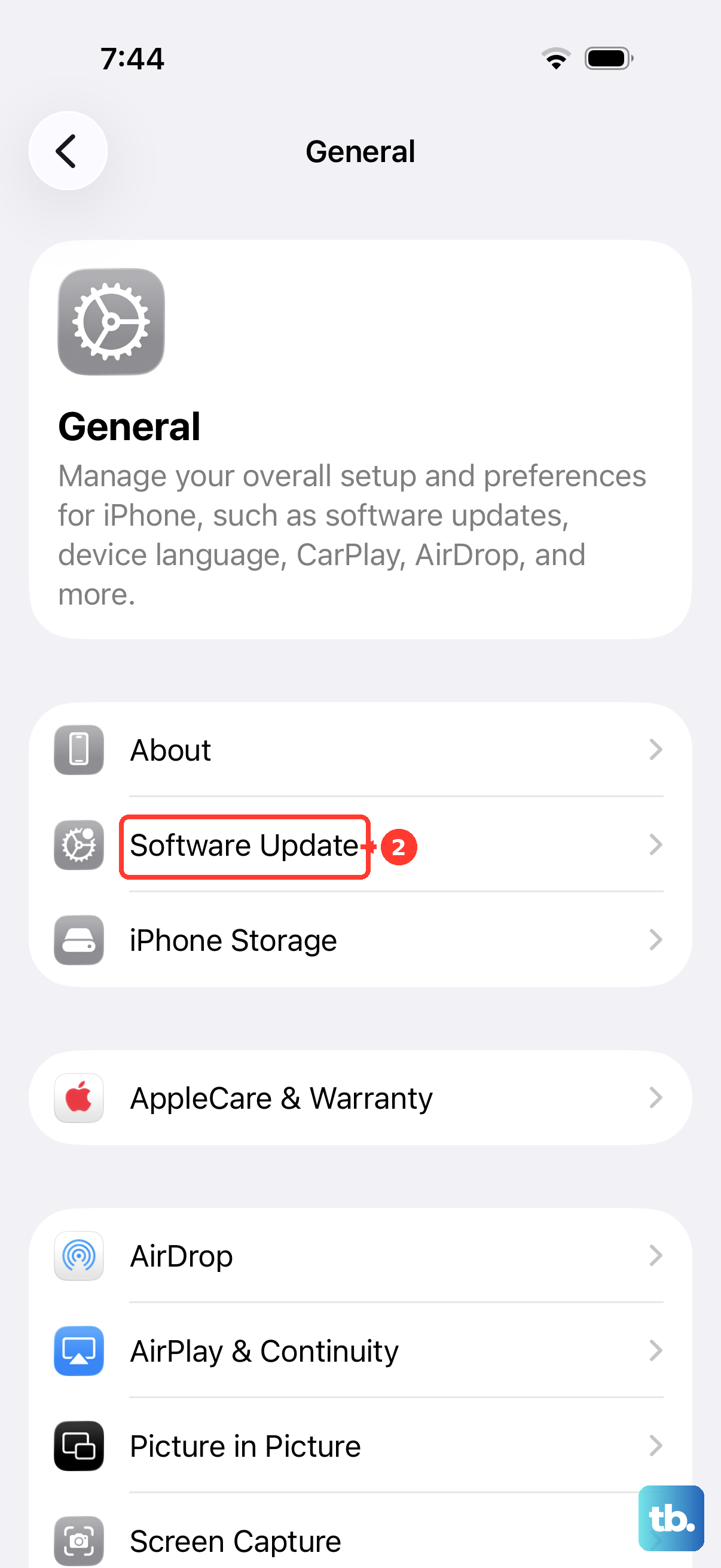
If the update asks to remove apps temporarily, proceeding temporarily removes those apps. Tap Continue to proceed with that request.
For an App Store app that still malfunctions, open App Store, tap your profile icon, then tap App Updates. Install the affected app’s available update; you can follow the detailed steps to update apps on your iPhone. If no app update is available, check for an iOS update.
Consider deleting and redownloading a deletable third-party scanner app only after simpler app troubleshooting fails. Deleting the app can remove its locally stored data. Touch and hold the app, tap Remove App, then Delete App, and tap Delete.
To reinstall the deleted scanner app, open App Store and tap your account photo. Select Apps & Purchase History > Your Apps > Not on this iPhone, find the app, and tap the Redownload button. Redownloading applies to previously acquired apps that remain available for your account and device.
Check the connection when a detected link fails
When your iPhone detects a QR link but its online destination will not load, open Settings > Wi-Fi. Turn on Wi-Fi and select a working network. Check that Airplane Mode is off.
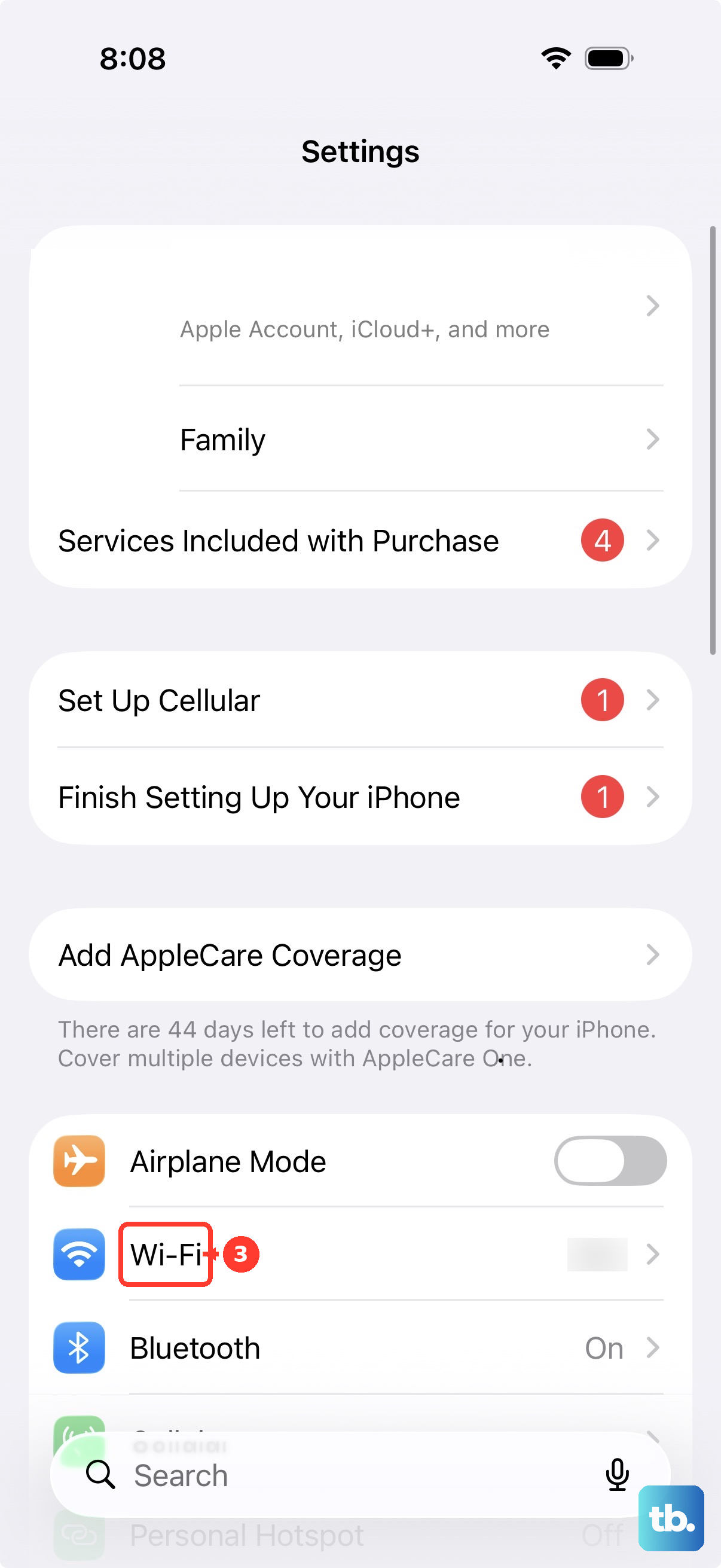
If that network has no internet access, test another network or troubleshoot the router. These steps address loading after recognition, so return to the camera and scanner fixes if your phone never detects a link.
Check for a wider camera problem
Try taking an ordinary photo again after cleaning, restarting, and updating. Use the rotate-camera button to test the front and rear cameras separately. If camera problems persist, open Apple’s camera troubleshooting page and select Get service.
Frequently Asked Questions
Which iOS version supports QR scanning in Camera?
Built-in Camera QR scanning requires iOS 11 or later. Adding Scan Code directly within Control Center uses a different version requirement: that customization interface applies to iOS 18 and later.
Can Siri scan a QR code for you?
You can use Siri to launch Camera, but that action does not independently decode the QR code. Activate Siri and say Open Camera, then select Photo, frame the code, and tap the detected link.
Where can you find QR code images saved on your iPhone?
On iOS 27, open Photos > Collections > Utilities. Select the QR-code collection and open the relevant image. This collection helps you locate saved QR codes.
Can Camera Control open Code Scanner directly?
Yes, on an iPhone equipped with Camera Control, open Settings > Camera > Camera Control and select Code Scanner. Click Camera Control to open the scanner, then frame the code. This option requires the Camera Control hardware.