Your printer is on, but your computer still does not know where to send the job. The fix starts in Windows Settings or macOS System Settings, then moves to USB, Bluetooth, manufacturer apps, and shared printers only when those paths fit your setup. Follow the route that matches your computer and connection type, and skip the older Control Panel and legacy Mac driver pages for current consumer setup.
Start with the right connection
This fixes the basic setup problem where the computer cannot find a printer that is off, unplugged, or on a different network.
Turn on the printer and wait until it finishes starting up.
For a Wi-Fi printer, connect the printer to the same Wi-Fi network as your Windows PC or Mac.
On a printer with a touchscreen or built-in display, choose the Wi-Fi network name from the printer controls and enter the Wi-Fi password.
For a USB printer, connect the printer directly to the computer with the appropriate cable.
For a Bluetooth printer, turn on Bluetooth on the printer and make it discoverable.
For a printer that uses WPS, confirm that the router and printer both support WPS.
Press the router's WPS button, then press the printer's Wi-Fi or WPS button or choose its WPS or Push Button menu item within the required time window.
Add the printer in Windows
The most common Windows cause is that the printer has not been added under Printers & scanners.
Open Start.
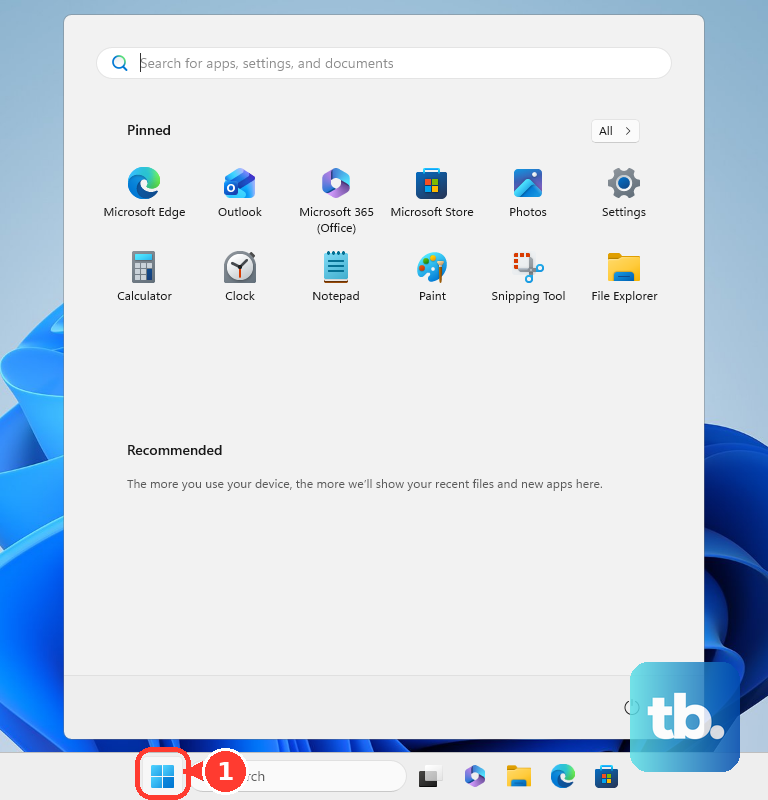
Go to Settings > Bluetooth & devices > Printers & scanners.
Select Add device next to Add a printer & scanner.
Wait while Windows looks for nearby printers.
Select Add Device next to your printer.
After Windows adds the printer, check Windows Update or use Find drivers when that option appears.
Windows 11 uses the Microsoft IPP Class Driver for Mopria-compliant USB and network printers, so many current printers work without a separate driver package from the printer maker.
Add the printer on Mac
Open the Apple menu.
Select System Settings.
Open Printers & Scanners.
Select Add Printer, Scanner, or Fax.
Choose your printer from the list.
Select Add.
Use AirPrint when the printer supports it, because macOS prints without installing an app, additional drivers, or other software.
Use USB or Bluetooth instead
Use this route when the printer sits next to the computer, Wi-Fi is not part of the setup, or the printer is built for direct Bluetooth pairing.
On Windows with USB, connect the printer with its USB cable and turn it on.
Open Start > Settings > Bluetooth & devices > Printers & scanners.
Select Add device next to Add a printer & scanner if Windows has not already added it.
On Mac with USB, connect the printer with the appropriate cable.
Open Apple menu > System Settings > Printers & Scanners > Add Printer, Scanner, or Fax if macOS has not already added it.
For Bluetooth on Windows, make the printer discoverable, then open Start > Settings > Bluetooth & devices > Printers & scanners > Add device.
Select Add device next to the Bluetooth printer.
For Bluetooth on Mac, make the printer ready to connect, then open Apple menu > System Settings > Printers & Scanners > Add Printer, Scanner, or Fax.
Select the Bluetooth printer, then choose Add.
If the Bluetooth printer does not appear on Mac, install the latest Bluetooth driver from the manufacturer.
Find a printer that does not appear
This fixes the add-printer screen when the printer is powered on but missing from the list.
On Windows, open Start > Settings > Bluetooth & devices > Printers & scanners.
Select Add device.
Select Add a new device manually next to The printer that I want isn't listed.
Use the Add Printer window to follow the option that matches the printer you are adding.
On Mac, open Apple menu > System Settings > Printers & Scanners > Add Printer, Scanner, or Fax.
Select the IP button when you know the printer's IP address or hostname.
Enter the printer information.
Choose AirPrint, HP Jetdirect – Socket, Line Printer Daemon - LPD, or Internet Printing Protocol - IPP.
Select Add.
Install the printer maker app
Manufacturer apps fit printers that need account registration, scanning tools, or a guided wireless setup assistant.
For HP printers, open 123.hp.com or start.hp.com, install the HP app, then click the plus sign + and choose Set Up a New Printer on the Add a device screen, or Choose an available printer if that printer was already set up on this computer. Select the printer model and follow the prompts.
For Canon printers, open Canon Support > Software and Drivers, search or select your product, then download and install the recommended driver or software for your Windows or macOS version. Canon also offers Canon PRINT for setting up compatible Canon printers and printing or scanning with supported models.
For Epson Connect printers, install the Epson Connect Printer Setup Utility for Windows or Mac. Select your product, then use Printer Registration to register the printer with a new or existing Epson Connect account.
For Brother printers, open support.brother.com > Downloads, enter or select your model, choose the operating system, download the desired file, and follow the installer prompts.
If the maker app fails, add the printer first from Windows Printers & scanners or Mac Printers & Scanners, then return to the manufacturer's setup app.
Choose defaults and remove old printers
After setup, choose which printer your computer uses first so print jobs do not go to an old device.
On Windows, open Start > Settings > Bluetooth & devices > Printers & scanners. Under Printer preferences, turn Let Windows manage my default printer off, select the printer you want, then choose Set as default.
Leave Let Windows manage my default printer on when you want Windows to use the last printer you used, including by network location on mobile Windows devices.
On Mac, open Apple menu > System Settings > Printers & Scanners, then use the Default printer pop-up menu to choose a printer or Last Printer Used. You can also Control-click a printer in the list and select Set Default Printer.
To remove a printer in Windows, go to Printers & scanners, select the printer, then choose Remove. On Mac, Control-click the printer in Printers & Scanners, choose Remove printer, then select Remove Printer.
Connect a shared or managed printer
Use these paths when the printer belongs to another computer, school, workplace, or managed network.
- 1.On the Windows PC sharing the printer, open Start > Settings > Bluetooth & devices > Printers & scanners, select the printer, then open Printer properties > Sharing > Change Sharing Options > Share this printer.
- 2.On the Windows PC that needs the shared printer, open Start > Settings > Bluetooth & devices > Printers & scanners > Add device.
- 3.If the shared printer does not appear, choose Add a new device manually > Select a shared printer by name, enter the shared printer path as \\computer_name\printer_name or \\ip_address\printer_name, then select Next > Finish.
- 4.On a managed Mac, install the configuration profile from your administrator or provider, then open Apple menu > System Settings > Printers & Scanners > Add Printer, Scanner, or Fax and add the printer when it appears as an AirPrint Profile.
- 5.For school or work devices, contact the administrator when adding printers, deleting printers, Windows protected print mode, or deployed AirPrint printers are controlled by management.
Older Windows instructions that start in Control Panel and older Apple-hosted vendor driver downloads are not the current consumer setup path. Use Windows Settings, macOS System Settings, AirPrint, Windows IPP support, or current software from the printer manufacturer.
Frequently Asked Questions
Do I need to install a driver before adding a printer?
No for AirPrint printers on Mac and many current Windows 11 printers. Add the printer from System Settings or Settings first, then use Windows Update, Find drivers, or the manufacturer's current app when that path is required.
Why is my wireless printer not showing up?
The usual reason is that the printer and computer are not on the same Wi-Fi network, the printer is still starting up, or the printer has not been added from the correct Settings page. Put both devices on the same network and try the add-printer screen again.
Can I set up a printer with only a USB cable?
Yes. Connect the printer to the Windows PC or Mac with the appropriate USB cable and turn it on. If it is not added automatically, add it from Printers & scanners on Windows or Printers & Scanners on Mac.
Can Copilot or Siri set up my printer for me?
No current official Windows or macOS setup path lets Copilot, Siri, or another assistant complete printer setup directly. Use the Settings or System Settings paths instead.











