

To fix a MacBook Pro that keeps crashing, update macOS and your apps, disconnect nonessential accessories, then try safe mode if unexpected restarts continue. If only one app freezes while the rest of your Mac responds, quit and reopen that app first. Back up accessible files before disk repair or macOS recovery.
The short version
- One app fails: Quit or force quit it, then check its updates and compatibility.
- The whole Mac restarts: Update compatible software and test with nonessential accessories disconnected.
- Crashes keep returning: Use safe mode to investigate software that loads at startup.
- Recovery comes last: Back up before disk repair or reinstallation, and arrange service if troubleshooting does not resolve the crashes.
| Fix or test | When to use it | Next step |
|---|---|---|
| Quit or force quit an app | One app stops responding | Reopen it and check for updates |
| Relaunch Finder | Finder freezes | Check whether Finder responds again |
| Restart the Mac | The whole system is unresponsive | Force shutdown only if it cannot restart |
| Update macOS and apps | Compatible updates are available | Check whether crashes continue |
| Check app compatibility and documents | One app repeatedly fails | Remove incompatible plug-ins |
| Uninstall suspect software | A particular app appears responsible | Get a compatible version before reinstalling |
| Disconnect accessories | The Mac restarts unexpectedly | Reconnect devices individually |
| Free storage | The disk is nearly full or updates cannot install | Move or remove unneeded files |
| Check memory pressure | Apps freeze during heavy workloads | Quit unnecessary apps |
| Check heat and CPU activity | Instability accompanies excessive heat | Improve ventilation and investigate activity |
| Check battery and charging | The apparent crash is power loss | Check adapter requirements and service status |
| Start in safe mode | Crashes persist after basic checks | Investigate startup software if stability improves |
| Isolate login items | Problems occur around startup or login | Remove items and restore them individually |
| Try a fresh user account | Account-specific settings may be involved | Compare behavior in the new account |
| Run Disk Utility First Aid | Earlier checks have not resolved crashes | Repair the startup disk from Recovery |
| Run Apple Diagnostics | A hardware problem needs investigation | Save diagnostic reference codes |
| Reinstall macOS | Crashes survive software isolation and disk repair | Complete installation and check stability |
| Arrange hardware service | Isolation and recovery do not resolve crashes | Provide diagnostic codes and crash details |
Get control of your Mac and protect your files
When one app stops responding, save work wherever possible and press Command + Q in that app, then reopen it. If it will not quit, choose Apple menu > Force Quit or press Option + Command + Esc, select the affected app, and click Force Quit. You can force quit a frozen Mac app without restarting the whole computer, but unsaved changes can be lost.
If Finder freezes, press Option + Command + Esc, select Finder, and click Relaunch. If the whole Mac is unresponsive, move on to restarting it.
Choose Apple menu > Restart for a normal restart. If the Mac cannot restart, hold the power or Touch ID button for up to 10 seconds until it turns off, release it, then press it again to start up. Forced shutdown can lose unsaved work; the steps to restart a frozen MacBook also cover this situation.
Once the Mac is usable, connect an external storage device and drag important documents, photos, and other files to it in Finder. You can use Time Machine for a fuller backup; backing up protects your files but does not fix crashes. Choose Apple menu > About This Mac and record the model, chip or processor, and macOS version so you can follow the correct startup instructions below. The System Settings paths below follow the current macOS interface, and some differ in earlier versions. For example, before macOS Ventura 13, choose Apple menu > About This Mac, then click Storage.
Update macOS and investigate suspect apps
In the current System Settings interface, choose Apple menu > System Settings > General > Software Update. Click Update Now when an update is offered and authenticate if requested. Keep the Mac powered with its lid open until installation finishes; Software Update offers compatible releases and updates built-in software such as Safari.
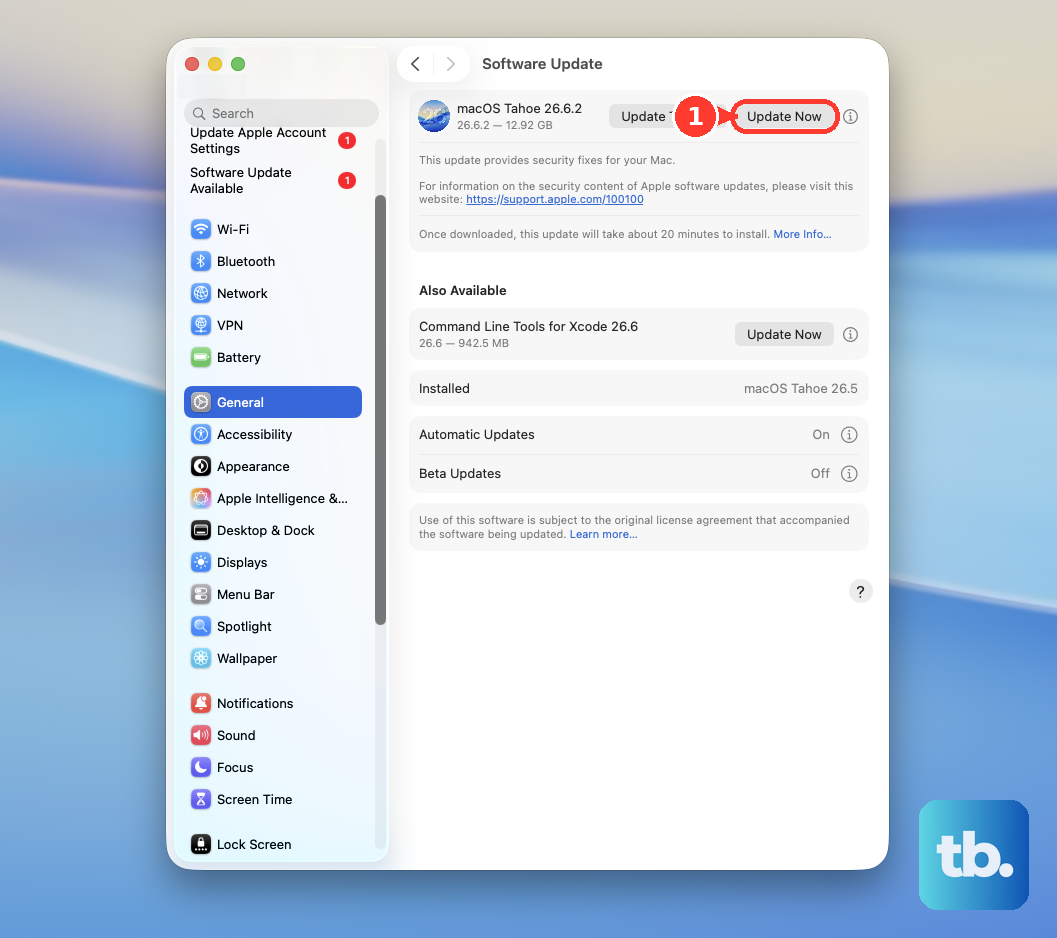
For App Store apps, open App Store > Updates and install available updates. Get compatible updates for independently downloaded apps from their developers’ official websites. If crashes began after an app or macOS upgrade, compare the app developer’s system requirements with your installed macOS version.
When a particular app keeps failing, open another document in it to check whether the failure follows one file. Remove incompatible third-party plug-ins using their manufacturers’ instructions. If an unexpected-restart warning identifies an app as the likely cause and offers removal, click Move to Trash and contact the developer for a compatible update before reinstalling.
To uninstall a suspect Mac app, safeguard its data, quit it, and open Go > Applications in Finder. Prefer its supplied Uninstall or Uninstaller utility, or its documented in-app removal feature, especially when it installed helpers or extensions. Otherwise, select the removable third-party app and choose File > Move to Trash, then authenticate if requested.
Disconnect docks and other accessories
Shut down your MacBook Pro and disconnect nonessential peripherals, including docks, hubs, external drives, printers, and external displays. Start it again and use it for the usual interval between crashes. Apple recommends this isolation test for unexpected restarts.
If the Mac stays stable, reconnect one device at a time and test after each connection. If the crash returns after reconnecting a particular accessory, focus your troubleshooting on that device. If crashes continue with the accessories disconnected, proceed to the resource checks and startup tests.
Check storage memory temperature and power
When storage is nearly full or updates cannot install, choose Apple menu > System Settings > General > Storage on macOS Ventura 13 or later. Review large categories and their Info buttons, move needed files to another drive, and remove unneeded downloads, apps, or media. Empty the Trash to reclaim space, but do not treat freeing storage as a guaranteed fix for unexpected restarts.
For freezes during heavy workloads, open Activity Monitor and click Memory. Review Memory Pressure and app memory use, then quit unnecessary apps and reduce simultaneous workloads when memory is constrained. You cannot address this by upgrading the memory yourself on an Apple silicon MacBook Pro.
For heat-associated instability, use your Mac on a stable, ventilated surface with the keyboard and ventilation openings unobstructed. Apple specifies an ambient operating temperature of 50 to 95°F (10 to 35°C). For unexpected heat or prolonged fan activity, check CPU activity in Activity Monitor; if the behavior persists, close and reopen the lid or restart.
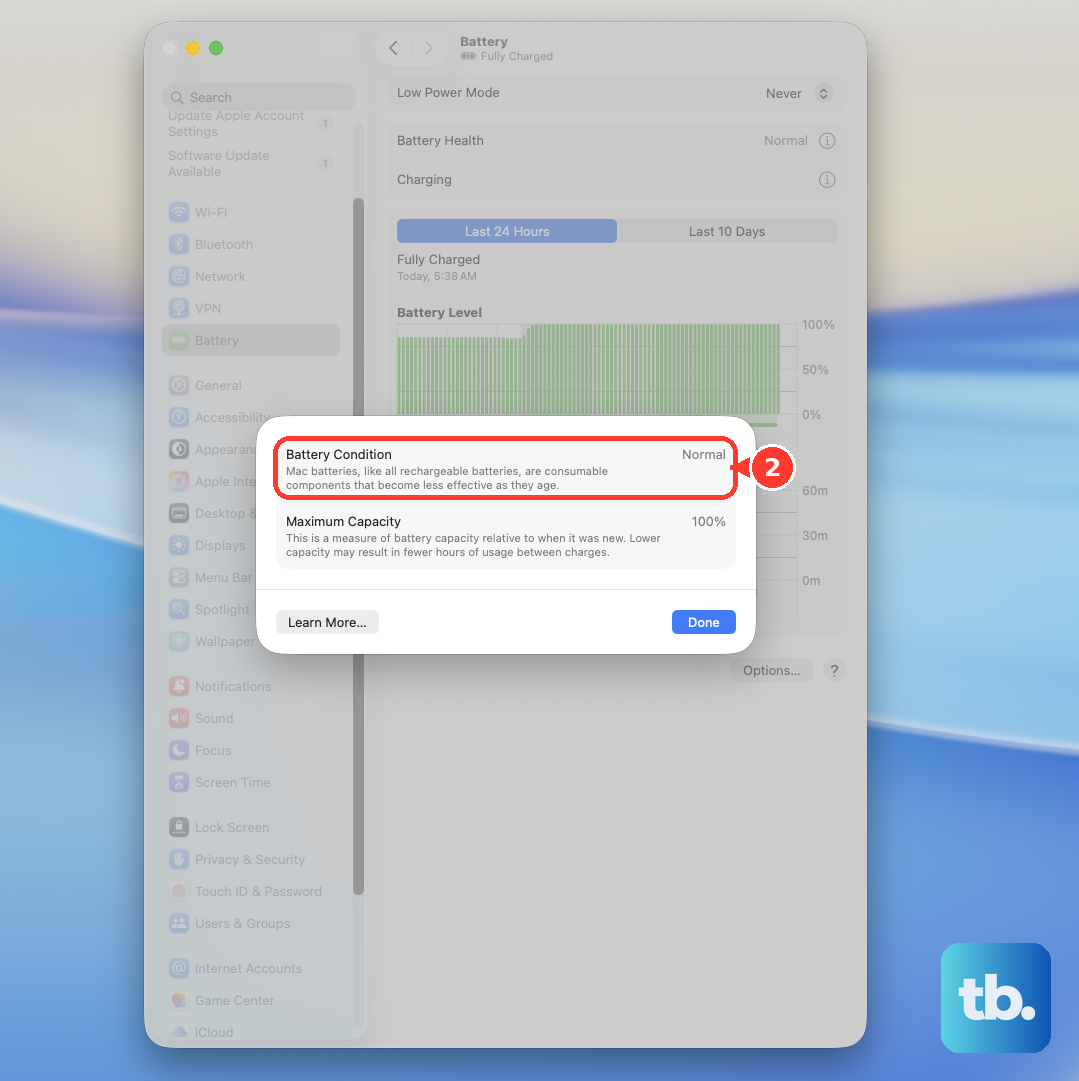
If the apparent crash is power loss or a charging failure, open Apple menu > System Settings (or System Preferences) > Battery and inspect Battery Health on models that support it. Arrange service if it reports Service Recommended and symptoms affect use. Check that your power adapter meets the Mac’s wattage requirement. For charging problems, shut down, close the lid for 30 seconds, then retry charging.
Use safe mode to isolate startup software
On an Apple silicon MacBook Pro, shut down, then hold the power button until startup options appear. Select the startup disk, hold Shift, and click Continue in Safe Mode. Log in, twice if requested, and test the behavior that normally precedes a crash.
On an Intel MacBook Pro, turn on or restart the Mac and immediately hold Shift. Release it at the login window, then log in, twice if requested, and test. An enabled firmware password prevents Intel safe-mode startup.
Choose Apple menu > Restart to leave safe mode. Apple says safe mode also checks the startup disk and clears some caches. If the problem disappears only in safe mode, investigate startup software and account-specific settings.
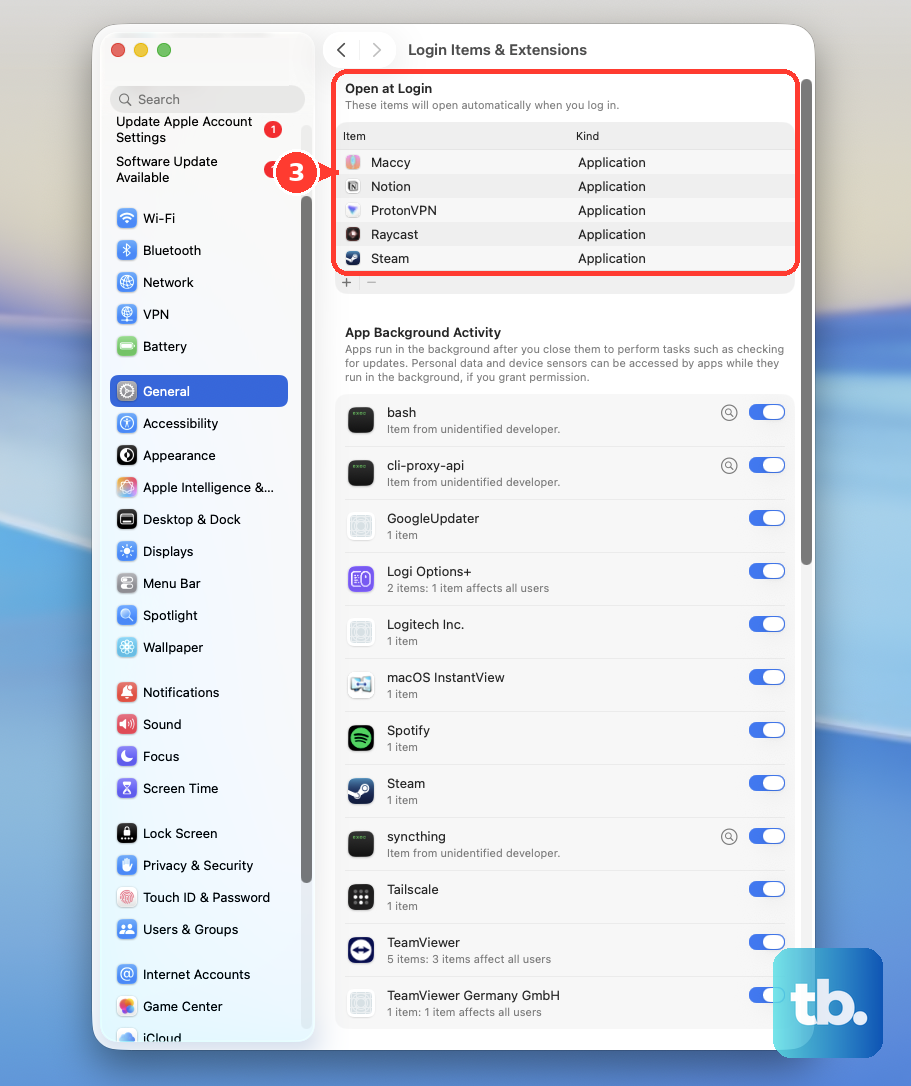
In the current macOS interface, choose Apple menu > System Settings > General > Login Items & Extensions. Record the Open at Login list, select its items, click Remove, and restart. If the Mac becomes stable, add items back individually and restart after each addition, removing the item that brings the crashes back.
To check for account-specific software or settings, create a fresh local account using administrator access. In the current macOS interface, choose Apple menu > System Settings > Users & Groups > Add User, authenticate if requested, and choose Standard for New User. Enter the account details and password, click Create User, then restart and log in to that account to test.
Repair the startup disk in Recovery
Back up accessible files before using Disk Utility. On Apple silicon, shut down and hold the power button until startup options appear, then click Options followed by Continue. Select the startup volume and an authorized user when requested, and enter that user’s login password.
On Intel, turn on the Mac and immediately hold Command + R until an Apple logo or spinning globe appears. If local Recovery fails, try Option + Command + R for Internet Recovery. Connect to a network and authenticate when requested; Internet Recovery availability and the offered macOS depend on the model.
In Recovery, select Disk Utility and click Continue, then choose View > Show All Devices. Starting with the lowest listed volume, click First Aid, then Run. Work upward through all volumes, volume groups where displayed, containers, and finally the device, unlocking with the administrator password when requested.
Quit Disk Utility and restart after completing the repairs, then check whether the crashes return. If they continue, use Apple Diagnostics to investigate hardware and consider a macOS reinstall.
Run Apple Diagnostics and save the results
For Apple silicon, shut down, disconnect nonessential devices, and connect power. Hold the power button until Options appears, release it, then hold Command + D until the Mac restarts. Follow the prompts and click Run Offline if an offline test is offered. On macOS Tahoe 26 and later, select the diagnostic to run when prompted.
On an Intel MacBook Pro that supports Apple Diagnostics, shut down and disconnect nonessential devices. Turn it on and immediately hold D, or try Option + D if that fails. Release the keys when a progress bar or language selection appears, then follow the prompts.
Record any reference codes and the circumstances of the crashes. Keep these details for an Apple Store or Apple Authorized Service Provider if you need hardware service.
Reinstall macOS or arrange a repair
If crashes persist after software isolation and disk repair, back up again if possible and return to macOS Recovery. Select Reinstall macOS, with the release name shown, and click Continue. Unlock the disk when requested and choose Macintosh HD rather than Macintosh HD - Data.
Complete installation without closing the lid. Apple says reinstallation normally preserves apps and personal files, but you should still back up first. The release offered depends on the Recovery method you used.
When isolation and recovery do not resolve the crashes, take your MacBook Pro to an Apple Store or Apple Authorized Service Provider. Supply the diagnostic reference codes and explain when the crashes occur.
Frequently Asked Questions
What can you do if Safari crashes while reopening the same tabs?
Quit Safari, then hold Shift while reopening it to suppress the previous windows for that launch. For persistent control over restored windows on macOS Ventura or later, choose Apple menu > System Settings > Desktop & Dock and turn on the Close windows when quitting setting for apps. Then open Safari > Settings > General and choose a setting from the Safari opens with menu.
Should you reset NVRAM to stop a MacBook Pro from crashing?
Consider an NVRAM reset only on an Intel MacBook Pro when stored settings malfunction; Apple does not present it as a universal crash cure. Shut down, turn on, and immediately hold Option + Command + P + R for about 20 seconds, then release the keys and readjust affected settings after startup. This manual reset procedure does not apply to Apple silicon.
Does an Apple silicon MacBook Pro need an SMC reset shortcut?
You do not need an SMC keyboard sequence on Apple silicon. For power, thermal, or hardware-behavior symptoms, connect the Mac to power and restart it, or shut it down and turn it on again. Apple says the SMC reset occurs automatically.
Where can you find reports from a Mac crash?
Open Console and, under Reports, select Crash Reports or Diagnostic Reports, then select a report matching the failure time. Double-click it to inspect it, or choose File > Reveal in Finder to locate the file for support. Reading a report helps you investigate a failure but does not repair it, and a standard user account has more limited report access than an administrator account.
What should you do if Recovery Assistant opens automatically?
On macOS Tahoe 26 and later, click Continue, then choose whether to send diagnostic data; your choice does not affect recovery. Enter the login password and click Unlock if requested, then connect to the internet. When processing finishes, click Restart Mac. If prompted afterward, open System Settings > Recover iCloud Data and sign in.