


To fix a laptop spacebar that is not working, restart the laptop, clean around the key using your manufacturer's instructions, and turn off keyboard settings that ignore brief presses. Test in another application before changing drivers or considering repair. The Windows steps below use Windows 11 menus.
The short version
- Start simple: Restart and compare typing in two applications before changing system settings.
- Check the key: Look for debris or damage and follow cleaning instructions for your laptop model.
- Check input filters: Turn off settings that delay or ignore intended keypresses.
- Keep typing: Use an external or onscreen keyboard while you narrow down the cause.
- Escalate carefully: Run hardware diagnostics before attempting a disruptive software reset.
| Fix or check | When to use it | What to do next |
|---|---|---|
| Restart and compare applications | First check | Check app settings if only one app fails |
| Compare an external keyboard | You need to narrow down the failure | Keep using it while checking the built-in keyboard |
| Clean around the key | Debris or sticking | Check settings if permitted cleaning does not help |
| Disable input filters | Long presses work or repeated spaces disappear | Retest brief and repeated presses |
| Use an onscreen keyboard | You need to enter spaces immediately | Continue troubleshooting the physical key |
| Check extensions and remapping | Failure in a browser or after a keyboard customization | Disable the suspected software and retest |
| Repair the affected application | Failure in one Windows app | Consider its reset option if repair fails |
| Install system and driver updates | Persistent input problems | Restart and retest |
| Reinstall the Windows keyboard device | The keyboard still fails after updates | Restart so Windows attempts reinstallation |
| Roll back a Windows keyboard driver | Failure began after a driver update | Use an available previous driver |
| Run keyboard diagnostics | Failure across applications | Record results for service |
| Compare Chromebook Guest mode | Behavior changes after sign-in | Investigate the signed-in environment |
| Reset Chromebook hardware | Earlier keyboard checks have not helped | Back up Downloads before proceeding |
| Use Windows System Restore | A suitable restore point predates the failure | Review affected programs before restoring |
| Reset Windows | Less disruptive fixes and hardware checks are complete | Back up files and review what will be removed |
| Arrange hardware repair | Damage or persistent failure | Request assessment for your exact model |
Restart and narrow down the failure
Click inside an ordinary text field and press Space, then repeat in another application. Compare a brief tap, a longer press, and repeated presses. If the failure occurs in only one application, check that application's settings or extensions before attempting system repairs.
Disconnect USB accessories, external displays, and docking stations, then restart and retest the built-in keyboard. Dell recommends this check to isolate peripheral interference. If the laptop has stopped responding, follow the steps to restart a computer that is unresponsive before continuing.
Connect an external keyboard and compare its Space key in the same application. A working external or onscreen keyboard helps narrow the problem, but does not conclusively prove that the built-in key has a hardware defect. You can keep using the external keyboard during troubleshooting.
Check for debris or physical damage
Shut down the laptop and inspect around the spacebar for crumbs, dirt, sticking, looseness, or visible damage. On Dell laptops, clean with a soft microfiber cloth and compressed air, avoiding harsh chemicals. For other brands, use those methods only when the manufacturer permits them.
Apple specifies a compressed-air procedure for MacBook models from 2015 onward and MacBook Pro models from 2016 onward. Hold the notebook at approximately 75 degrees, keep the can upright, and position its straw about half an inch from the keyboard. Spray across the affected keys from left to right, then repeat with the notebook rotated onto its right side and then its left side.
Apple lists that procedure for those MacBook and MacBook Pro models, so do not assume it applies to your MacBook Air or MacBook Neo. Keycap and stabilizer repairs also depend on the exact laptop, so follow your model's service instructions before attempting removal. If cleaning leaves the key loose, stuck, or unresponsive, use the diagnostic results to help support assess it.
If there has been a liquid spill, Dell says to turn off the laptop immediately and stop using it while wet. Contact support if the spacebar remains affected or liquid damage is suspected, and stop software troubleshooting.
Turn off settings that filter keypresses
If your spacebar responds only when held, check input settings before changing drivers. On Windows 11, open Start > Settings > Accessibility > Keyboard and turn off Filter keys. Retest both brief taps and repeated presses.
When modifier shortcuts replace ordinary typing, turn off Sticky keys on the same Windows 11 keyboard settings page. This addresses retained modifiers changing what the key does. Continue with the physical checks if the spacebar is damaged or stuck.
On a Mac, open Apple menu > System Settings > Accessibility > Keyboard and turn off Slow Keys. If pressing Space activates a focused control instead of entering text, turn off Full Keyboard Access there for comparison. Click back inside the intended text field and test again.
On a Chromebook, select the time, then open Settings > Accessibility. Under Keyboard and text input, turn off Slow keys for missed brief presses or Bounce keys for missed rapid repeats. Turn off Sticky keys when retained modifiers change typing behavior.
Use an onscreen keyboard to keep typing
On Windows 11, open Settings > Accessibility > Keyboard and turn on On-Screen Keyboard. You can also press Windows + Ctrl + O, then click its Space key. At the sign-in screen, select Accessibility in the lower-right corner, then On-Screen Keyboard.
For a Mac, open Apple menu > System Settings > Accessibility > Keyboard and turn on Accessibility Keyboard. On a Chromebook, select the time and open Settings > Accessibility, then turn on On-screen keyboard under Keyboard and text input. Click the onscreen Space key to enter spaces while troubleshooting.
Check the application and keyboard software
When the failure is limited to a browser, disable extensions one at a time and retest the affected website. In Chrome, open More > Extensions > Manage extensions and turn off an extension. In Edge, select Extensions > Manage extensions and turn off the suspected extension.
Safari's controls are under Safari > Settings > Extensions. Uncheck the box beside the suspected extension's name and test the website again. Continue one extension at a time so you can identify which change restores typing.
PowerToys can change what physical keys send on Windows. Close PowerToys or disable Keyboard Manager in PowerToys Settings, then retest. Its remappings stop applying when PowerToys is not running.
For an affected application on Windows 11, open Settings > Apps > Installed apps. Beside the application, select More > Advanced options > Repair, if available. If repair fails, some applications offer Reset, but that can remove application data or preferences. For traditional programs, open Control Panel > Programs > Programs and Features, select the program, then select Repair or Change if offered.
Update the system and Windows keyboard driver
On Windows 11, open Settings > Windows Update and select Check for updates. For optional drivers, open Advanced options > Optional updates, select applicable driver updates, then select Download and install. Install packages appropriate to your laptop and restart afterward.
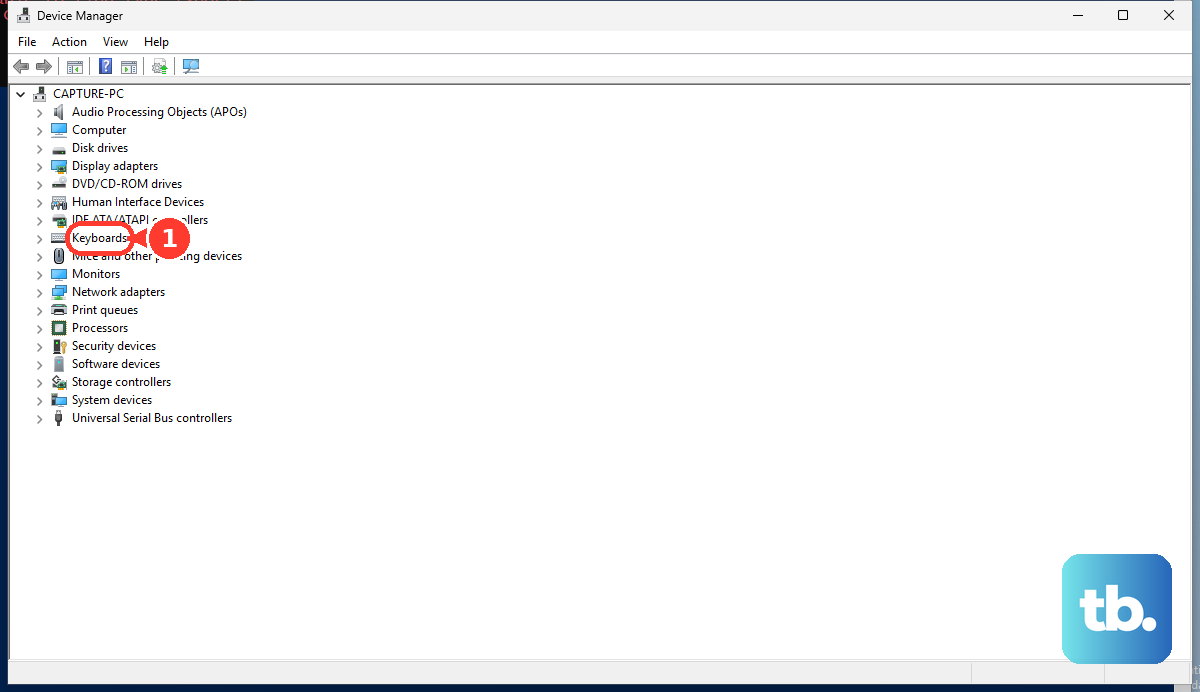
If the built-in keyboard still fails, save your work, right-click Start, and select Device Manager. Expand Keyboards, right-click the affected keyboard, select Uninstall device, then select Uninstall. Restart so Windows attempts to reinstall the device; the steps to update or reinstall keyboard drivers cover this process in more detail.
If the problem began immediately after a driver update, try rollback instead. In Device Manager, expand Keyboards, right-click the affected keyboard, and open Properties > Driver > Roll Back Driver. This requires administrator access and an available previous driver; choose the displayed reason, select Yes, and restart when requested.
On a Mac, back up your files, then open Apple menu > System Settings > General > Software Update and install the compatible update offered. On a Chromebook, connect to the internet, select the time, and open Settings > About ChromeOS > Check for updates. Allow any available update to download, restart when requested, and test again.
Run the keyboard hardware diagnostic
On a Chromebook, open Settings and search for diagnostics. Select Diagnostics > Input > The internal keyboard > Test. Press Space while staying in the diagnostic window and review whether the test registers it.
For a Mac, shut down and disconnect unnecessary peripherals. On Apple silicon, hold the Power button until Options appears, release it, then hold Command + D. On Intel, hold D at startup, or Option + D if needed.
Follow Apple Diagnostics and choose the built-in keyboard diagnostic when offered. You can select a specific keyboard diagnostic in macOS Tahoe 26 and later. Record any reference code for service.
On a supported Dell laptop, launch the interactive keyboard test from Dell's input-device diagnostics using SupportAssist. Complete the prompts and review the result. The browser-launched test can require SupportAssist installation.
Try software recovery only when the symptoms fit
If a Chromebook's keyboard works differently after sign-in, sign out and select Browse as Guest to compare. If the key works there, investigate the signed-in environment before replacing the keyboard. Contact your administrator if Guest mode is unavailable on a managed Chromebook, and back up local files before removing a profile or resetting the device.
For most Chromebooks, a hardware reset is another keyboard troubleshooting step. Back up important files in Downloads, turn off the Chromebook, hold Refresh, and tap Power; release Refresh when it starts. Google specifies different procedures for certain models, and a hardware reset can remove some Downloads.
On Windows, an available restore point can revert software, drivers, and settings from before the failure. Open Control Panel > Recovery > Open System Restore > Next, choose an appropriate restore point, and select Scan for affected programs to review the impact. Select Next > Finish to proceed.
Consider a factory reset only after less disruptive troubleshooting and hardware assessment. Before you reset a laptop to factory settings, back up important files and obtain the BitLocker recovery key when applicable. A damaged key mechanism needs hardware service.
On Windows 11, open Settings > System > Recovery and select Reset PC. Choose Keep my files, then select Cloud download or Local reinstall. Review the displayed consequences before completing the reset, because even when Windows retains personal files, it removes applications and settings.
Arrange repair for a persistently unresponsive key
If cleaning and diagnostics do not resolve a loose, damaged, stuck, or unresponsive spacebar, contact your laptop manufacturer's support service. Share the diagnostic results or reference codes so support can assess your model. On Dell laptops, support can assess repair or keyboard replacement.
The repair may involve reseating the keycap or the spacebar's stabilizer bar, or replacing the complete keyboard, depending on the model. Use an external or onscreen keyboard while arranging service. Follow the exact model's service procedure for any physical repair.
Frequently Asked Questions
What if the spacebar on my external keyboard is not working?
Reconnect its USB cable, try another USB port, and connect directly rather than through a hub. Recharge or replace batteries as appropriate; for a USB wireless receiver, unplug it for approximately 10 seconds before reconnecting. Test the keyboard on another computer to compare.
Can I assign another key to work as the spacebar?
In PowerToys, open PowerToys Settings > Keyboard Manager > Remap a key > Add key remapping. Under Select, choose an expendable key; under To send, choose Space from the dropdown and select OK. If warned, select Continue anyway only if losing the original function is acceptable. PowerToys must remain running, remapping cannot work at password screens, and games or elevated applications may not accept it.
Can voice typing insert an individual space?
On Windows 11, place the cursor in a text field and press Windows + H to start voice typing. With a working microphone and internet connection, wait for listening to begin, then say Insert Space. That command works in English locales.
Should I run the old Windows Keyboard troubleshooter?
Microsoft has deprecated the old Keyboard and Hardware and Devices troubleshooters, so skip those steps in older troubleshooting instructions. Microsoft does not list a corresponding Keyboard troubleshooter among their Get Help replacements.
Does Apple still offer the former MacBook Keyboard Service Program?
The former Keyboard Service Program for MacBook notebooks has ended. You can ask Apple about ordinary service or other applicable coverage, but you cannot rely on that former program for free repair.