To connect a new iPhone to Wi-Fi during setup, tap your network’s name at the network-selection step and enter its password when requested. For manual setup, first tap Set Up Without Another Device on the Quick Start screen. If you’re using a nearby iPhone or iPad for Quick Start, follow the prompts and connect the new iPhone to Wi-Fi when asked.
The short version
- Manual setup: Choose Set Up Without Another Device, then select your network and enter its password if requested.
- Quick Start: Connect your existing device to Wi-Fi, turn on Bluetooth, and follow the setup prompts with both devices nearby.
- Forgotten password: On an existing iPhone running iOS 27, open Passwords > Wi-Fi to find the network password.
- Connection trouble: Move closer to the router, try another network, or restart the router and modem.
- Cellular alternative: If cellular activation is available and the option appears, tap Continue Without Wi-Fi and connect through Settings afterward.
| Option | When it helps | What you need |
|---|---|---|
| Manual Wi-Fi selection | During setup without another device | Network name and password if required |
| Quick Start | During setup with a nearby iPhone or iPad | Assisting device with Wi-Fi and Bluetooth enabled |
| Personal Hotspot | When no trusted Wi-Fi network is in range | Providing device with a carrier plan supporting Personal Hotspot |
| Password lookup | When you need the password during setup | Existing iPhone running iOS 27 with the network saved |
| Accessibility assistance | When you need help interacting with setup | VoiceOver or Zoom enabled from the Hello screen |
| Cellular activation | To postpone connecting to Wi-Fi | Available cellular service and the Continue Without Wi-Fi option |
| Hidden network | After Settings becomes available on iOS 27 | Network name, security type, and password |
| Public Wi-Fi login | After Settings becomes available | Credentials requested by the network provider |
| Nearby password sharing | After setup with Apple’s sharing prerequisites met | Apple Account sign-in and contact details on both devices |
| Network QR code | To join after setup by scanning a code | Sharing iPhone running iOS 27 |
| Control Center | To reconnect after a temporary disconnection following setup | A known Wi-Fi network |
| Managed Wi-Fi configuration | For an organization-managed iPhone | Administrator assistance through device management |
| Connection recovery | When setup stalls at network selection | Router access or another available network |
| Network settings reset | As a last resort after setup or restoration | Access to Settings and acceptance of the settings removed |
Select your WiFi network during setup
Turn on your new iPhone and follow the initial setup prompts. On the Quick Start screen, tap Set Up Without Another Device to proceed manually. At the network-selection step, tap the name of the Wi-Fi network you want to join.
Enter the network’s password when requested, then continue through the setup prompts. An open network does not require a Wi-Fi password. A network with a login portal may require additional authentication before you can get online.
If you need accessibility assistance, start at the Hello screen. Press the Side button three times to enable VoiceOver, or press the Home button three times if your iPhone has one, and wait for its announcement. To enable Zoom, double-tap the screen with three fingers. Continue through the normal network-selection process using the enabled feature.
Connect while using Quick Start
Quick Start lets a nearby iPhone or iPad help set up your new iPhone. The assisting device needs iOS 11 or iPadOS 13 or later. Connect that device to Wi-Fi, turn on Bluetooth, unlock it, and open its Home Screen.
Turn on the new iPhone and place it nearby, then follow the setup prompts. Connect the new iPhone to Wi-Fi when requested. Keep the network password handy because you may still need to select a network and enter its password.
Keep both devices nearby and connected to power during migration. If you’re also moving your data, follow the steps to transfer from iPhone to iPhone as you continue through setup. If your new iPhone is enrolled in Apple School Manager or Apple Business, Quick Start data transfer is unavailable; choose Set Up Without Another Device to proceed manually.
Find the password on your existing iPhone
If another iPhone already has the network saved, you can find passwords on your existing iPhone while the new phone remains in setup. On the existing iPhone running iOS 27, open Passwords > Wi-Fi, select the network, and tap the Password field. Read the displayed password and enter it on your new iPhone’s setup screen.
Try another iPhone as a hotspot
Another iPhone or cellular iPad can share its cellular connection as a Personal Hotspot, a temporary Wi-Fi network that other devices can join. The providing device needs a carrier plan that supports Personal Hotspot.
On the providing iPhone, open Settings > Personal Hotspot. To turn on Personal Hotspot, enable Allow Others to Join and remain on that screen. On the connecting device, choose the providing device’s name from the list of nearby Wi-Fi networks and enter the password shown under Wi-Fi Password.
Get past a failed WiFi connection
Move within range of the router and make sure it is powered on, then retry selecting the network. If the router offers separate network names for different bands, try the other band. You can also choose another available network to continue setup.
If the connection still fails, restart the router and modem by disconnecting and reconnecting their power. Retry Wi-Fi selection on your iPhone afterward.
Continue with cellular when available
When cellular activation is available, tap Continue Without Wi-Fi if it appears at the setup network step. Complete activation and setup using available cellular service. If that option does not appear, select another available Wi-Fi network or retry the connection after restarting the router.
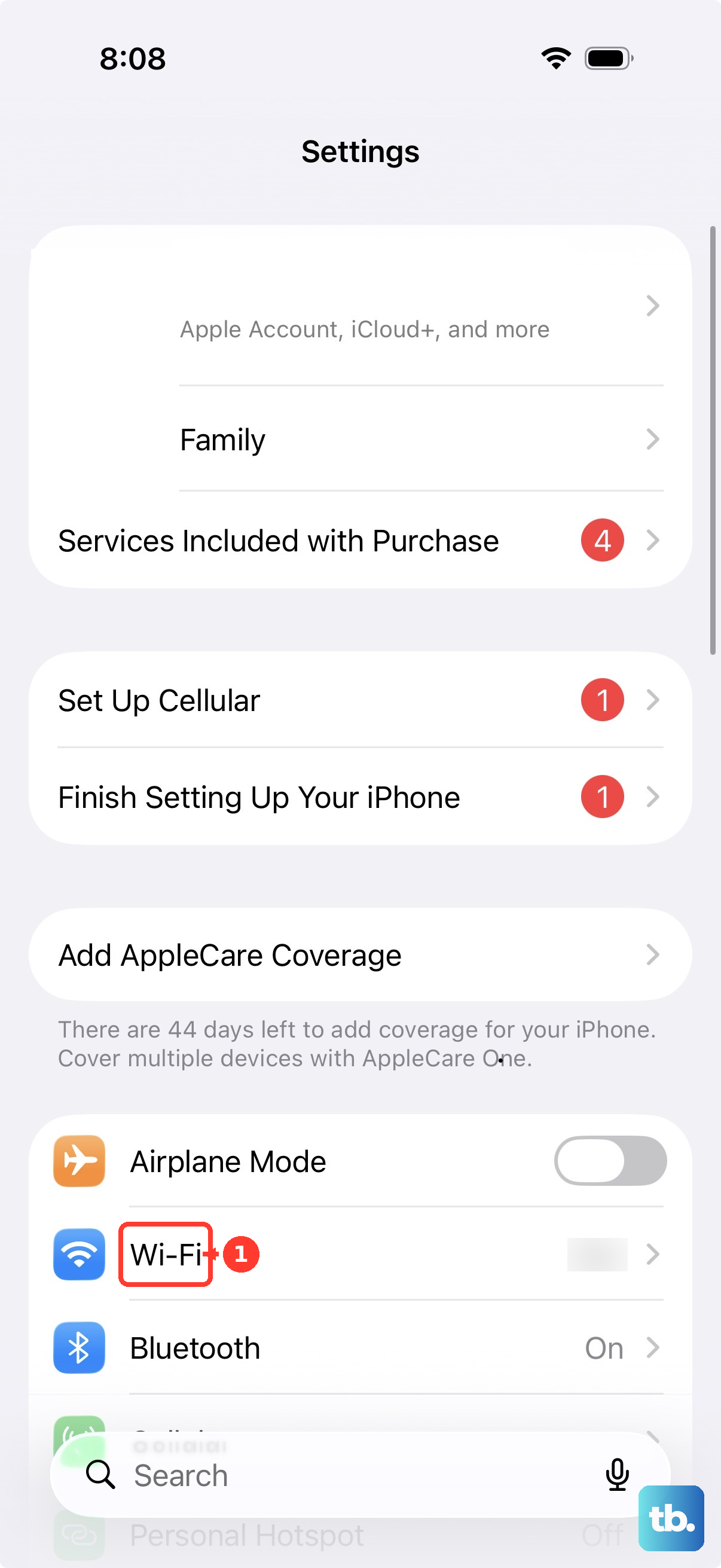
Once setup is complete, open Settings > Wi-Fi and turn on Wi-Fi. Select your network and enter its password when requested. Use this path whenever you want to choose a new network after setup.
Add a hidden network after setup
On iOS 27, you can enter a hidden network’s details once Settings becomes available. Open Settings > Wi-Fi, turn on Wi-Fi, and tap Other. Enter the network name, security type, and password supplied by the network’s owner.
If you cannot connect to the hidden network during setup, complete setup with another available network or use cellular activation when offered. Then enter the hidden network’s details through Settings.
Complete a public network login after setup
Public Wi-Fi can require a separate login after you select the network. Once Settings is available, open Settings > Wi-Fi, select the network, and wait for its login screen. Alternatively, tap the information button beside the network, then tap Join Network.
Supply the credentials requested by the provider and follow its login prompts. Choosing Without Internet does not provide the internet access needed for activation. If a public network’s authentication prevents you from completing initial setup, try another available network or cellular activation when offered.
Frequently Asked Questions
Can another Apple device send the Wi-Fi password to my iPhone after setup?
Yes, once Apple’s sharing prerequisites are met: enable Wi-Fi and Bluetooth on both devices, turn off Personal Hotspot, and sign in to their respective Apple Accounts. Save each other’s Apple Account email address or phone number in Contacts and keep the devices nearby. Select the network on the receiving iPhone, then tap Share Password on the unlocked device already connected to it. Tap Done to finish.
How can I share a Wi-Fi network using a QR code after setup?
On the sharing iPhone running iOS 27, open Passwords > Wi-Fi and select the network. Tap Show Network QR Code, then scan the displayed code with the receiving device to join.
Does the Wi-Fi button in Control Center completely turn off Wi-Fi?
The Wi-Fi button in Control Center temporarily disconnects Wi-Fi connections rather than fully switching off the Wi-Fi radio. After setup, open Control Center and tap the Wi-Fi button to re-enable connections following a temporary disconnection.
How do I get Wi-Fi settings for an organization-managed iPhone?
Ask your organization’s administrator to supply a Wi-Fi configuration through its device-management service. Apple supports managed network names, hidden networks, automatic joining, authentication, and proxy settings. The administrator’s exact console steps depend on the management vendor.
Should I reset network settings if Wi-Fi still fails after setup?
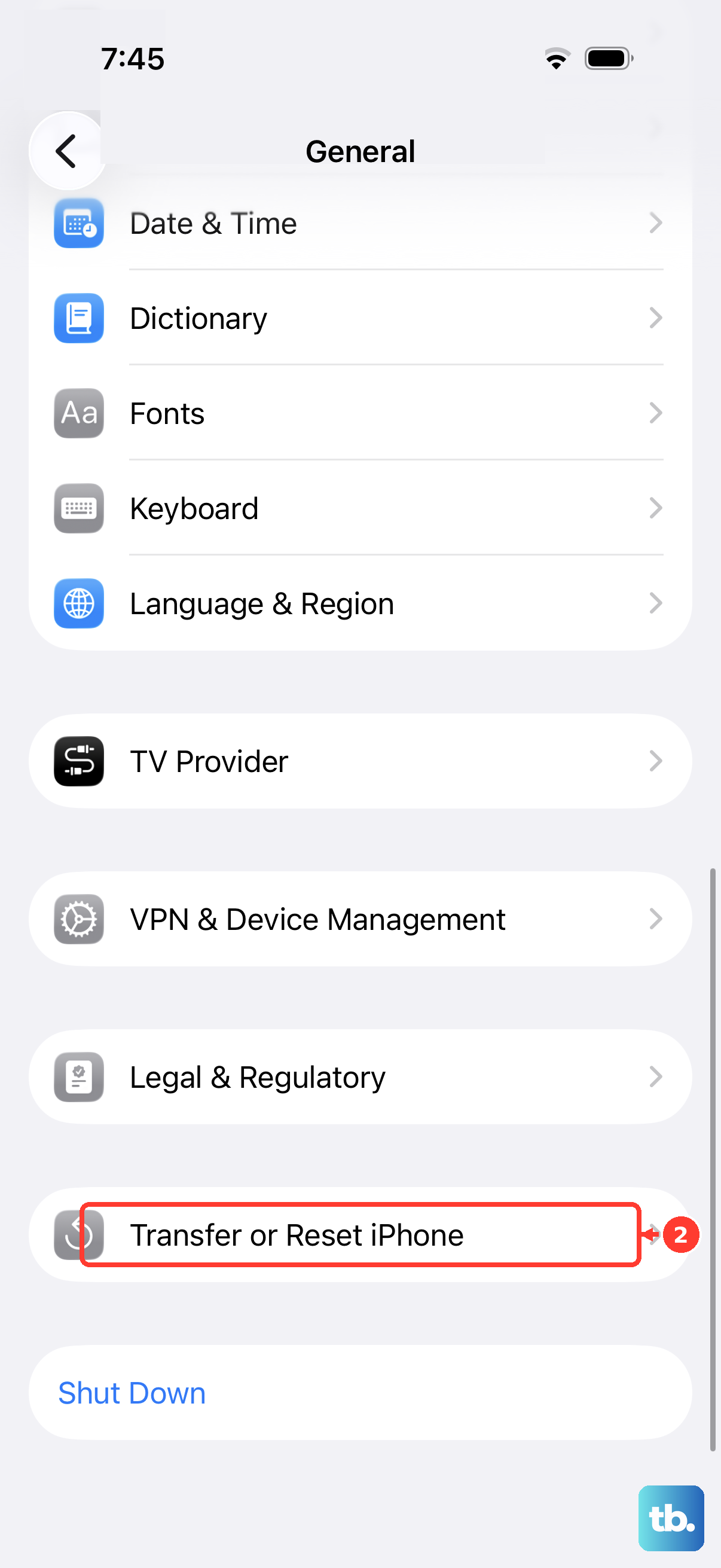
Use Reset Network Settings only as a last resort after setup or restoration, when Settings is accessible. Consult your administrator first if your iPhone uses organization-managed networking. This reset removes saved Wi-Fi networks and passwords, cellular settings, and VPN/APN settings. To perform it, open Settings > General > Transfer or Reset iPhone > Reset > Reset Network Settings.