


To turn on your iPhone hotspot, open Settings > Personal Hotspot and turn on Allow Others to Join. Keep that screen open until your other device connects over Wi-Fi. You can also reach the switch through Settings > Cellular > Personal Hotspot.
Your iPhone needs cellular service and a carrier plan that supports Personal Hotspot. You can share that cellular connection over Wi-Fi, USB, or Bluetooth.
The short version
- Turn it on: Open Settings > Personal Hotspot and enable Allow Others to Join.
- Connect over Wi-Fi: Select your iPhone on the receiving device and enter the password shown under Wi-Fi Password.
- Use your Apple devices: Instant Hotspot lets compatible devices on the same Apple Account connect without enabling Allow Others to Join.
- Missing hotspot: Enable Cellular Data, then ask your carrier to confirm that your plan includes hotspot service.
| Method or option | When to use it |
|---|---|
| Settings > Personal Hotspot | Turn on sharing directly |
| Cellular > Personal Hotspot | Reach the same switch through cellular settings |
| Set Up Personal Hotspot | Set up sharing for the first time |
| Search in Settings | Find the hotspot setting |
| Home Screen or Lock Screen search | Open the hotspot setting from search |
| Instant Hotspot on Mac | Connect an authorized nearby Mac |
| Instant Hotspot on other Apple devices | Connect through the receiving device’s Wi-Fi settings |
| Auto-Join Hotspot | Automatically connect an iPhone, iPad, or Apple Vision Pro |
| Ask to join hotspots on Mac | Choose automatic connections or prompts |
| Auto Hotspot Settings on Apple Watch | Choose automatic connections or prompts |
| Family Sharing | Authorize family members to connect |
| Ordinary Wi-Fi sharing | Connect another device with the hotspot password |
| USB tethering | Connect a Mac or Windows PC by cable |
| Add the iPhone USB network service | Restore a missing USB service on Mac |
| Bluetooth tethering on Mac | Pair a compatible Mac with your iPhone |
| Bluetooth tethering on Windows 11 | Connect a PC with Bluetooth PAN support |
| Voice Control | Operate the hotspot switch by voice |
| Enable Cellular Data | Restore the connection hotspot needs |
| Carrier provisioning | Resolve missing hotspot service on your line |
| Maximize Compatibility | Help a device connect to an iPhone 12 or later |
| Carrier-directed APN configuration | Correct cellular settings supplied by your carrier |
| Remote activation through device management | Have an administrator enable a managed iPhone’s hotspot |
| Release a management restriction | Let you change hotspot settings on a supervised iPhone |
| Remove a removable configuration | Remove a profile or management entry supplying a restriction |
| Reset Network Settings | Reset network configuration when sharing remains broken |
| Apple software for Windows | Install Apple Devices or iTunes before USB tethering |
Enable Personal Hotspot in Settings
Open Settings, select Personal Hotspot, and turn on Allow Others to Join. If you do not see the top-level entry, use Settings > Cellular > Personal Hotspot. Both paths reach the same switch.
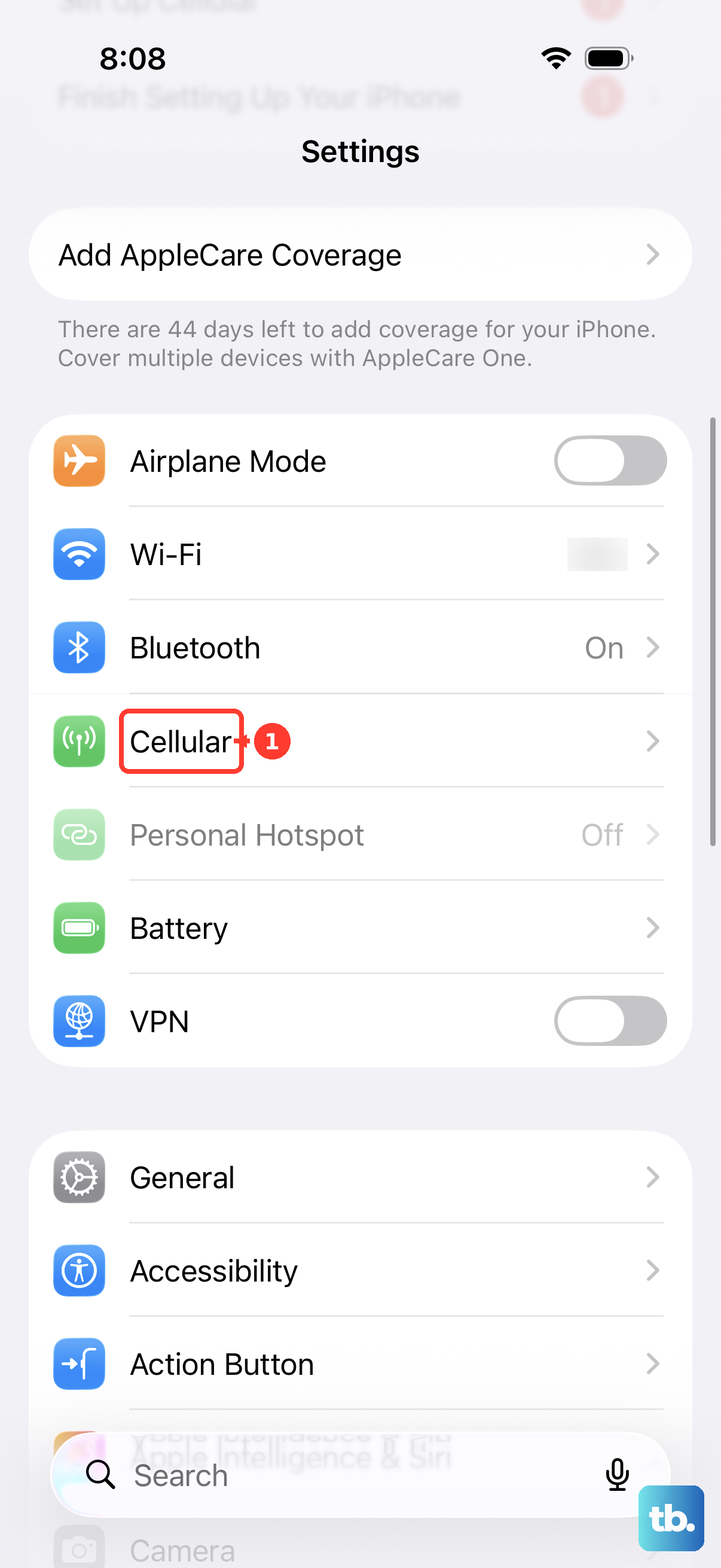
For first-time setup, open Settings > Cellular > Set Up Personal Hotspot and follow the onscreen instructions. If that option is missing, enable Cellular Data in Settings > Cellular. Contact your carrier about adding hotspot service if setup is still unavailable.
To find the switch through search, open Settings, tap the search field, enter Personal Hotspot, and select the matching setting. Then turn on Allow Others to Join.
You can also open Search from the Home Screen or Lock Screen and search for Personal Hotspot. Open the Settings result, unlock if requested, and turn on Allow Others to Join.
Connect another device over Wi-Fi
With Allow Others to Join enabled, leave Settings > Personal Hotspot open on your iPhone. On the receiving device, open its Wi-Fi settings and select your iPhone from the available networks. Enter the password displayed under Wi-Fi Password on the iPhone.
You can use this method with Android devices, Windows PCs, and Apple devices outside your authorized Instant Hotspot group. If you want a more recognizable name before connecting, you can change your iPhone’s device name. Then select that name on the receiving device.
Use Voice Control
To operate the switch by voice, open Settings > Accessibility > Voice Control > Set Up Voice Control. With Voice Control enabled, use its Open and Tap commands to navigate to Personal Hotspot and activate Allow Others to Join. If a control is difficult to identify, use Show numbers, then Tap [number], speaking the displayed number. Voice Control must support your selected language.
Connect your Apple devices with Instant Hotspot
Instant Hotspot lets compatible Apple devices activate your nearby iPhone’s hotspot from their own Wi-Fi settings. Keep Wi-Fi and Bluetooth enabled on both devices, and sign in to the same Apple Account or use authorized Family Sharing. These connections do not require a hotspot password or Allow Others to Join to be enabled.
On a Mac, open Wi-Fi in the menu bar or Control Center and select your iPhone. On another iPhone or iPad, open Settings > Wi-Fi and select the providing iPhone. Keep the devices nearby while connecting.
Set up automatic connections and family access
To let a receiving iPhone or iPad connect automatically when Wi-Fi is unavailable, open Settings > Wi-Fi > Auto-Join Hotspot and choose Automatic. Choose Ask to Join instead if you want a prompt. Keep the providing iPhone nearby with Wi-Fi and Bluetooth enabled.
On a Mac, open the Wi-Fi menu and select Wi-Fi Settings. Find Ask to join hotspots and choose Automatic or Ask to Join. The automatic option requires macOS Tahoe 26 or later, plus a compatible nearby iPhone using the same Apple Account or authorized Family Sharing.
To authorize family members, open Settings > Personal Hotspot > Family Sharing on the providing iPhone. Enable Family Sharing, select a family member, and choose Automatic or Ask for Approval. Establish a Family Sharing group first if the setting is missing.
Share the connection with a USB cable
Before connecting to a Windows PC, use Apple’s Windows application download page to get Apple Devices or iTunes for Windows from the Microsoft Store. Install the selected application before setting up USB sharing.
Turn on Allow Others to Join, then connect your iPhone to your Mac or Windows PC with a compatible USB data cable. Approve Allow on the computer and Trust on the iPhone when prompted.
If your Mac has no iPhone USB network service, keep the hotspot enabled and the iPhone connected by USB, then open the Apple menu > System Settings > Network. Open the Action pop-up menu and select Add Service. Choose iPhone USB under Interface, enter a Service Name, and click Create.
Connect a computer over Bluetooth
For Bluetooth sharing, enable Allow Others to Join and turn on Bluetooth on both devices. You need a compatible Mac or a Windows 11 PC with Bluetooth PAN support.
For a Mac, leave Settings > Bluetooth open on the iPhone. On the Mac, open System Settings > Bluetooth and select the iPhone. Confirm that the pairing codes match and tap Pair when requested.
On Windows 11, pair the iPhone and PC over Bluetooth, then open Start > Settings > Bluetooth & devices > Devices. Expand the iPhone under Other devices and select Join beside Personal Area Network (PAN). Choose Access Point, then Connect.
Fix missing settings and connection problems
When Personal Hotspot is missing or cannot be enabled, open Settings > Cellular and enable Cellular Data. If hotspot remains unavailable, ask your carrier to confirm that your plan supports hotspot and that the service is enabled for your line. Once the carrier enables it, return to Settings > Personal Hotspot and turn on Allow Others to Join.
For a device that cannot connect over Wi-Fi, confirm that Allow Others to Join is on and keep the hotspot screen open. Select the iPhone’s network on the receiving device and enter the displayed Wi-Fi Password. On iPhone 12 models and later, enable Maximize Compatibility under Settings > Personal Hotspot, then reconnect.
If your carrier instructs you to correct APN settings, open Settings > Cellular > Cellular Data Network and enter the details it supplies. The alternative path is Settings > Mobile Data > Mobile Data Options > Mobile Data Network. Your changes save automatically, but these controls are available only when your carrier permits APN editing. Changing APN details does not bypass your plan’s hotspot requirements.
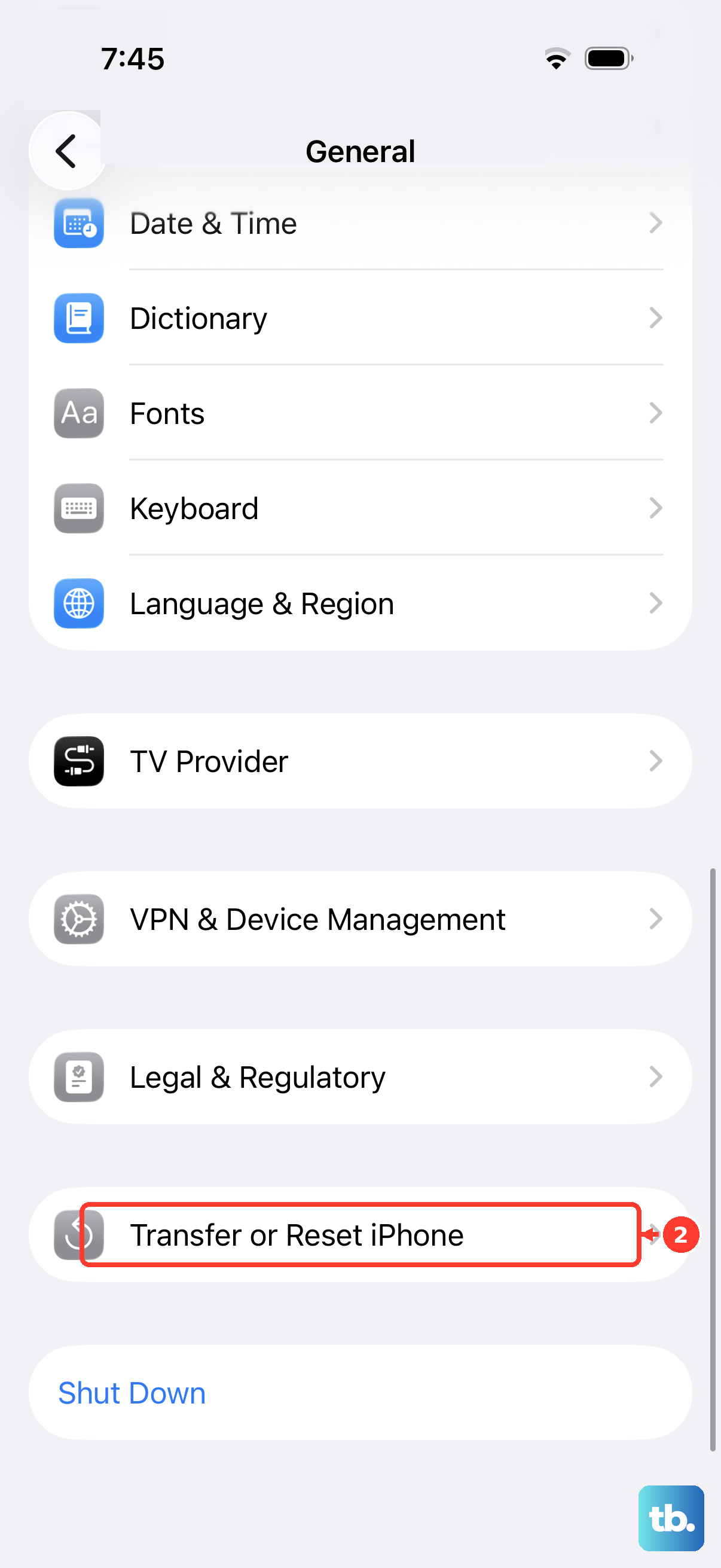
If hotspot activation or connectivity remains broken, open Settings > General > Transfer or Reset iPhone > Reset > Reset Network Settings. This resets saved Wi-Fi networks and passwords, cellular settings, and previously used VPN and APN settings. Reconfigure your connections as needed, then enable Personal Hotspot again.
Resolve hotspot restrictions on a managed iPhone
If your organization supervises your iPhone, ask its administrator to allow changes through the restriction Apple labels Modify personal Hotspot settings. Once the restriction is released, open Settings > Personal Hotspot and enable Allow Others to Join.
An administrator can also remotely enable hotspot on a compatible iPhone enrolled in device management. Apple’s device-management Settings command uses Item set to PersonalHotspot and Enabled set to true. The administration console’s menu path depends on the management provider.
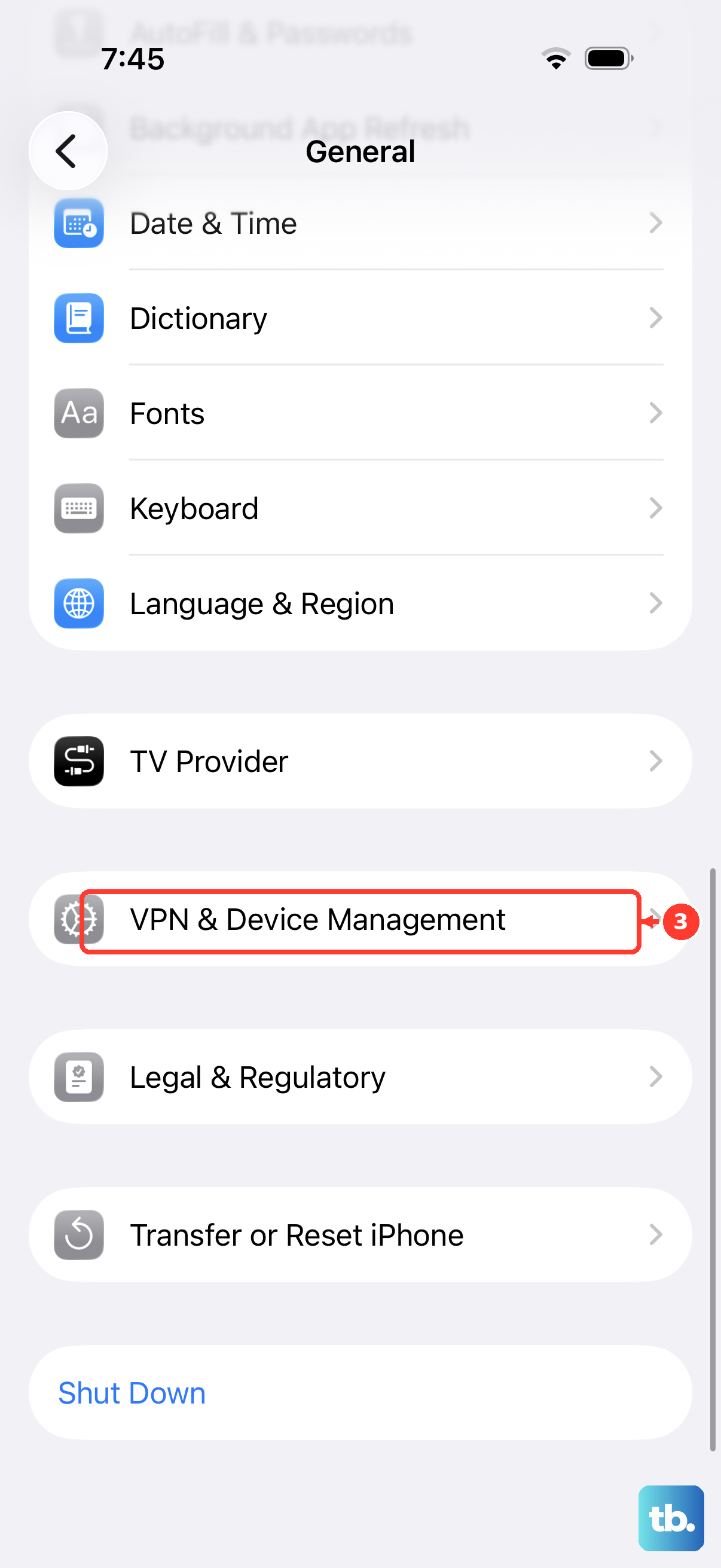
If a removable configuration supplies the restriction, open Settings > General > VPN & Device Management. Select the relevant profile and choose Remove Profile, or select the management entry and choose Remove Management, where permitted. Removing a profile also removes its associated settings and accounts, and some organizational management cannot be removed. After removing the relevant configuration, return to Settings > Personal Hotspot and enable Allow Others to Join.
Frequently Asked Questions
Can an iPhone hotspot share an existing Wi-Fi connection?
No, Personal Hotspot does not share an existing Wi-Fi connection. It shares your iPhone’s cellular internet connection.
Which cellular line does Personal Hotspot use on a Dual SIM iPhone?
Personal Hotspot uses the line selected for cellular data. If your iPhone has two cellular lines, that selection determines which line supplies the shared connection.
How do I connect Apple Watch to my iPhone hotspot?
On a compatible Apple Watch, open Settings > Wi-Fi and select your authorized nearby iPhone. To choose automatic connections, open Settings > Wi-Fi > Auto Hotspot Settings and select Automatic. Choose Ask to Join instead if you want a prompt.
Can Apple Vision Pro connect to my iPhone hotspot automatically?
Yes, on a compatible Apple Vision Pro, open Settings > Wi-Fi > Auto-Join Hotspot and choose Automatic or Ask to Join. Keep your iPhone nearby with Wi-Fi and Bluetooth enabled, using the same Apple Account or authorized Family Sharing. For a manual connection, select your iPhone under Settings > Wi-Fi.
Where do I select my iPhone hotspot on Apple TV?
On a compatible Apple TV, open Settings > Network > Wi-Fi and select your iPhone. Instant Hotspot requires the same Apple Account or authorized Family Sharing, with the devices nearby and Wi-Fi and Bluetooth enabled.