


To quit an app on your MacBook, activate it and press Command + Q; to close only its current window or tab, press Command + W. Closing a window generally leaves the app running, so use Quit when you want the app to stop. Respond to any prompts about unsaved documents before finishing.
The short version
- Quit an app: Activate it and press Command + Q.
- Close a window: Click its Close button or press Command + W, which may close a tab instead.
- Use the Dock: Hold Control, click the app’s Dock icon, then choose Quit.
- Handle a frozen app: When normal quitting fails, Force Quit can stop the app, but unsaved changes can be lost.
| Method or option | What it does |
|---|---|
| Command + Q | Quits the active app when it supports the standard shortcut |
| App menu Quit | Quits an ordinary desktop app; Finder uses a different action |
| Dock Quit | Quits a running app represented in the Dock |
| Window Close button | Closes a window, generally leaving the app running |
| Command + W | Closes the current window or tab, depending on the app |
| Option + Command + W | Closes the active app’s windows in supported apps |
| Apple menu > Force Quit | Stops an app when normal quitting fails, with possible loss of unsaved changes |
| Option + Command + Esc | Opens the window for selecting an app to force quit |
| Dock Force Quit | Stops an unresponsive app when the Dock offers this command |
| Finder Relaunch | Restarts an unresponsive Finder |
| Activity Monitor Quit | Requests an orderly exit for an app or process |
| Activity Monitor Force Quit | Ends a process immediately, potentially affecting unsaved data and dependent processes |
| Log Out | Closes the current user’s apps and ends the session |
| Keyboard logout shortcuts | Request logout with or without logout confirmation |
| Restart or Shut Down | Closes apps across the computer |
| Option with a session command | Bypasses the logout, restart, or shutdown confirmation |
| Control + Command + Power | Forces a restart without save prompts on built-in keyboards without Touch ID |
| Hold the power or Touch ID button | Forces the MacBook off if restarting fails, risking unsaved work |
| Close windows when quitting an application | Controls window restoration on macOS Ventura 13 and later |
| Hold Shift while opening an app | Suppresses restoration of its previous windows for that launch |
| Remove a login item | Prevents its automatic opening at future logins |
| App Background Activity | Controls background work separately from quitting the foreground app |
| Custom Voice Control command | Uses your chosen phrase to trigger the standard quit shortcut |
| Custom app keyboard shortcut | Assigns a shortcut to an app’s exact quit menu command |
| Terminal Control + C | Interrupts most foreground command-line programs |
Terminal exit | Ends the relevant shell session |
| Remote Desktop Quit Application | Administratively quits an app on authorized client Macs, losing unsaved document changes |
| Uninstall after quitting | Removes a removable app from your Mac |
Quit the app with its keyboard shortcut or menu
Activate the app you want to stop, then press Command + Q. Resolve any app-specific prompts about unsaved documents. This shortcut works in apps that support the standard Quit command.
To use the menu bar instead, activate the app, open its app-name menu, and choose its Quit command. For example, choose Preview > Quit Preview. Finder is an exception: when it stops responding, use Relaunch as described below.
Close a window without quitting the app
Click the Close button in the upper-left corner of a window to close it. For apps with standard window controls, closing a window generally leaves the app running.
For the keyboard method, activate the app and press Command + W. In an app with tabs, this can close the current tab instead of the entire window. To close all windows belonging to the active app, press Option + Command + W in an app that supports the standard shortcut. This closes windows without issuing the app’s Quit command.
Quit an app from the Dock
Hold Control and click the running app’s icon in the Dock, then choose Quit. Use this method when the running app you want to stop is represented in the Dock.
An unresponsive app may offer Force Quit in that menu. Force quitting can lose unsaved changes. When the Dock offers that command for the unresponsive app, choose Force Quit; otherwise, open the Force Quit window using the steps below.
Force quit an app that will not respond
Use force quit for a frozen app when normal quitting fails. Force quitting can lose unsaved changes. Press Option + Command + Esc, select the unresponsive app, then click Force Quit. This shortcut also works on MacBook models with Touch ID.
You can also open Apple menu > Force Quit to reach the same window. Force quitting can lose unsaved changes. Select the unresponsive app and click Force Quit.
Finder restarts instead of staying closed. For an unresponsive Finder, press Option + Command + Esc, select Finder, then click Relaunch.
Stop an app or process in Activity Monitor
Open Activity Monitor, select the app or process under Process Name, click the Stop button, then click Quit. This requests an orderly exit, and the process can refuse to stop when quitting would cause problems. Quitting another user’s process may require administrator authentication.
Force quitting a process ends it immediately and can affect unsaved data and other processes that depend on it. To take that action, select the app or process under Process Name, click Stop, then click Force Quit. Administrator authentication may be required.
Restart the MacBook if the app still will not quit
If the app still will not quit, restart your MacBook or Mac through Apple menu > Restart. Deselect Reopen windows when logging back in to prevent those windows from being restored, then click Restart. Restarting affects the whole computer.
When you are finished using the MacBook, choose Apple menu > Shut Down instead. Deselect Reopen windows when logging back in, then click Shut Down. This closes apps as part of shutting down the computer.
A forced restart does not prompt you to save documents, so unsaved work can be lost. If the computer is unresponsive and its built-in keyboard does not have Touch ID, press Control + Command + Power to force a restart.
Forcing the MacBook off can lose unsaved work. If restarting fails, hold the power button for up to 10 seconds until the Mac turns off; on a MacBook with Touch ID, hold the Touch ID button. Press and release the power button to start it again.
Control what reopens after you quit
On macOS Ventura 13 and later, open Apple menu > System Settings > Desktop & Dock, then scroll to Windows. Turn on Close windows when quitting an application. This controls window restoration and does not make the window’s Close button quit the app.
On macOS versions earlier than Ventura 13, open Apple menu > System Preferences > General. Select Close windows when quitting an app.
For just one launch, hold Shift while opening an app. The app then ignores windows left open when it last quit.
Removing a login item stops that item from opening automatically at future logins. On current macOS, open Apple menu > System Settings > General > Login Items & Extensions, select the unwanted login item, then click the Remove button below the list. This controls future automatic opening rather than quitting a process that is already running.
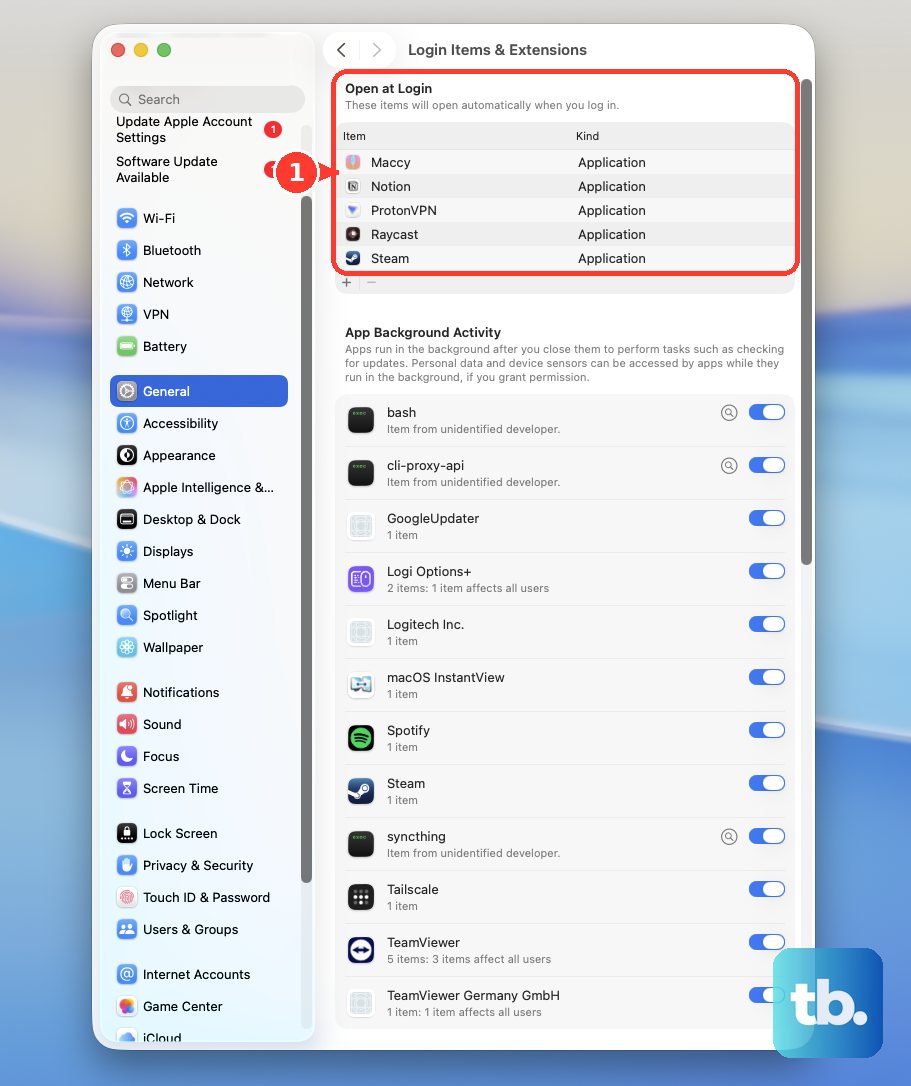
For background activity on current macOS, open Apple menu > System Settings > General > Login Items & Extensions. Under App Background Activity, turn off the relevant app to control background work such as syncing and update checks. This setting is separate from quitting the foreground app.
Remove an app you no longer want
Quitting is the first step when you want to uninstall an app from your MacBook. Quit the app, then locate it in the Finder. Most apps are in the Applications folder, which you can open by clicking Applications in the sidebar of a Finder window or by choosing Go > Applications.
Uninstalling removes the app from your Mac. Use its supplied uninstaller when available; otherwise, select the app and choose File > Move to Trash. To permanently delete the app and free its storage space, choose Finder > Empty Trash. These steps apply to removable apps, and required macOS apps generally cannot be removed this way.
Frequently Asked Questions
Can I close my apps by logging out?
Logging out closes your current user’s apps and ends that user session. Choose Apple menu > Log Out, then deselect Reopen windows when logging back in to prevent restoration at your next login.
What is the keyboard shortcut for logging out?
Logging out ends your current user session and closes its apps. Press Shift + Command + Q to request logout with confirmation. The alternative skips the logout confirmation and ends the session: press Option + Shift + Command + Q.
Can I skip the logout, restart, or shutdown confirmation?
Bypassing confirmation starts the selected session action without that confirmation dialog. Hold Option while choosing Log Out, Restart, or Shut Down from the Apple menu. Your previously selected window-restoration preference still applies.
Can I assign a different keyboard shortcut to Quit?
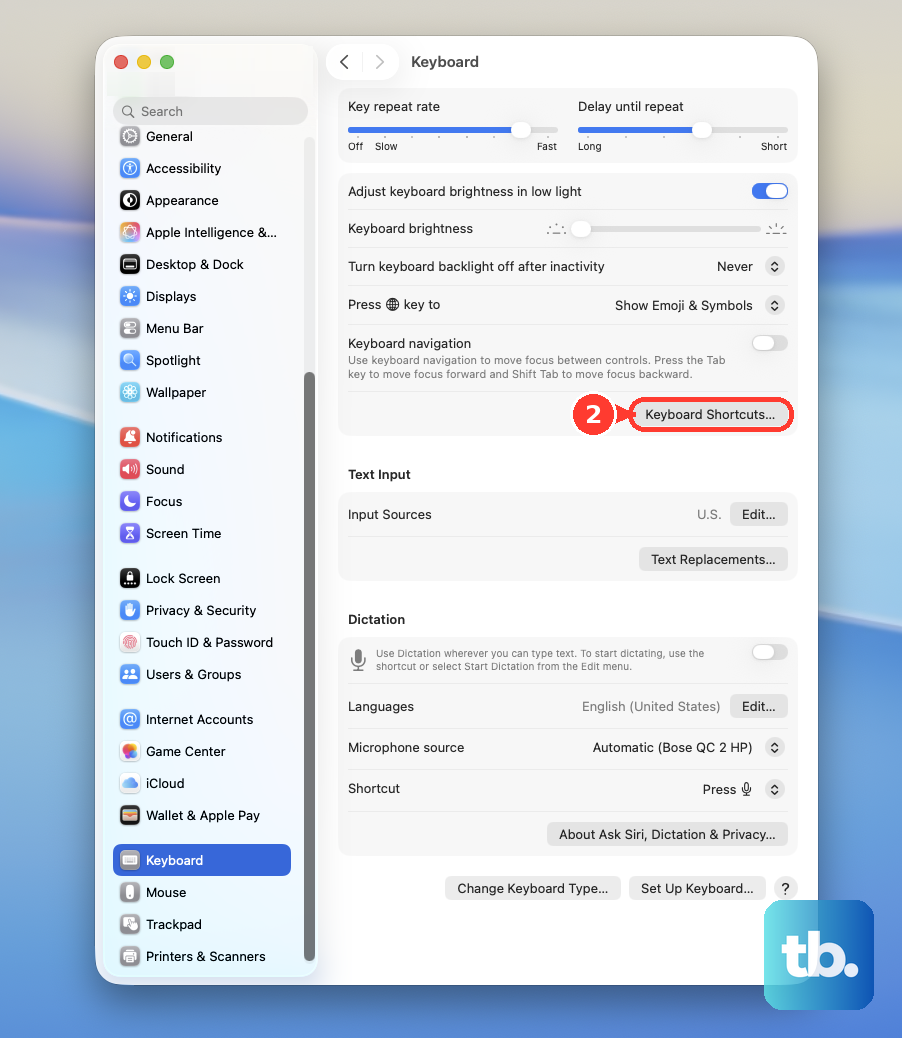
Yes, for an app that exposes an appropriate menu command. Open System Settings > Keyboard > Keyboard Shortcuts > App Shortcuts, then click Add. Enter the app’s exact Quit menu-item name and assign your desired shortcut.
Can I create a spoken command to quit an app?
With Voice Control enabled in a supported language, open Apple menu > System Settings > Accessibility > Voice Control > Commands, then click Add. Under When I say, enter a unique phrase, choose the app scope, select Press Keyboard Shortcut, and record Command + Q. Click Done, then speak the exact phrase you entered. You choose the phrase yourself; it triggers the standard quit shortcut.
How do I stop a Terminal command or end its session?
Select the Terminal window running the command and press Control + C to send an interrupt that terminates most foreground command-line programs. To end the relevant shell session, type exit and press Return. Ending a shell session is separate from quitting the Terminal app. To quit the app itself, choose Terminal > Quit Terminal.
Can an administrator quit an app on a remotely managed Mac?
With Apple Remote Desktop and appropriately configured, authorized client Macs, select a computer list and then the target computers. Choose Manage > Send UNIX Command, then from Template, choose Miscellaneous > Quit Application. Apple warns that unsaved document changes are lost. Enter the app’s name, then click Send.