
Your Samsung Galaxy S25 uses cached data to make apps load faster, but over time, that temporary storage can get clogged and cause slowdowns. When you notice apps stuttering or your storage mysteriously filling up, clearing the cache is a great first step. It's a safe process that won't delete your personal information.
Use Device Care for a Quick Cleanup
Your phone has a powerful built-in tool for this. Swipe down and open your Settings, then tap on Device care. From there, tap Memory and then hit the Clean now button.
This frees up memory and stops background apps that may slow down your phone. To reclaim storage space, open Device care > Storage, choose a file category, and review files before deleting anything. I'd start with this one every time.
Clear Cache for a Specific App
If one app in particular is acting up, you can target it directly. Go to Settings > Apps, then find and select the problematic app from the list. Tap on Storage and you'll see the Clear cache button at the bottom.
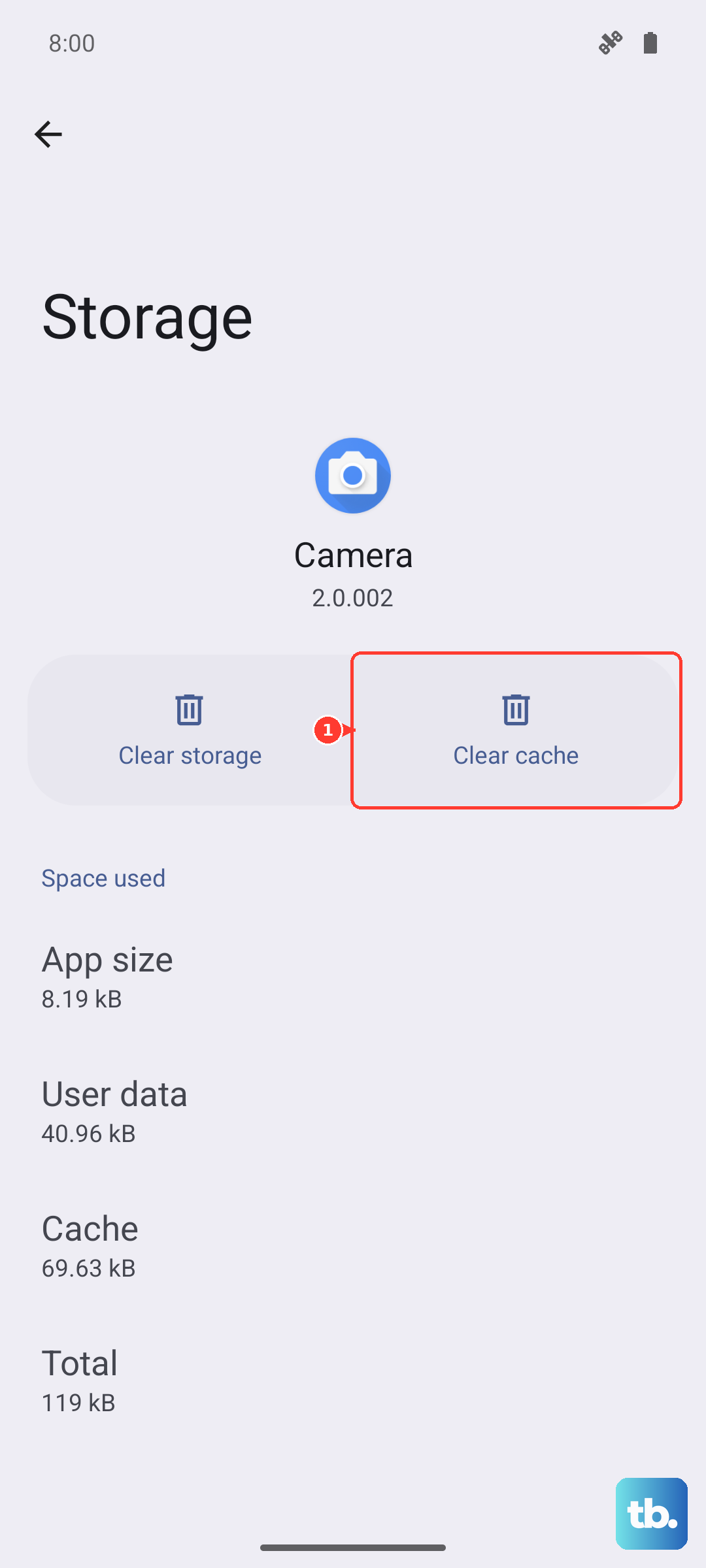
This wipes the app's temporary files while keeping your account logged in and your saved data intact. Focus on data-heavy apps like Instagram, TikTok, Chrome, or Spotify, as they can accumulate cached files as you use them.
Clear Your Browser Cache
If you use Samsung Internet, open the app and tap More options (the three vertical dots). Go to Settings > Personal browsing data > Delete browsing data. Make sure Cached images and files is checked, then tap Delete data and Delete to confirm.
For Google Chrome users, the path is Menu (three dots) > Settings > Privacy and security > Clear browsing data. Select Cached images and files and choose your time range before clearing.
Wipe the System Cache Partition
This is a deeper clean for the Android system itself, useful if your phone feels laggy or buggy after a software update. First, power your Galaxy S25 off completely.
Connect the phone to a PC with a USB cable, then hold Volume Up and the Side button to open recovery. If the menu includes Wipe cache partition, use the volume buttons to select it and press the Side button. Select Yes and confirm, then select Reboot system now. Avoid Wipe data/factory reset, which erases your data. If the cache option isn't there, restart normally and use the app cache steps above.
Manage Messages and Media Storage
The Messages app can hoard space with old photos and videos. Open Messages, tap the three-dot menu, and go to Settings > More settings > Delete old messages. Turn on Delete old messages to have the phone automatically delete the oldest messages once the message limit is reached.
For a more hands-on approach, go through individual conversations and delete large media files manually. This often frees up more space than clearing the app cache alone.
Set Up Automatic Maintenance
You can put your Galaxy S25 on autopilot. Go to Settings > Device care > Auto optimization > Auto restart. Turn on Restart when needed, or use Restart on schedule to choose days and a time. These restarts close background apps and clean the phone's memory.
Also check Settings > Device care > Storage. If your phone has duplicate or large files, they appear under the Duplicate files and Large files headers, where you can review and delete them.
Perform a Force Restart
Sometimes, a simple restart is all you need to clear out stuck processes. If your phone is unresponsive, press and hold the Volume down button and the Side button together for more than 7 seconds until the device restarts.
This forces a fresh boot, which can help resolve minor glitches and sluggish performance. For a routine restart when the screen responds, hold the Volume down and Side buttons until the power options appear, then tap Restart and tap Restart again.