
You're staring at your Samsung Galaxy A36, watching it stubbornly refuse to join your Wi-Fi network. That spinning icon is just mocking you now. I've been there, and it's incredibly frustrating when you just need to get online. The good news is this is almost always a software hiccup you can fix yourself in a few minutes.
Toggle Wi-Fi and Restart Your Phone
Let's start with the simplest thing. Swipe down from the top of your screen to open the Quick Panel and tap the Wi-Fi icon to turn it off. Wait a solid five seconds, then tap it again to turn it back on. This forces your A36 to drop its current connection attempt and start fresh, which surprisingly works more often than not.
If that doesn't do the trick, give your phone a full restart. On your Galaxy A36, press and hold the Volume Down button and the Power button at the same time for about ten seconds. Keep holding until you see the Samsung logo appear, then let go. This clears out any temporary glitches in One UI 7 that might be blocking the connection.
Use Airplane Mode to Reset Radios
This is a classic fix for a reason. Turning on Airplane mode shuts down all wireless communication, Wi-Fi, cellular, and Bluetooth. Swipe down your notification shade and tap the airplane icon. Leave it enabled for a full 15 seconds, then tap it again to turn it off.
This action forces every radio in your phone to reinitialize and scan for networks from scratch. It's a more thorough reset than just toggling Wi-Fi alone, and it can knock loose stubborn connection problems.
Forget the Network and Re-Join
Your phone might be holding onto old or corrupted information for that network. To clear it out, go to Settings > Connections > Wi-Fi. Tap on the name of the network you're trying to join, then select Forget.
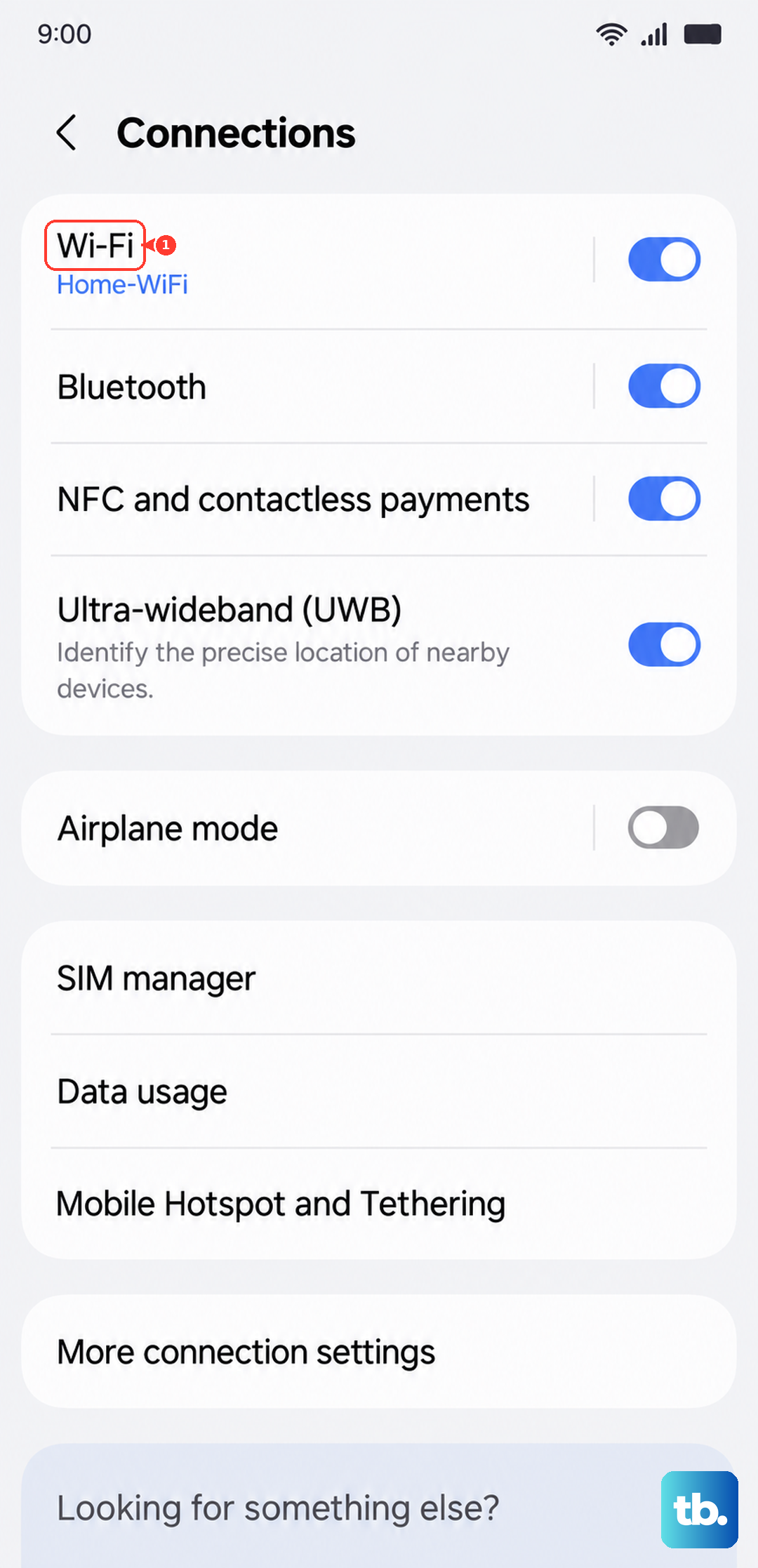
Now, go back to the list of available networks, tap on yours again, and carefully re-enter the password. This is crucial if you've recently changed your Wi-Fi password or gotten a new router. Your A36 won't be able to connect if it's still trying to use outdated credentials.
Check for Simple Mistakes
It sounds obvious, but it's worth a double-check. Make sure you're selecting the correct network name from the list, especially if you have a lot of neighboring networks. Wi-Fi passwords are also case-sensitive.
If you're typing it in, ensure caps lock isn't accidentally on. Sometimes, the simplest explanation is the right one, and a single mistyped character is all it takes to keep you offline.
Disable Bluetooth Temporarily
Both Wi-Fi and Bluetooth can operate on the 2.4GHz frequency band. On some phones, they can interfere with each other, especially if you have multiple Bluetooth devices connected. Try turning Bluetooth off from your Quick Panel.
See if your Wi-Fi connects immediately afterward. If it does, you've found the source of the conflict. You can usually turn Bluetooth back on once the Wi-Fi connection is stable.
Turn Off Smart Network Switch
This Samsung feature is designed to be helpful, but it often causes more problems than it solves. Smart Network Switch tries to move you to mobile data when your Wi-Fi signal is weak, but it can sometimes prevent a connection altogether.
To disable it, go to Settings > Connections > Wi-Fi. Tap the three-dot menu in the top right, select Intelligent Wi-Fi, and turn off the switch for Switch to mobile data.
Check Power Saving and Battery Settings
If you have any battery-saving modes enabled, they can severely restrict background network activity to conserve power. Go to Settings > Battery.
Make sure Power saving is turned off. While you're here, you might also consider enabling the Battery protection feature to limit maximum charge to 85%, which is great for long-term battery health on your A36.
Update Your Phone's Software
Since the A36 launched with Android 15 and One UI 7, there have likely been updates to fix initial bugs. Outdated software is a common cause of connectivity issues. Head to Settings > Software update > Download and install.
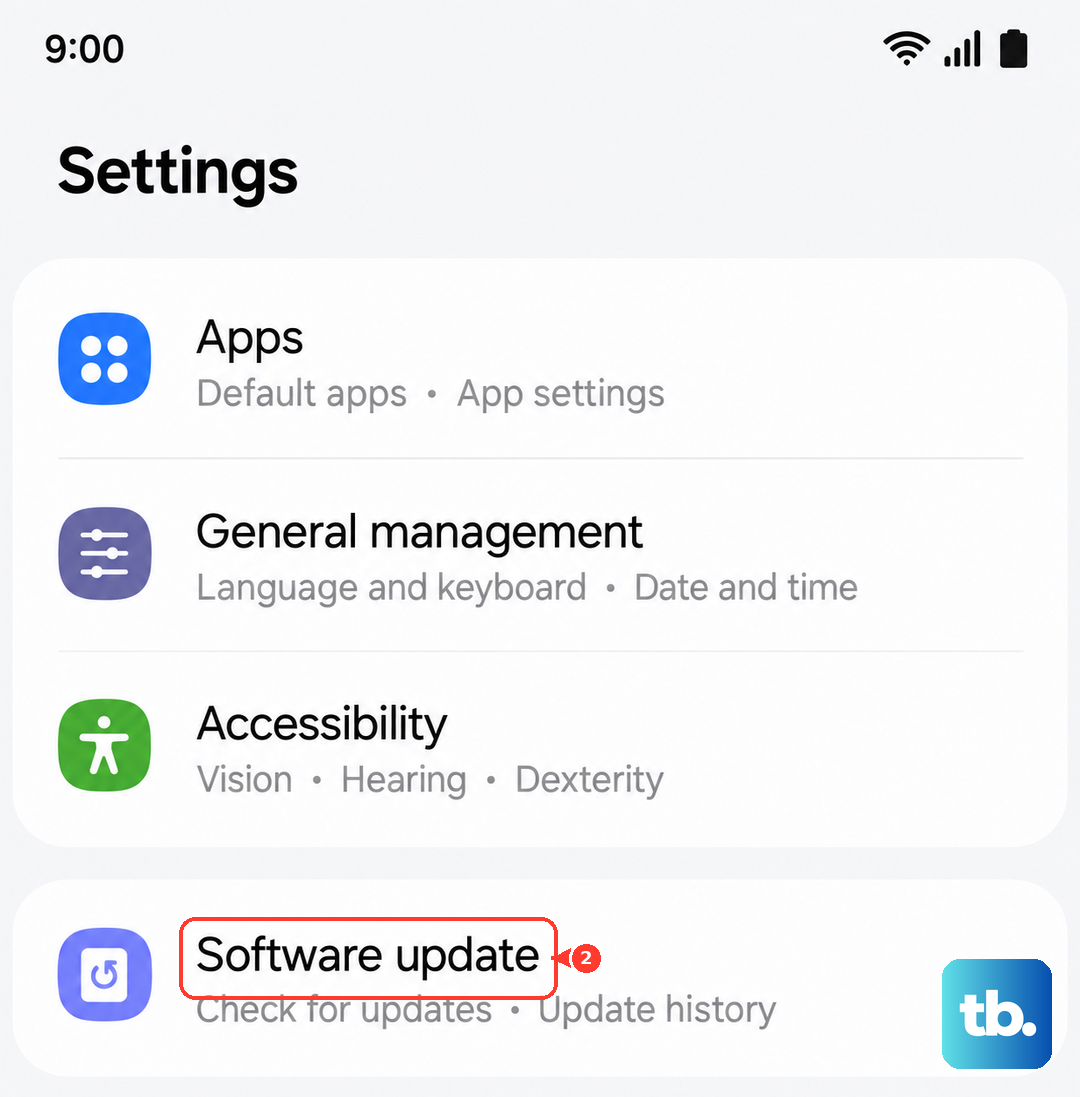
Install any available updates. Manufacturers regularly release patches that address Wi-Fi stability, so this is a critical step. I'd make a habit of checking this monthly.
Verify Your Date and Time
This one seems unrelated, but it's important. If your phone's clock is wrong, it can fail to properly validate the security certificates used by modern Wi-Fi networks. This will prevent a successful connection.
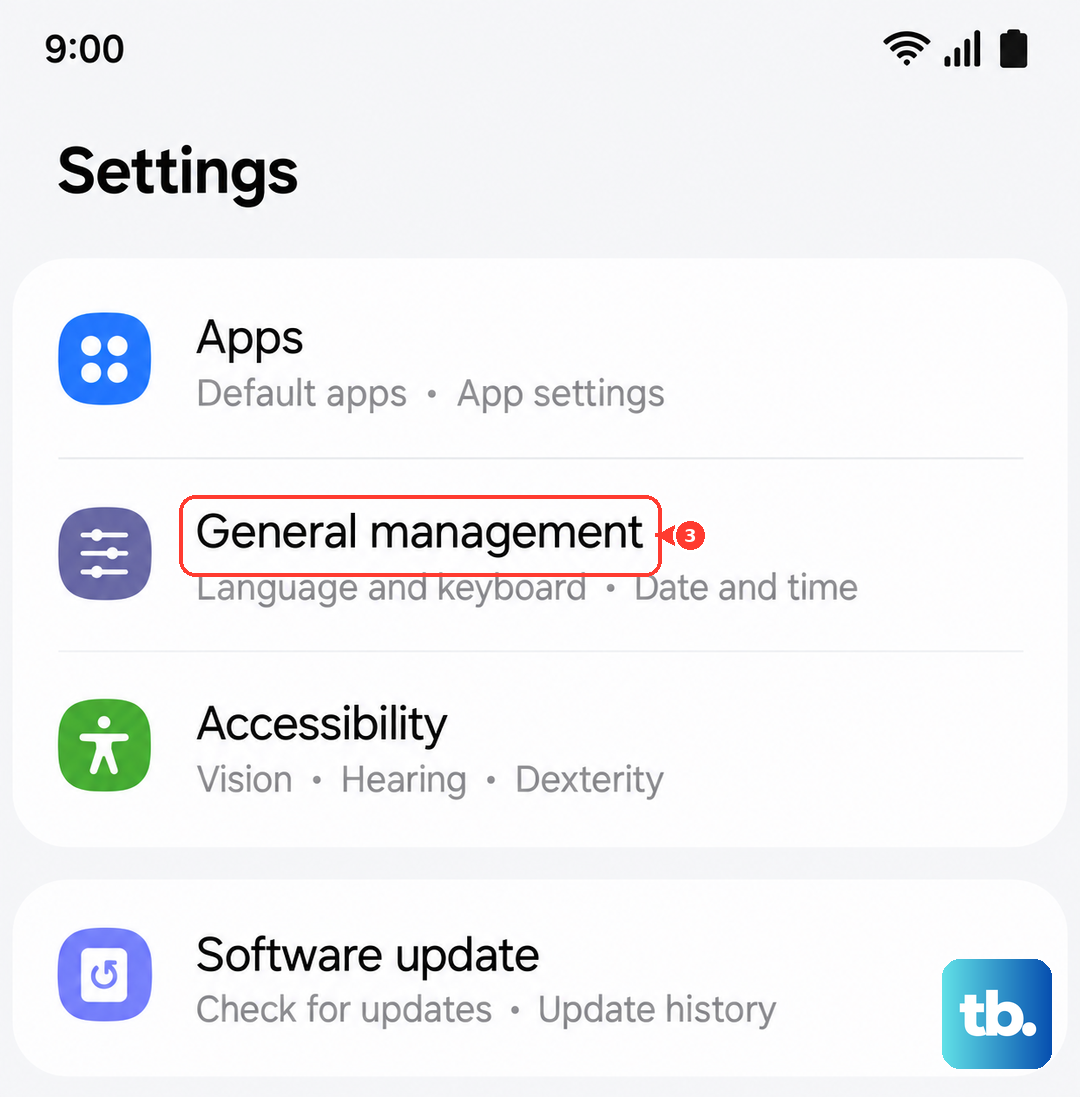
Go to Settings > General management > Date and time. Ensure that both Automatic date and time and Automatic time zone are toggled on. This lets your phone sync with network time servers.
Reset Your Network Settings
If you're still stuck, resetting network settings is a strong next step. This will erase all saved Wi-Fi networks, Bluetooth pairings, and mobile network preferences, so you'll have to reconnect to everything afterward.
To do this, navigate to Settings > General management > Reset, then choose Reset mobile network settings for SIM or mobile data issues, or Reset Wi-Fi and Bluetooth settings for Wi-Fi and Bluetooth issues. Tap reset and confirm. This often resolves deep-seated configuration conflicts without touching your personal data.
Don't Forget the Router
The problem might not be your Galaxy A36 at all. Before you go any further, restart your home router. Unplug it from power, wait a full 60 seconds, and plug it back in. This clears the router's memory and can resolve a huge number of connection issues.
If other devices in your home are also struggling to connect, the router is almost certainly the culprit. You should also check if there's a firmware update available for your router through its admin page or app.
Boot Into Safe Mode
A third-party app you installed could be interfering. To check, we'll boot into Safe Mode, which temporarily disables all downloaded apps. Press and hold the power button until the power menu appears.
Then, tap and hold the Power off option on your screen. You'll see a prompt to reboot into Safe Mode; tap it. If your Wi-Fi works perfectly in Safe Mode, you know a recently installed app is causing the problem. You'll need to uninstall apps one by one to find the offender.