
You're trying to browse or stream on your Galaxy S25 Ultra, and that Wi-Fi icon just keeps vanishing. It's a frustratingly common hiccup, even on a flagship phone running the latest software. The good news is it's almost always a software or settings issue you can fix yourself in a few minutes.
Toggle Wi-Fi and Restart Your Phone
Start with the simplest fix. Swipe down from the top of your screen to open the Quick Panel and tap the Wi-Fi icon to turn it off. Wait about ten seconds, then tap it again to turn it back on. This forces your phone to drop the current connection and re-scan for networks, which often clears up a temporary glitch.
If that doesn't stick, give your S25 Ultra a full restart. Press and hold the Side key and Volume Down button together for about ten seconds until you see the Samsung logo. This reboot clears the phone's memory and stops any background processes that might be interfering with the connection.
Use Airplane Mode to Reset All Radios
When a simple Wi-Fi toggle isn't enough, airplane mode is your next best step. Pull down the Quick Panel and tap the airplane icon to enable it, which shuts down Wi-Fi, cellular, and Bluetooth. Leave it on for a full 15 seconds before tapping the icon again to disable it.
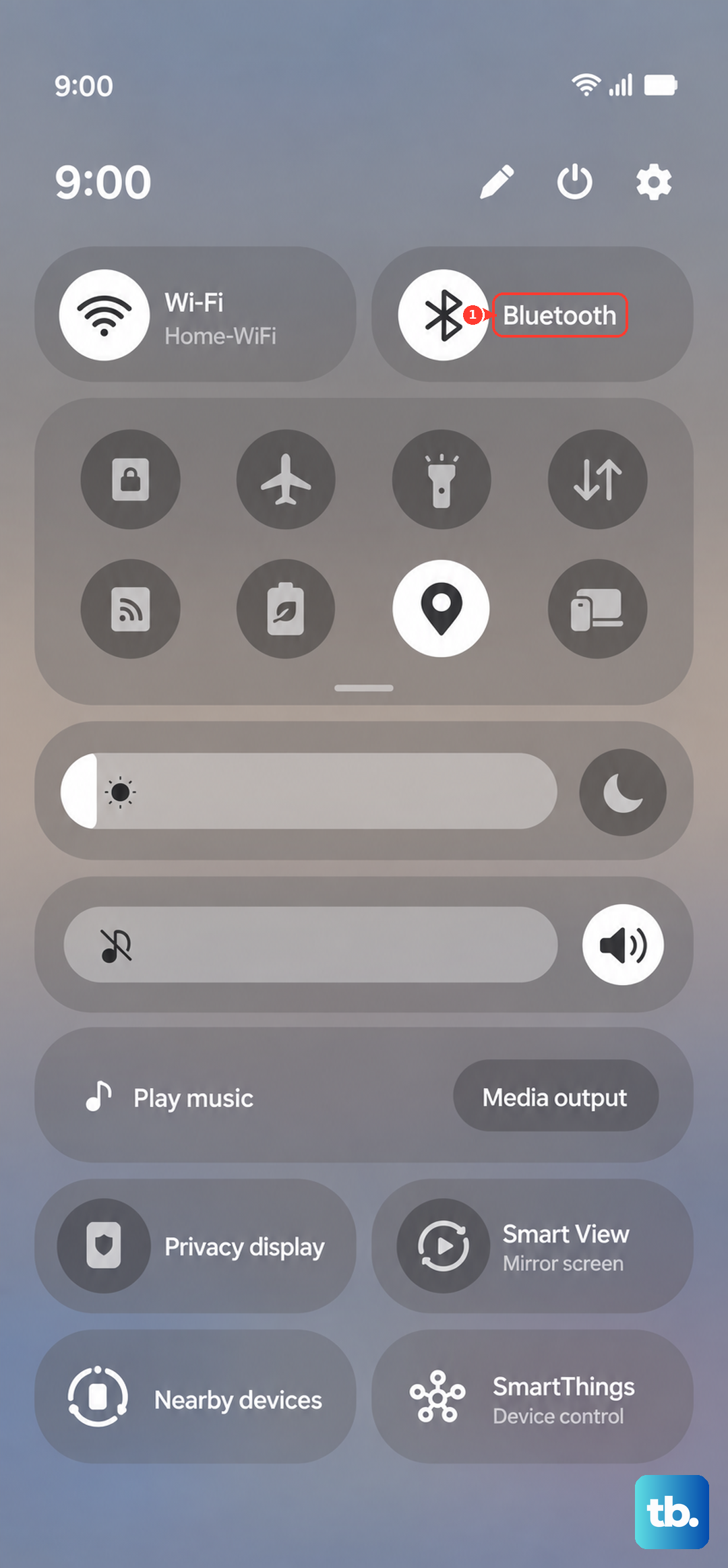
This forces every wireless radio in your phone to reinitialize and reconnect from scratch. I've found this resolves intermittent dropouts more reliably than just toggling Wi-Fi alone, especially if you're moving between different access points.
Forget the Problem Network and Rejoin
Your phone might be holding onto corrupted login data for that network. Open Settings and go to Connections > Wi-Fi. Tap on the name of the network that's dropping, then select Forget at the bottom.
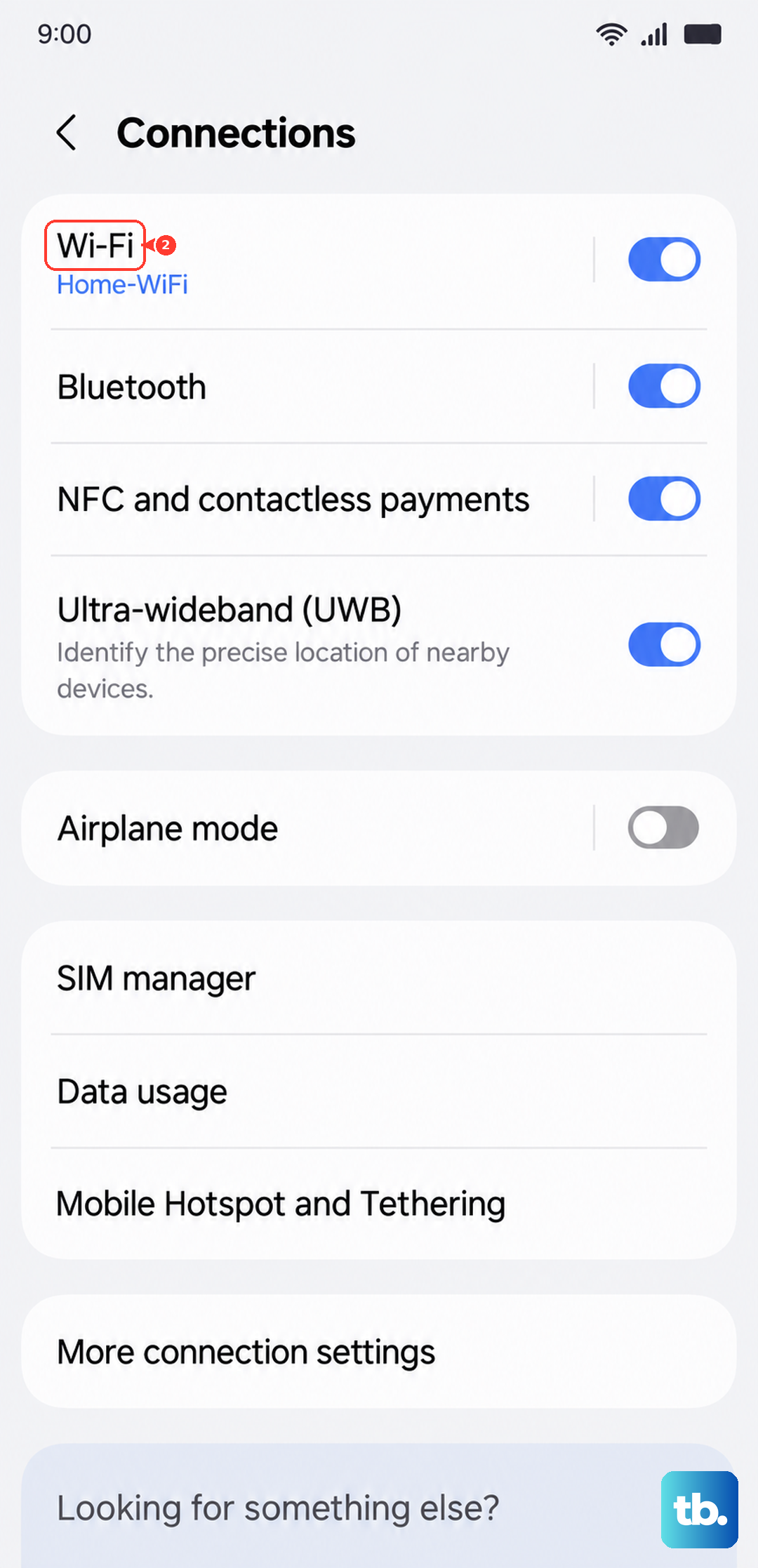
Now, tap on the same network name from the list again and re-enter the password carefully. This is crucial if you've recently changed your Wi-Fi password or gotten a new router, as your phone will stubbornly try the old credentials.
Check for Router and Interference Issues
Before you dig deeper into phone settings, make sure the problem isn't on the other end. Unplug your Wi-Fi router from power, wait a full 60 seconds, and plug it back in. This clears the router's memory and often resolves stability issues affecting all your devices.
Also, consider physical interference. The S25 Ultra's antenna lines can be slightly blocked by certain cases, particularly thick, metal, or carbon fiber ones. Try removing your case to see if the connection stabilizes. Other electronics like microwaves, baby monitors, or even wireless subwoofers operating on the 2.4GHz band can also cause interference.
Check Intelligent Wi-Fi Switching
Your S25 Ultra has Intelligent Wi-Fi options that can move traffic away from a weak network. Go to Settings > Connections > Wi-Fi, then tap the three-dot menu and select Intelligent Wi-Fi.
Turn off Switch to mobile data while testing. Samsung says this option switches to mobile data when Wi-Fi is unstable, then switches back when the Wi-Fi signal is strong. If the dropouts happen when the screen is off, also temporarily disable Switch to better Wi-Fi networks.
Turn Off Power Saving and Check Performance Profile
Power saving can affect app and device performance, and apps running in the background may not receive updates or send notifications while it is on. Go to Settings > Battery > Power saving and turn Power saving off while testing.
If you've changed the Performance profile, switch back to Standard while troubleshooting Wi-Fi. Go to Settings > Device care > Performance profile.
Check Your Phone's Date, Time, and Software
An incorrect date or time can break Wi-Fi authentication because security certificates won't validate. Go to Settings > General management > Date and time and ensure Automatic date and time is switched on.
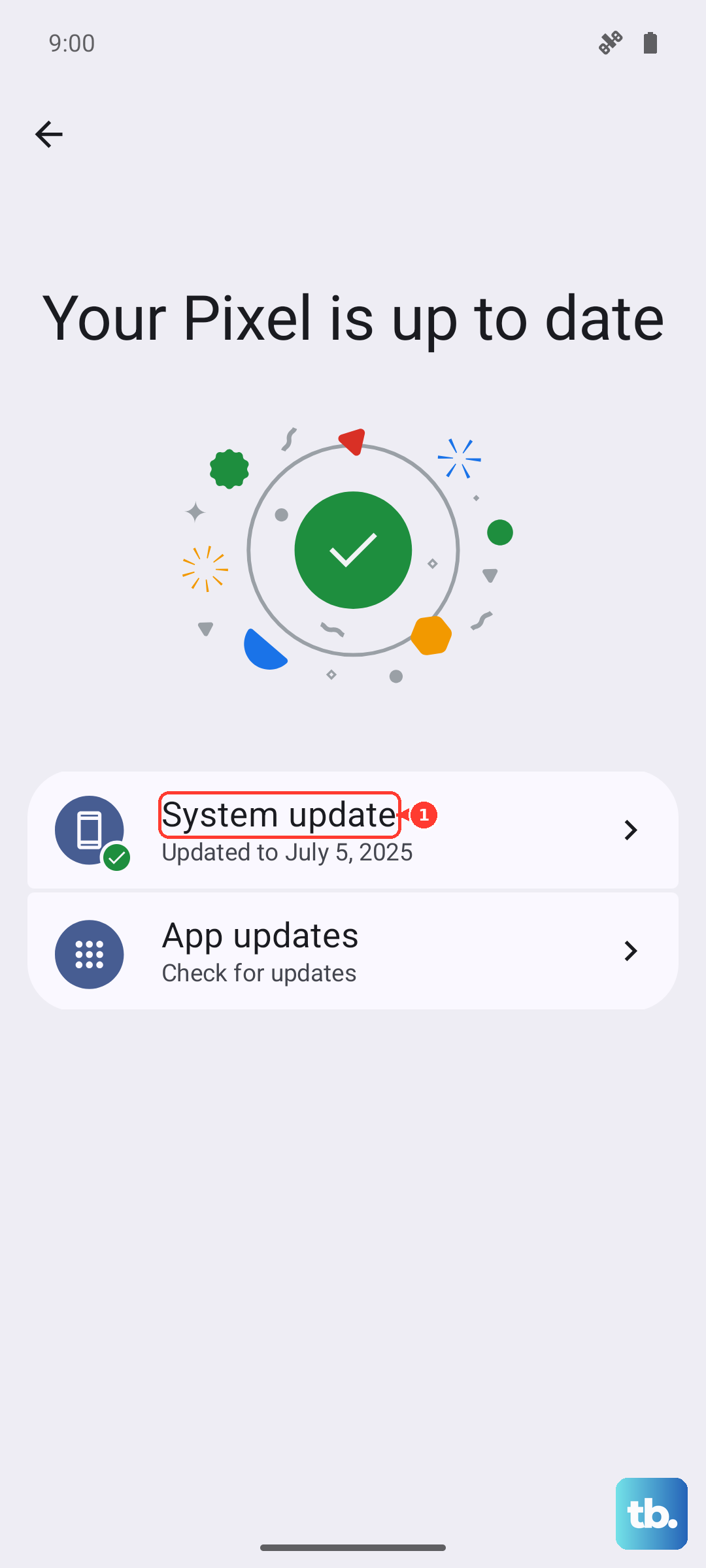
Next, check for a system update. Samsung recommends installing available updates because they can improve the interface, security, and bug fixes. Navigate to Settings > Software update and tap Download and install, then install any update your carrier/device offers.
Test for a Problematic Third-Party App
Apps with deep system access, like VPNs, ad blockers, firewalls, or even certain "cleaner" apps, can disrupt network connections. To test this, boot into Safe Mode. Press and hold the Side button and Volume down button together to open the Power menu, or swipe down from the top right and tap the Power icon. Then touch and hold Power off until the Safe mode icon appears.
Tap Safe mode to restart. If your Wi-Fi connection is stable here, a recently installed app is the culprit. Start by uninstalling VPN, firewall, ad-blocking, or other network-related apps installed or updated around when the problem started, then reboot normally.
Reset Wi-Fi and Bluetooth Settings
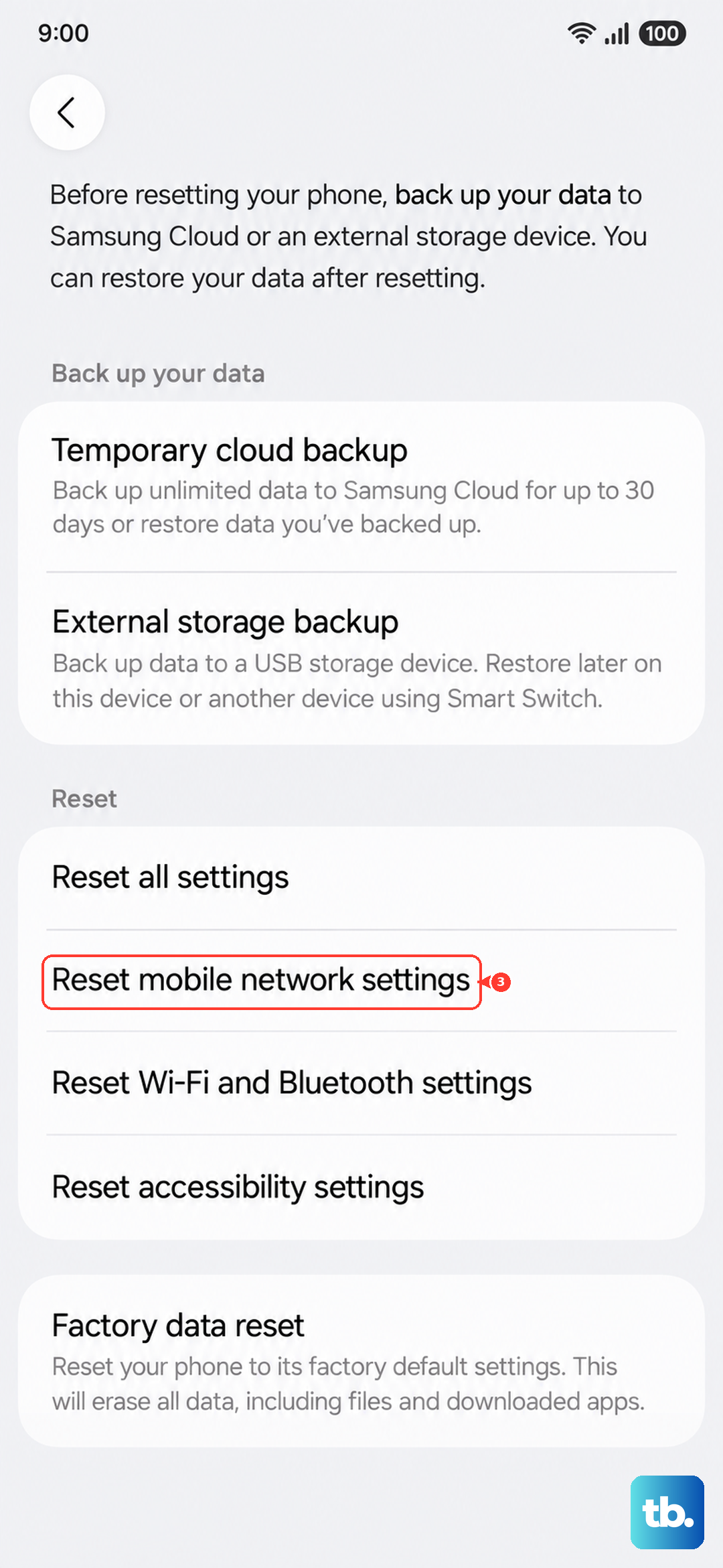
This is a more thorough step that resets Wi-Fi and Bluetooth configurations without erasing your apps or personal data. Go to Settings > General management > Reset > Reset Wi-Fi and Bluetooth settings.
Review the prompt, then tap Reset settings. You'll need to reconnect to your Wi-Fi networks and Bluetooth accessories afterward. Use Reset mobile network settings only if you're also troubleshooting cellular data or calling problems.
Try a Separate 2.4GHz or 5GHz Network
If your router broadcasts separate names for its 2.4GHz and 5GHz networks, forget the current network and connect your S25 Ultra to the band-specific network you want to test. If your router uses one combined network name, the router usually chooses the band automatically; use the router app or admin page to create separate SSIDs if your model supports it.
The 2.4GHz band has better range but is more crowded and prone to interference. The 5GHz band is faster and usually has less interference, but it has a shorter range. If you're dropping connection in one part of your home, testing a separate 2.4GHz or 5GHz SSID can help show whether range or band steering is the issue.