That spinning Wi-Fi icon on your Galaxy S25+ is frustrating, especially when you know you have a strong signal. This is a common issue, but the good news is it's almost always something you can fix yourself in a few minutes. I've seen this happen a lot with new setups, and it's rarely a sign of a serious problem.
Toggle Wi-Fi and Restart Your Phone
Start with the simplest fix. Swipe down from the top of your screen to open the Quick Settings panel and tap the Wi-Fi icon to turn it off. Wait about five seconds, then tap it again to turn it back on. This forces your phone to drop the current connection and re-scan for networks, which often solves a temporary glitch.
If that doesn't work, give your S25+ a full restart. Press and hold the Volume Down button and the Side button (power button) at the same time for about ten seconds until you see the Samsung logo. This clears out any minor software hiccups that can interfere with the wireless radios.
Use Airplane Mode to Reset Connections
This is a more thorough version of toggling Wi-Fi. When you turn on Airplane Mode, it shuts down all wireless communication, including Wi-Fi, cellular, and Bluetooth. Swipe down your Quick Settings and tap the Airplane Mode icon, leave it on for a solid 15 seconds, then turn it off.
This forces every radio to reinitialize and reconnect from scratch. It's a reliable way to clear up interference or connection conflicts that a simple Wi-Fi toggle might miss.
Forget the Problem Network and Rejoin
Your phone might be holding onto outdated information for that network. Go to Settings > Connections > Wi-Fi. Tap on the name of the network giving you trouble, then select Forget.
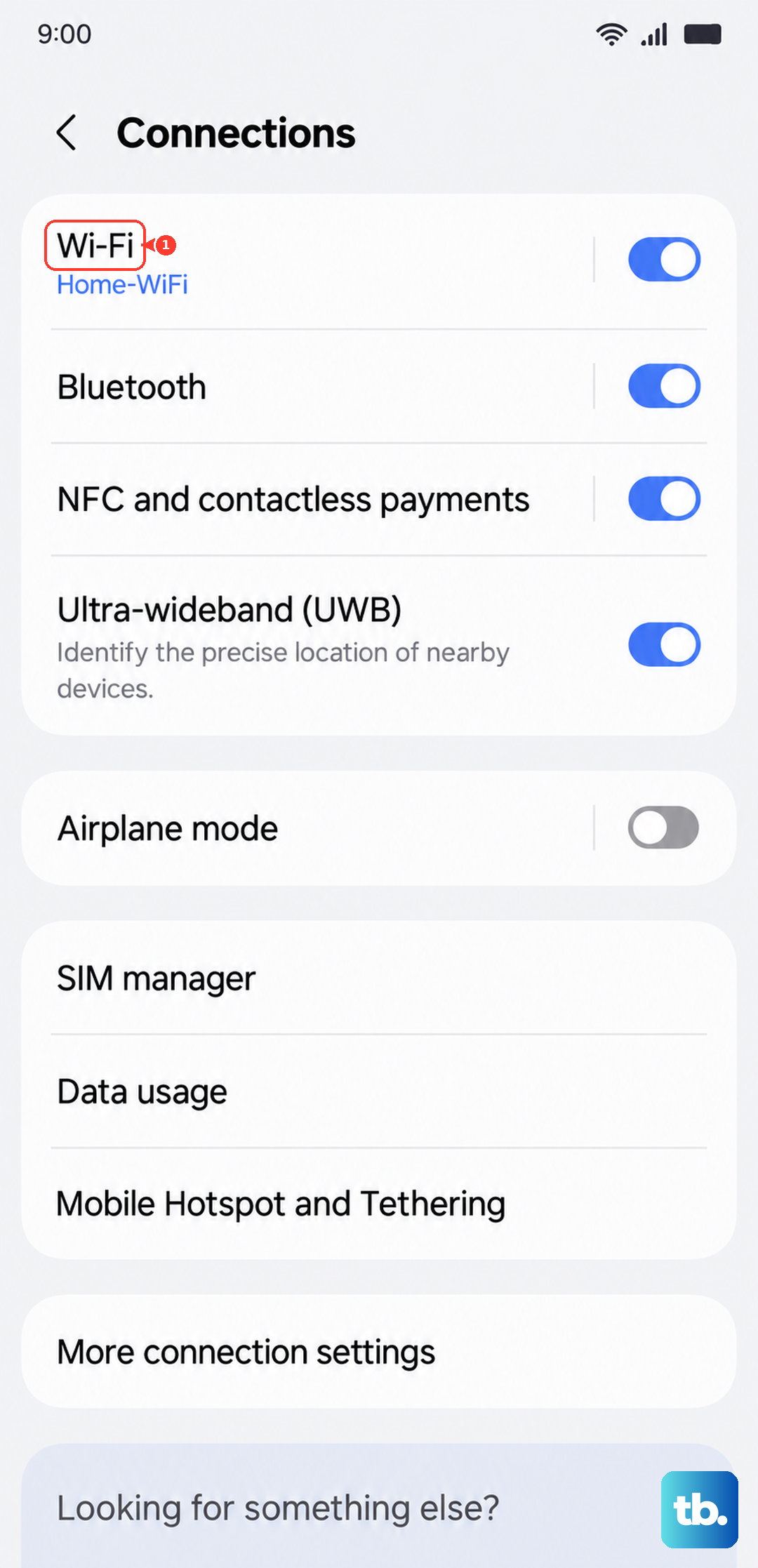
Now, tap on the network name again from the list of available networks and re-enter the password carefully. This is crucial if you've recently changed your Wi-Fi password or gotten a new router, as your phone will keep trying the old credentials.
Check for Wi-Fi 7 Router Compatibility
The Galaxy S25+ supports the latest Wi-Fi 7 standard, but early software can sometimes have hiccups with new router technology. If you're using a Wi-Fi 7 router and experiencing drops, try a temporary fix by logging into your router's settings.
Look for an option to temporarily disable Wi-Fi 7 or switch the network to a backward-compatible mode like Wi-Fi 6. This can stabilize the connection while waiting for a future phone or router firmware update that improves compatibility.
Disable Adaptive Wi-Fi and Switch to Mobile Data
Samsung's software includes features designed to save battery or maintain internet access, but they can sometimes prevent a solid connection. Go to Settings > Connections > Wi-Fi, then tap the three-dot menu and go to Intelligent Wi-Fi.
Here, you'll want to turn off Switch to mobile data. This feature can mistakenly think your Wi-Fi is unstable and cut it off. Also, consider turning off Adaptive Wi-Fi as a test, as it manages power to the Wi-Fi radio and can sometimes be too aggressive.
Review Power Saving and Performance Settings
If you have a power saving mode enabled, it will limit background network activity to conserve battery. Go to Settings > Battery and make sure you are not in Power Saving or Standard mode if you're testing connectivity.
For the strongest, most consistent connection, switch to High performance mode temporarily. Also, disabling the Always-On Display from the Lock Screen settings can reduce system load, which sometimes helps with radio stability.
Install the Latest Software Update
Software updates frequently include patches for connectivity issues. Samsung and Google are constantly refining how Android 15 and One UI 7 handle wireless networks. Go to Settings > Software update and tap Download and install.
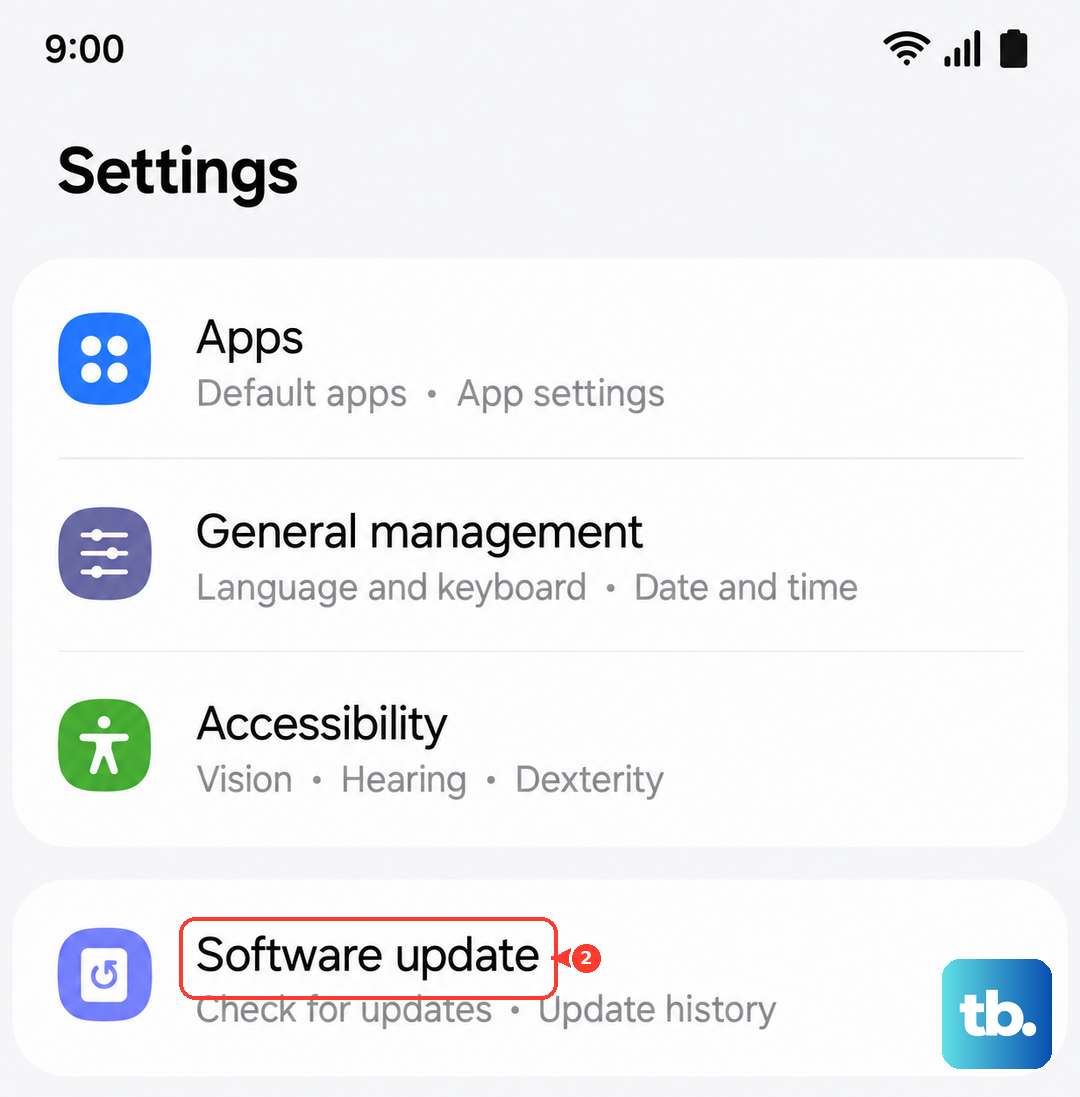
Make sure your phone is connected to a cellular network or, if possible, a different Wi-Fi network to download the update. An update in 2025 or early 2026 could directly address the Wi-Fi disconnection problem.
Verify Your Phone's Date and Time
An incorrect date or time can break Wi-Fi connectivity because security certificates won't validate properly. This is an easy thing to overlook. Go to Settings > General management > Date and time.
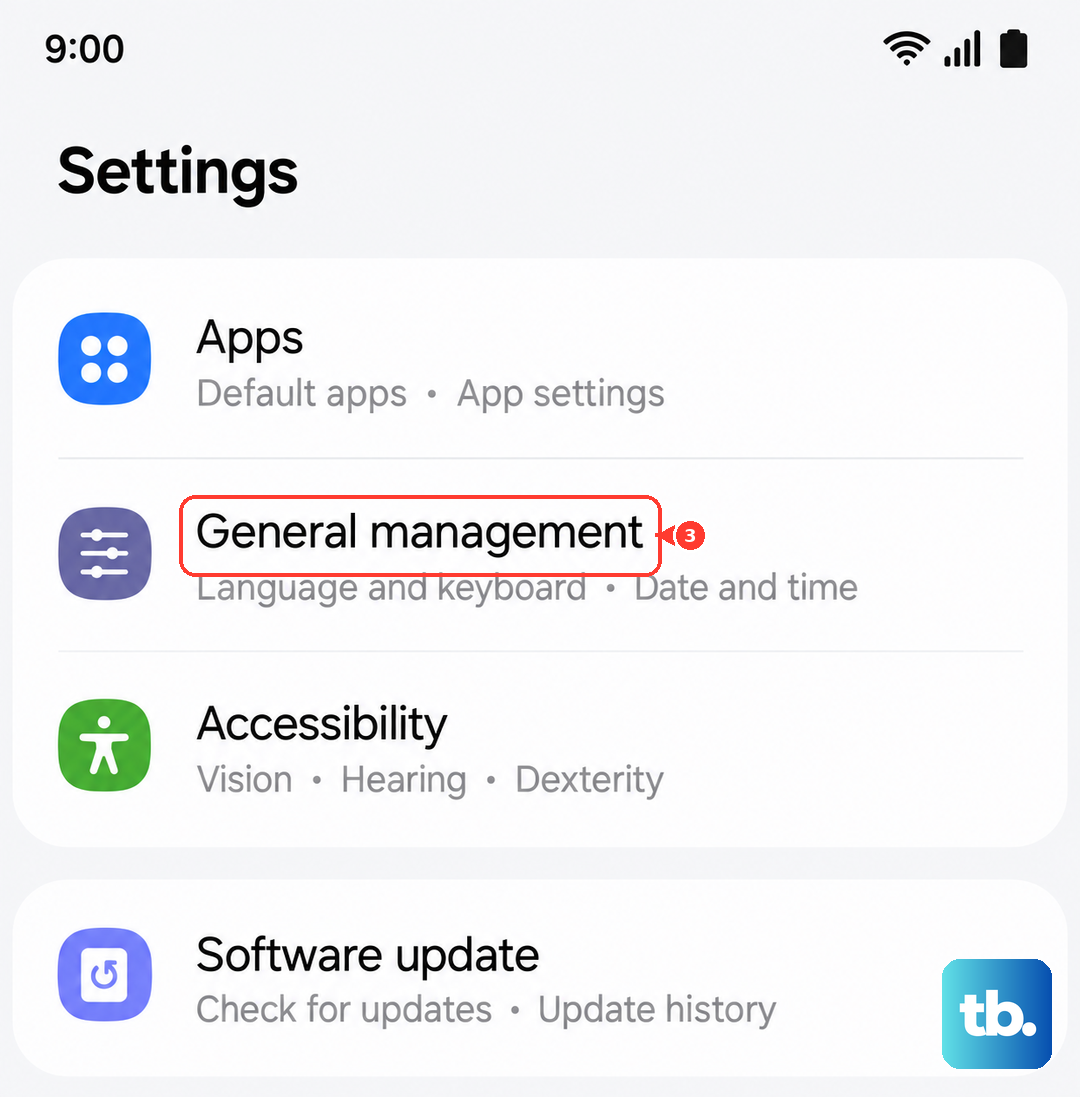
Ensure that Automatic date and time is turned on. This allows your phone to sync with network-provided time, which keeps everything in sync for secure connections.
Reset Your Phone's Network Settings
This step clears all your network configurations back to factory defaults. You'll lose saved Wi-Fi passwords, Bluetooth pairings, and custom mobile network settings. Go to Settings > General management > Reset > Reset network settings.
Tap to confirm and your phone will restart. After it boots up, you'll need to reconnect to your Wi-Fi network and re-pair Bluetooth devices. This is a very effective way to rule out a software corruption in the network stack.
Test in Safe Mode for App Conflicts
A third-party app you installed could be causing the issue. VPNs, ad blockers, firewall apps, or even certain "cleaner" utilities are common culprits. To test this, boot into Safe Mode. Press and hold the Side button until the power menu appears, then tap and hold the Power off icon until you see the Safe Mode prompt.
Tap to restart in Safe Mode. If your Wi-Fi works perfectly here, you know a downloaded app is the problem. Start by uninstalling recent apps, especially those that interact with network connections.
Restart Your Internet Router
The problem might not be your S25+ at all. Unplug your router and modem from power for a full minute. This gives them time to fully clear their memory. Plug the modem back in first, wait for all its lights to stabilize, then plug the router back in.
While you're at it, check if there's a firmware update available for your router through its admin page or app. An outdated router firmware can have compatibility issues with new phones.
Consider a Factory Reset
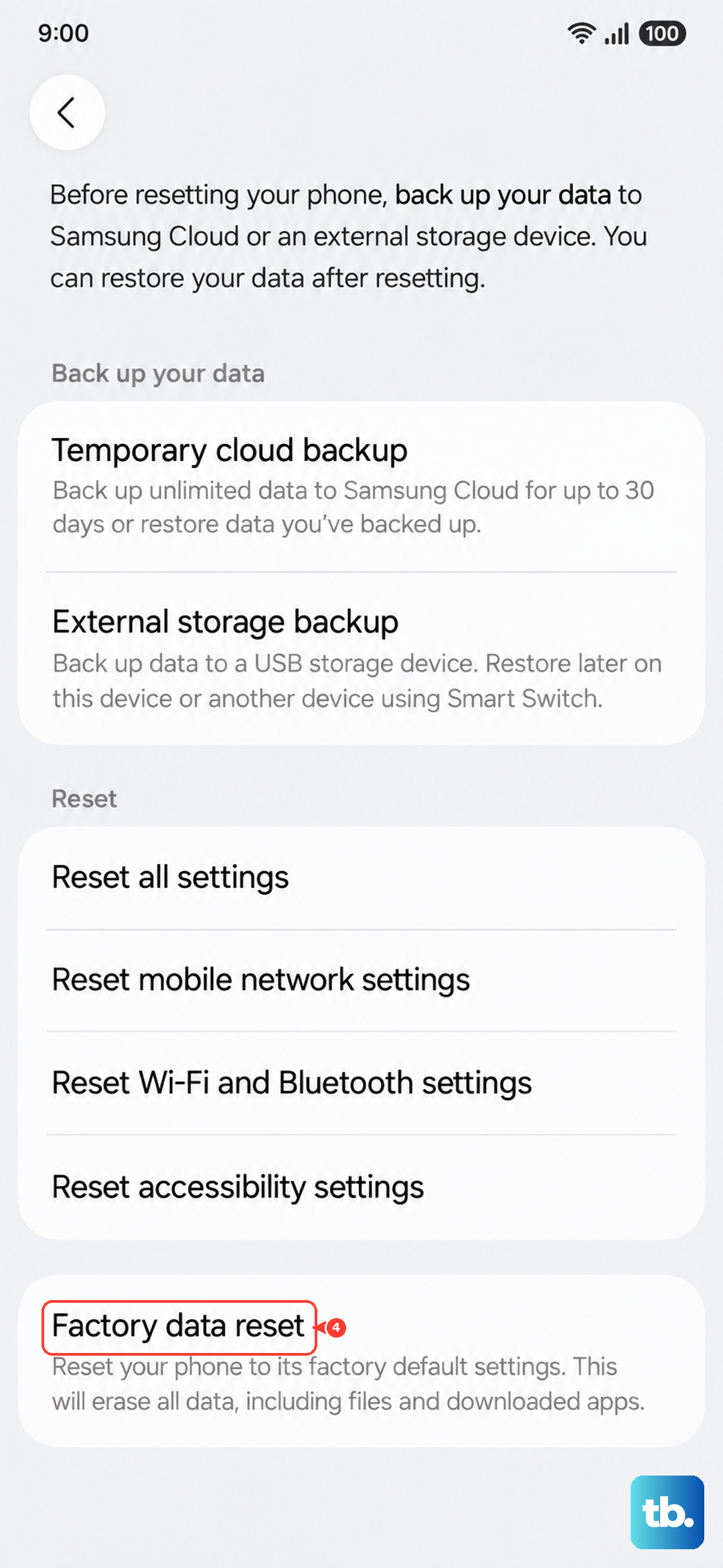
This is your last resort before considering a hardware issue. A factory reset will erase everything on your phone, so you must back up your photos, messages, and app data first. You can use Samsung Cloud or Google One for this.
Once backed up, go to Settings > General management > Reset > Factory data reset. If Wi-Fi still doesn't function correctly after a full reset and setup, the issue could be related to the phone's hardware.