


To add OneDrive to File Explorer, open the OneDrive desktop sync app, sign in with your personal Microsoft account or work or school account, and finish setup. Your OneDrive folder appears in File Explorer automatically. These steps apply to Windows 11 and Windows 10 22H2, with separate instructions where their menus differ.
The short version
- Set up the desktop app: Open OneDrive from Start, sign in, and complete setup to add its folder to File Explorer.
- Install it when missing: Download the Windows desktop sync app from Microsoft and run the installer.
- Find missing folders: Open Choose folders in OneDrive settings to select which folders appear on your PC.
- Control local storage: Files On-Demand lets you see cloud files without downloading all their contents.
| What you need | What to do | What it changes |
|---|---|---|
| Add OneDrive for the first time | Sign in to the desktop sync app | Adds your OneDrive folder to Explorer |
| Install a missing app | Download OneDrive from Microsoft | Installs the app needed for setup |
| Restore the left pane on Windows 11 | Select View > Show > Navigation Pane | Shows the pane containing a configured OneDrive entry |
| Add a convenient folder shortcut | Select Pin to Quick access | Pins an existing OneDrive folder |
| Connect another account | Select Add an account | Adds a separate account location |
| Show missing cloud folders | Open Choose folders | Changes which folders appear on this PC |
| Keep individual items offline | Select Always keep on this device | Downloads the selected items |
| Manage storage for all files | Open Advanced settings | Provides download and disk space controls |
| Start an app that is not running | Open OneDrive from Start | Launches the installed sync app |
| Keep syncing after sign-in | Enable OneDrive startup | Starts an existing configuration with Windows |
| Resume a paused connection | Select Resume syncing | Restores updates to an existing folder |
| Access a shared personal folder | Select Add shortcut to My files | Adds an eligible shared-folder shortcut |
| Repair a damaged installation | Reinstall the desktop sync app | Lets you configure OneDrive again |
| Disconnect an account | Select Unlink this PC | Stops synchronization without deleting cloud files |
Set up the OneDrive desktop app
Select Start, type OneDrive, and open OneDrive. Enter your personal Microsoft account or work or school account, select Sign in, and complete authentication. Choose the account whose files you want to access in File Explorer.
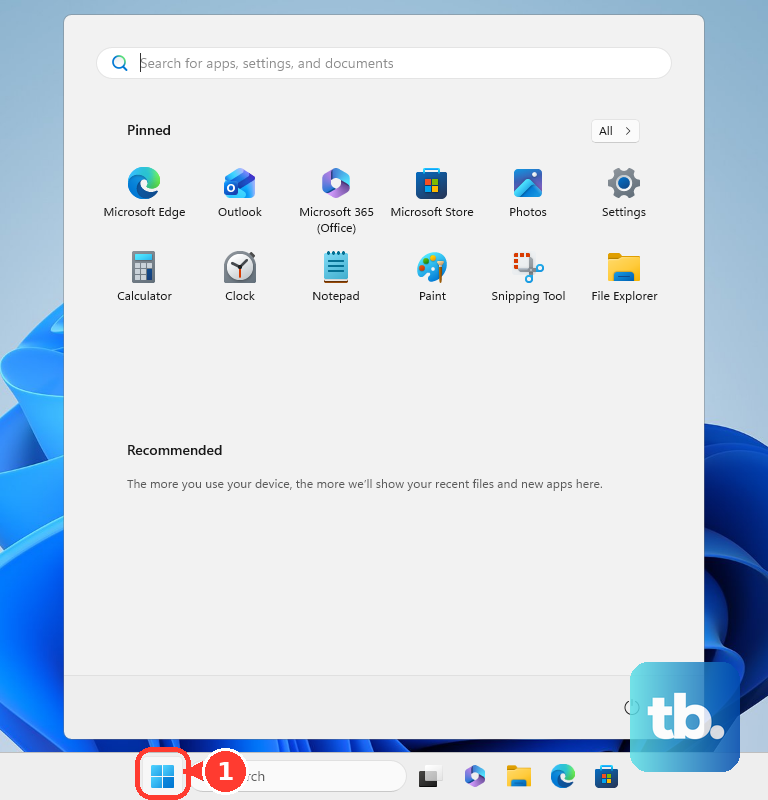
At This is your OneDrive folder, select Next to accept the folder location. To put the folder elsewhere, select Change location before continuing. On All your files, ready and on-demand, select Next, then finish the remaining setup screens.
Microsoft says OneDrive is already installed on Windows 11. If searching for it does not find the app, open Microsoft’s OneDrive download page and select Download OneDrive. Run the downloaded installer, then sign in and complete the same setup.
Open your OneDrive folder in File Explorer
Press Windows + E to open File Explorer, then select your OneDrive entry in the left navigation pane. Completing account setup adds this location automatically. You do not need to pin the folder to establish the connection.
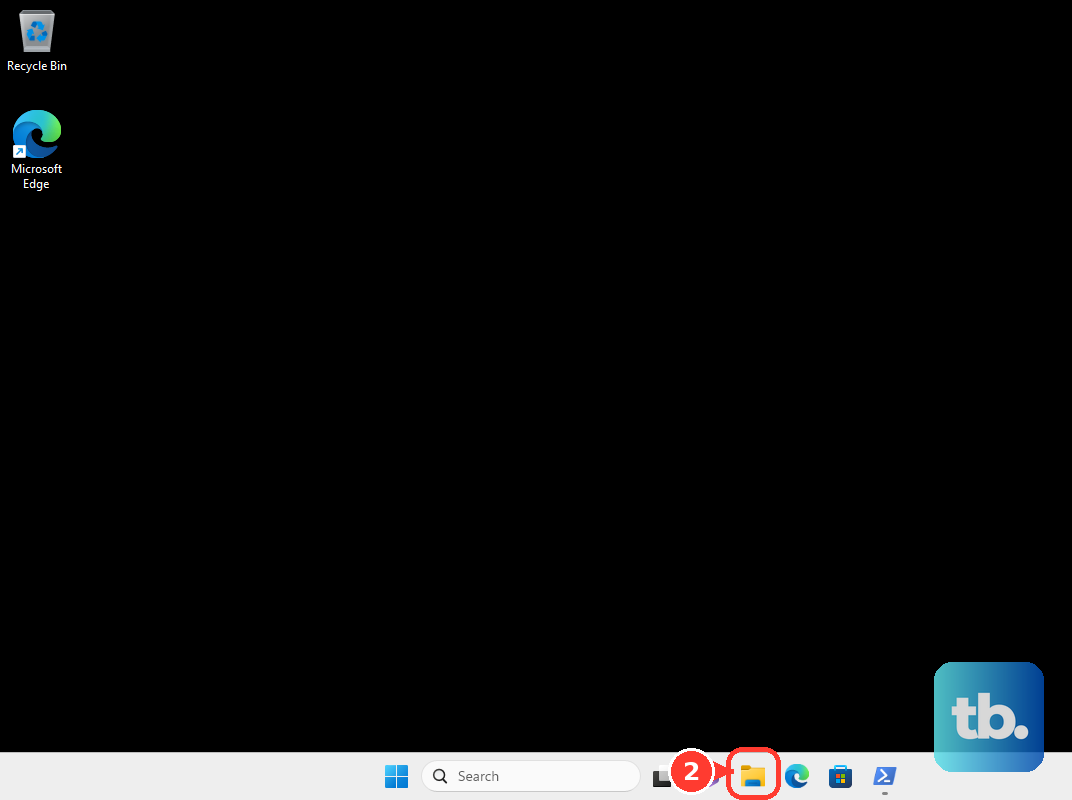
On Windows 11, restore a hidden left pane by selecting View > Show > Navigation Pane. This shows the entire navigation pane, including an existing OneDrive entry. OneDrive must already be configured for that entry to give you access to your account.
For another convenient shortcut, locate your configured OneDrive folder, right-click it, and select Pin to Quick access. To remove that shortcut, right-click it and select Unpin from Quick access. Pinning gives you another place to open the folder, while the desktop app handles synchronization.
Add another OneDrive account
If you already have OneDrive connected and need another account, select the OneDrive cloud icon in the taskbar notification area. On Windows 11 and Windows 10 22H2, select the Help and Settings gear, then open Settings > Account > Add an account. Enter the additional account and complete sign-in and setup.
Each configured account gets its own location in File Explorer. Open the location for the account you want to use, and make folder selections separately for each account.
Choose which OneDrive folders appear
If OneDrive appears but a particular folder is missing, check your folder selections. Select the OneDrive cloud icon for the relevant account, then select the Help and Settings gear. On Windows 11 and Windows 10 22H2, open OneDrive Settings > Account > Choose folders.
Check Make all files available to show all your OneDrive folders, then select OK. Alternatively, check only the folders you want on this computer and select OK. These selections apply separately to each account and computer, and showing a folder does not require downloading every file’s contents.
Decide which files to keep on your PC
Files On-Demand is enabled by default in current OneDrive builds, so your cloud files can appear in Explorer without downloading all their contents. Folder visibility and offline availability are separate choices. Start with Choose folders when something is missing, then decide which visible items you want downloaded.
To keep an individual file or folder available offline, right-click it in File Explorer and select Always keep on this device. To return an item to online-only storage, right-click it and select Free up space. These actions change local availability within your existing OneDrive connection.
On Windows 11 and Windows 10 22H2, open OneDrive Settings > Sync and back up > Advanced settings for broader storage controls. Under Files On-Demand, select Free up disk space or Download all files, depending on what you need. Once the folder is connected, you can save and share files with OneDrive from your account.
Keep OneDrive running after Windows sign in
Check the taskbar’s Show hidden icons arrow when you cannot find the OneDrive cloud icon. A missing icon alone does not mean the Explorer connection is missing. If the cloud icon is absent there too, select Start, search for OneDrive, and open OneDrive, completing sign-in when requested.
To start the app automatically, select its cloud icon, then select the Help and Settings gear. On Windows 11 and Windows 10 22H2, open OneDrive Settings > Sync and back up. Under Preferences, turn on Start OneDrive when I sign in to Windows.
If the cloud icon shows the paused symbol, select it and then select Resume syncing. That resumes updates to the OneDrive folder already present in File Explorer.
Add a folder someone shared with you
For a shared personal OneDrive folder, sign in to OneDrive in a browser and select Shared. Find a folder marked Can edit, right-click it, and select Add shortcut to My files. Your own OneDrive account must be syncing for the shortcut to become accessible through its Explorer folder.
Microsoft warns that some shared-folder shortcuts currently appear as .url files that open in a browser. If that happens, the shortcut may open the shared content online instead of behaving like a local folder.
Reinstall OneDrive when setup still fails
If the installation or sync configuration is damaged, reinstall the desktop sync app. On Windows 11, open Start > Settings > Apps > Installed apps, find Microsoft OneDrive, select More (...), and select Uninstall. On Windows 10 22H2, select Start, type Programs, and select Add or remove programs. Under Apps & features, select Microsoft OneDrive, and select Uninstall.
Download the desktop app from Microsoft’s download page linked above, run the installer, and complete sign-in again. Reapply your selections in Choose folders afterward. Choose the desktop backup and sync app, because the Microsoft Store OneDrive viewer does not back up or sync files.
If you want to disconnect the account, you can turn off OneDrive by unlinking it. On Windows 11 and Windows 10 22H2, select the OneDrive cloud icon, select the Help and Settings gear, then open Settings > Account > Unlink this PC and select Unlink account. Unlinking stops that account’s synchronization without deleting its cloud files. To connect it again later, reopen OneDrive and complete setup.
Frequently Asked Questions
Can you add two personal OneDrive accounts to File Explorer?
The current Windows OneDrive sync app supports only one personal account. You can configure multiple work or school accounts alongside it.
Do you have to back up Desktop and Documents to add OneDrive?
Folder backup is optional and is not required to add OneDrive to File Explorer. It is a separate choice for adding standard PC folders to OneDrive.
Can you use older Map network drive instructions for OneDrive?
Use the OneDrive desktop sync app instead of older CID-based WebDAV mapping recipes. Microsoft has deprecated the Windows Webclient WebDAV service, although that does not mean every existing mapping immediately stops working.
Does the current OneDrive app support every Windows 10 version?
Microsoft lists Windows 10 22H2 among the current OneDrive system requirements. OneDrive support for Windows 10 21H2 and earlier ended on August 15, 2026.
Can OneDrive appear as a drive letter instead of its normal Explorer entry?
Third-party Windows tools such as RaiDrive and CloudMounter offer OneDrive drive mounting, while Mountain Duck offers integration and network-drive modes. These tools create a separate connection rather than configuring Microsoft’s native OneDrive entry.