


To open Toshiba BIOS setup with Windows 10, hold F2 while turning on a fully powered-off laptop that supports this shortcut. You can also enter through Windows recovery if your computer supports UEFI firmware entry. Save your work before starting because these methods restart the computer or require shutting it down.
The short version
- From Windows: Select Restart now under Advanced startup, then choose Troubleshoot > Advanced options > UEFI Firmware Settings > Restart.
- At power-on: Hold F2 while turning on a fully powered-off Toshiba or Dynabook laptop that supports this shortcut.
- Boot from another drive: Use F12 for a one-time boot choice on supported models.
- Finish safely: Press F10 to save changes, or use Exit Discarding Changes after inspecting settings.
| Method or task | What to use | Requirement or limitation |
|---|---|---|
| Enter from Windows Settings | Advanced startup | Compatible UEFI firmware |
| Enter from the Start menu | Shift with Restart | Working Windows recovery and compatible UEFI |
| Enter from the sign-in screen | Shift with Restart | Working Windows recovery and compatible UEFI |
| Enter at power-on | Hold F2 while powering on | A model supporting this sequence |
| Enter after a full shutdown | Shift with Shut down, then repeated F2 presses at power-on | A model specifying repeated key presses |
| Restart directly into firmware | Firmware restart command | Firmware support |
| Open recovery from Command Prompt | Advanced startup command | Working Windows recovery and compatible UEFI |
| Resolve missed startup keys | Disable Windows fast startup | The checkbox must be available |
| Enter when Windows cannot start | Automatic Repair | Working Windows recovery and compatible UEFI |
| Navigate setup | Arrow keys and Enter | Controls vary by firmware layout |
| Choose a drive for one startup | F12 boot menu | A model supporting this boot menu |
| Change persistent boot order | Boot, then F5 or F6 | A matching BIOS layout |
| Save changes | F10 or Save and Exit | Confirm Yes when prompted |
| Discard changes | Exit Discarding Changes | Some changes may remain effective |
| Restore defaults | F9 or Setup Defaults | Passwords and some settings are excluded |
| Find model-specific software and instructions | Dynabook support portal | Match your model and operating system |
Open setup through Windows recovery
Open Start > Settings > Update & Security > Recovery. Under Advanced startup, select Restart now. On the recovery screen, select Troubleshoot > Advanced options > UEFI Firmware Settings, then select Restart to enter setup.
You can reach the same recovery screen through the power menu. Open Start > Power, hold Shift, and select Restart. Select Troubleshoot > Advanced options > UEFI Firmware Settings > Restart.
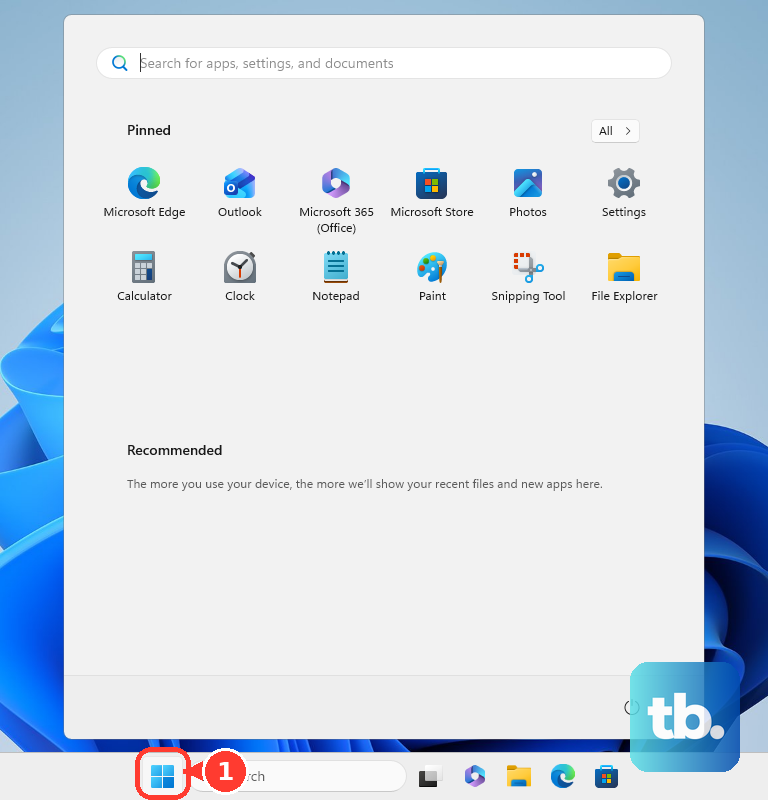
Without signing in, open the power menu on the Windows sign-in screen, hold Shift, and select Restart. Follow the same recovery-screen path to UEFI Firmware Settings and select Restart. These routes require working Windows recovery and compatible UEFI firmware; for other PC makers, see how to get to BIOS on Windows.
Enter with the Toshiba startup key
Completely shut off the laptop, hold F2, and turn it on while holding the key. Use this sequence on Toshiba and Dynabook models that support it. Enter the firmware password if requested.
Some models require repeated key presses instead. Hold Shift while selecting Shut down, then power on and immediately press F2 several times. Follow the sequence in your model's manual, since startup behavior varies.
If Windows starts before setup opens, repeat the full-shutdown sequence and begin pressing F2 immediately after powering on. If you still miss entry, use the Windows recovery route or disable Windows fast startup as described below.
Restart into firmware with a command
On a computer that supports a firmware-directed restart, you can enter setup from an administrator Command Prompt. Save and close your applications, open Command Prompt using Run as administrator, and enter this command to restart immediately into firmware setup.
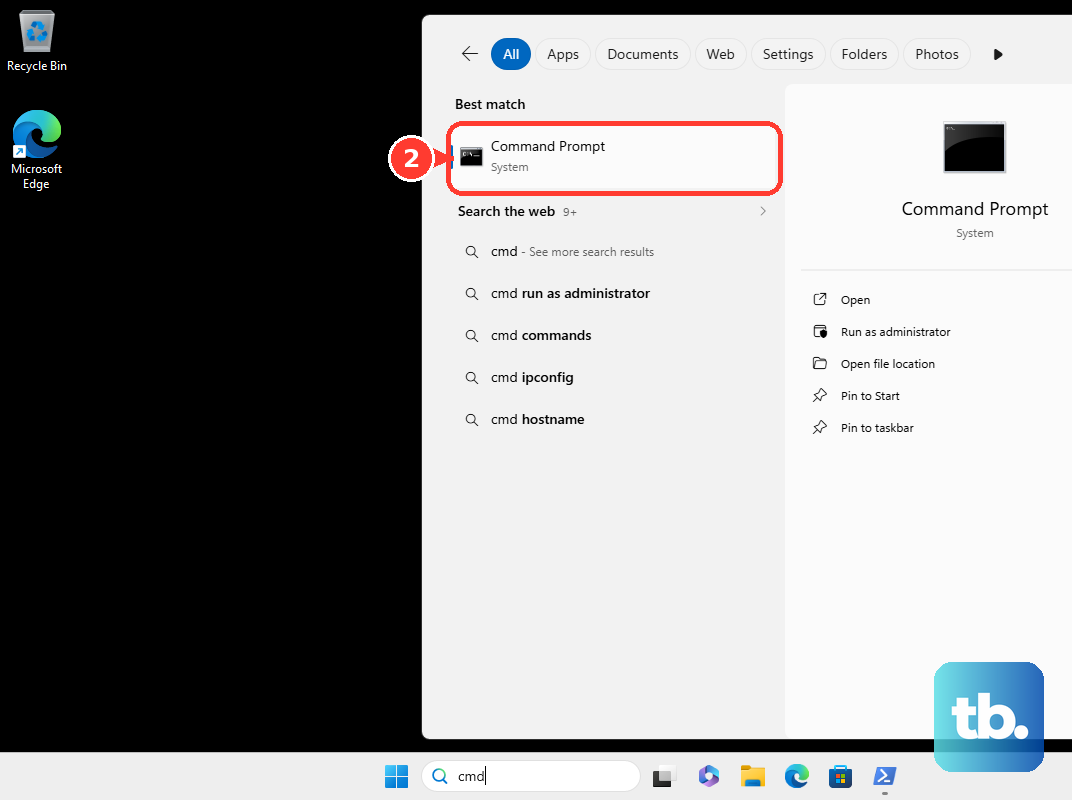
shutdown /r /fw /t 0This command requires firmware support and cannot provide UEFI entry on a legacy BIOS computer. To open Windows recovery instead, enter the following command in an administrator Command Prompt.
shutdown /r /o /t 0After the recovery screen opens, select Troubleshoot > Advanced options > UEFI Firmware Settings > Restart. If that firmware option is missing, use your model's startup-key procedure.
Fix missing options and missed startup keys
If UEFI Firmware Settings is missing, use your model's startup-key method. Windows-to-firmware entry requires compatible UEFI, and installing Windows 10 does not convert a legacy BIOS into UEFI. Use Manuals & Specs in Dynabook's support portal to find your model's entry instructions.
To disable Windows fast startup, open Settings > System > Power & sleep > Additional power settings. Select Choose what the power buttons do > Change settings that are currently unavailable. Clear Turn on fast startup (recommended), select Save changes, shut down, and retry the firmware-entry key.
If the checkbox is absent, use Shift with Shut down for the full-shutdown sequence. Windows fast startup and firmware Fast Boot are separate settings.
When Windows cannot start, try your model's power-on key first. If the computer is frozen, follow the steps to restart a computer that is unresponsive before attempting entry again. Automatic Repair provides another route if Windows recovery still works.
To reach Automatic Repair, interrupt startup twice by holding the power button after the Windows or manufacturer logo appears, then start the computer a third time. Select Advanced options, followed by Troubleshoot > Advanced options > UEFI Firmware Settings > Restart. This fallback also requires compatible UEFI firmware.
Navigate the setup utility
Use the keyboard controls shown in your setup utility because layouts vary by model. In the Toshiba and Dynabook layout with four categories, press Up Arrow or Down Arrow to select MAIN, SECURITY, POWER MANAGEMENT, or ADVANCED. Press Right Arrow to enter the selected category's options pane.
Use Up Arrow or Down Arrow to select an option, then press Enter to open an applicable submenu. On models using Toshiba's BIOS operating manual controls, press Esc inside a submenu to return to its parent.
A supervisor password or administrator restriction can prevent you from editing settings after entering setup. Changing your entry route does not bypass those restrictions.
Choose a boot drive or change boot order
For a one-time startup from another drive, hold Shift while selecting Shut down. Power on and immediately press F12 repeatedly. In Boot Menu, select the desired drive with Up Arrow or Down Arrow, then press Enter. This sequence applies to models supporting that boot menu.
To change the persistent boot order, open Boot inside firmware setup on models with that layout. Select a drive entry, such as HDD1/SSD1, USB, or LAN, and use F5 or F6 to change its position. Press F10 and confirm Yes to save the order.
Available drive entries depend on your model, and the F12 boot-device menu does not guarantee an option to enter BIOS setup. Avoid selecting HDD Recovery merely to reach setup because it is a destructive recovery action.
Save changes or restore defaults
When you finish editing, press F10 or select Save and Exit. At Exit Saving Changes, confirm Yes. Supported touch interfaces also let you tap those controls.
To leave after inspecting settings, select Exit > Exit Discarding Changes and follow the confirmation prompts. On models using Toshiba's keyboard procedure, you can instead press Esc from the main setup screen, select Yes, and press Enter. Date, time, passwords, and some other changes may remain effective even when you discard changes.
To restore defaults, press F9 or select Setup Defaults, then confirm Yes at Load Setup Defaults or Load Optimal Defaults. Save with F10. Restoring defaults excludes passwords and some other settings, so it will not remove a firmware password.
Find the utility and instructions for your model
For setup instructions or a Windows companion utility, open Dynabook Drivers & Software and enter your computer's model or serial number. Choose the applicable operating system, then use Drivers & Updates and the BIOS or utility filters. Obtain only the package listed for your model and operating system, and use Manuals & Specs for its setup instructions.
Utility availability and editable options vary by model. A package listed for another Toshiba does not establish compatibility with yours, so match the model and operating system before installing it.
Windows 10's ordinary support ended on October 14, 2025. For your next operating-system decision, review Windows 10 end of life and the available next steps.
Frequently Asked Questions
Does Windows 10 Home use a different Toshiba BIOS shortcut from Pro?
BIOS entry depends primarily on your computer's model and firmware, rather than Windows Home versus Pro. Use the entry procedure specified for your Toshiba or Dynabook model.
How does the Settings route change after upgrading to Windows 11?
In Windows 11, open Settings > System > Recovery and select Restart now under Advanced startup. Then choose Troubleshoot > Advanced options > UEFI Firmware Settings > Restart.
Can uninstalling TOSHIBA Settings remove the BIOS?
No, uninstalling the Windows companion app does not remove motherboard firmware. To remove a malfunctioning app, use an administrator account and open Settings > Apps > Apps & features. Select TOSHIBA Settings or dynabook Settings, then select Uninstall > Uninstall. Complete the administrator and uninstaller confirmations, then restart.
Can a Toshiba tablet open the boot menu without its keyboard?
Yes, supported Toshiba and Dynabook tablets and undocked detachables have a button route. Open Settings > Update & Security > Recovery, select Restart now under Advanced startup, and select Turn off your PC. Hold Volume up and Power until Boot Menu appears, then tap the desired drive.
Can an existing recovery USB provide another route to firmware setup?
Yes, on compatible UEFI PCs, connect a previously created recovery drive and boot from it using your model's boot menu. In Windows recovery, select Troubleshoot > Advanced options > UEFI Firmware Settings > Restart when that option is offered. Available recovery options depend on the media and device.