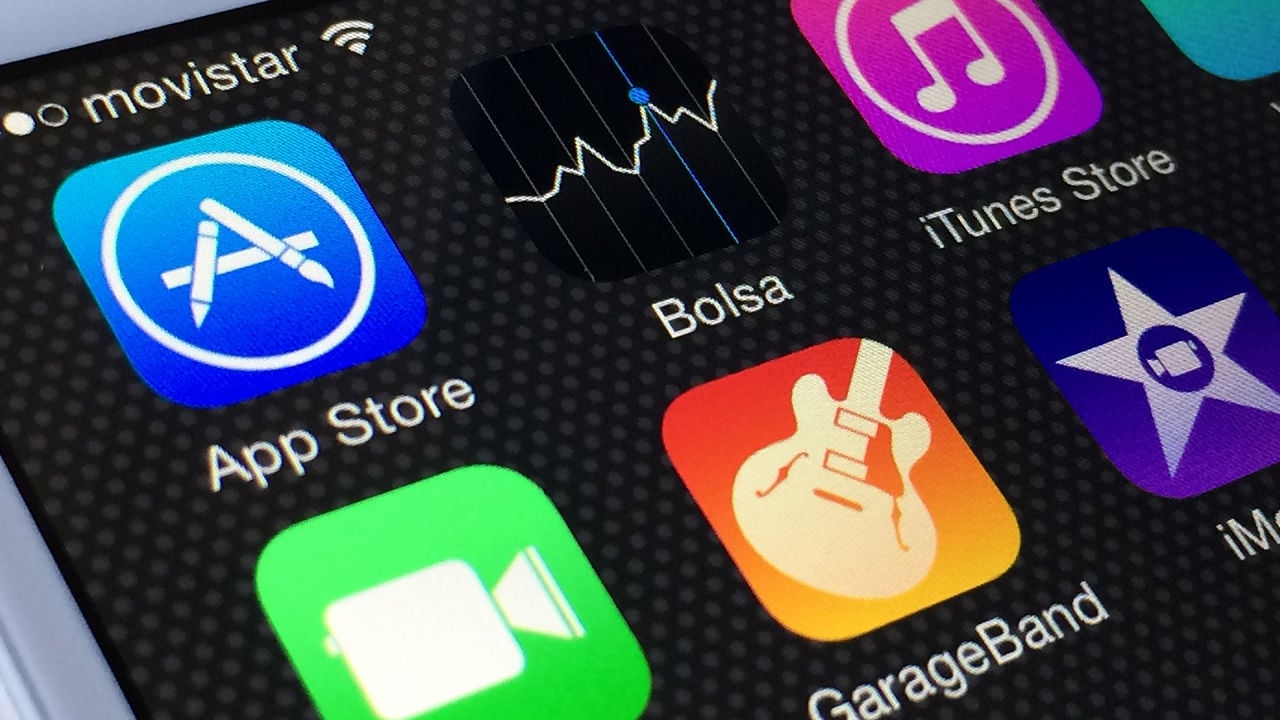
To reconnect your iPad to the App Store, check for an Apple service outage, confirm that the internet works, and correct the date and time. Restarting and updating the iPad come next; account changes and settings resets belong later in the process.
The short version
- Connection: Test a website and another device on the same network.
- Clock: Use the correct date, time, and time zone.
- Software: Restart the iPad and install an available update.
- Reset: Try general settings troubleshooting only after simpler checks.
Check Apple services and your connection
Use Apple’s connection troubleshooting page to reach its System Status check. If the App Store has an outage in your region, try again later. Changing your iPad’s settings will not resolve a service outage.
Open a website in a browser, then try another device on the same network if nothing loads. When other devices work, check the iPad’s VPN and third-party security software. When none work, turn your router off and back on, then contact your internet provider if the connection still fails.
Try a different network to check whether the problem follows the iPad. On a cellular iPad using mobile data, open Settings > Cellular and check Cellular Data for the app.
Correct the date and time
Open Settings > General > Date & Time. Make sure the date and time match your time zone, or turn on Set Automatically. Do not move the date a year ahead to provoke an App Store error.
Restart and update your iPad
On an iPad without a Home button, hold either volume button and the top button until the power-off slider appears. On an iPad with a Home button, hold the top button instead. Drag the slider, wait 30 seconds, then hold the top button until the Apple logo appears.
Back up the iPad, connect it to power and Wi-Fi, then open Settings > General > Software Update. Tap Download and Install when an update is offered. For the broader procedure, see how to update Apple software on your devices.
Check the purchase account
If the store opens but Family Sharing purchases are missing, check that Media & Purchases uses the account associated with your family’s shared content. Apple describes signing out and back in for that account problem, rather than as a general outage fix.
Signing out ends your Media & Purchases session; it does not require signing out of iCloud or iMessage. Open Settings, tap your name, then Media & Purchases > Sign Out > Confirm. Return to Media & Purchases, tap Not [your name]?, and sign in with the account used for Family Sharing.
Reset settings as a last resort
This general troubleshooting step resets settings and removes Apple Pay cards without deleting your data or media. Back up first to preserve your settings, then open Settings > General > Transfer or Reset iPad > Reset > Reset All Settings. Older software uses a different menu arrangement.
If the App Store still cannot connect, try again later because an outage may have just started. Avoid repeatedly resetting the iPad while the service or network is unavailable.
Updated October 2026: Replaced the date trick with connection checks and corrected account and reset steps. The original article was published in April 2021.