Remove SD-card write protection by sliding its lock switch upward toward the contacts, then check for a software read-only setting if the card stays locked. Back up readable files before attempting further changes.
The short version
- Physical lock: Move the switch to its unlocked position before inserting the card.
- microSD: Check the full-size adapter, since the microSD card itself has no lock switch.
- Windows attribute: DiskPart can clear a selected disk’s software read-only flag.
- Damaged switch: Back up the data and replace a card with a loose, missing, or broken switch.
Unlock the card or adapter
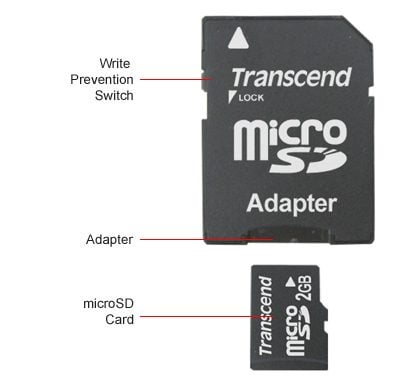
Remove the card and locate the lock switch on the left side of a full-size SD card. Slide it upward, toward the contacts, then reinsert the card and check whether you can write to it.
A microSD card has no built-in lock switch, but its full-size SD adapter may have one. Check that adapter before assuming the microSD card has failed.
Check for a loose switch
A loose switch can slide back into the locked position when you insert the card. SanDisk advises backing up the data and replacing the card when the switch is missing or broken, or when the lock checks do not solve the problem.
The switch signals the host device to treat the card as read-only; the card’s internal circuitry does not detect its position. That makes the switch a write-protection control, not an explanation that every USB reader is incompatible with the card.
Check the Windows disk attribute
On Windows 10 or Windows 11, DiskPart can display and clear a disk’s read-only attribute. Follow Microsoft’s disk attribute instructions, and identify the SD card carefully before selecting a disk.
Use DiskPart’s select disk command to select the intended card, then enter attributes disk to inspect its attributes. To clear its software read-only attribute, enter attributes disk clear readonly; do not select a disk unless you are certain it is the card you intend to change.
Formatting and replacement
Formatting removes file and directory entries, and an overwrite format erases the card’s data, so copy everything you need elsewhere first. If you choose to format the card, unlock its switch before using the SD Association’s formatter.
Formatting is separate from moving the physical lock switch. If the card still reports write protection after the lock checks, preserve any readable files and follow the card maker’s replacement advice instead of repeatedly trying to erase it.
Updated October 2026: Replaced tape advice with lock-switch checks, Windows attribute guidance, and backup and replacement advice. The original article was published in July 2018.