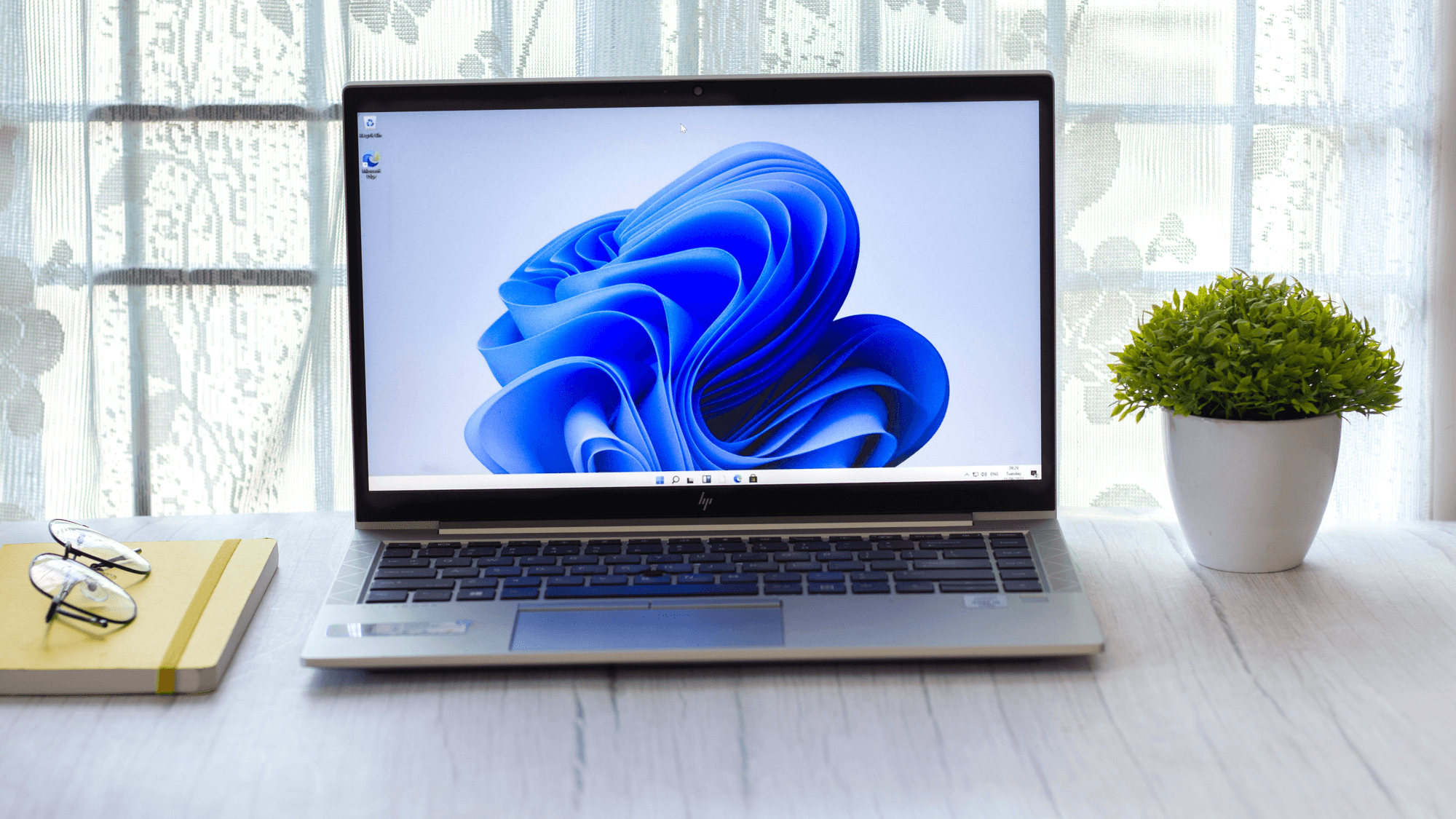
For most people, Windows 11 Home is enough. It has the same hardware requirements as Pro and gets the same yearly feature updates, and the extra features in Pro are aimed at remote access, virtual machines and work networks. Pro is worth paying for if you need to control your PC remotely with Remote Desktop, run virtual machines with Hyper-V, test files in Windows Sandbox, manage BitLocker encryption yourself, or join a work or school domain.
What each edition costs
On the Microsoft Store in the US, a Windows 11 Home download costs $139 and a Windows 11 Pro download costs $199.99. If your PC came with Home, you can upgrade an activated Home PC to Pro later from the Settings app.
What both editions share
- Hardware requirements: a compatible 64-bit processor with at least two cores at 1 GHz, 4GB of RAM, 64GB of storage, TPM 2.0, UEFI with Secure Boot, DirectX 12 graphics and a 720p display larger than 9 inches. Microsoft's PC Health Check app tells you whether your PC qualifies.
- Setup: both Home and Pro for personal use need an internet connection and a Microsoft account during setup.
- Updates: both get one feature update a year, in the second half of the year, with 24 months of support for each version. The current version, 26H2, arrived on September 29, 2026 and gets updates until October 10, 2028.
What only Pro has
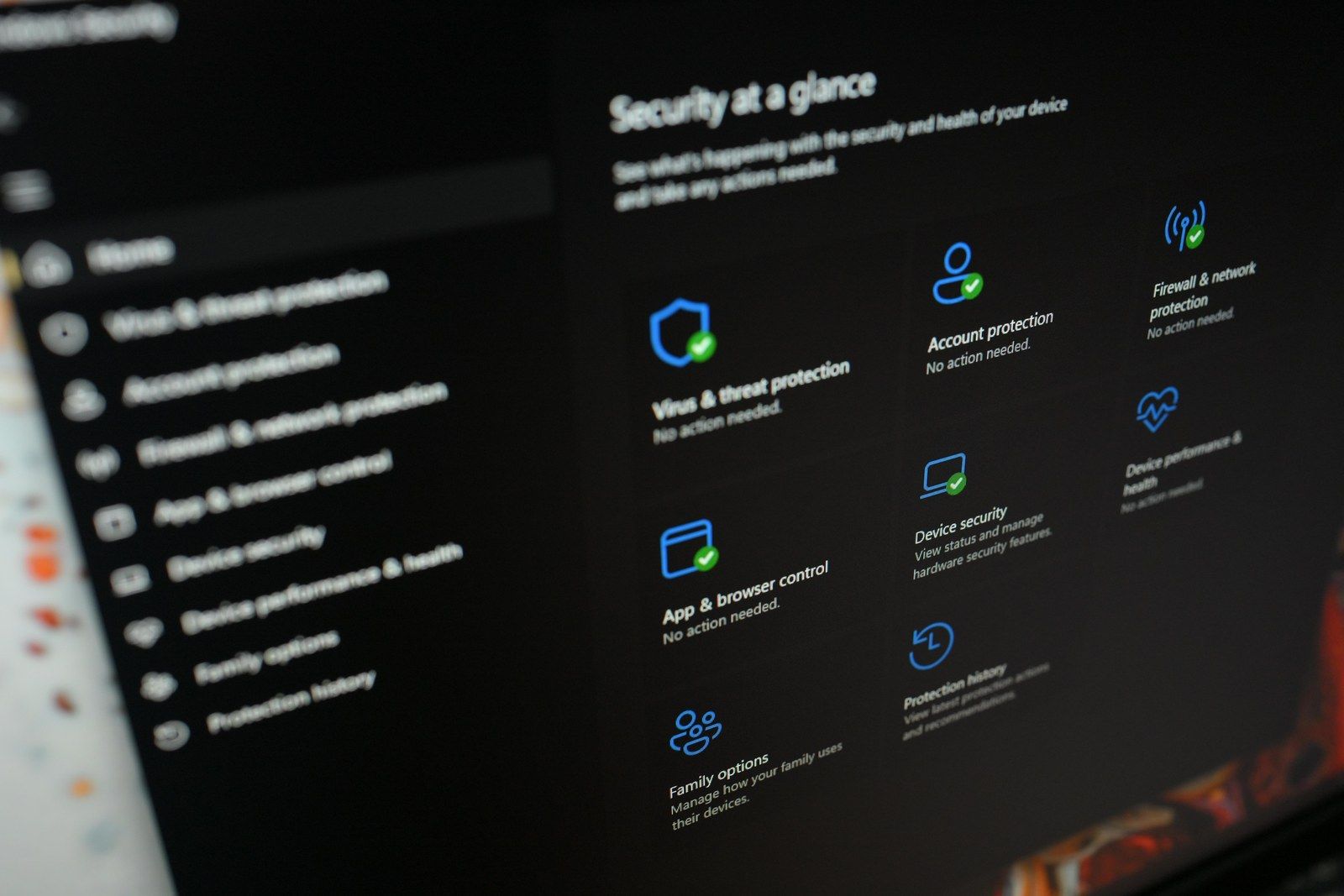
- BitLocker management: eligible Home PCs get Device Encryption, which uses BitLocker technology to encrypt the system drive and fixed drives, and switches on automatically when you sign in with a Microsoft account. Pro adds full BitLocker Drive Encryption management, so you choose which drives to encrypt and how.
- Remote Desktop host: Home can connect to another PC with Remote Desktop, but only Pro can be the PC you connect to.
- Hyper-V: Microsoft's full virtual machine software is in Pro and can't be added to Home, which only runs lighter tools such as the Windows Subsystem for Linux. Hyper-V also needs a 64-bit processor with SLAT.
- Windows Sandbox: a throwaway, isolated desktop for running apps you don't trust. Home doesn't have it.
- Work and school features: Group Policy, Microsoft Entra ID join, Active Directory domain join, Windows Update client policies (formerly Windows Update for Business) and Assigned Access kiosk mode.
- More memory: Pro supports up to 2TB of RAM, against 128GB on Home, which only matters if you plan to fit more than 128GB.
How to check which edition you have
Open Start, then Settings, System and About. Under Windows specifications, the Edition line shows Home or Pro.
How to upgrade from Home to Pro
If you have a Pro product key, go to Settings, System, Activation, select Change next to Change product key, and enter the 25-character key. If you don't have a key, the same Activation page has an Upgrade your edition of Windows section that opens the Microsoft Store, where you can buy the upgrade with your Microsoft account. Either way, follow the prompts to install Pro and restart.
Who should pay for Pro
Pay for Pro if your job or school needs domain or Entra ID join, if you need Hyper-V virtual machines, or if you want to reach your PC remotely with Remote Desktop. If you mainly browse, game, stream and work in Office, the features Pro adds are aimed at other jobs, and Home can still encrypt your drive with Device Encryption if your PC supports it.