Here’s a quick guide to Update Apple ID Settings What It Means and How to Fix It.
What the Update Apple ID Settings Message Means
When this notification appears, it indicates there's a discrepancy between your device settings and your Apple ID information. This often happens when you changed your Apple ID password recently, Apple ID information is incomplete or needs updating, there's a temporary issue with Apple's servers, or your device needs to verify your identity again.
Quick Fix - Enter Your Password
In most cases, the solution is straightforward:
- 1.Open the Settings app
- 2.Tap your name, then check for an "Update Apple Account Settings" alert and follow its prompts
- 3.Select "Continue"
- 4.Enter your Apple ID password
This should resolve the issue immediately. If the notification disappears, you're all set.
When the Problem Persists
If you still see the notification after entering your password, try these troubleshooting steps:
Check Apple System Status
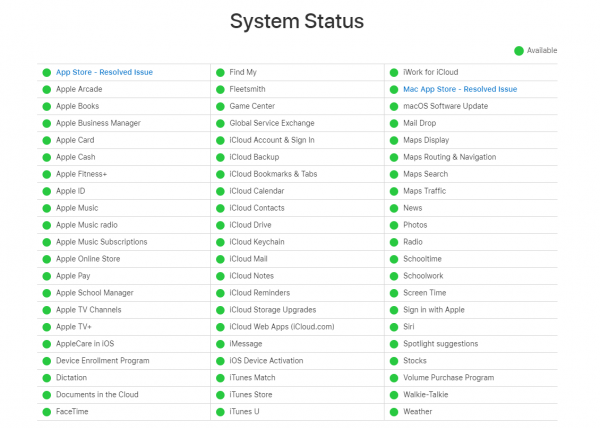
Before troubleshooting further, visit Apple's System Status page to see if any services are experiencing issues. Sometimes the notification appears when Apple services are temporarily down for maintenance.
Verify You're Signed into the Right Account
If you have multiple Apple IDs, make sure you're signed into the correct one. Go to Settings and tap your name at the top to check which account is active.
Sign Out and Back In
When other solutions don't work, signing out and back into your Apple ID often resolves persistent issues. Open Settings and tap your Apple ID name.
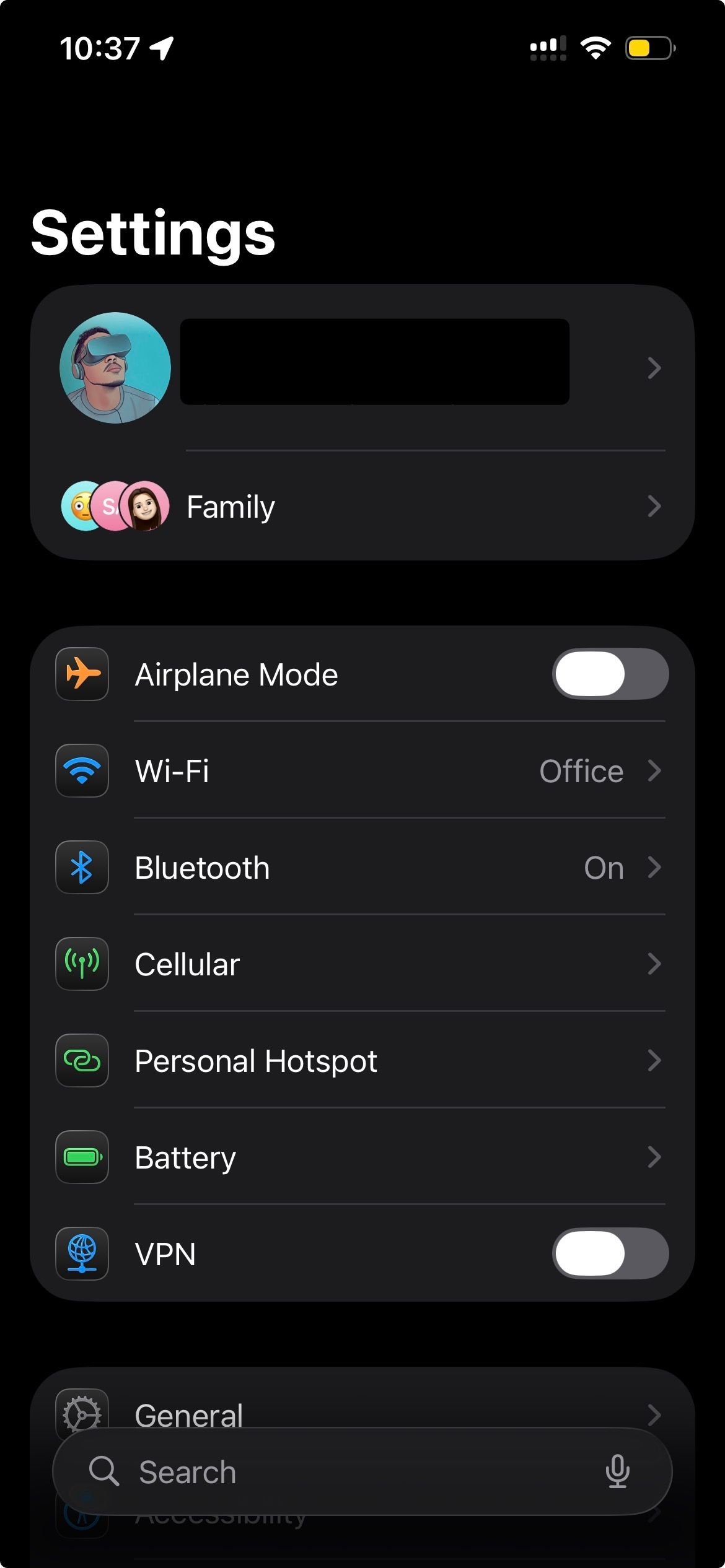
Scroll down and tap "Sign Out", then enter your password when prompted.
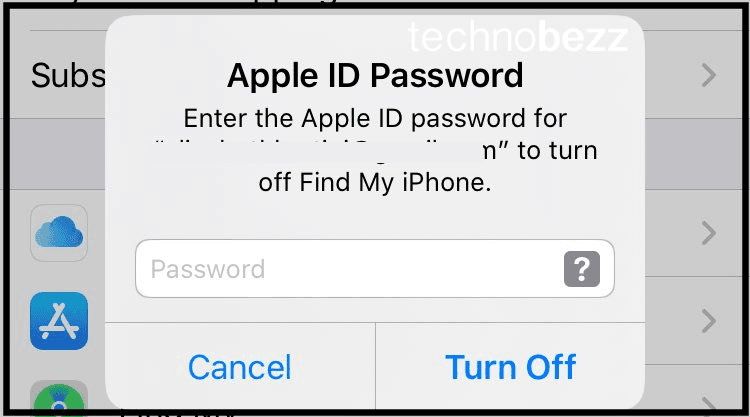
Before completing sign-out, make sure you have an up-to-date iCloud backup and that recent iCloud changes have synced. Choose "Sign Out But Don't Erase" to keep information on your device, then follow the onscreen prompts to enter your passcode or Apple Account password and confirm. Complete the sign-out process.
To sign back in, open Settings, tap "Apple Account", then choose "Use Another Apple Device" or "Sign in Manually". For "Use Another Apple Device", bring another iPhone or iPad signed in to your Apple Account nearby and follow the instructions on both devices. Bluetooth must be turned on for both devices, and both need compatible software. If you sign in manually, enter your Apple Account email address or phone number and password, plus a verification code if prompted. This process refreshes your connection to Apple's servers and typically clears up any lingering issues with the Update Apple ID Settings notification.
If you've tried all these steps and the message continues to appear, contact Apple Support for further assistance.