
If your Samsung Galaxy S26 Ultra camera app is crashing, freezing, or just showing a black screen, the first thing to try is a force restart. Press and hold the Volume down button and the Side button together for more than 7 seconds until the device restarts. Restarting can help with minor software issues that cause the camera app to freeze or stop responding.
You can also try the camera with an online webcam test, allowing camera access in your browser when prompted. If the preview stays black there too, keep reading, because the steps below target exactly that.
Key Points
- Restart and Update Your Phone: A force restart can help with a frozen camera app.
- Check for App Conflicts and Permissions: A recently installed app could be interfering with the camera system.
- Clear the Camera App's Data: This resets the app to its default state and can help with corrupted settings.
- Inspect for Physical Damage or Obstructions: Make sure nothing is blocking the complex lens array.
- Test in Safe Mode: This disables all third-party apps to isolate the problem.
- Consider a Software Reset: A last-resort software fix before looking at hardware.
After the phone reboots, give it a moment and then try opening the camera again. If the app opens but the image is blurry or the focus is hunting, gently wipe the massive camera module on the back with a microfiber cloth. Fingerprints on any of the lenses, especially the main 200MP sensor or the periscope telephoto lens, can significantly degrade image quality.
Restart and Update Your Phone
It's crucial to ensure your S26 Ultra has the latest software available for your phone. Software updates can help resolve issues that affect core functions like the camera. Open Settings > Software update and tap Check for updates, or Download and install depending on your carrier.
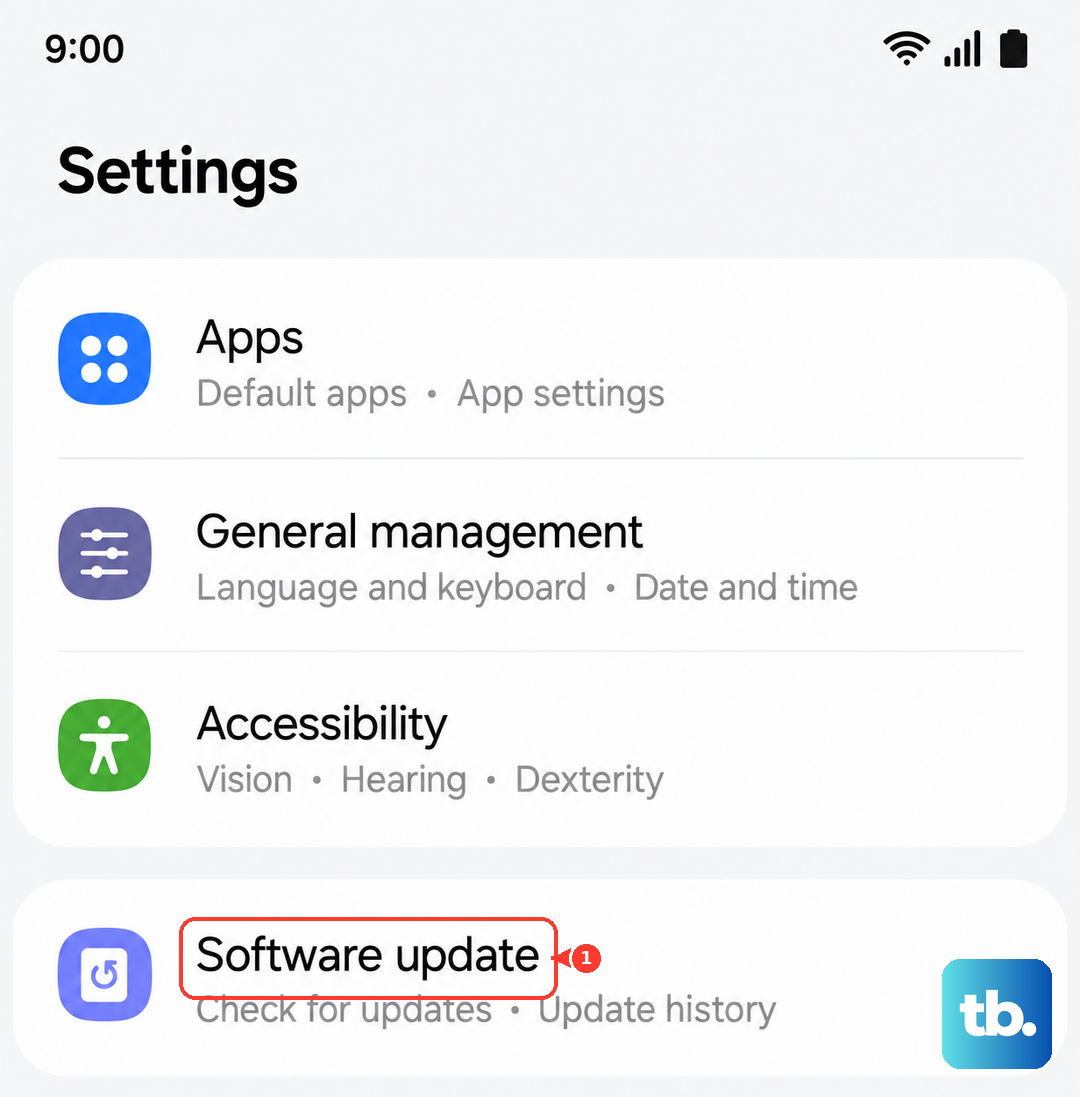
I'd start with this check, as Samsung is typically quick to push out stability patches for new flagship releases. Install any available update and let your phone restart completely. After the update, open the camera and test all the lenses by switching between the ultra-wide, main, and telephoto options to see if the problem is isolated to one sensor.
Check for App Conflicts and Permissions
Think about what you installed just before the camera stopped working. Some third-party apps, particularly those that use the camera or overlay on the screen (like screen dimmers or custom gesture controls), can conflict with the native camera app. Try uninstalling any recent apps from the Play Store or Galaxy Store.
Also, verify the camera app has the permissions it needs. Go to Settings > Apps, find Camera in the list, and tap Permissions. Make sure both the Camera and Microphone permissions are set to "Allow." If you previously denied these, the app might just show a black screen or close immediately.
Clear the Camera App's Data
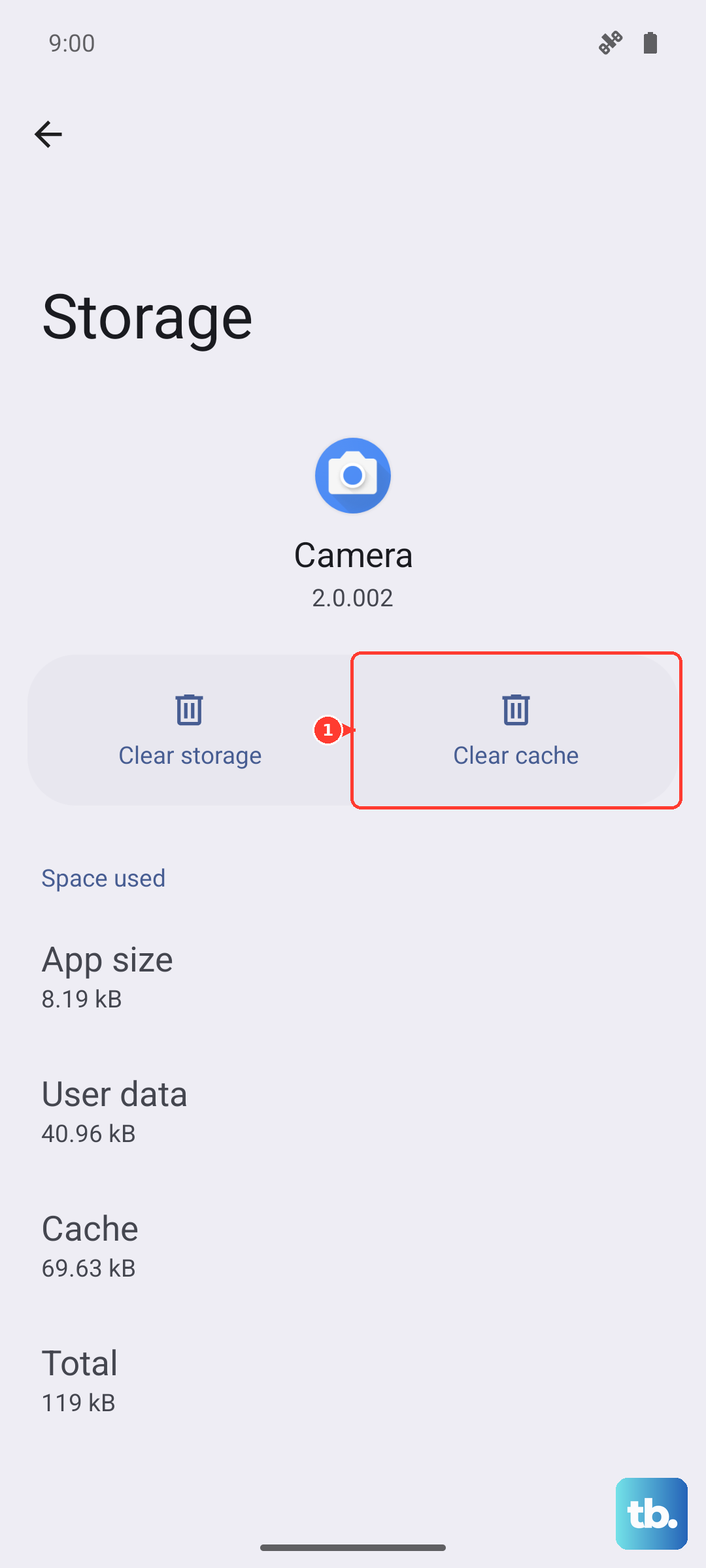
If the camera app opens but is buggy, maybe the viewfinder is glitchy or certain modes like Pro video or Portrait video won't load, the app's data might be corrupted. Clearing it resets the app to its factory default state. Don't worry, this won't delete your photos; those are stored separately.
Go to Settings > Apps, select Camera, and then tap Storage. First, tap Clear cache. If that doesn't help, go back and tap Clear data, then tap Delete to confirm. This resets the app's personal settings and can help with crashes and freezes.
Inspect for Physical Damage or Obstructions
Take a close look at the camera module. The S26 Ultra has a large, multi-lens array, and a case that isn't perfectly aligned could be partially covering a lens. Remove your case and see if the problem persists. Also, check for any cracks on the camera glass or signs of impact.
Turn off your phone before cleaning the camera lenses. Gently wipe them with a soft, dry cloth or microfiber cloth, without applying too much pressure. Avoid liquids or cleaning solutions, and don't use paper towels or tissues, which can scratch the lenses.
Test in Safe Mode
Booting into Safe Mode temporarily disables all apps you've downloaded. This can help identify whether a third-party app is causing the trouble. To enter Safe Mode, press and hold the Side button and the Volume down button together until the power menu appears.
Then, touch and hold the "Power off" icon on your screen and tap "Safe mode." If the camera works here, an installed app may be the culprit. Uninstall apps one by one, starting with those installed or updated when the problem began. Restart your phone normally to exit Safe mode.
Consider a Software Reset
If you've tried everything else and the camera is still non-functional, a factory reset is the final software step. This will erase all data on your phone, so you must back up everything important first using Samsung Cloud or a computer.
Once backed up, you can reset from Settings > General management > Reset > Factory data reset. Review the information, tap Reset, enter your credentials if prompted, and tap Delete all. Keep a network connection available to sign out of your Samsung account. After the reset and setup process, test the camera immediately before restoring your apps. If it works now, software or an installed app may have caused the issue. If it still fails, contact a service center to have the camera checked.