
So your Galaxy S26 Ultra won't charge. You've plugged it in, maybe even tried a different cable, and the screen stays stubbornly black. It's a frustrating way to start with a flagship phone, but I've seen this a lot with early-release models. The good news is that checking your charging accessories and settings can help.
Whether you're dealing with a USB-C port that feels loose, a false moisture warning, or the phone just ignoring your charger, we'll walk through the fixes. Let's start with a force restart.
Force Restart Your Galaxy S26 Ultra
A force restart can help if the phone has stopped responding. It restarts the device without erasing your data. Once the phone responds again, you can check whether it charges normally or continue checking the cable, charger, and charging port.
For the S26 Ultra, press and hold the Side button and Volume down button together for more than 7 seconds until the device restarts. Once it boots back up, plug it in and check for the charging indicator or the Super Fast Charging notification.
Clean the USB-C Charging Port and S Pen Slot
Dust or debris in the USB-C port is a common cause of charging trouble. It can prevent the cable from connecting properly to the charging terminals. Check the port for visible buildup before trying the cable again.
Turn the phone off and use a flashlight to inspect the USB-C port. If you see debris, carefully remove it with a soft, dry brush, without using metal objects or liquids. Also, take a quick look at the S Pen slot opening for any visible debris.
After cleaning, try plugging the cable in again. Make sure the cable connects securely to the charging port. If it still feels loose, there might be damage to the port itself.
Check Your Cable, Charger, and Power Source
Since Samsung doesn't include a charger in the box anymore, a lot of people use old adapters or generic cables. The S26 Ultra supports 60W Super Fast Charging 3.0, but it needs a compatible charger and cable to hit those speeds, and some accessories just won't work at all.
Try a different USB-C cable first, preferably one that came with another Samsung device or is rated for high wattage. Then, try a different wall adapter. Plug it into a different wall outlet, too, to rule out a faulty socket. I'd recommend using an official Samsung 60W charger if you can, as third-party ones can sometimes cause issues on new models.
Also, take your phone case off. Some thicker cases, especially rugged ones, can prevent the USB-C plug from seating all the way into the port.
Disable Battery Protection and Check for Updates
Here's one that confuses a lot of new S26 Ultra owners. To extend battery lifespan, Battery protection offers a Maximum option that limits charging to a selected level of 80%, 85%, 90%, or 95%. If your phone seems to stop charging around 80-85%, this may be why.
Go to Settings > Battery > Battery protection. You can turn it off for a full 100% charge, or select Maximum and set the charge limit with the slider. While you're in Settings, head to Software update and download any available updates. If charging is slow, also check Settings > Battery > Charging settings and turn on Fast charging.
Wait If the Battery Is Fully Drained
If you let the battery run down to absolute zero, the S26 Ultra might not show any sign of life immediately when you plug it in. This can happen when the battery is fully drained. Give it some time connected to a compatible wall charger rather than a computer or low-power USB port.
Watch for a charging indicator on the screen. If the phone still shows no response, try a force restart while it's plugged into the wall. If charging still fails with another compatible Samsung charger and cable, have the phone inspected at a service center.
Try Qi2 or Wireless PowerShare Charging
If wired charging isn't working, try placing your S26 Ultra on a compatible wireless charger or using Wireless PowerShare from another compatible Galaxy phone. For magnetic Qi2 alignment, use a Magnet (Qi2-ready) case, since the phone has no built-in magnets. This is a great way to figure out if the problem is with your USB-C port or something else in the phone's power system.
Make sure you align it properly on the charger. Remove any thick cases or metal accessories, as they can block the charging coils. If your phone charges wirelessly but not with a cable, check the USB-C port, cable, and wall adapter.
Address the "Moisture Detected" Warning
If moisture is detected in the USB-C port, charging may stop to protect the phone. Disconnect the charging cable, gently shake the phone to remove moisture, and wipe it with a soft, clean cloth. Let it dry in a well-ventilated area using cool air before charging again.
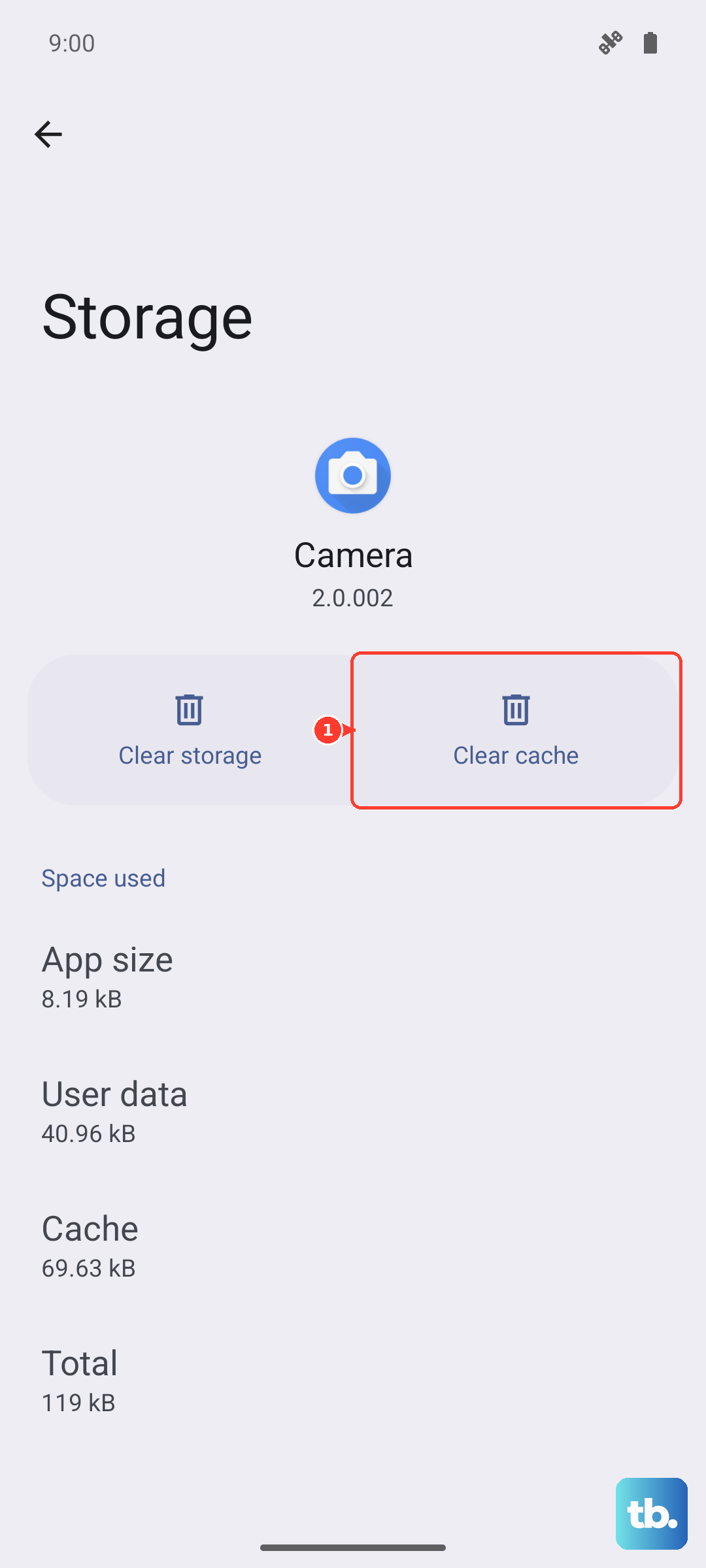
Make sure the charging port is completely dry before reconnecting the cable. If the warning remains after drying, try clearing the USB settings cache. Go to Settings > Apps, tap the filter icon and select "Show system apps," then find "USB Settings." Tap on "Storage" and then "Clear cache." Restart your phone and try charging again.
Charge with the Phone Turned Off
Sometimes a background app or process can interfere with the charging process. A simple test is to power your S26 Ultra down completely. Press and hold the Side button and Volume down button together for a few seconds, tap "Power off," then tap "Power off" again to confirm.
Once it's off, plug it into your charger. If it starts charging normally (you'll usually see a battery icon on the screen), a background app or process may be involved. If the phone feels hot, let it cool down before charging again, since high temperatures can slow or temporarily stop charging.