

Start by checking if your Apple Pencil is actually compatible with your iPad Pro M5. Apple Pencil Pro only works with M4 and M5 iPad Pros running iPadOS 17.5 or later. The Apple Pencil (USB-C) works with M4 and M5 models too, but needs iPadOS 17.1.1 or later.
Key Points
- Check Your Bluetooth Connection – Open Settings > Bluetooth and make sure Bluetooth is turned on.
- Restart Your iPad Pro – Hold down the top button and either volume button until the power off slider appears.
- Examine the Apple Pencil Tip – Unscrew the tip of your Apple Pencil and check that it's properly tightened when you screw it back on.
- Remove Cases and Covers – Take any cases or covers off your iPad Pro, then try pairing your Apple Pencil again.
- Update Your iPadOS Software – Go to Settings > General > Software Update to check if there's a newer version of iPadOS available.
- Reset Network Settings – If you're still having trouble, try resetting your network settings.
If you're trying to use an older Apple Pencil (2nd generation), it won't work with M5 iPad Pros at all. I've seen this compatibility confusion trip up plenty of people who upgrade their iPad but keep their old pencil.
The most common fix is simply charging your Apple Pencil.
Place your Apple Pencil Pro or Apple Pencil (USB-C) on the magnetic connector on the side of your iPad Pro. If you're using Apple Pencil (1st generation) with an adapter, plug it in directly. Give it about 10 minutes to charge if the battery was completely dead.
You can check the battery level by swiping right on your Home screen to see the Batteries widget in Today View.
Check Your Bluetooth Connection
Open Settings > Bluetooth and make sure Bluetooth is turned on. Look for your Apple Pencil under My Devices. If you see it there but it's not working, tap the (i) icon next to it.
Then tap Forget This Device to remove it from your iPad's memory. After forgetting it, reconnect your Apple Pencil to your iPad. For Apple Pencil Pro or Apple Pencil (USB-C), center it on the magnetic connector and wait for the pairing prompt to appear.
If the Pair button doesn't show up immediately, leave your Apple Pencil connected for a full minute while it charges. Sometimes a deeply discharged battery needs a little juice before it can even attempt to pair. Then try connecting it again and watch for the Pair button to appear on your screen.
This waiting period has resolved more connection issues than I can count.
Restart Your iPad Pro
Hold down the top button and either volume button until the power off slider appears. Slide it to turn off your iPad completely. Wait about 30 seconds, then press and hold the top button again until you see the Apple logo.
Once your iPad boots back up, try connecting your Apple Pencil again. This basic restart clears out temporary software glitches that can interfere with Bluetooth connections.
For a more thorough reset, try a force restart if the regular restart doesn't help. Quickly press and release the volume up button, then quickly press and release the volume down button. Release the button and let your iPad start up normally.
This force restart doesn't erase any data but can fix deeper system issues.
Examine the Apple Pencil Tip
Unscrew the tip of your Apple Pencil and check that it's properly tightened when you screw it back on. There should be a tiny gap about the thickness of a sheet of paper between the tip and the pencil body. If it's too loose or too tight, the pencil might not work correctly.
Some users have reported success simply by removing and reattaching the tip with a firm but gentle twist.
If you have a replacement tip from the box your Apple Pencil came in, try swapping it out. A damaged tip or one that's been dropped can prevent the pencil from working even if it pairs successfully.
The transducer underneath the tip is what actually communicates with your iPad's screen, and it can get damaged from impacts.
Remove Cases and Covers
Take any cases or covers off your iPad Pro, then try pairing your Apple Pencil again. Some thicker cases or magnetic covers can interfere with the connection between the pencil and iPad. The magnetic alignment needs to be precise for Apple Pencil Pro and Apple Pencil (USB-C) models to charge and communicate properly.
This is especially important if you're using third-party cases that weren't specifically designed for Apple Pencil compatibility. Even Apple's own cases can sometimes cause issues if they're not seated perfectly.
I'd start by removing everything, getting the pencil working, then carefully adding your case back to see if it still functions.
Update Your iPadOS Software
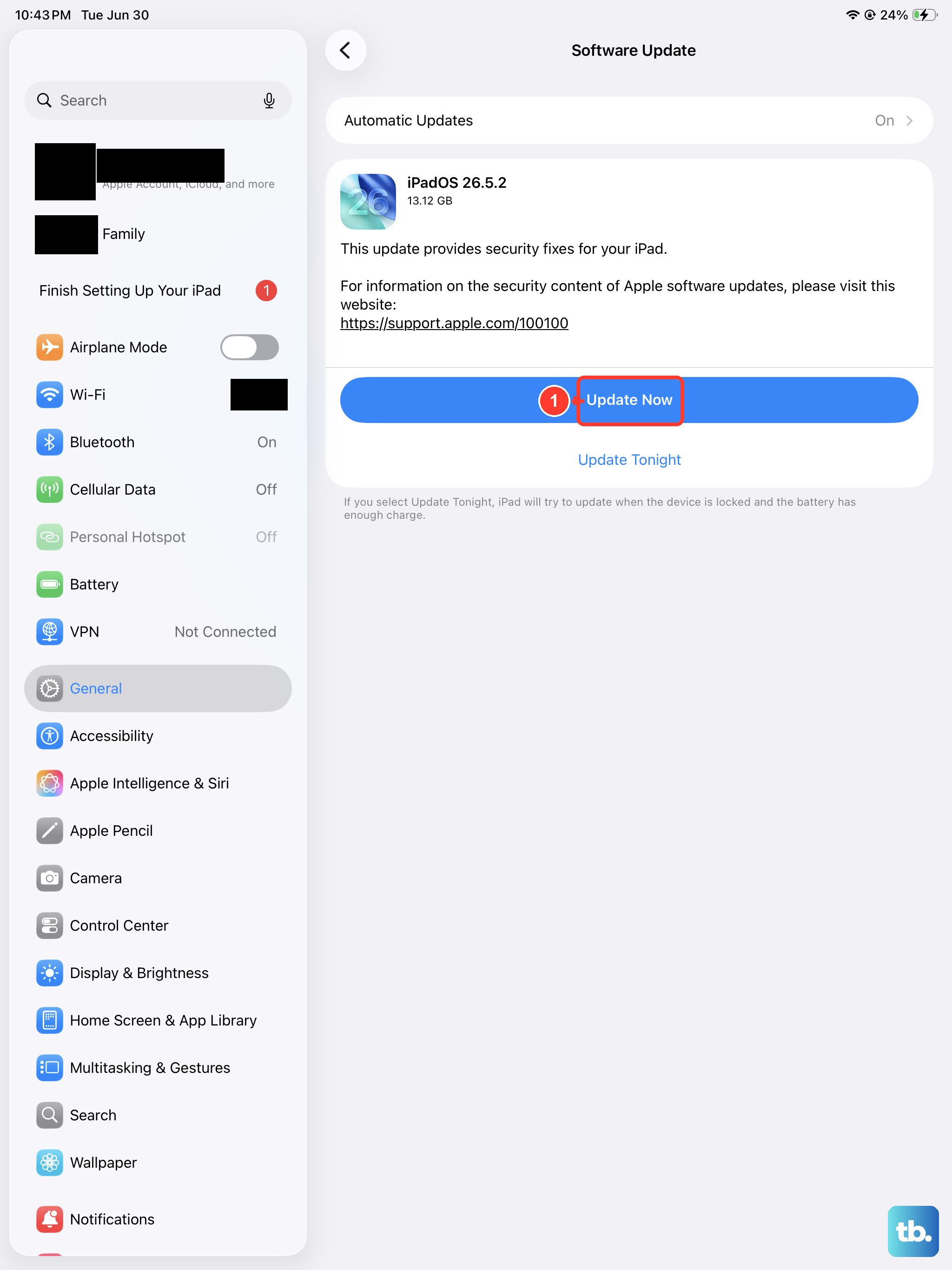
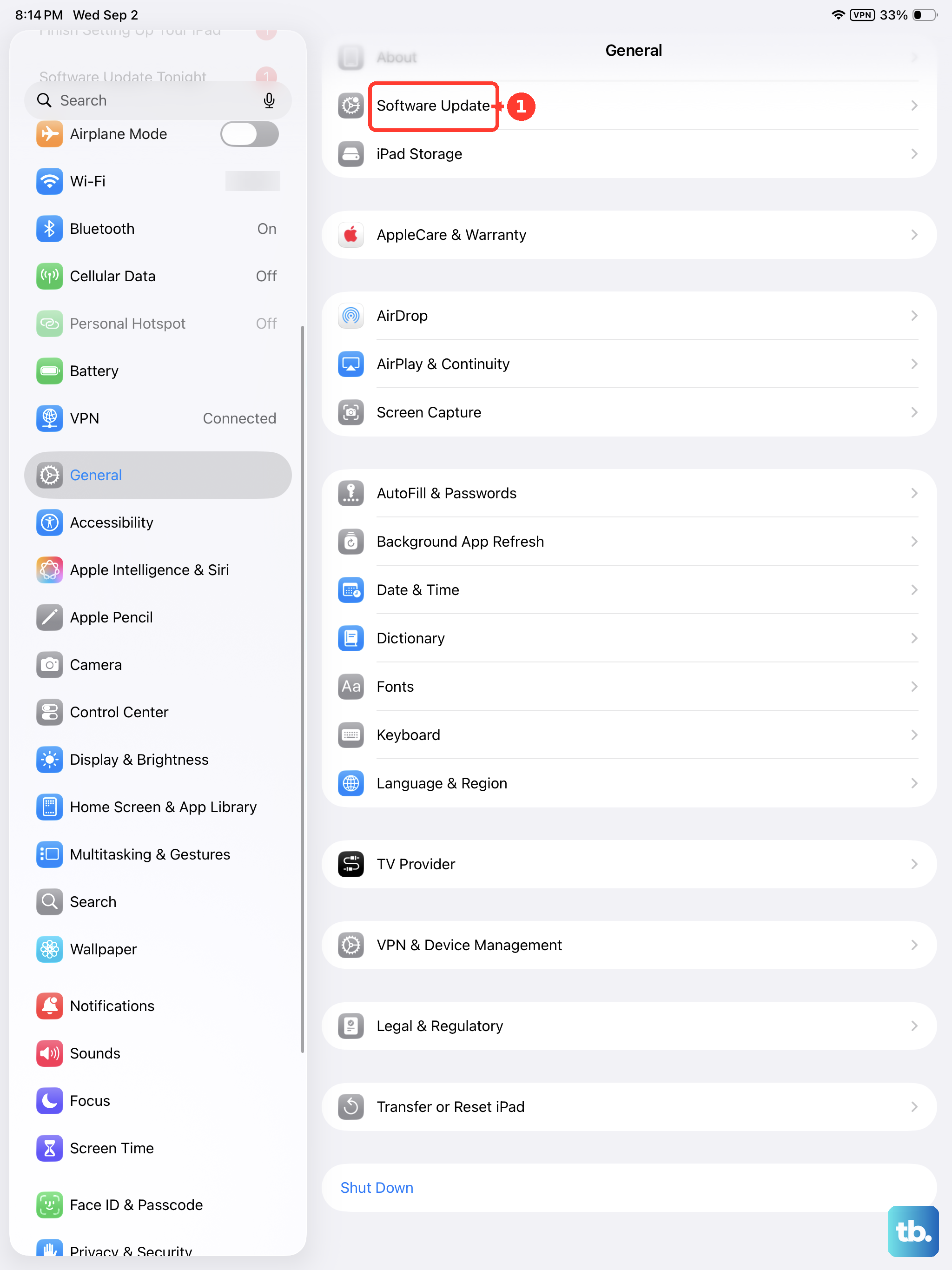
Go to Settings > General > Software Update to check if there's a newer version of iPadOS available. Apple frequently releases updates that fix compatibility issues with accessories like the Apple Pencil. Your iPad Pro M5 needs iPadOS 17.5 or later for Apple Pencil Pro, or iPadOS 17.1.1 or later for Apple Pencil (USB-C).
If you recently updated your iPadOS and your Apple Pencil stopped working, this could be a known bug that Apple is working to fix. In that case, you might need to wait for the next point release.
Some users have reported connection issues after major iPadOS updates that were resolved with subsequent patches.
Reset Network Settings
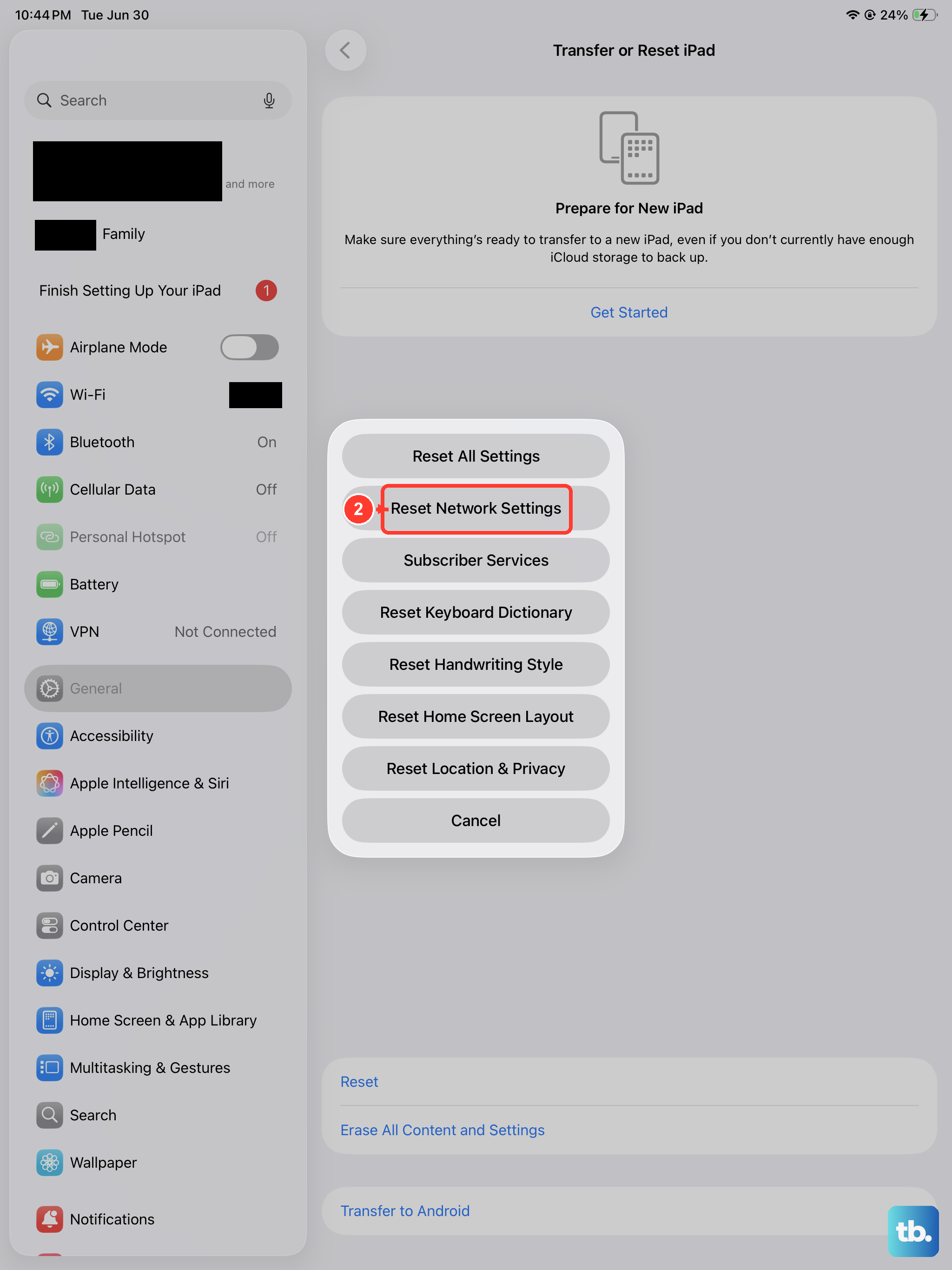
If you're still having trouble, try resetting your network settings. Go to Settings > General > Transfer or Reset iPad > Reset > Reset Network Settings. This will erase all your Wi-Fi passwords and Bluetooth connections, so you'll need to reconnect to your Wi-Fi networks afterward.
Your Apple Pencil should pair fresh after this reset. This approach has helped some users whose Apple Pencil shows as connected in Bluetooth but doesn't actually work on screen.
It clears out any corrupted Bluetooth profiles or network configurations that might be interfering with the connection. Just be prepared to re-enter your Wi-Fi passwords once you're done.
Check for Physical Damage
Look closely at your Apple Pencil for any signs of damage. Check the magnetic connector area on Apple Pencil Pro and Apple Pencil (USB-C) models for debris or scratches. For Apple Pencil (1st generation) with adapters, inspect the Lightning connector for bent pins or corrosion.
Even small amounts of lint in the connector can prevent proper charging and pairing.
If your Apple Pencil has been dropped, the internal components might be damaged. The transducer that communicates with your iPad screen is particularly fragile. A pencil that pairs and charges but doesn't write or draw on screen often has transducer damage from an impact.