Start by checking the battery if your Smart Tag 2 won't turn on at all. The CR2032 coin cell battery can drain completely, especially if the tracker has been active for several months. Press the button on the Smart Tag and look for the LED light - if nothing happens, you'll need to replace the battery.
Key Points
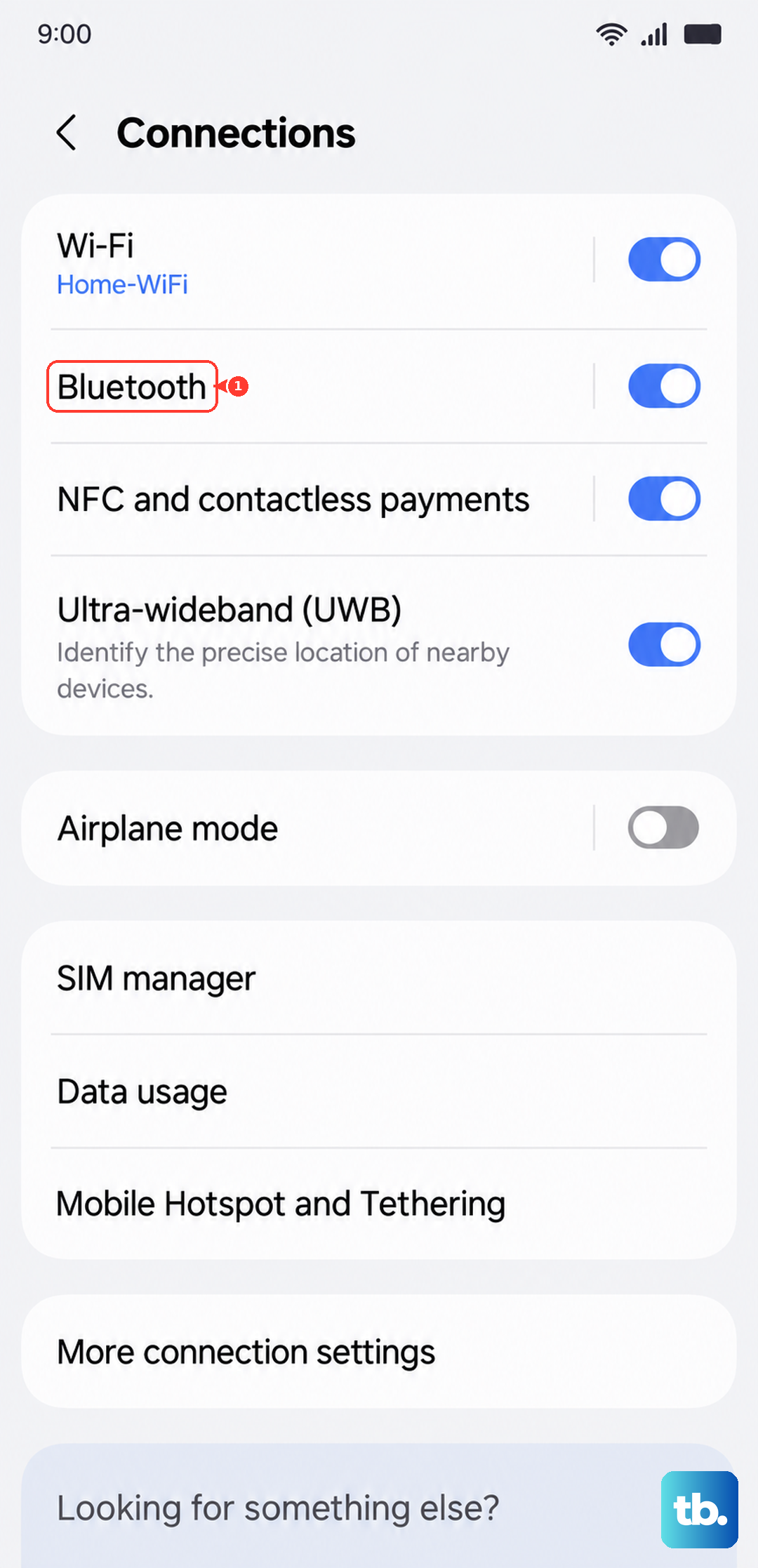
- Check Bluetooth and Phone Settings: Open your phone's Settings > Connections > Bluetooth and ensure Bluetooth is turned on.
- Update the SmartThings App: Head to the Google Play Store or Apple App Store and check for updates to the SmartThings app.
- Reset and Reconnect the Smart Tag: Remove the Smart Tag 2 from your SmartThings app by selecting it and choosing "Remove SmartTag" at the bottom of the screen.
- Clear App Cache and Data: If the Smart Tag 2 still isn't ringing or updating properly, clear the SmartThings app cache.
- Check for Interference and Range Issues: Electronic interference from devices like microwaves, Wi-Fi routers, or other Bluetooth gadgets can disrupt the Smart Tag 2's connection.
- Verify Location Services and Permissions: Ensure your phone has location services enabled in Settings > Location.
Make sure the new battery is inserted correctly with the positive terminal facing upward. I've seen cases where the battery was flipped, preventing the tracker from powering on.
Clean any corrosion or dirt from the battery contacts with a dry cotton swab before installing the fresh battery.
Check Bluetooth and Phone Settings
Open your phone's Settings > Connections > Bluetooth and ensure Bluetooth is turned on. The Smart Tag 2 needs an active Bluetooth connection to communicate with your device. If Bluetooth is already on, try turning it off and back on to refresh the connection.
Move your phone closer to the Smart Tag 2, ideally within 10 meters or 33 feet. Bluetooth range limitations are a common reason for connection drops.
Restart your phone as well - this simple step can resolve many connectivity issues that accumulate over time.
Update the SmartThings App
Head to the Google Play Store or Apple App Store and check for updates to the SmartThings app. Outdated app versions often have bugs that prevent proper Smart Tag 2 functionality. Install any available updates, then force close and reopen the SmartThings app completely.
After updating, open the SmartThings app and navigate to the SmartThings Find section. Make sure location permissions are enabled for the app in your phone's settings. The tracker relies on your phone's location services to update its position on the map.
Reset and Reconnect the Smart Tag
Remove the Smart Tag 2 from your SmartThings app by selecting it and choosing "Remove SmartTag" at the bottom of the screen. Confirm the removal when prompted. This resets the tracker's connection settings without affecting its physical state.
Press the button on the Smart Tag 2 to make it emit a notification sound, indicating it's ready to pair. In the SmartThings app, tap the "+" button and select "Device" followed by "Tag/Tracker." Follow the on-screen instructions to complete the pairing process again.
Clear App Cache and Data
If the Smart Tag 2 still isn't ringing or updating properly, clear the SmartThings app cache. Go to your phone's Settings > Apps > SmartThings > Storage and tap "Clear Cache." This removes temporary files that might be causing software glitches.
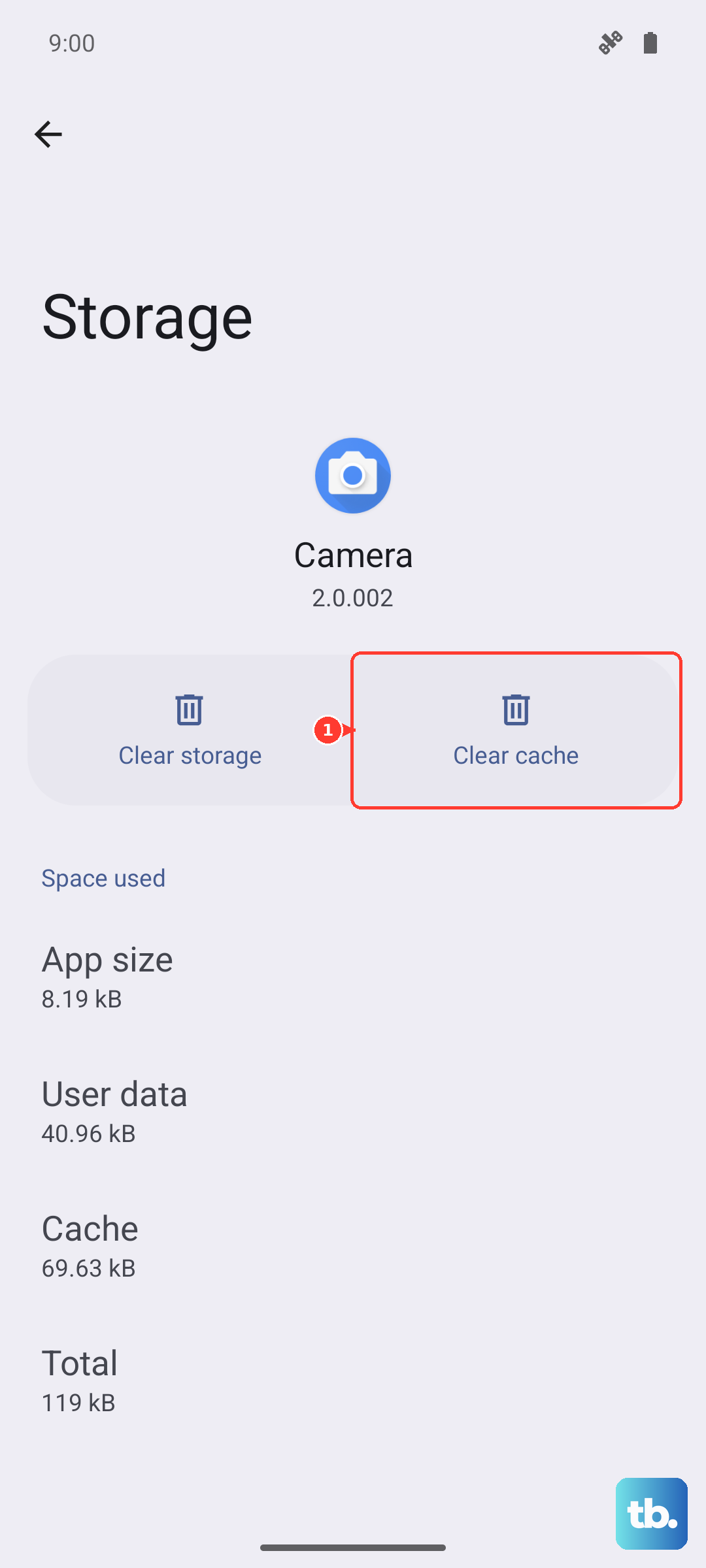
For more persistent issues, you can also clear the app data from the same menu, but note this will remove all your SmartThings settings. You'll need to set up your devices again afterward.
Restart your phone after clearing the cache or data to ensure clean operation.
Check for Interference and Range Issues
Electronic interference from devices like microwaves, Wi-Fi routers, or other Bluetooth gadgets can disrupt the Smart Tag 2's connection. Try moving to a different area of your home or turning off nearby electronics temporarily to test if the connection improves.
Remember that the Smart Tag 2 has a maximum range of about 120 meters in ideal conditions. Walls, furniture, and other obstacles significantly reduce this range. If you're trying to locate an item in another room or building, the connection may be too weak to maintain.
Verify Location Services and Permissions
Ensure your phone has location services enabled in Settings > Location. The Smart Tag 2 uses your phone's location to update its position on the map. Without proper location access, the tracker won't be able to provide accurate location information.
Within the SmartThings app settings, make sure location permission is set to "Allow all the time" rather than "Only while using the app." This allows the tracker to update its location even when you're not actively using the SmartThings app on your phone.
Replace the Battery Completely
If the Smart Tag 2 emits a beeping sound unexpectedly, this is usually a low battery warning. The beeping indicates the battery has reached a critically low level and needs immediate replacement.
Don't ignore this warning, as the tracker will stop working entirely once the battery dies completely.
Use a fresh CR2032 lithium coin cell battery for the replacement. Make sure it's properly seated with the positive side facing up. After replacing the battery, press the Smart Tag 2 button to test if the LED light illuminates, confirming the new battery is working.











