

Start with a simple restart when your Tab A9 acts up. Hold the power button for about 10 seconds until the screen goes black, then wait a few seconds before turning it back on. This clears temporary glitches in the system memory and often resolves random freezes or app crashes.
Key Points
- Check for Software Updates : Open Settings > Software update > Download and install to see if there are any pending updates.
- Reset Network Settings : Wi-Fi or Bluetooth problems often respond well to a network reset.
- Manage Storage Space : The Tab A9 comes with 64GB or 128GB of internal storage, but it can fill up quickly with apps and media.
- Calibrate the Battery : Battery life issues sometimes stem from the system misreading the charge level.
- Perform a Factory Reset : When all else fails, a factory reset can resolve deep-seated software issues.
- Update Individual Apps : Sometimes a single problematic app can cause system-wide issues.
I've seen this fix work on most Android tablets, including the Tab A9 models.
If the tablet won't turn on at all, check your charging setup first. The Tab A9 uses USB Type-C 2.0 with 15W fast charging support, so make sure you're using the original charger or a compatible one. Try a different cable and wall adapter, then let it charge for at least 30 minutes before attempting to power it on.
Sometimes the battery can drain completely and needs a bit of time to regain enough charge to show any signs of life.
Check for Software Updates
Open Settings > Software update > Download and install to see if there are any pending updates. Samsung regularly releases patches that fix bugs and improve stability on their tablets. If you're experiencing specific app crashes or connectivity issues, an update might already include a fix for those problems.
Keep your tablet connected to Wi-Fi during this process since updates can be several hundred megabytes.
For persistent app problems, try clearing the app cache first. Go to Settings > Apps, select the problematic app, then tap Storage > Clear cache. This removes temporary files without deleting your personal data.
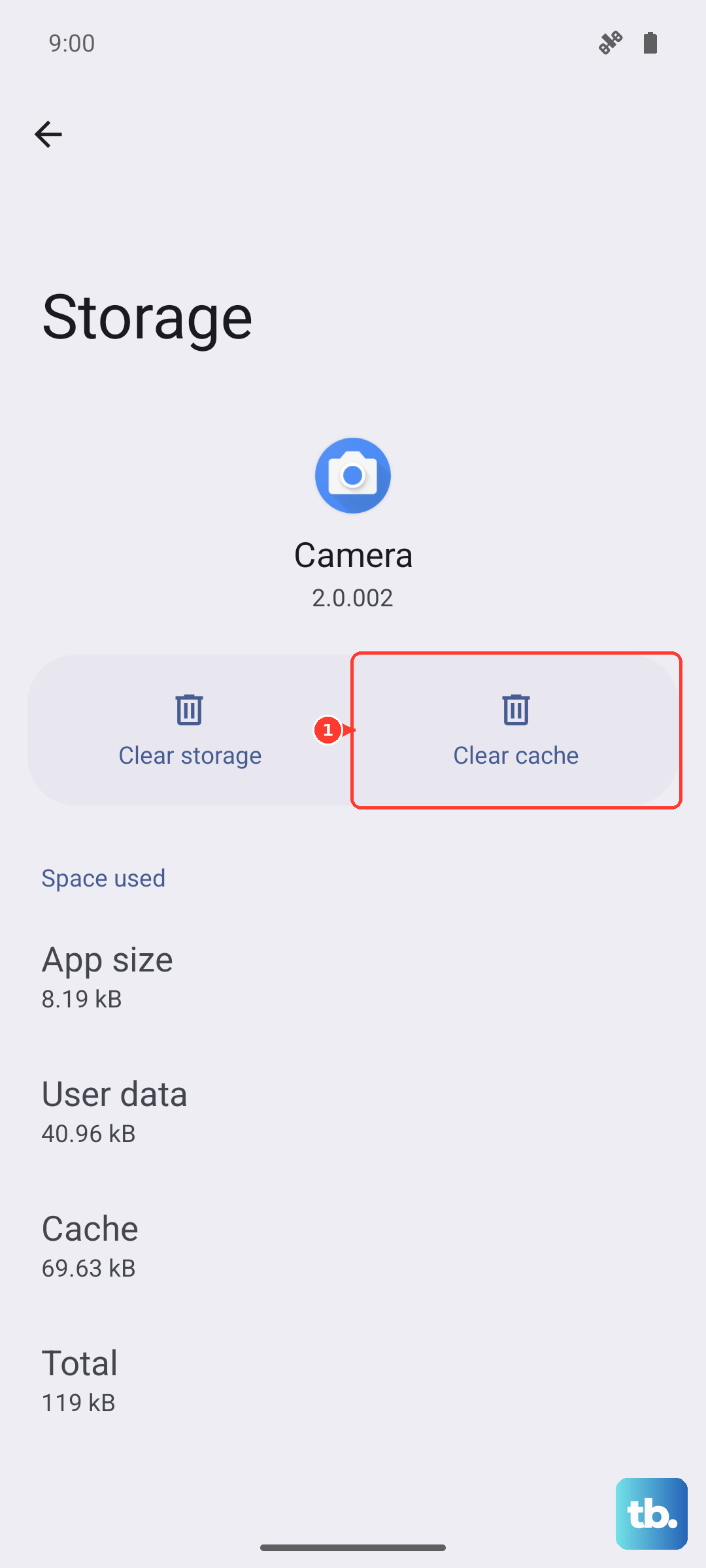
If that doesn't help, you can try Clear data, but be aware this will reset the app to its default state and you'll lose any saved settings or login information.
Reset Network Settings
Wi-Fi or Bluetooth problems often respond well to a network reset. Navigate to Settings > General management > Reset > Reset network settings. This will erase all saved Wi-Fi networks, Bluetooth pairings, and mobile data settings, so you'll need to reconnect to your networks afterward.
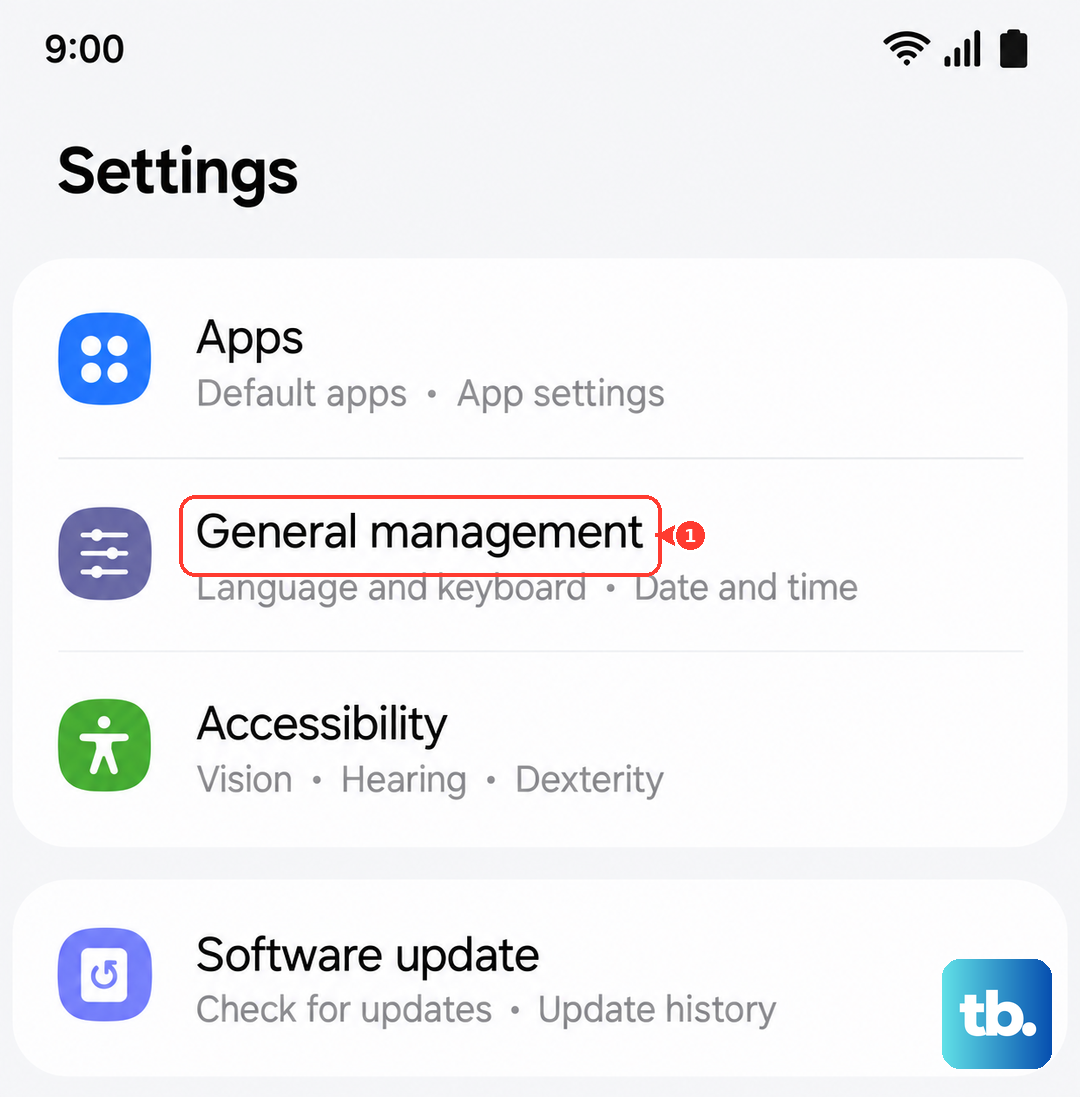
It's particularly useful if you're having trouble connecting to specific Wi-Fi networks or if Bluetooth devices won't pair properly.
For LTE models that aren't connecting to mobile data, check your SIM card first. Power off the tablet, remove the SIM tray using the included tool, and inspect the SIM card for any damage or dirt. Clean the gold contacts gently with a soft cloth and reinsert it carefully.
Make sure the SIM is properly seated in the tray before sliding it back into the tablet.
Manage Storage Space
The Tab A9 comes with 64GB or 128GB of internal storage, but it can fill up quickly with apps and media. Go to Settings > Battery and device care > Storage to see what's taking up space. Look for large files or apps you no longer use.
Remember you can expand storage with a microSD card up to 1TB if you need more room for photos, videos, or documents.
If the tablet feels sluggish, check which apps are running in the background. Swipe up from the bottom and hold to see recent apps, then swipe them away to close them. For more thorough management, go to Settings > Battery and device care > Memory to see which apps are using the most RAM.
The Tab A9 has either 4GB or 8GB of RAM, so closing unnecessary apps can free up resources for better performance.
Calibrate the Battery
Battery life issues sometimes stem from the system misreading the charge level. Let the tablet drain completely until it shuts off on its own, then charge it to 100% without interruption. Don't use it while it's charging during this calibration process.
Once it reaches full charge, keep it plugged in for another hour to ensure the battery management system gets accurate readings.
For charging problems, inspect the USB-C port for lint or debris. Use a flashlight to look inside the port and gently clean it with a dry toothpick or compressed air. Don't use metal objects that could damage the delicate pins.
Also check that the cable clicks securely into place, if it feels loose, the port might need professional cleaning or repair.
Perform a Factory Reset
When all else fails, a factory reset can resolve deep-seated software issues. First, back up your important data to Samsung Cloud or Google Drive. Go to Settings > General management > Reset > Factory data reset and follow the prompts.
This will erase everything on the tablet and restore it to its original state, so only use this as a last resort.
If the tablet won't boot into the normal system, you can try recovery mode. Turn off the tablet completely, then press and hold the volume up and power buttons simultaneously until the Samsung logo appears. Use the volume buttons to navigate to "Wipe data/factory reset" and press the power button to select it.
This method works even when the tablet won't start normally, but it's more destructive since you can't back up your data first.
Update Individual Apps
Sometimes a single problematic app can cause system-wide issues. Open the Google Play Store, tap your profile icon, then go to Manage apps & device > Updates available. Update all apps, especially system apps and ones you use frequently.
Developers regularly release fixes for compatibility issues with specific Android versions or hardware configurations.
If photos appear blurry or the app crashes, also check for physical damage to the lens or obstructions. The Tab A9's cameras support 1080p video recording at 30fps, so make sure you have enough storage space available for recording videos.