

If your Galaxy A16 5G feels sluggish or the battery drains faster than expected, start by managing the AI features. Samsung packs these phones with numerous AI services that run in the background, and they can sometimes impact performance more than you'd expect.
I've seen this fix work on most recent Galaxy models, including the A16 5G.
Key Points
- Manage Individual AI Services – The Galaxy AI settings screen shows you every AI-powered feature on your phone.
- Replace Bixby with Google Assistant – Bixby is Samsung's built-in digital assistant that many users don't even realize is active on their phones.
- Check for Software Updates – Your Galaxy A16 5G should receive regular software updates that fix bugs and improve performance.
- Clear App Cache and Data – Over time, apps accumulate cached data that can slow down your phone.
- Optimize Battery Settings – Battery drain issues often stem from background processes and screen settings.
- Reset Network Settings – If you're experiencing connectivity issues with Wi-Fi or mobile data, resetting network settings can help.
Head to Settings > Galaxy AI to see what's running. You'll find a list of services that form Samsung's AI ecosystem, each with its own toggle switch. Tap any service you don't regularly use and switch it off completely.
Some users report noticeable improvements in battery life and responsiveness after disabling unnecessary AI features.
Manage Individual AI Services
The Galaxy AI settings screen shows you every AI-powered feature on your phone. Take a moment to review what each one does and whether you actually need it. Features like automatic photo enhancement or smart text suggestions might be helpful, but they constantly analyze your content in the background.
If you're privacy-conscious but still want some AI functionality, look for the toggle at the bottom of the Galaxy AI screen. This option limits data processing to your device only, preventing information from being sent to the cloud.
Choosing this setting will disable some internet-dependent AI features, but it keeps your data local and private.
Replace Bixby with Google Assistant
Bixby is Samsung's built-in digital assistant that many users don't even realize is active on their phones. It runs background processes that can affect performance, especially if you never use it. The good news is Samsung makes it easy to switch to Google Assistant instead.
First, make sure you have the Google app installed from the Play Store. Then go to Settings > Apps > Choose default apps > Digital assistant app. Tap Google to set it as your default assistant.
Now when you trigger voice commands, you'll get Google Assistant instead of Bixby running unnecessary processes in the background.
Check for Software Updates
Your Galaxy A16 5G should receive regular software updates that fix bugs and improve performance. Go to Settings > Software update > Download and install to check for available updates. Samsung has confirmed the A16 5G is eligible for One UI 8.5 updates, which include performance optimizations and bug fixes.
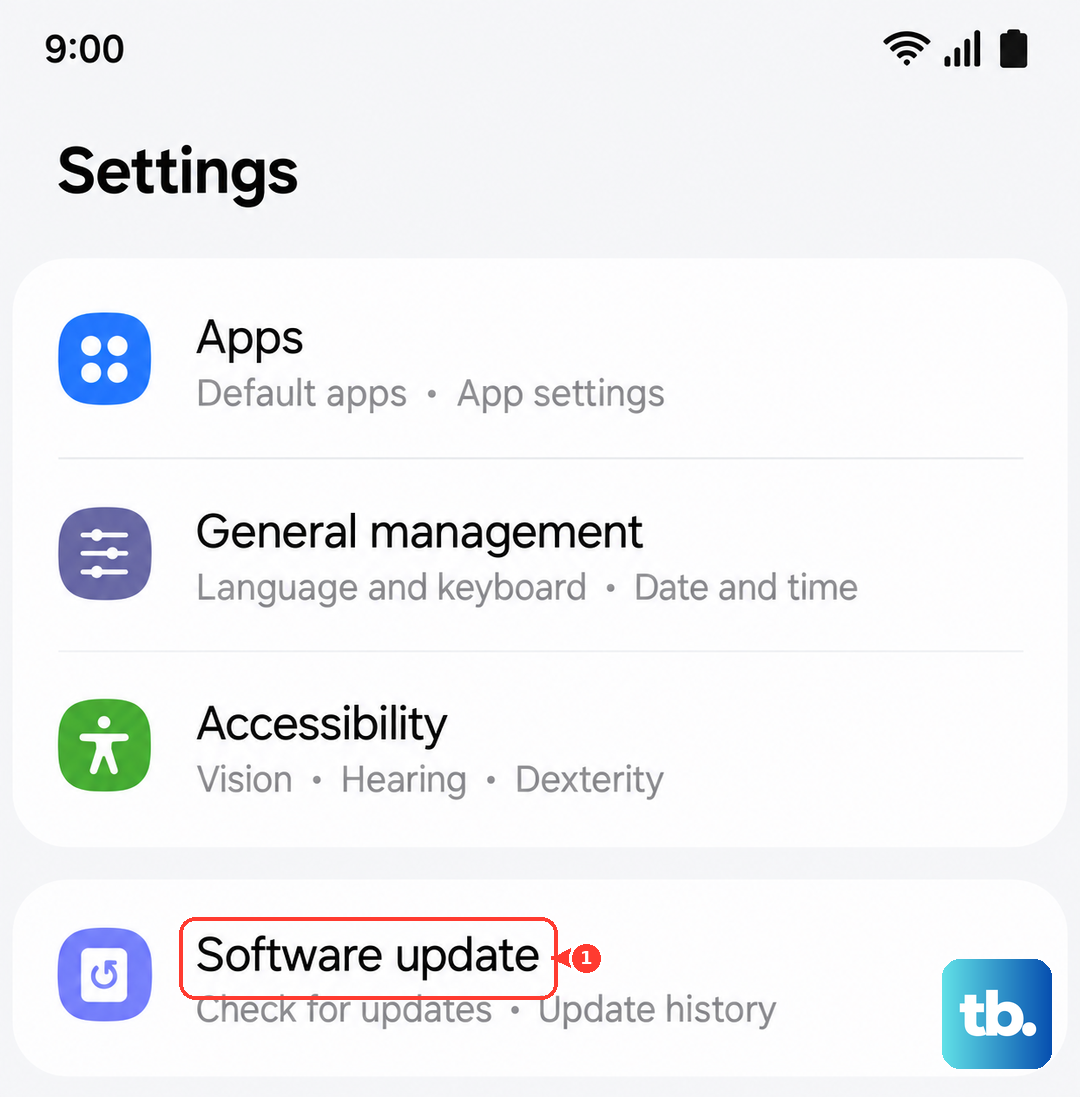
If an update is available, make sure your phone is connected to Wi-Fi and has at least 50% battery before installing. Major updates can take 20-30 minutes to complete, so plan accordingly.
After updating, your phone might need a few days to optimize performance as it learns your usage patterns again.
Clear App Cache and Data
Over time, apps accumulate cached data that can slow down your phone. Go to Settings > Apps, then select any app that's been acting up. Tap Storage and choose Clear cache first.
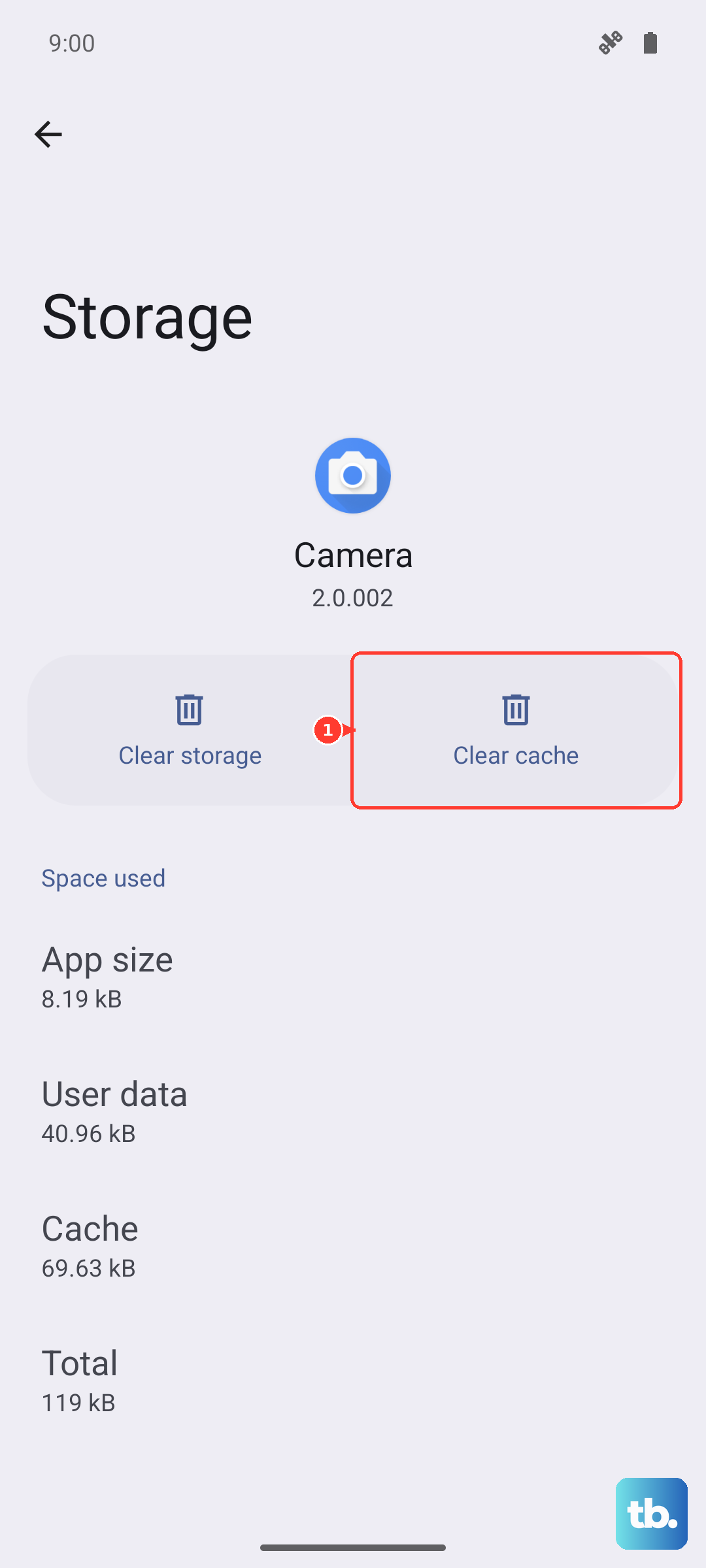
If problems persist, you can try Clear data, but be aware this will reset the app to its initial state.
For system-wide cache clearing, turn off your Galaxy A16 5G completely. Press and hold the Volume Up button and Power button simultaneously until the Samsung logo appears. Use the volume buttons to navigate to "Wipe cache partition" and select it with the Power button. This clears temporary system files without affecting your personal data.
Optimize Battery Settings
Battery drain issues often stem from background processes and screen settings. Start with Settings > Battery and device care > Battery. Here you'll find several optimization options that can extend battery life significantly.
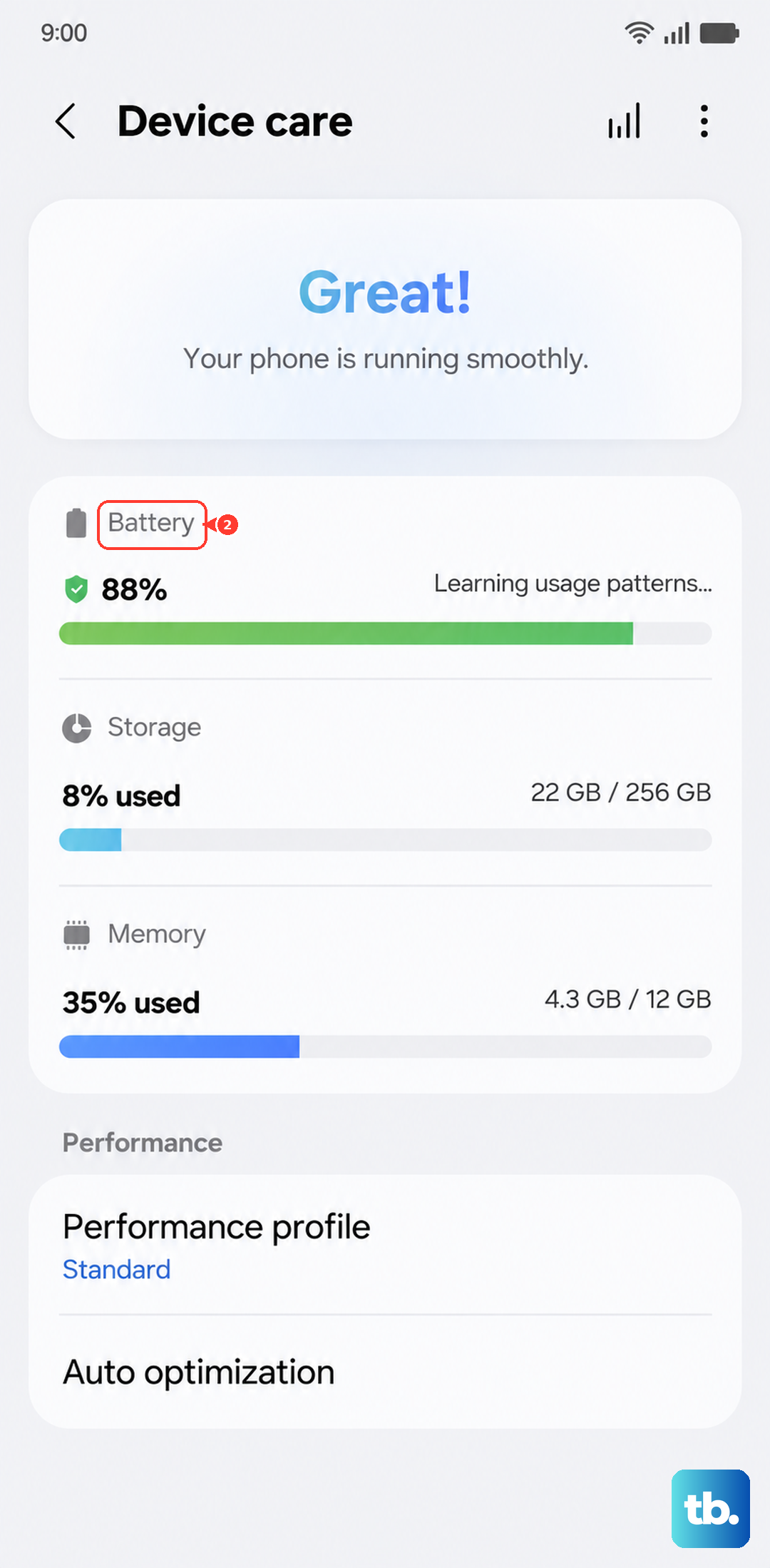
The adaptive battery feature learns your usage patterns and limits power to apps you rarely use.
Consider enabling Power saving mode when your battery drops below 20%. This reduces background activity and limits performance to conserve power. For more aggressive savings, tap More battery settings and explore options like putting unused apps to sleep automatically.
These settings can make a noticeable difference in daily battery life.
Reset Network Settings
If you're experiencing connectivity issues with Wi-Fi or mobile data, resetting network settings can help. Go to Settings > General management > Reset > Reset network settings. This will remove all saved Wi-Fi networks, Bluetooth pairings, and mobile data settings, so you'll need to reconnect to your networks afterward.
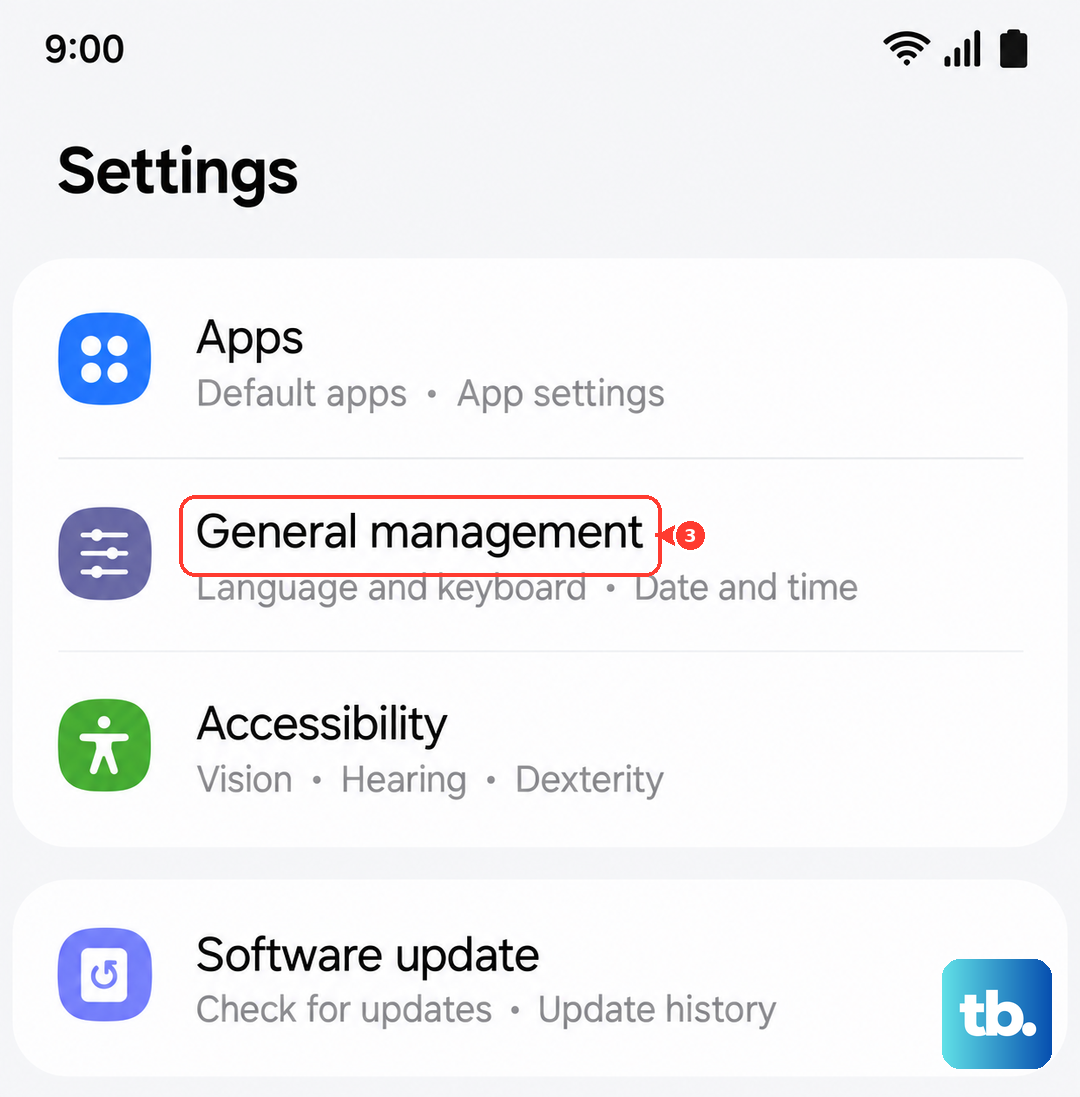
This fix clears any corrupted network configurations that might be causing connection problems. After the reset, reconnect to your Wi-Fi network and check if connectivity has improved.
For 5G issues specifically, make sure your carrier supports 5G in your area and that you have the latest carrier settings installed.