
If your Samsung Galaxy S25's battery is draining faster than it should, the first thing I'd do is check the battery usage stats. This is the quickest way to see if a rogue app is the problem or if it's a system-wide issue.
Head to Settings > Battery and device care > Battery. Here, you'll see a detailed breakdown of what's been using power since your last full charge. Look for any apps showing unusually high percentages, especially ones you don't use often.
This screen also shows your battery's health. If it's significantly degraded, it could explain poor performance, though this is less likely on a newer phone like the S25.
Manage App Battery Usage
Once you've identified a power-hungry app from the battery menu, you can put it to sleep. Tap on the app's name in the usage list, then select Restrict background usage or Put app to sleep. This prevents it from running in the background when you're not actively using it.
For a broader approach, go to Settings > Apps. Select any app and go to its Battery menu. You can set most apps to Restricted, which is a good balance for saving power without breaking notifications.
Some apps, like messaging or email clients, you might want to leave on Unrestricted so they work properly. It's about finding the right balance for your daily use.
Adjust Your Display Settings
The screen is almost always the biggest battery drain. On the S25, you can make a few easy adjustments. First, lower the brightness. You can do this quickly from the notification panel, or set it to auto-brightness in Settings > Display.
Next, reduce the screen timeout. Go to Settings > Display > Screen timeout and set it to 30 seconds or one minute. This ensures your screen turns off quickly when you're not using it.
Also, consider using Dark mode. Since the S25 has an OLED screen, displaying black pixels actually turns them off, saving power. You can turn it on in Settings > Display > Dark mode.
Check Connectivity and Location Services
Features that are always searching for a signal can drain the battery. If you're in an area with poor cellular service, your phone works harder to maintain a connection. Switching to Wi-Fi or enabling Airplane mode in those situations can help.
For location services, go to Settings > Location. Review which apps have permission to use your location and change any from "Always" to "Only while using the app." You can also turn off Wi-Fi and Bluetooth scanning here, which are often on by default.
Bluetooth and Wi-Fi themselves don't use much power when idle in modern phones, but if you're not using them, toggling them off from the quick settings panel is a simple habit that adds up.
Update Your Software and Apps
Software bugs are a common cause of sudden battery drain. Make sure your Galaxy S25 is running the latest version of One UI and Android. Go to Settings > Software update > Download and install.
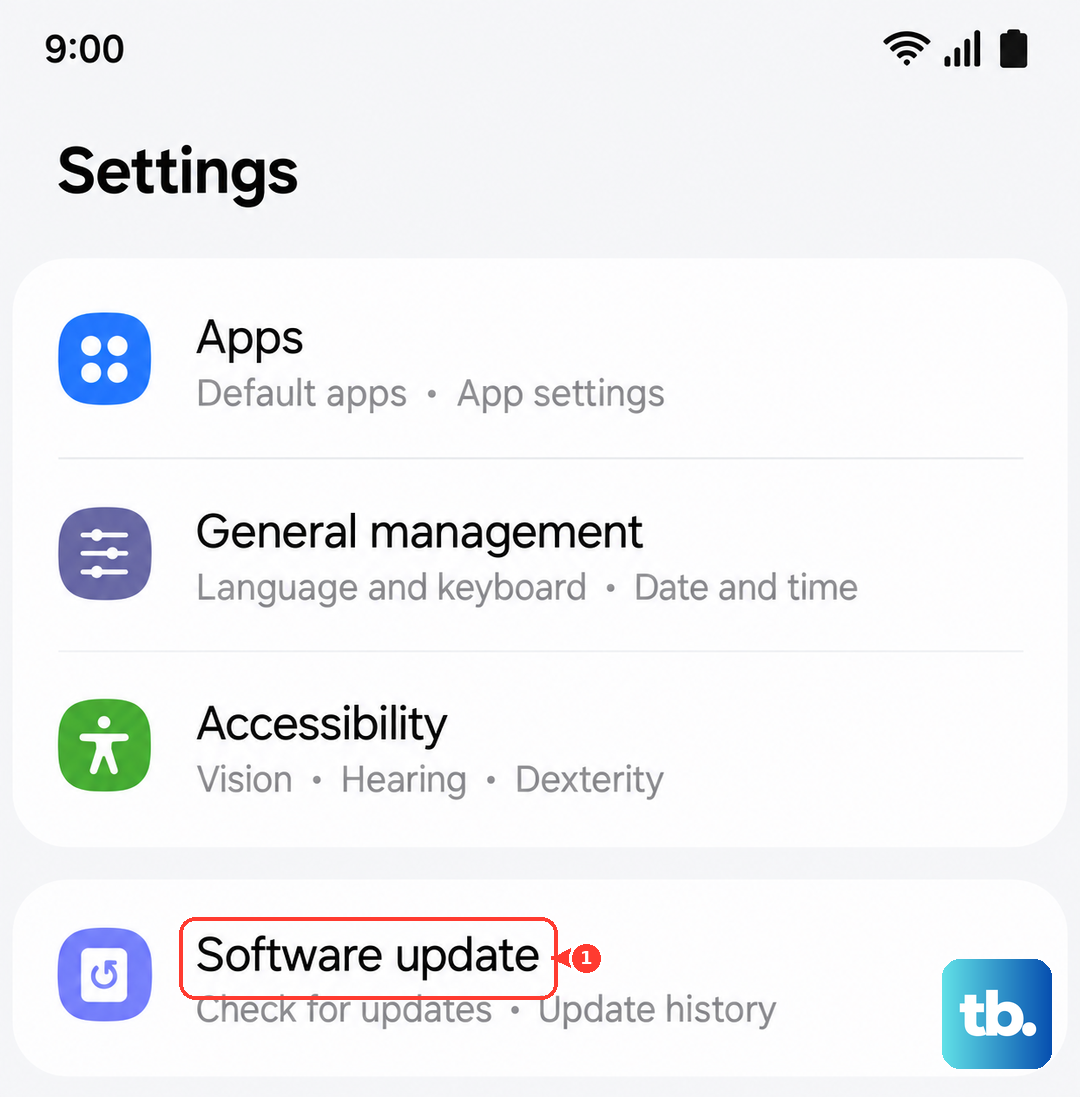
Outdated apps can have similar issues. Open the Galaxy Store and Google Play Store, check for updates, and install them all. Developers often release patches for battery optimization problems.
After a major OS update, it's normal for the phone to run background processes for a day or two that can affect battery. If the drain started after an update, give it 48 hours to settle before worrying.
Use Built-in Optimization Tools
Samsung includes powerful tools to help. Open the Battery and device care menu in Settings and tap Optimize now. This runs a quick check and can close unnecessary background processes.
You can also enable Adaptive battery. Find it in Settings > Battery > More battery settings. This uses machine learning to limit battery usage for apps you rarely use.
For a more aggressive save, turn on Power saving mode from the quick settings or the Battery menu. This limits background network usage, reduces performance, and caps the maximum CPU speed to extend your battery life significantly.
Review Charging Habits and Settings
How you charge can impact long-term battery health. The S25 has a feature called Adaptive charging in Settings > Battery > Charging settings. This can sometimes throttle charging speed based on your routine, which might be mistaken for a drain issue.
For the fastest 25W charging, make sure you're using an official Samsung charger and cable. I've seen third-party chargers that don't properly negotiate the fast charging protocol, leading to slower fills.
Also, if you use wireless charging, be aware that the phone can overheat, especially with thick cases. Overheating triggers protection that slows or stops charging to prevent damage, which can look like a battery problem.
Perform a Reset if Problems Persist
If you've tried everything and the drain continues, a software glitch might be the cause. First, try a forced restart. Press and hold the Volume Down button and the Side key together for about 10 seconds until the Samsung logo appears.
This is a soft reset that clears the phone's temporary memory without deleting any data. It can fix minor software hiccups causing battery drain.
As a last resort, you can reset all settings. Go to Settings > General management > Reset > Reset all settings. This will revert all your network, display, and sound settings back to default but won't touch your personal files or apps.