
If your Samsung Galaxy A55 battery seems to vanish before your eyes, you're not imagining it. I've seen this happen a lot with this model, and it's almost always a software setting or a background app, not a broken battery. Let's start with the quickest thing you can do right now.
Open your quick settings panel by swiping down from the top of the screen twice. Look for the "Power saving" icon, it looks like a battery with a plus sign. Tap it to turn it on. This instantly throttles performance, limits background activity, and dims your screen. It's a band-aid, but it will buy you some time while we dig into the real causes.
Check What's Actually Draining Your Battery
Before you start turning things off, you need to know what's using the power. Samsung's battery menu is very detailed. Go to Settings > Battery and device care > Battery. Here, tap on "Battery usage."
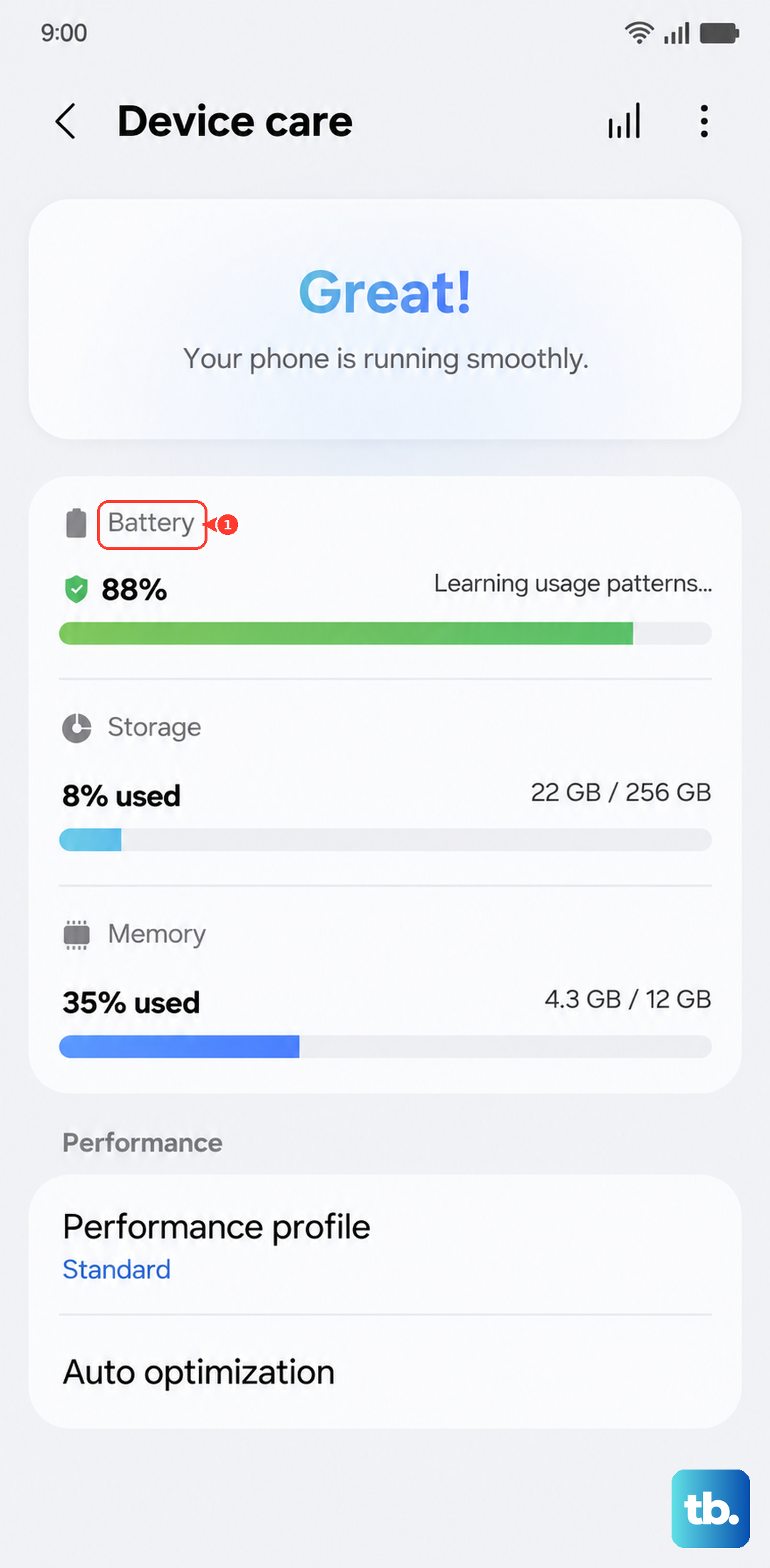
This screen shows you exactly which apps and services have been using your battery over the last 7 days. Pay close attention to anything using more than 10-15%. If you see a social media app, a game, or a video streaming service at the top, that's your likely culprit. Tap on any app to see if it's running heavily in the background.
Manage Apps Running in the Background
This is the single biggest cause of battery drain on the Galaxy A55. Apps like Facebook, Instagram, and TikTok are notorious for running processes even when you're not using them. From the Battery usage screen, tap on the problematic app. You'll see options to put it to sleep or put it into deep sleep.
Putting an app to sleep stops it from running in the background until you open it again. Deep sleep is more aggressive and prevents it from running at all in the background. I'd start by putting your biggest battery hogs into deep sleep. You can also automate this by going to Settings > Battery and device care > Battery > Background usage limits and enabling "Put unused apps to sleep."
Use the Right Charger
This is a specific issue for the A55. Samsung doesn't include a charger in the box, so many people use an old, slow charger from an older phone. The Galaxy A55 supports 25W wired fast charging, but it needs a compatible USB-C Power Delivery (PD) charger to hit that speed.
Using a weak 5W or 10W charger means your phone charges slowly and can sometimes struggle to get a full, healthy charge cycle. For the best battery health and performance, invest in a proper 25W USB-C PD charger. It makes a noticeable difference.
Adjust Your Screen Settings
The display is the biggest power consumer on any phone. On the A55, you can make a few key adjustments. First, lower the brightness. Swipe down to access quick settings and pull the brightness slider down to a comfortable level. Avoid leaving it on auto-brightness in very dark rooms where it might crank itself up unnecessarily.
Next, reduce the screen timeout. Go to Settings > Display > Screen timeout. Set it to 30 seconds or 1 minute so the screen turns off quickly when you're not using it. Also, consider using a dark wallpaper and enabling Dark mode in Settings > Display > Dark mode, as it saves power on the A55's display.
Turn Off Unnecessary Connections
Your phone constantly searches for networks, and that takes power. If you're at home on Wi-Fi all day, turn off your mobile data. Swipe down and tap the "Mobile data" icon to disable it. Do the same for Bluetooth, NFC, and Location if you aren't actively using them.
For Location, you can set apps to "Allow only while using the app" instead of "Allow all the time." Go to Settings > Location > App permissions to manage this. This stops apps like weather or shopping from constantly polling your location in the background.
Update Your Software
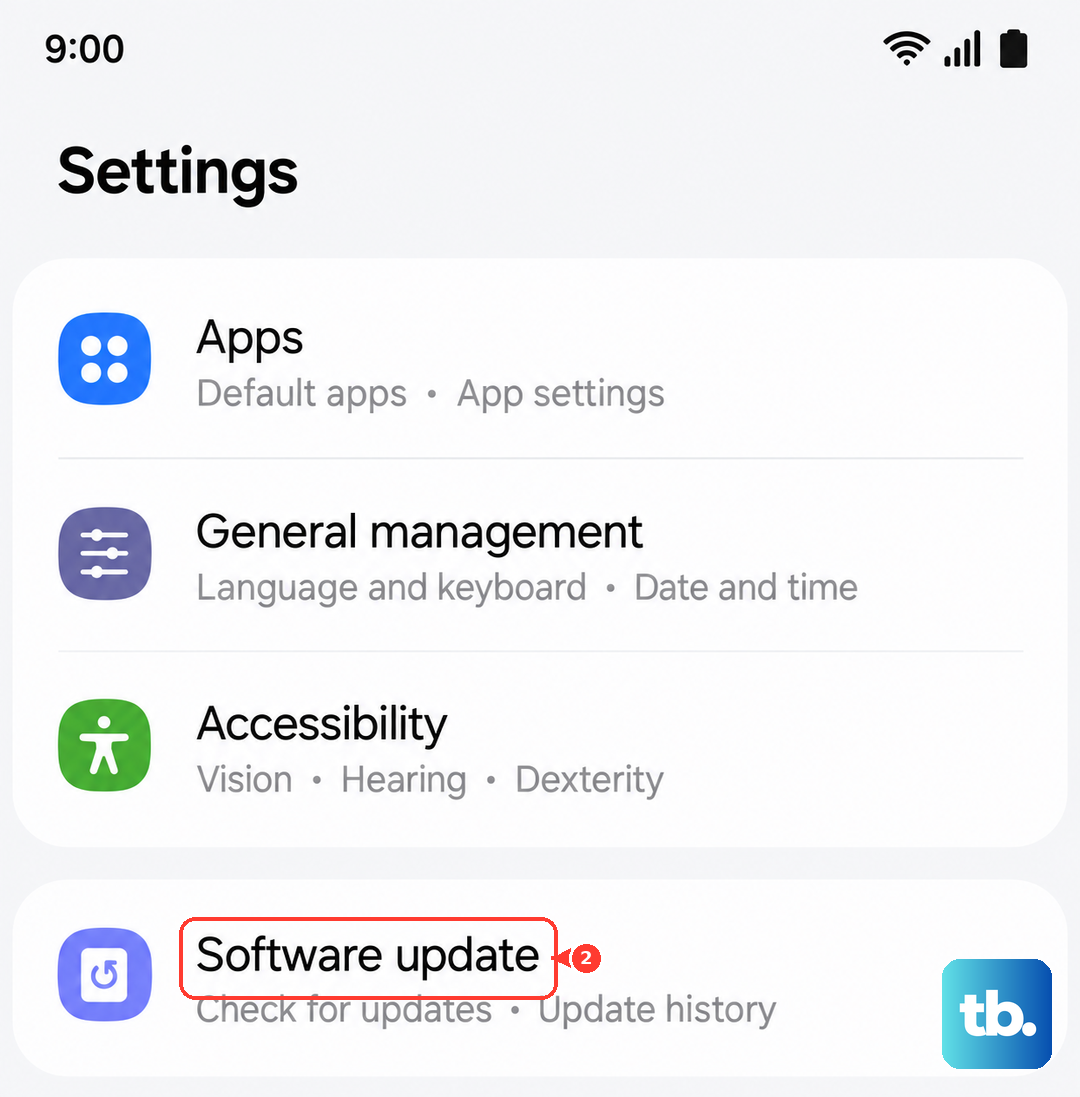
Software updates often include optimizations and bug fixes that improve battery life. It's a simple step that gets overlooked. Go to Settings > Software update > Download and install. If an update is available, make sure your phone is plugged in and connected to Wi-Fi, then let it install.
You should also update your apps through the Galaxy Store and Google Play Store. Outdated apps can have bugs that cause excessive battery drain. Open each store, tap your profile icon, and check for updates.
Perform a Force Restart
Sometimes, a background process gets stuck and starts consuming excessive resources. A simple force restart can clear this out without deleting any of your data. Press and hold the Volume Down button and the Side key (power button) together for about 10 seconds.
Keep holding them until you see the Samsung logo appear on the screen, then let go. Your phone will reboot. This is different from a normal restart and often resolves temporary software glitches affecting battery life.
Check for a Failing App After an Update
If your battery life suddenly got worse after you installed a new app or a system update, that app might be the problem. Go back to the Battery usage screen and look for any new entries. You can try uninstalling recently added apps one by one to see if the drain stops.
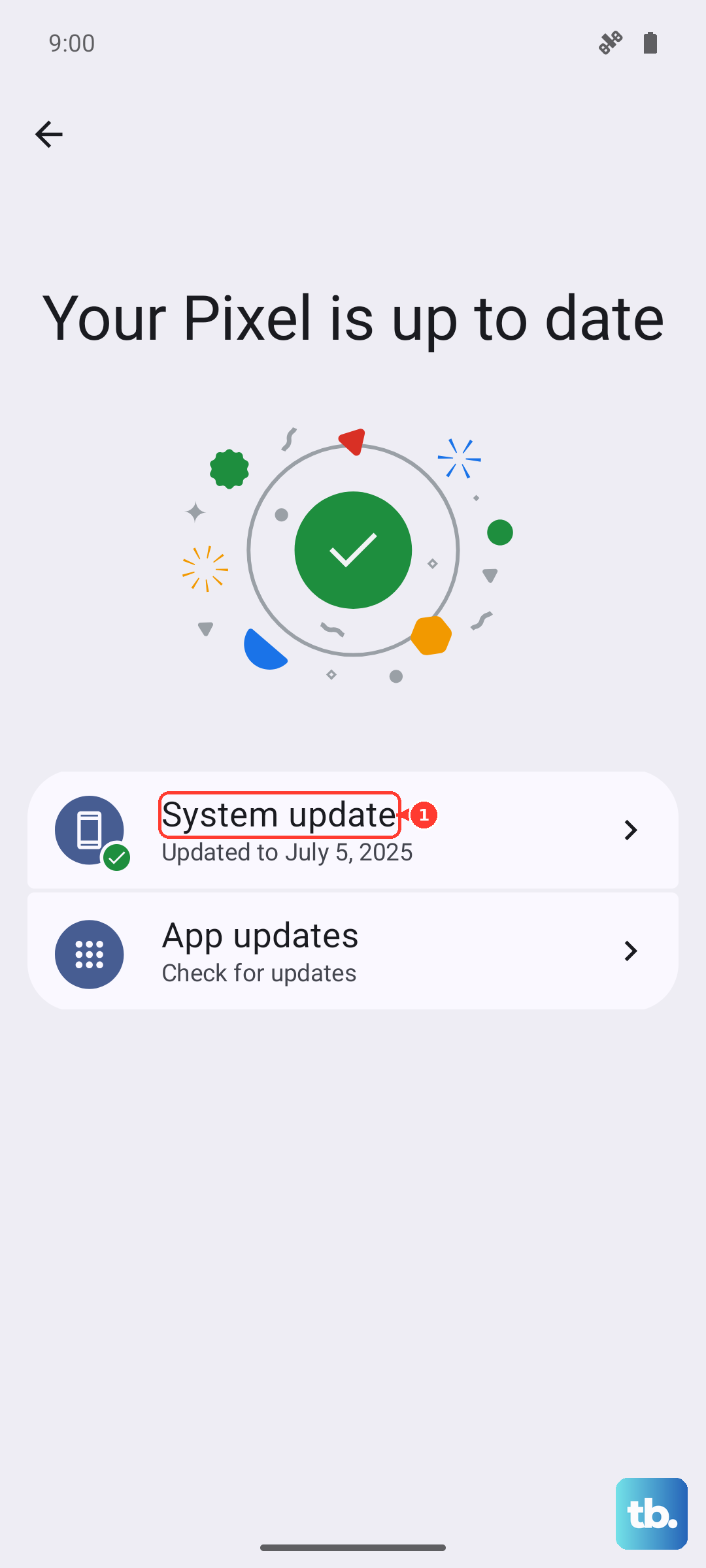
For system updates, it can take a day or two for your phone to re-optimize apps in the background, which can cause temporary drain. If poor battery life persists for more than three days after an update, then it's worth investigating further.
Reset All Settings
If you've tried everything and the drain continues, a settings reset can help. This won't delete your photos, messages, or apps, but it will revert all your system settings (like Wi-Fi passwords, ringtones, and display preferences) back to default. It's a good way to rule out a misconfigured setting.
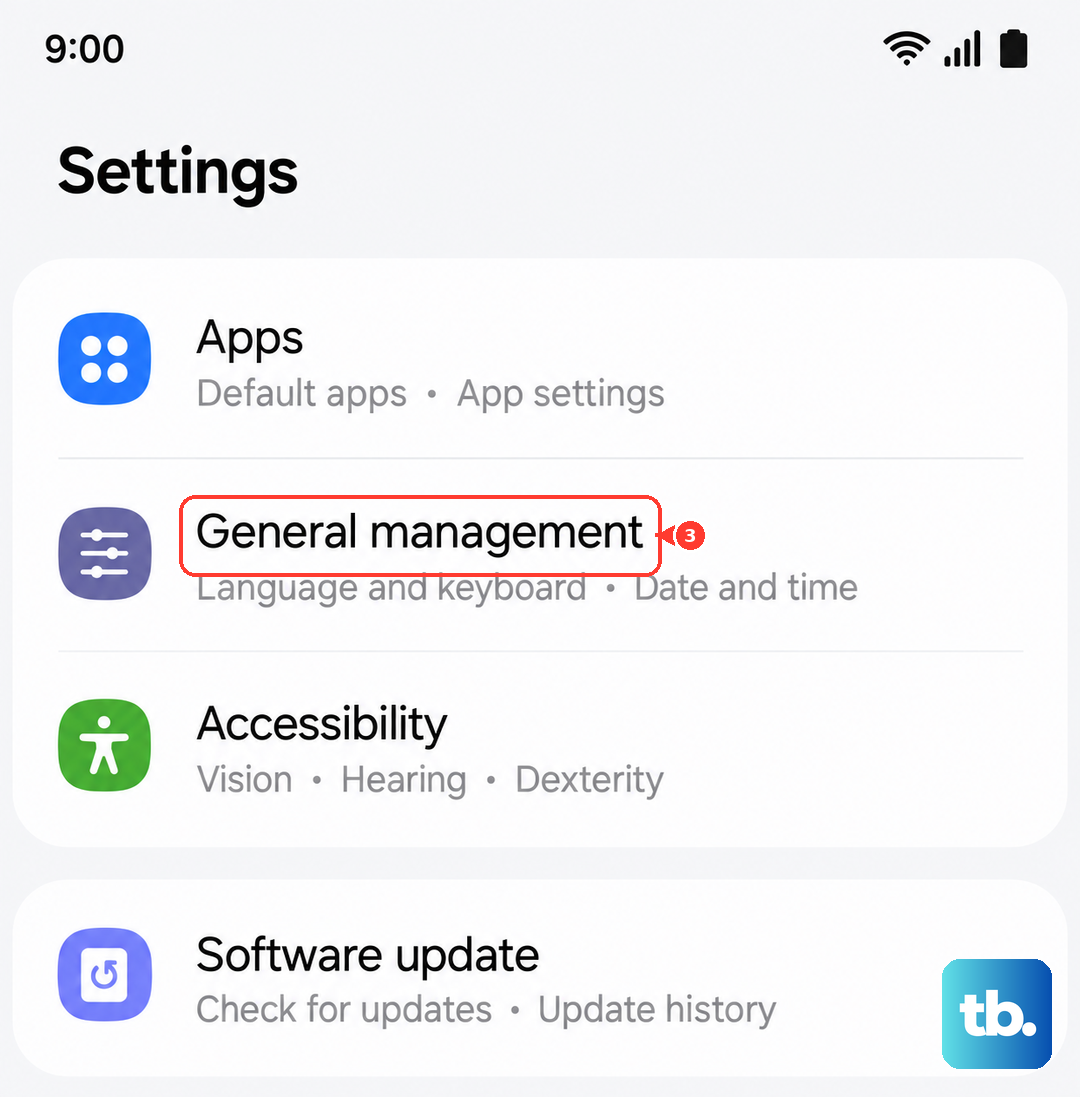
Go to Settings > General management > Reset > Reset all settings. Enter your PIN if prompted and confirm. Your phone will restart. You'll need to reconnect to Wi-Fi and adjust your preferences again, but it often clears up persistent battery issues.
Look for Physical Port Issues
The Galaxy A55's USB-C port is less water-resistant than Samsung's flagship models. If you've gotten it wet or carry it in a dusty pocket, lint and debris can compact in the port. This can prevent the charging cable from seating properly, leading to intermittent charging and a battery that never truly fills up.
Power off your phone first. Then, use a non-metallic tool like a plastic toothpick or a SIM ejector tool to very gently scrape out any visible lint from the charging port. Be careful not to damage the central connector pin. After cleaning, try charging with a known-good cable and 25W charger.