
If your Samsung Galaxy A56 battery is draining faster than it should, you're not alone. It's a common issue, but the good news is there are several straightforward things you can check and adjust. I'd start by looking at the battery usage stats, as that often points directly to the problem.
Check What's Using Your Battery
Go to Settings > Battery. Here, tap on "Battery usage" to see a detailed breakdown. This screen shows you exactly which apps and services have been consuming power over the last 7 days or 24 hours.
Look for any app using a surprisingly high percentage. Social media apps, games, and video streaming services are often the top offenders. If you see an app you don't use much on the list, that's a clear sign it's running in the background when it shouldn't be.
Manage App Background Activity
Many apps continue to run and update even when you're not actively using them. Samsung's One UI gives you good control over this. Go back to Settings > Battery and tap on "Background usage limits."
You'll find options like "Put unused apps to sleep" and "Deep sleeping apps." I'd enable "Put unused apps to sleep" first, as it automatically manages apps you haven't opened in a while. For particularly power-hungry apps, you can manually add them to the "Deep sleeping" list to prevent them from running in the background entirely.
Adjust Your Screen Settings
The display is one of the biggest battery drains on any phone. Lowering your screen brightness can make a significant difference. Pull down the quick settings panel and adjust the slider, or go to Settings > Display to change it there.
Also, consider reducing the screen timeout. Go to Settings > Display > Screen timeout and set it to 30 seconds or 1 minute. This ensures your screen turns off quickly when you're not using it. Enabling Dark Mode can also help, especially if you use apps that support it.
Review Location and Connectivity Services
Having your GPS, Bluetooth, and Wi-Fi constantly searching for signals uses power. Go to Settings > Location and review which apps have permission. Change apps you don't need tracking you to "Allow only while using the app" instead of "Allow all the time."
For Bluetooth and Wi-Fi, get in the habit of turning them off from the quick settings panel when you're not actively using them. If you leave Wi-Fi on but aren't connected to a network, your phone will keep scanning, which wastes battery.
Update Your Software and Apps
Software updates often include optimizations and bug fixes that can improve battery life. Check for a system update by going to Settings > Software update > Download and install.
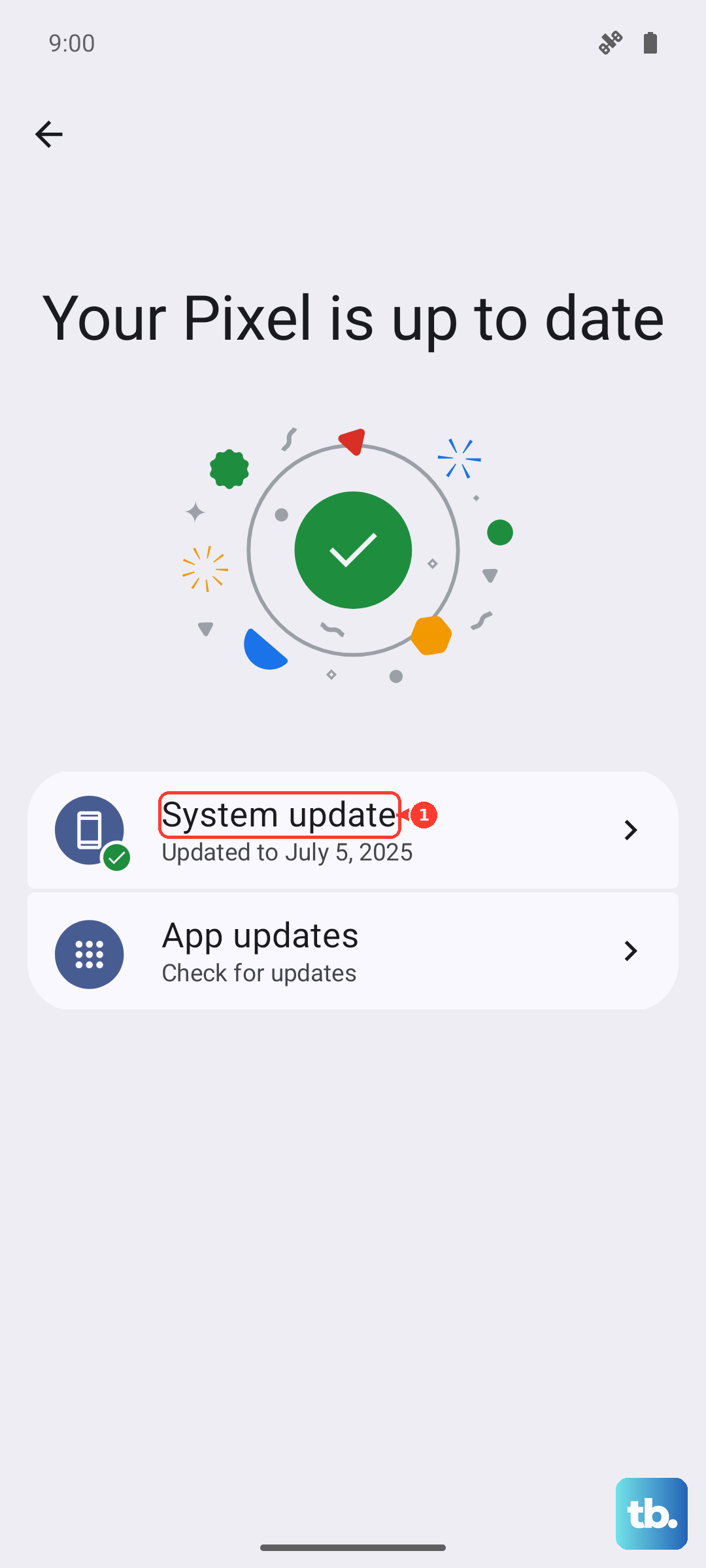
Outdated apps can sometimes have bugs that cause excessive battery drain. Open the Galaxy Store and Google Play Store, check for updates, and make sure everything is current. An update might resolve a background process that's gone rogue.
Enable Power Saving Modes
Your Galaxy A56 has built-in power saving features. You can turn on Power saving mode from the quick settings panel or in Settings > Battery > Power saving. This mode limits background network usage and slightly reduces performance to save power.
For a more aggressive approach, there's also Adaptive power saving. You can find it in the same battery settings menu. This mode automatically adjusts settings based on your usage patterns, switching to a stricter power saving mode when it predicts your battery won't last until your next charge.
Check for a Faulty Charger or Cable
Since the Galaxy A56 doesn't come with a charger in the box, you might be using an old or incompatible one. For the fastest and most efficient charging, you need a charger that supports USB Power Delivery (PD) and can output at least 25W.
Using a slow or damaged charger can mean your phone takes longer to charge and might not reach a full charge efficiently. Try a different, high-quality USB-C cable and a known-good 25W PD charger to see if your battery life perception improves after a proper charge cycle.
Look for Moisture Detection Alerts
A known quirk with Samsung phones is the moisture detection feature in the USB-C port. If it gets triggered, it can prevent proper fast charging, leading to slow charging and the feeling that the battery dies fast.
If you see a water droplet icon in your status bar or a warning message, power the phone off completely. Use a can of compressed air to gently blow out the port, and let it dry thoroughly for a few hours before attempting to charge again.
Perform a Force Restart
Sometimes, a temporary software glitch can cause high battery drain. A force restart can clear this without deleting any data. Press and hold the Volume Down button and the Side key (power button) together for about 10 seconds.
Release the buttons when you see the Samsung logo appear. This is the equivalent of a reboot and can stop any errant processes that are stuck and consuming CPU cycles in the background.
Examine Your Cellular Signal Strength
If you're often in an area with a weak cellular signal, your phone has to work much harder to maintain a connection. This constant searching is a major battery drain. You might notice your battery drops faster when you have only one or two signal bars.
When you're in a low-signal area for a long time, like a basement or rural spot, consider enabling Airplane mode if you don't need calls or texts. You can usually still turn Wi-Fi back on while Airplane mode is active to stay connected.
Reset All Settings
If you've tried everything else and the drain persists, a settings reset can help. This won't delete your photos, messages, or apps, but it will revert all system settings (like Wi-Fi passwords, Bluetooth pairings, and display preferences) back to default. Go to Settings > General management > Reset > Reset all settings.
This is a good last step before considering anything more drastic. It can eliminate any odd configuration or toggle that might have been accidentally set and is contributing to the problem.