
If your brand new Samsung Galaxy S26 is running out of juice way too fast, it's incredibly frustrating. I've seen this a lot with new phones, and the good news is it's often a software setting or a rogue app that's easy to fix. Let's start with the most common culprit and work our way through the list.
Check Battery Usage and Health First
Before you change anything, you need to see what's actually eating your battery. Samsung's battery menu is very detailed. Go to Settings > Battery and device care > Battery.
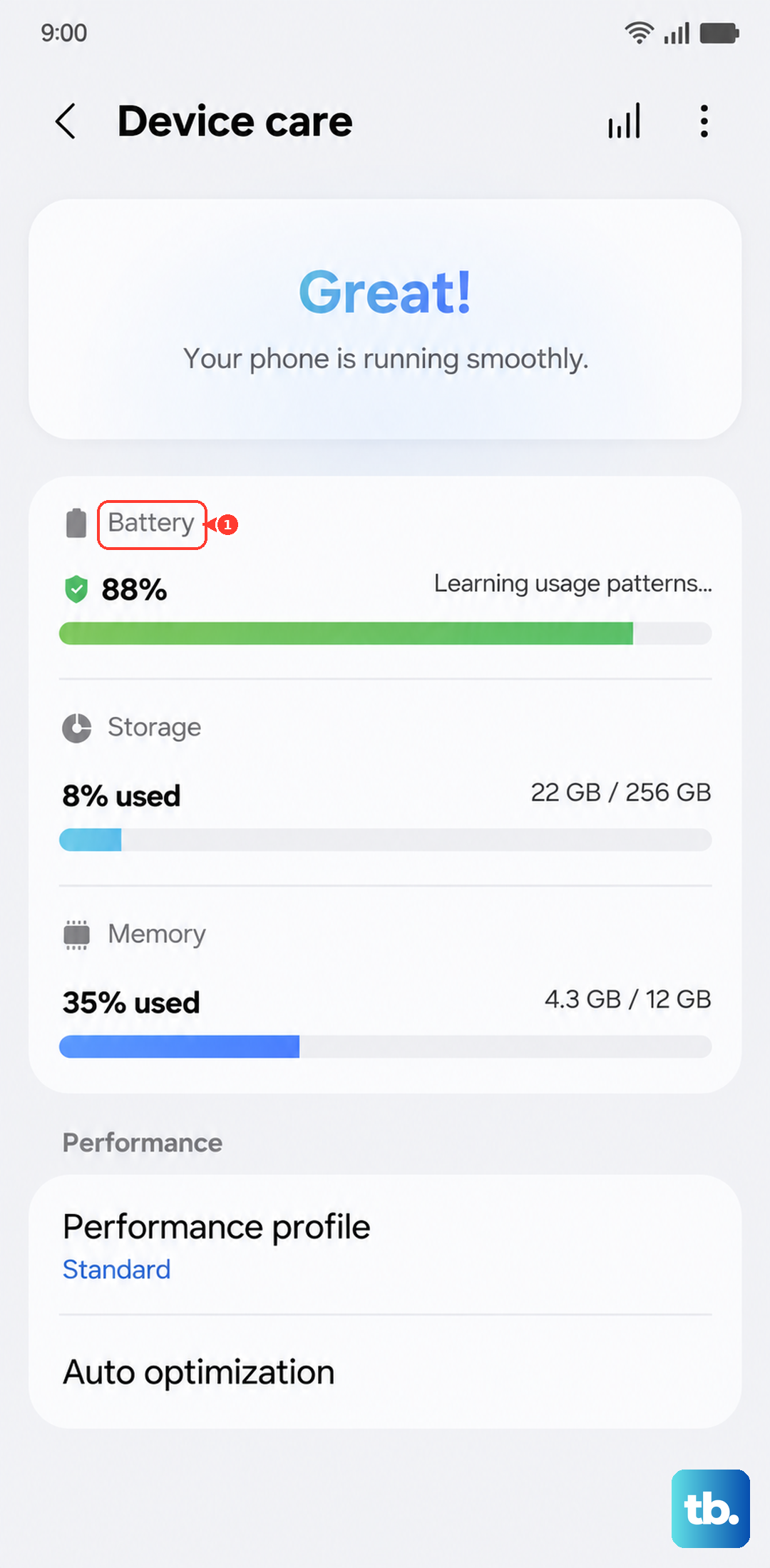
Here, tap on "Battery usage." This will show you exactly which apps have been using power over the last 24 hours or 7 days. If you see a social media, gaming, or navigation app at the top with a huge percentage, that's your likely villain. Also, scroll down in the main Battery menu to find "More battery settings" and check your battery health. Since the S26 is new, it should be at 100%, but it's a good baseline.
Update Your Software Immediately
This is the single most important step for a 2026 device. The Galaxy S26 runs the brand new One UI 8.5 on Android 16, and early software versions almost always have battery optimization bugs. Go to Settings > Software update > Download and install.
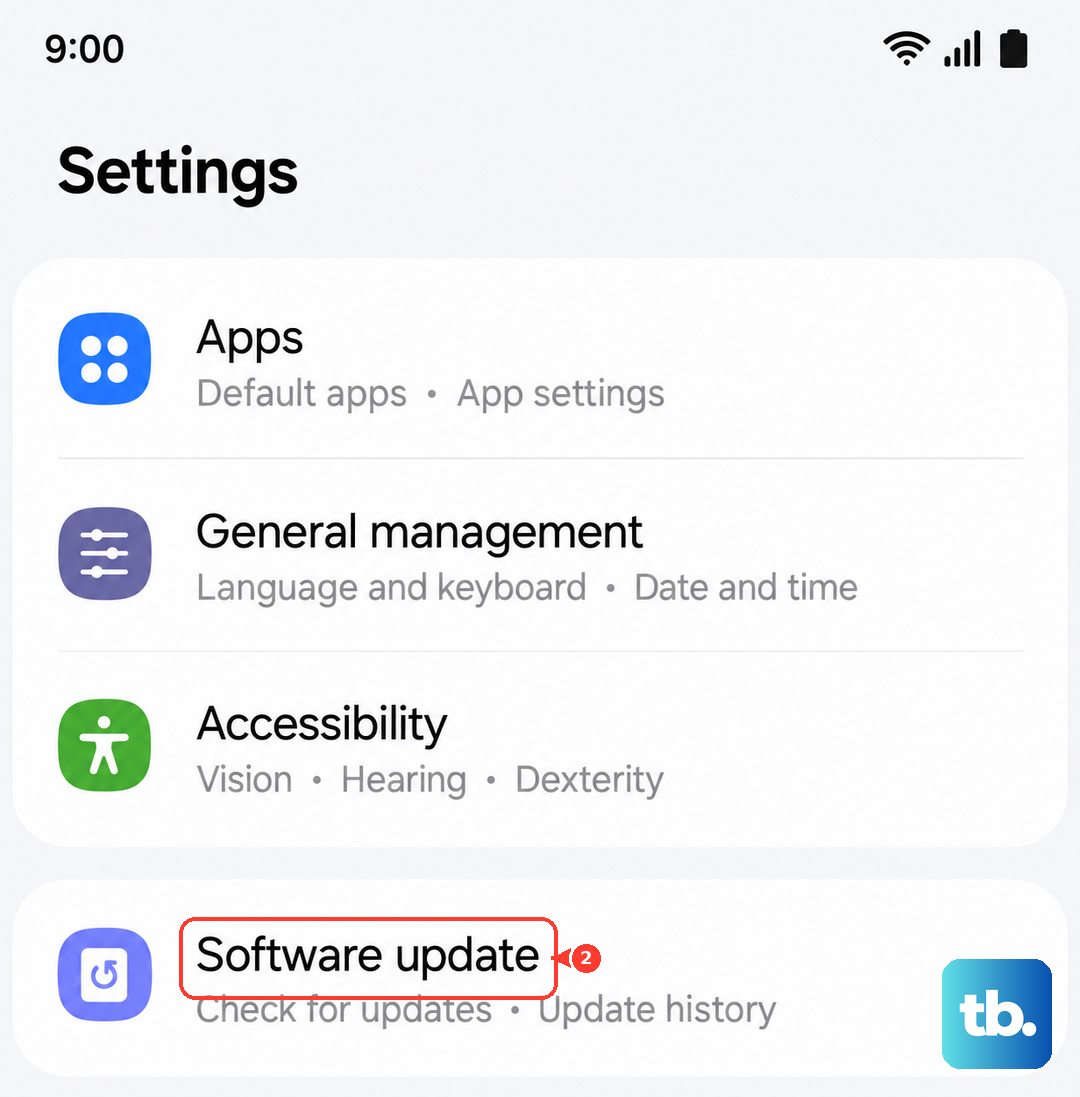
Let it check for updates and install anything available. Samsung frequently pushes out patches in the first few months to fix exactly these kinds of performance and drain issues. I'd do this before anything else.
Manage Your Display Settings
The screen is the biggest battery drain on any phone. On the S26, you have a stunning but power-hungry display. First, open Settings > Display. Turn on "Dark mode" if you haven't already, as it saves significant power on the S26's OLED screen.
Next, tap "Motion smoothness." If it's set to "Adaptive" (120Hz), try switching it to "Standard" (60Hz). The difference in smoothness is noticeable, but so is the battery life gain. Also, reduce your screen brightness manually or ensure "Adaptive brightness" is on so it isn't always at max.
Finally, shorten the screen timeout. Tap "Screen timeout" and set it to 30 seconds or 1 minute. This ensures your display isn't staying on unnecessarily when you put the phone down.
Control Background Activity and Location
Apps running in the background are a silent killer. Go to Settings > Apps. Tap the three-dot menu, select "Special access," and then "Optimize battery usage." You can change the dropdown to "All apps" and disable background optimization for critical apps like your messaging service, but enable it for everything else.
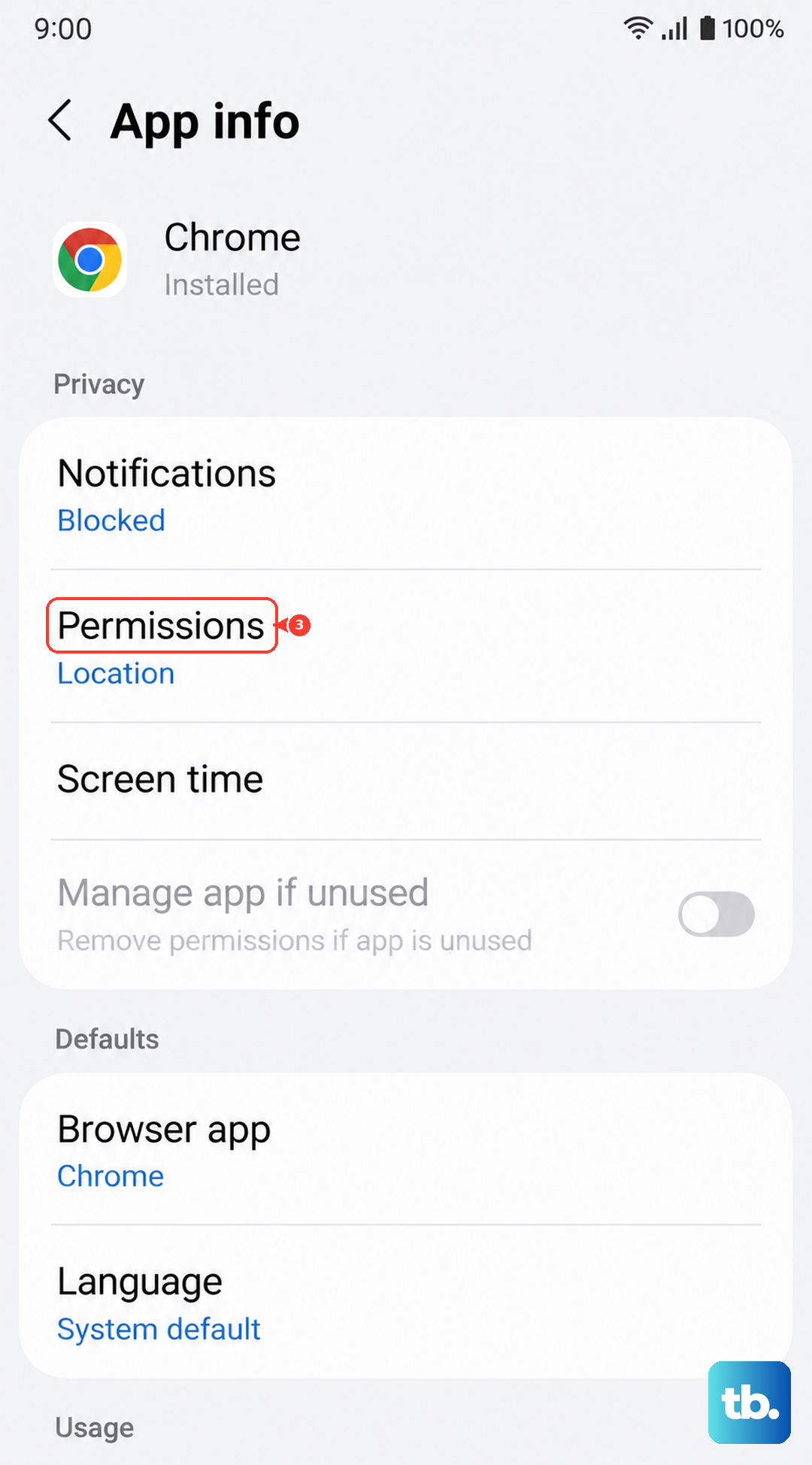
Location services are another major drain. Navigate to Settings > Location. Review the "App permissions" list and change any app that doesn't absolutely need to know where you are to "Allow only while using the app" or "Deny." Also, go into Google Location Accuracy and turn off "Improve accuracy" if you don't need it, as it uses Bluetooth and Wi-Fi scanning.
Review Your Charging Habits and Settings
How you charge can affect perceived battery life. The S26 supports 25W Super Fast Charging over USB Power Delivery (PD3.0), but you need a compatible 25W USB Power Delivery charger and cable to hit those speeds. Using a slow, old charger will make it seem like the phone charges slowly and drains fast.
Also, check Settings > Battery > More battery settings > Ching settings. Features like "Adaptive battery" and "Battery protection" are helpful. "Battery protection" (Maximum mode) limits charge to 80% by default to preserve long-term health, which means you start the day at 80% unless you raise the limit. If you need a full charge, you can temporarily turn this off.
Perform a Force Restart
If the phone is acting sluggish and the battery is plummeting, a simple software glitch might be the cause. A force restart can clear it without deleting any data. Press and hold the Volume Down button and the Side/Power button together for about 10 seconds.
Keep holding until you see the Samsung logo appear on the screen, then release. Let the phone reboot normally. This is different from a regular restart and can fix temporary system hangs that cause excess battery drain.
Check for a Moisture Detection Error
This is a common Samsung quirk. If the phone falsely thinks there's moisture in the USB-C port, it will severely limit charging and can cause other power management issues. You'll usually see a warning alert. If you see this and know the port is dry, try turning the phone off completely.
Then, use a can of compressed air to gently blow into the port, or a dry toothpick to very carefully clear any lint. After cleaning, turn the phone back on and try charging again. The error should clear if the port is truly dry.
Disable Unused Connections and Features
Turn off what you aren't using. Swipe down twice from the top of the screen to open your Quick Settings panel. Make sure Wi-Fi, Bluetooth, NFC, and Location are off when you don't need them. The S26 also has Wireless PowerShare to charge other devices, which drains your battery quickly if left on by accident.
You can find it by searching "Wireless PowerShare" in Settings. Also, consider reducing haptic feedback strength for keyboard taps and system interactions in Settings > Sounds and vibration.
Reset All Settings
If you've tried everything and the drain persists, a settings reset can help. This won't delete your photos, apps, or personal data, but it will revert all system settings (Wi-Fi passwords, Bluetooth pairings, display preferences) back to default. Go to Settings > General management > Reset > Reset all settings.
Enter your PIN if prompted and confirm. After the phone reboots, you'll need to reconfigure your preferences, but it often resolves conflicts causing abnormal battery use.
Identify and Remove Problem Apps
Return to Settings > Battery and device care > Battery > Battery usage. If a specific app is consistently at the top of the list, that's your problem. Tap on the app name. You can force stop it here or tap "App info" to open its full settings page.
On the app's info page, you can clear its cache and data (note: data clearing may log you out), or simply uninstall it. Try using the phone for a few hours after removing a suspected app to see if battery life improves.
Enable Adaptive Battery and Put Apps to Sleep
Samsung has powerful built-in tools for this. Go back to Settings > Battery and device care. Tap "Battery," then "Background usage limits." Here you'll see "Put unused apps to sleep" and "Deep sleeping apps."
You can add apps to these lists manually. The system will also learn your usage patterns over a week or so and automatically restrict background activity for apps you rarely open, which can make a big difference in daily endurance.