
If your Samsung Galaxy S25 feels unusually warm, the first thing to check is your charging setup. A common culprit is using a charger that isn't optimized for the phone. The S25 supports up to 25W wired charging, but damaged or incompatible charging accessories can cause heat or charging problems. I'd start by switching to an official Samsung 25W charger and cable.
Also, take a look at what's running. A rogue app or a game running at maximum graphics can push the processor hard. Swipe up from the bottom and hold to see your recent apps, then close anything you're not using. If the phone is hot while charging, try taking it out of its case. Thick cases can trap heat, especially during fast charging or wireless charging sessions.
Check for Problematic Apps and Background Activity
Head to Settings > Battery > View details to review app battery usage. To limit background activity, go to Settings > Battery > Background usage limits. Open Sleeping apps or Deep sleeping apps, tap the plus sign, select apps, then tap Add. Deep sleeping apps only work when you open them; sleeping apps may still run in the background.
For a more immediate check, go to Settings > Developer options. If you don't see this, enable it by going to Settings > About phone > Software information and tapping "Build number" seven times. Once in Developer options, find "Running services." This shows you exactly which processes are active and how much memory they're using, helping you spot a misbehaving app.
Sometimes, a recent app update can introduce bugs that cause excessive CPU load. If you notice heating started after installing a specific app, try uninstalling it temporarily to see if the temperature returns to normal. You can also boot the phone into Safe mode by pressing and holding the Side and Volume down buttons together, then touching and holding "Power off" and tapping "Safe mode." If the phone runs cool in Safe mode, a third-party app may be the cause.
Optimize Your Charging Habits
Wireless charging, while convenient, generates more heat than wired charging. The S25 supports Fast Wireless Charging 2.0, but if the phone is getting hot, disconnect the charger and let it cool before charging again. Keep metal objects and credit cards away from the space between the phone and wireless charger. Also, avoid using the phone intensively while it's wirelessly charging, as this compounds the heat generation.
Check your battery settings for features meant to protect battery health, including "Adaptive battery" and "Battery protection." To adjust Battery protection, go to Settings > Battery > Battery protection. Adaptive battery learns your usage patterns to optimize performance, which can help. The "Battery protection" feature can cap charging to prolong battery lifespan (its Maximum mode lets you select an 80%, 85%, 90% or 95% limit).
If you ever see a "Moisture detected in USB port" warning, charging may stop to protect the phone. Disconnect the charger, gently shake the phone to remove moisture from the port, and wipe it with a soft, clean cloth. Let it dry in a well-ventilated area using cool air; the charging port must be completely dry before charging again. Never try to charge the phone while this warning is active.
Adjust Display and Performance Settings
The Galaxy S25's vibrant display is a major power user. Reducing screen brightness can have a direct impact on temperature. Consider enabling adaptive brightness so it adjusts automatically. Also, check your screen timeout setting and set it to a shorter duration like 30 seconds or 1 minute.
For performance, navigate to Settings > Battery > Power saving. You can toggle on Power saving mode, which limits network use, data synchronisation, and background location information. This is a quick way to cool things down if you don't need peak performance.
If you use a high refresh rate, it can contribute to heat during extended use. You can lower it in Settings > Display > Motion smoothness. Switching from 120Hz (Adaptive) to 60Hz (Standard) reduces the workload on the GPU and processor. The standard Galaxy S25 has a fixed FHD+ display, so it has no screen resolution setting to lower.
Update Software and Perform a Reset
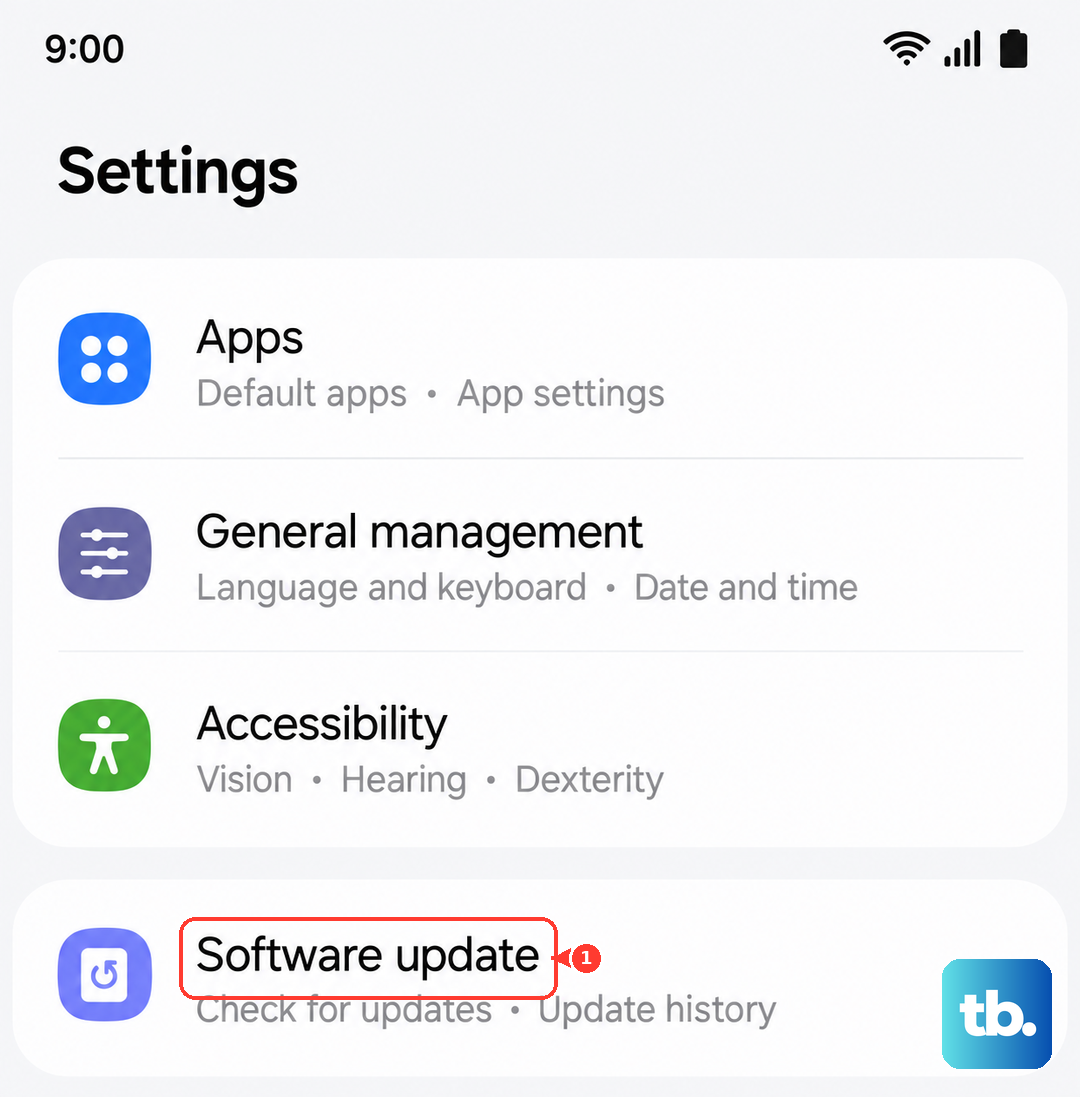
Software bugs in One UI or Android can sometimes cause thermal management issues. Always make sure your phone is running the latest software. Go to Settings > Software update > Download and install. Software updates can improve system efficiency and reduce unnecessary power consumption.
If the heating is sudden and severe, a forced restart can clear any temporary software glitches. Press and hold the Side and Volume down buttons together for more than 7 seconds until the phone restarts. This doesn't delete any data.
For persistent overheating that isn't solved by app management or settings changes, you may need to reset all settings. This returns your network, display, and keyboard settings to default without touching your personal data. Go to Settings > General management > Reset > Reset all settings. If the problem continues after this, it could point to a hardware issue, such as a faulty battery, which would require professional service.