If your Galaxy S24 battery is draining faster than it should, the first thing I'd check is the battery protection setting. Head to Settings > Battery > Battery protection.
If Maximum is selected, your phone stops charging at your chosen limit of 80%, 85%, 90%, or 95% to preserve long-term battery health. It's a great feature, but it means you're starting your day with less than a full tank. Choose Basic if you need a full charge for a long day. Adaptive limits charging during sleep and switches to Basic before you wake.
Another quick check is the charging port if your phone isn't charging properly. Unplug the cable, turn the phone off, and inspect the USB-C port with a flashlight. Carefully remove visible debris with a soft, dry brush, without using metal objects or liquids. If you see a "Moisture detected" warning, leave the cable unplugged while the port dries.
Check What's Actually Using Your Battery
Before you start turning everything off, take two minutes to see where your power is really going. Go to Settings > Battery. Here you'll find detailed usage stats.
Tap on "View details" or "Battery usage" to see which apps have been the biggest drain over the last 24 hours or 7 days. Pay special attention to apps running in the background. A social media or messaging app that's constantly refreshing can be a silent battery killer.
This screen also shows your screen-on time. If it's unusually high, your display settings are the next place to look. The screen can be a major consumer of battery power.
Optimize Your Display Settings
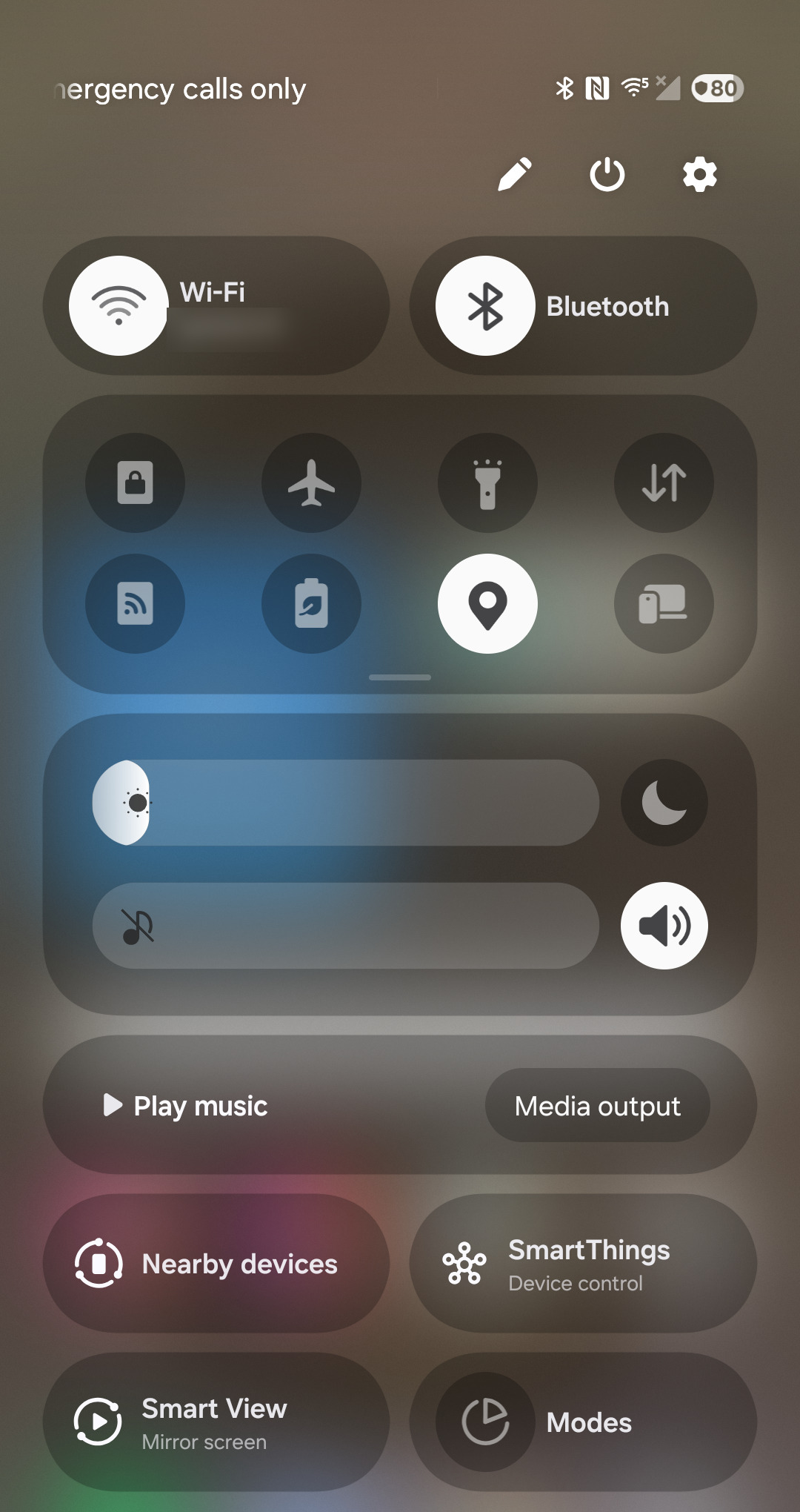
The S24's bright, smooth display is fantastic, but it demands power. Start by pulling down the quick settings panel and adjusting the brightness slider down to a comfortable level. Automatic brightness is smart, but manually setting it a bit lower can make a real difference.
Next, consider the refresh rate. Go to Settings > Display > Motion smoothness. The "Adaptive" setting switches between 1Hz and 120Hz for smooth scrolling. Switching this to "Standard" (60Hz) can help save battery power by limiting the refresh rate.
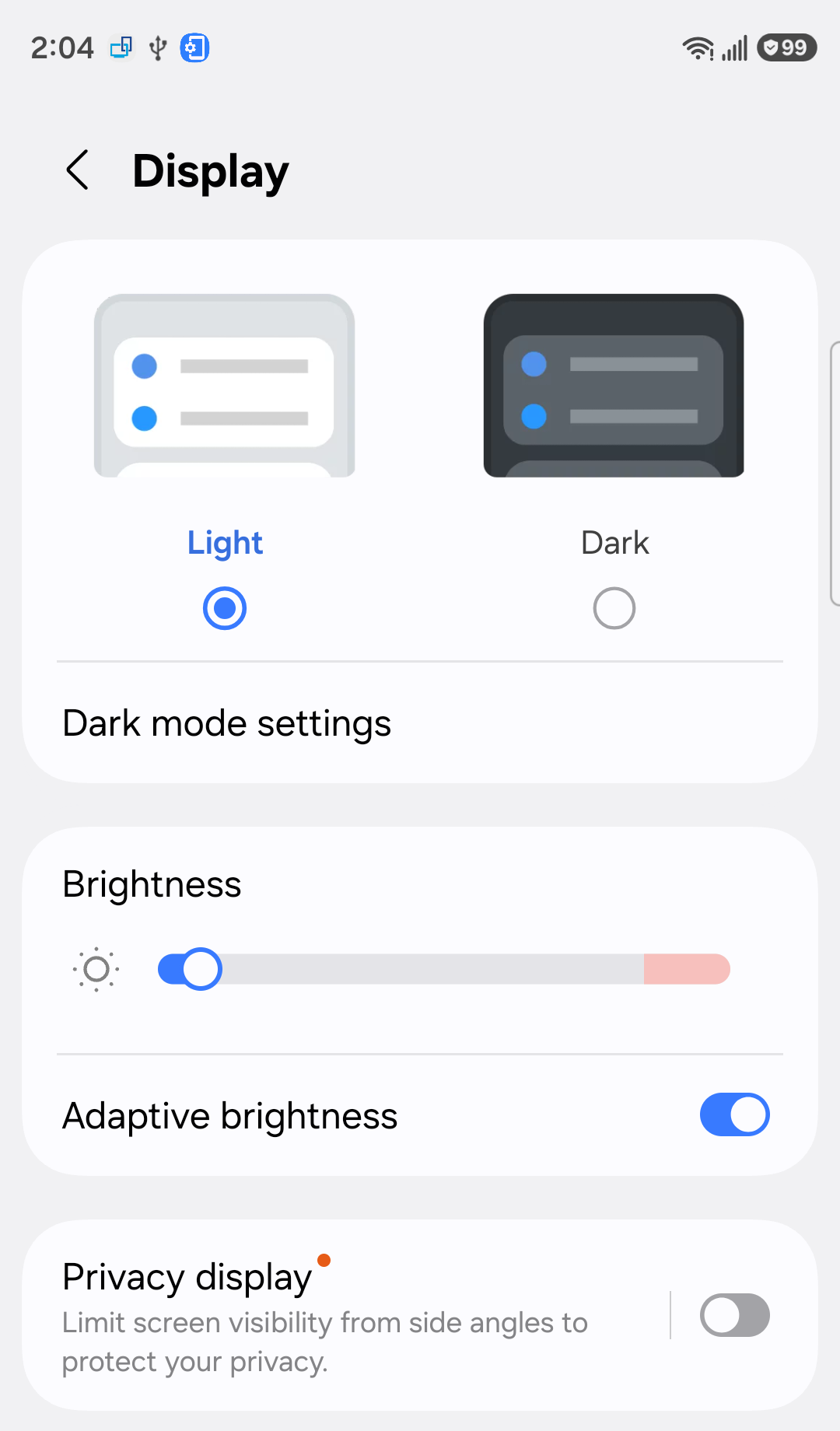
Also in the Display settings, set your screen timeout to a shorter duration, like 15 or 30 seconds. This ensures your screen turns off quickly when you're not using it. Using a dark wallpaper and enabling Dark mode (in Settings > Display) also helps, especially with the S24's OLED screen.
Manage App Permissions and Background Activity
Apps that constantly use your location are a major drain. Go to Settings > Location. Here, you can see which apps recently accessed your location. Tap on individual apps and change the permission from "Allow all the time" to "Allow only while using the app" or "Ask every time."
You can also restrict background data for specific apps. Go to Settings > Apps, select a power-hungry app, then tap Mobile data. Toggle off "Allow background data usage." This stops the app from using data when you're not actively in it.
For a broader approach, use the built-in optimization. Go to Settings > Battery > Background usage limits. Enabling "Put unused apps to sleep" automatically manages apps you haven't opened in a while.
Review Connectivity and System Features
Turn off Bluetooth, Wi-Fi, and NFC when you're not using them. You can do this quickly from the quick settings panel. If you're in an area with a weak cellular signal, your phone works harder to maintain a connection, which drains the battery faster. Switching to Airplane mode in these situations can help, or just try to connect to Wi-Fi.
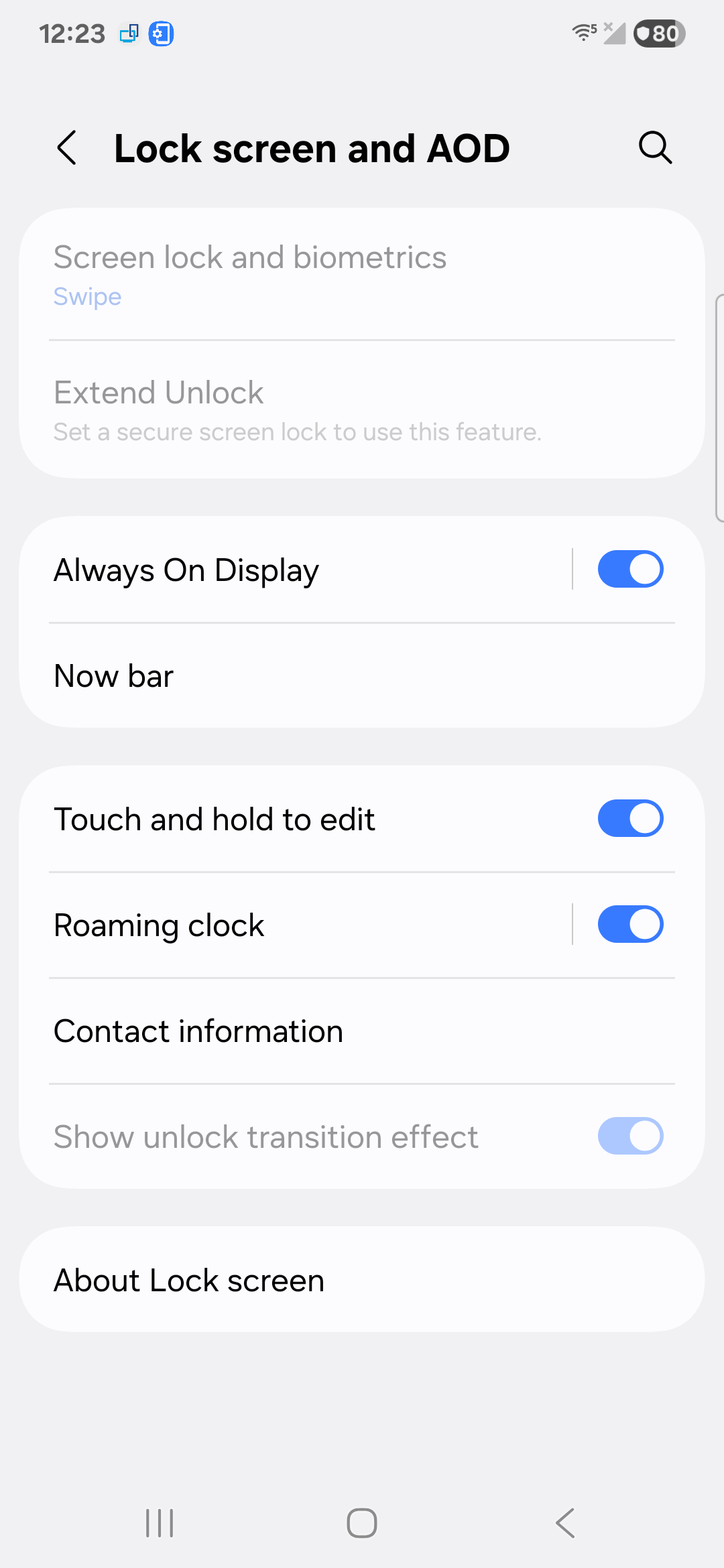
Some of the S24's advanced features, while cool, can impact battery life. Consider whether you actively use features like Always On Display (in Settings > Lock screen and AOD) or Edge panels. If not, turning them off is an easy win. Also, check Settings > Advanced features for any motion or gesture controls you don't need.
Update Your Software and Apps
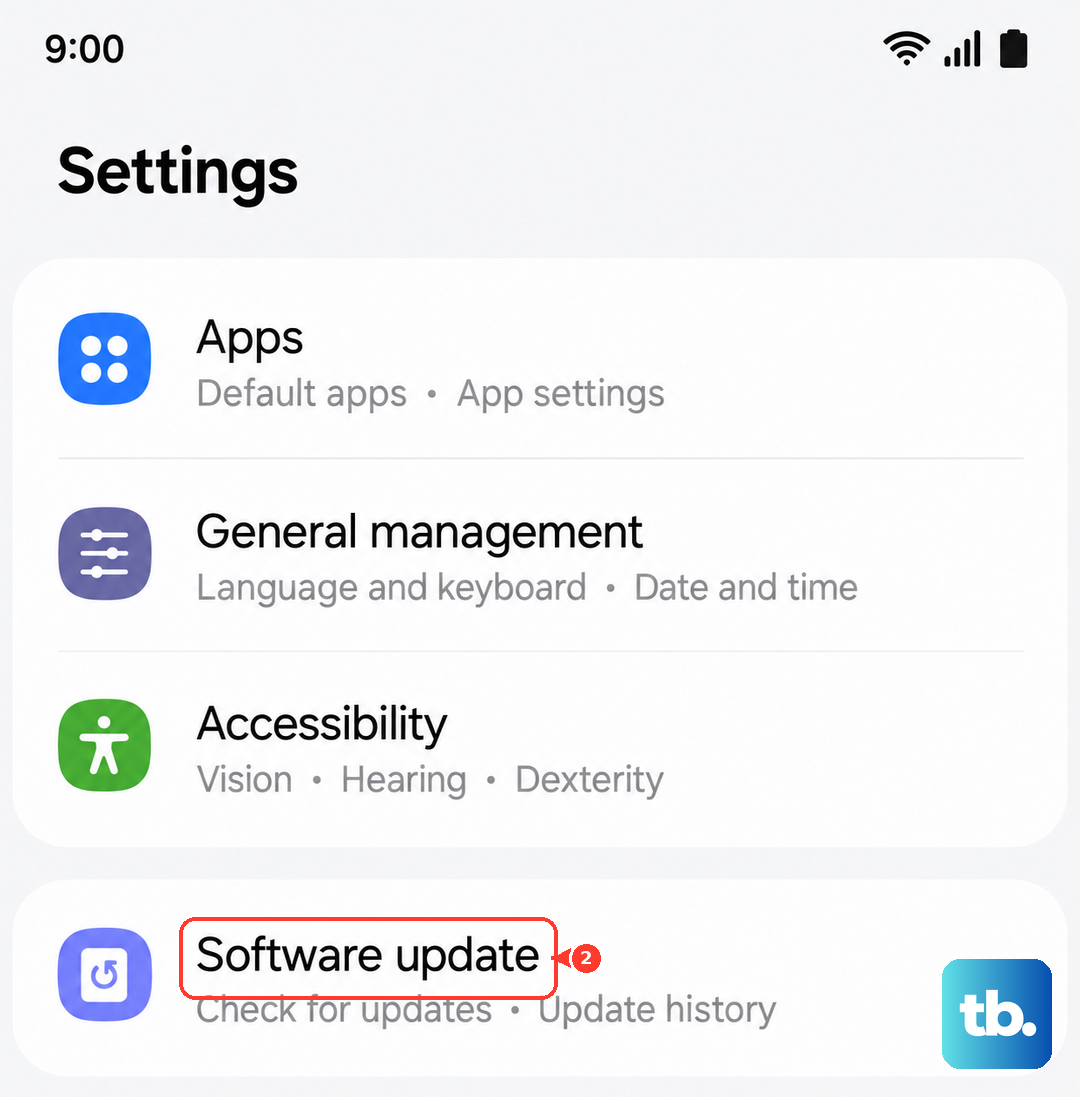
Software updates often include battery performance improvements and bug fixes. Go to Settings > Software update > Download and install to check for the latest One UI and Android security updates. I've seen updates specifically address battery drain issues reported by users.
Make sure your apps are updated too. Developers frequently release optimizations. Open the Galaxy Store and Google Play Store, check for updates, and install them all. An outdated app can sometimes misbehave and cause excessive background drain.
Perform a Quick Reset and Deeper Check
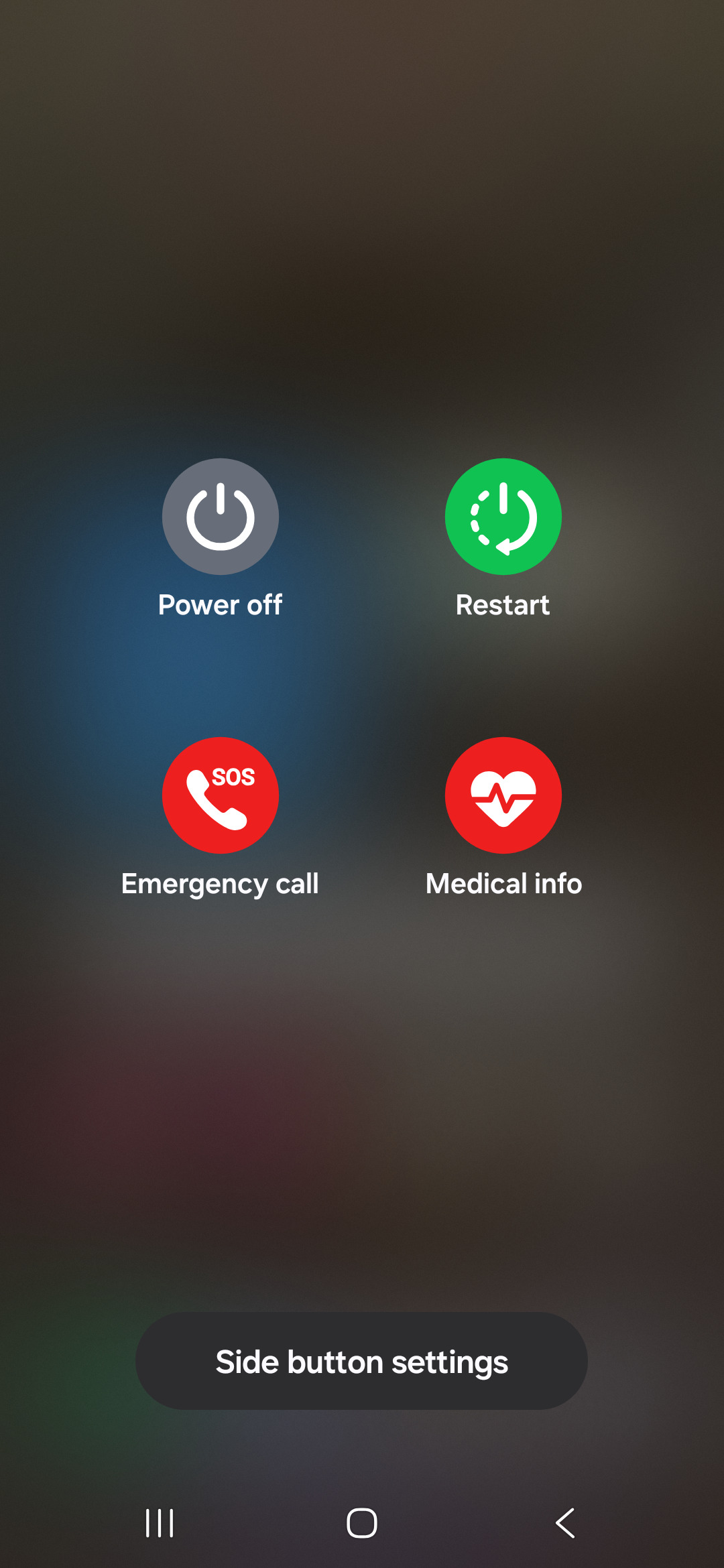
If you're still having issues after trying the steps above, a soft reset can clear out temporary glitches. Press and hold the Side button and the Volume down button together for more than 7 seconds until the phone restarts. This doesn't delete any data.
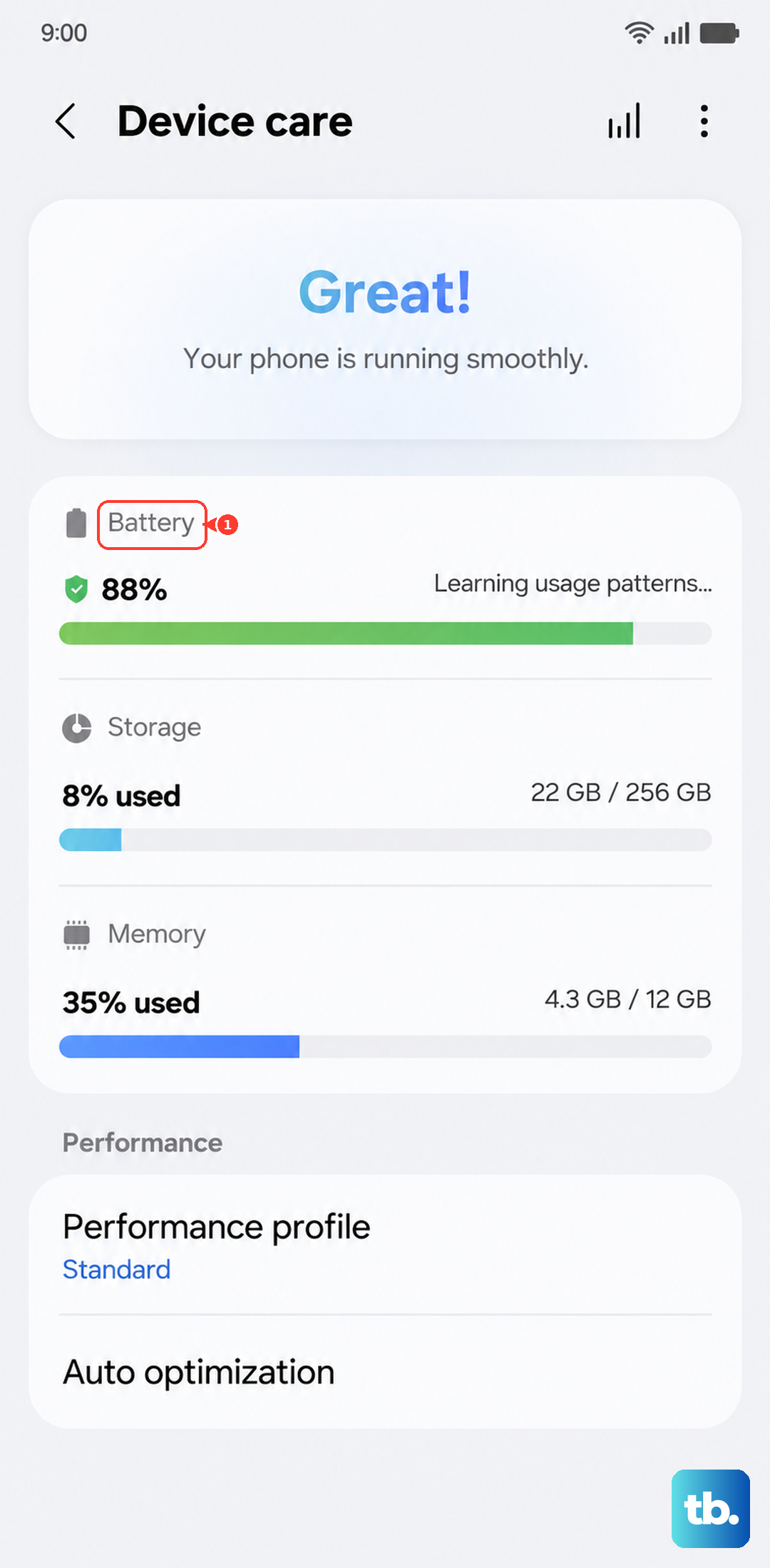
For a more thorough cleanup, clear the cache of apps that use a lot of battery: go to Settings > Apps, select the app, then tap Storage > Clear cache. You can also open Settings > Device care and tap Optimize now if it appears. This clears temporary files that might be causing problems.
Finally, if the drain is severe and sudden, consider if a recently installed app is the culprit. Try booting the phone into Safe mode. Press and hold the Side and Volume down buttons together to open the power menu, then touch and hold "Power off" and tap "Safe mode." In Safe mode, only pre-installed apps run. If the battery life improves dramatically, a third-party app is likely to blame.