
When the predictive text on your Samsung Galaxy A55 stops working, it can really slow you down. You might notice it's not suggesting the next word, the autocorrect is making bizarre changes, or the whole keyboard feels a bit off. The good news is this is almost always a software hiccup you can fix yourself.
I'd start with a simple restart. It sounds basic, but it clears out temporary glitches that can mess with the keyboard's brain. Just press and hold the Volume Down and Side button together for about ten seconds until you see the Samsung logo.
Check Your Keyboard Settings
Before diving deeper, it's worth a quick check to make sure predictive text didn't just get turned off by accident. Open any app that uses the keyboard, like Messages, and tap to bring it up.
Look for the gear icon on the top row of the keyboard and tap it. In the menu that pops up, make sure the "Predictive text" toggle is switched on. If it's already on, try turning it off and back on again right there.
Clear the Keyboard's Cache
If a quick toggle doesn't do it, the next step is to clear the keyboard's cache. This gets rid of temporary files that might have become corrupted.
Go to Settings > Apps. Tap the three-dot menu in the top right and select Show system apps. Scroll down and find Samsung Keyboard.
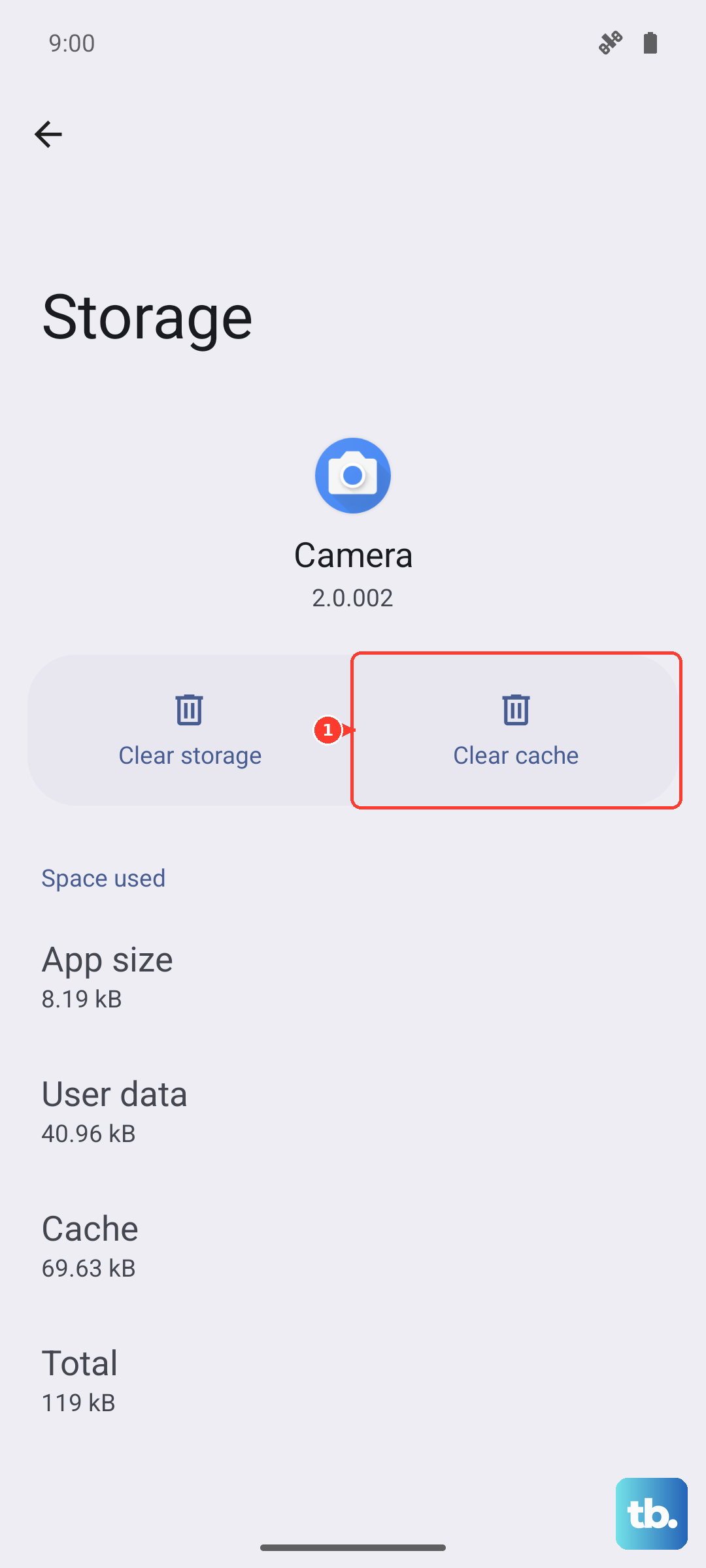
Tap on it, then go to Storage. Tap Clear cache. This won't delete any of your personal data or saved words, it just cleans out the junk.
Update the Keyboard and Language Files
An outdated keyboard app or language pack can cause these kinds of issues. First, let's check for a keyboard update in the Galaxy Store, as that's where Samsung pushes its own app updates.
Open the Galaxy Store, tap the menu icon, and go to Updates. See if Samsung Keyboard is listed there. If it is, update it. Next, we need to update the language files themselves.
Go to Settings > General Management > Language & input > On-screen keyboard > Samsung Keyboard. Tap Languages and types, then Manage input languages.
Tap the three-dot menu and select Check for an update. Download any available updates for your language.
Reset the Keyboard to Default
If predictions are still broken, resetting the keyboard can wipe away any bad settings. This will erase your personalized dictionary and any custom settings you've changed, like keyboard height or vibration strength.
You'll find the reset option in the same menu. Go to Settings > General Management > Language & input > On-screen keyboard > Samsung Keyboard.
Scroll all the way to the bottom and tap Reset to default settings. Confirm your choice. After the reset, you'll need to go back into the Smart typing menu and make sure Predictive text is enabled again.
Clear the Keyboard's Data as a Last Resort
This is the most thorough fix short of a full phone reset. Clearing the keyboard's data will completely reset it, like it's brand new. You will lose all saved words, custom dictionaries, and settings.
Head back to Settings > Apps. Show system apps and select Samsung Keyboard. This time, tap Storage and then Clear data.
After doing this, open your keyboard again. You may get a setup prompt to agree to terms and choose a language. Go through that, and then check if predictive text is functioning.