
Is your Samsung Galaxy A55 stuck in portrait mode and refusing to flip when you turn it sideways? This is a common hiccup with the auto-rotate feature, and it's usually something simple you can fix yourself in a minute or two.
Let's start with the quickest and most likely solution. Pull down your notification shade from the top of the screen and look for the icon that says "Portrait" or shows a phone with a lock. Tap that icon once to change it to "Auto rotate." If the icon turns blue, you've just re-enabled it.
Enable Home Screen Rotation in One UI
By default, your Galaxy A55's home screen won't rotate to landscape, even with auto-rotate on. This is a One UI design choice, not a bug. If you want your home screen and app drawer to rotate, you need to flip a separate switch.
Pull down the notification panel and tap the text that says "Portrait" or "Auto rotate," not just the icon. A small menu will pop up. Here, you'll see an option for "Home screen and Voice call screen." Simply toggle that switch on.
Restart Your Galaxy A55
If the setting was already correct, a simple restart can clear out any temporary software glitch that's confusing the sensor. Just press and hold the side button, then tap "Restart" on the screen when the menu appears.
Wait for the phone to power down and boot back up completely. This takes about 30 seconds. Once it's back on, open an app like Gallery or YouTube that supports landscape mode and tilt your phone to see if it responds.
Perform a Force Restart
When a normal restart doesn't cut it, a force restart is the next step. This is a bit more thorough and can clear deeper system caches without touching your personal data.
On the Galaxy A55, you force restart by pressing and holding the Volume Down button and the Side button together for about 10 seconds. Keep holding until you see the Samsung logo appear on the screen, then let go. Your phone will boot up normally.
Check for App-Specific Rotation Locks
Sometimes the issue isn't with your phone, but with a specific app. Not all apps support landscape orientation. Open a few different apps like your internet browser, the camera, and a video app to see if the problem is universal or isolated.
I've seen some third-party apps, especially older ones or certain launchers, interfere with system-wide rotation. If the problem started after installing a new app, try uninstalling it to see if that restores normal function.
Update Your Phone's Software
Software bugs in One UI or Android can occasionally break sensor functions like auto-rotate. Samsung regularly releases updates that fix these kinds of issues. It's a good habit to check for updates every few weeks.
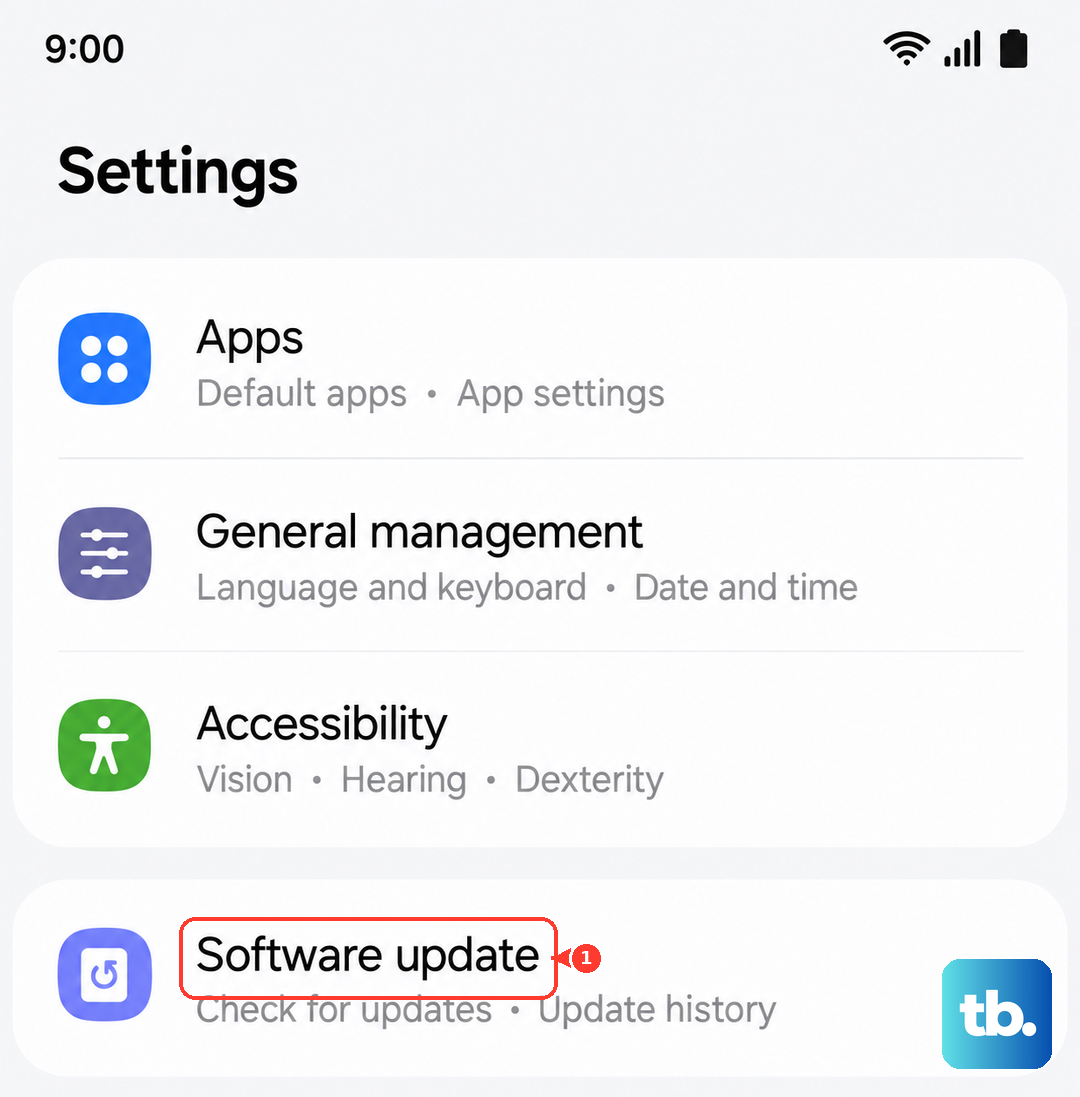
Go to Settings > Software update > Download and install. If an update is available, connect to Wi-Fi and let it install. Your phone will restart as part of the process, which often resolves the problem on its own.
Test the Phone's Sensors
Auto-rotate depends on the accelerometer and gyroscope inside your A55. Samsung includes a hidden diagnostic menu to test these hardware components. Open your Phone app and dial *#0*# to enter the secret test mode.
Tap on "Sensor" from the list of options. You'll see a screen with various readings. Tilt and rotate your phone in your hand. The X, Y, and Z angle values should change rapidly and smoothly as you move. If they're stuck at zero or don't change, it could point to a hardware fault.
Consider Physical Factors and Hardware
Make sure you're not accidentally touching the screen while you try to rotate the phone. The touch input can sometimes override the rotation command. Also, if your phone has a thick case, try removing it, as some cases can physically restrict the phone's movement or put pressure on the frame.
If you've tried every step here and the sensors test failed, the issue might be physical. The Galaxy A55's IP67 rating means it's dust and water resistant, but it's not as robust as a flagship model. Past water exposure or a hard drop could damage the internal sensors.
In that case, reaching out to Samsung Support or visiting an authorized service center would be the next logical step to get a professional diagnosis.