
When your Samsung Galaxy A55 won't download apps, it can bring your phone to a standstill. You're trying to get a new app or update an existing one, and it just hangs or throws an error. This is a common headache, but it's almost always fixable with a few steps.
Let's go through the most effective ways to get your Galaxy A55 downloading from the Google Play Store again.
Check Your Internet Connection First
This is the most common culprit. Whether you're on Wi-Fi or mobile data, the connection needs to be stable. Pull down the notification shade from the top of your screen and make sure the Wi-Fi or mobile data icon is active and has a strong signal.
If you're on Wi-Fi, try turning it off and switching to mobile data to see if the download starts. Some public or corporate Wi-Fi networks can block the ports the Play Store uses.
Restart Your Galaxy A55
A simple restart clears out temporary glitches that can stall the download process. If downloads were working before and suddenly stopped, this often fixes it right away.
Just press and hold the Side button and tap 'Restart' on the screen. If your phone is unresponsive, you can force restart it by pressing and holding the Volume Down button and the Side button together for about 10 seconds until you see the Samsung logo.
Verify the Date and Time Are Correct
Google's servers use your phone's time to verify downloads. If your date or time is wrong, it can cause downloads to fail. Go to Settings > General management > Date and time.
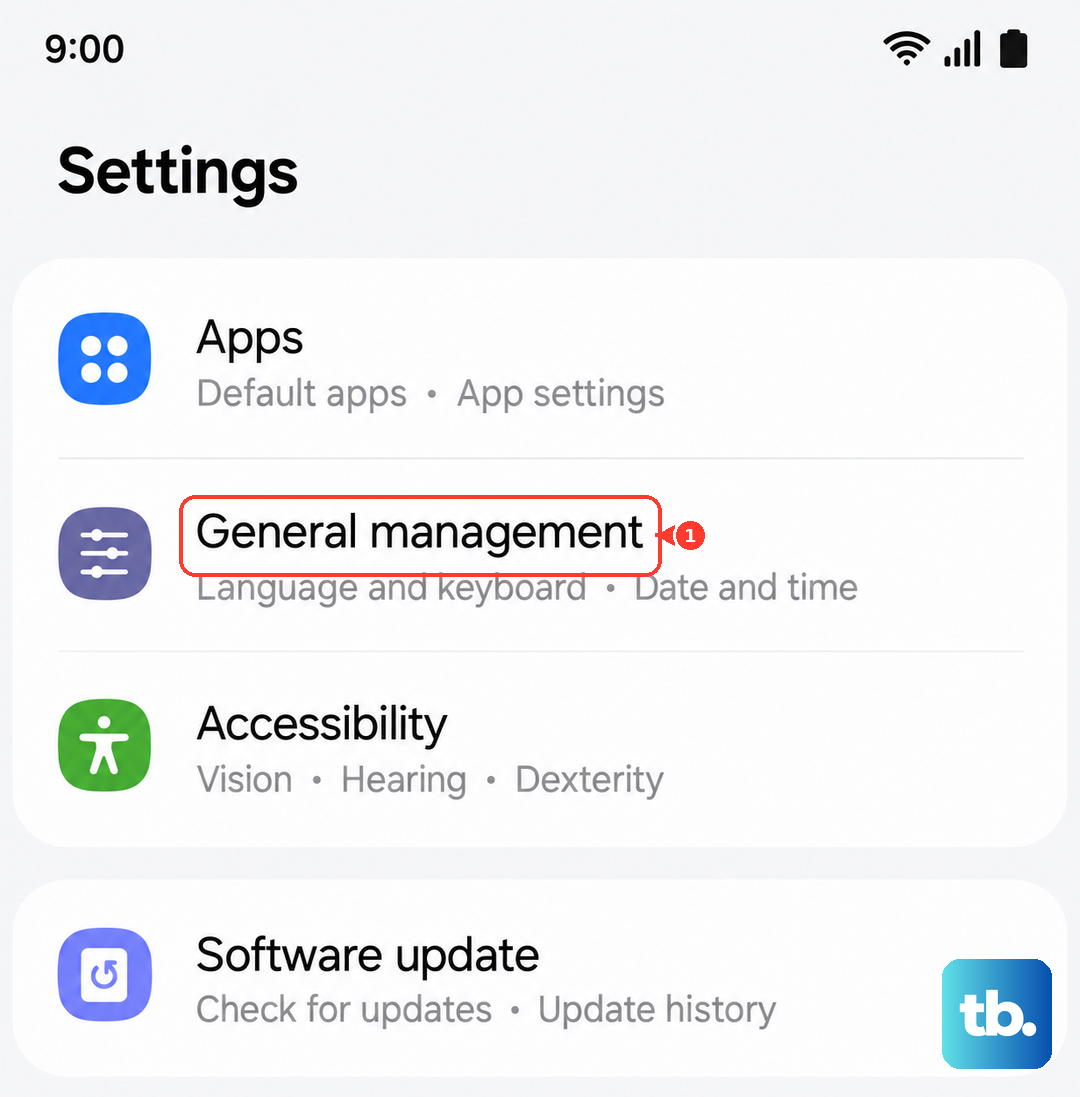
Make sure 'Automatic date and time' is turned on. If it's already on and you're still having issues, try turning it off briefly, manually setting the correct time, and then turning automatic back on.
Clear the Google Play Store Cache
Corrupted temporary files in the Play Store app itself can cause problems. Clearing the cache is a safe first step that doesn't delete any of your data or accounts.
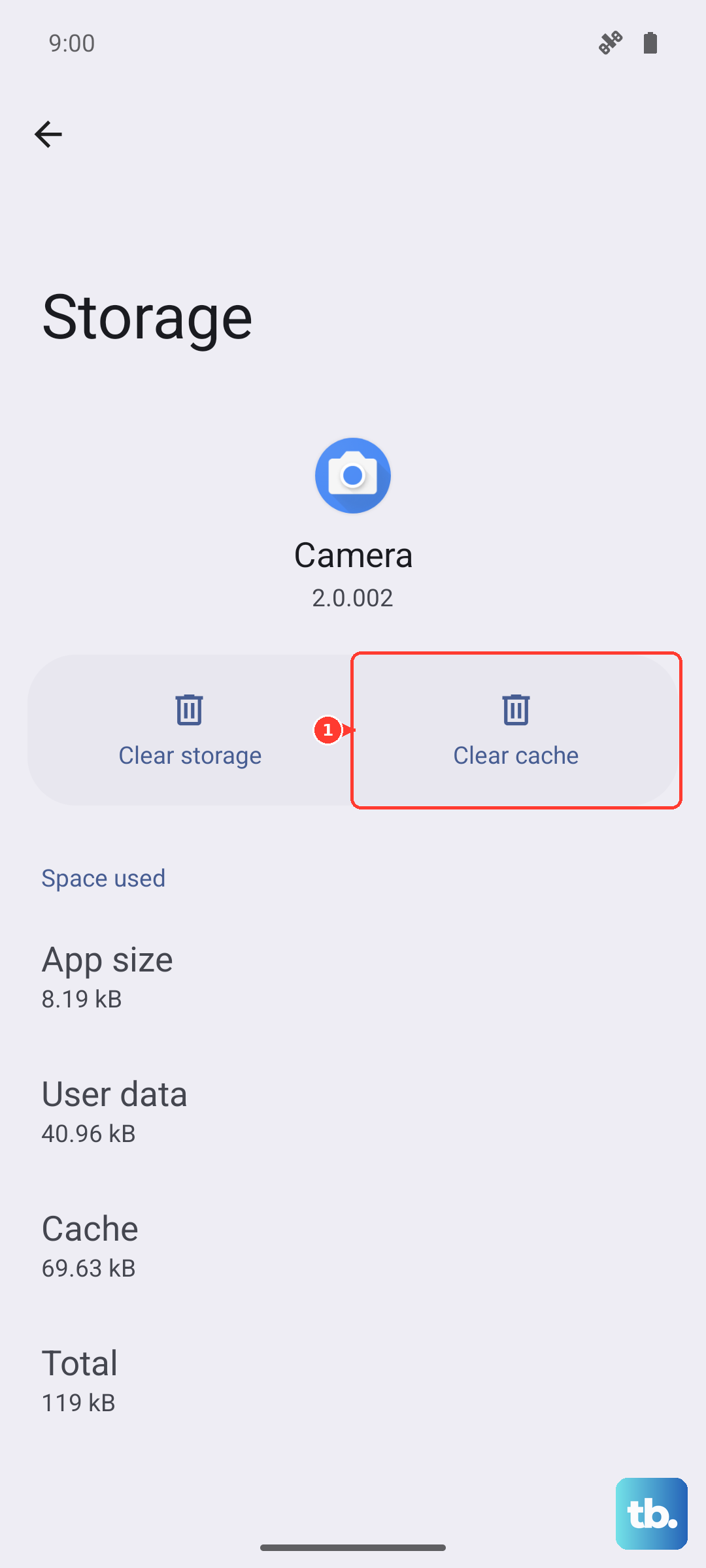
Go to Settings > Apps, then find and tap 'Google Play Store'. Tap Storage, and then tap 'Clear cache'. After doing this, open the Play Store again and try your download.
Clear Data for Google Play Services
If clearing the Play Store cache didn't work, the next step is Google Play Services. This app runs in the background and handles communication for downloads and updates.
Go to Settings > Apps, find 'Google Play Services', and tap it. Tap Storage, then tap 'Manage storage'. Here, tap 'Clear all data'. Don't worry, this won't remove your personal information, but it will reset the service.
Your phone will act like it's setting up Play Services again for a moment. After it settles, try the download once more.
Check for App Download Restrictions
Samsung's One UI includes data-saving and monitoring features that can sometimes block app downloads, especially over mobile data. It's worth checking these settings.
First, go to Settings > Connections > Data usage. Look for any data saver modes that are enabled and consider turning them off temporarily to test. Also, go to Settings > Apps > Google Play Store > Mobile data and ensure 'Allow background data usage' is turned on.
Ensure Download Manager is Enabled
The Download Manager is a system app that handles all downloads on your phone. It should never be disabled, but it's good to check. Go to Settings > Apps.
Tap the three-dot menu in the top right and select 'Show system apps'. Now, search for 'Download Manager'. If you find it and the 'Enable' button is showing, tap it. If it's already enabled, you can tap Storage and choose 'Clear cache' for good measure.
Remove and Re-add Your Google Account
This refreshes the connection between your phone and Google's servers. Go to Settings > Accounts and backup > Manage accounts. Select your Google account.
Tap 'Remove account'. Confirm, then go back and tap 'Add account' to log back in with the same credentials. I've seen this resolve stubborn download issues that other steps couldn't fix.
Check Your Available Storage Space
The Galaxy A55 needs free space to download and install apps. If you're getting an 'Insufficient storage' error, you'll need to clear some room. Go to Settings > Battery and device care > Storage.
This will show you what's taking up space. You can use the 'Clean now' suggestion or manually review and delete large files, old downloads, or apps you no longer use. Aim to have at least 1-2GB free for app updates and new installs.
Update Your Phone's Software
An outdated version of One UI or Android can have bugs that affect the Play Store. Samsung regularly releases updates with fixes. Go to Settings > Software update and tap 'Download and install'.
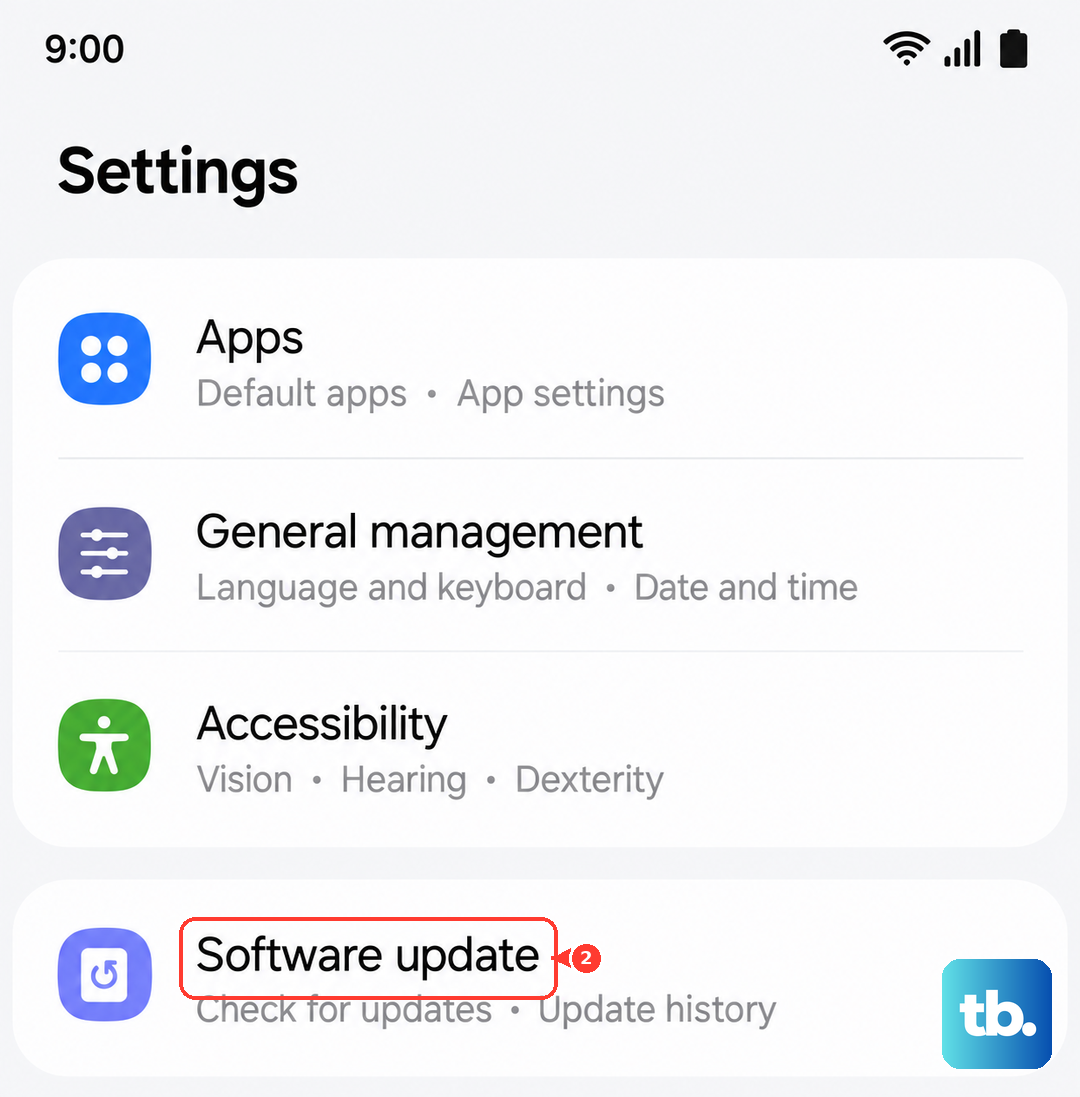
If an update is available, make sure your phone is charged above 50% and connected to Wi-Fi before installing it. The phone will restart as part of the update process.
Address Specific Play Store Error Codes
Sometimes the Play Store gives you a numeric error code. For error DF-BPA-09, you need to clear data for Google Services Framework. Go to Settings > Apps, show system apps, find 'Google Services Framework', tap Storage, and hit 'Clear data'.
For generic errors like 911 or 495, it's usually a network or cache issue. Work through the steps to clear the Play Store and Play Services cache again, and try switching between Wi-Fi and mobile data.
Review Parental Controls or Content Restrictions
If you have parental controls set up through Google Family Link or have configured content restrictions in the Play Store, they might be blocking the download. Open the Play Store app, tap your profile icon, and go to Settings > Family > Parental controls.
Make sure they are turned off or properly configured. Also, check Settings > Network preferences > App download preference to see if it's set to 'Ask me every time' or 'Over any network'.