
When your Samsung Galaxy A55 microphone stops picking up your voice, it can turn simple phone calls, video chats, or voice notes into a frustrating experience. The good news is, this is often a software or settings issue you can fix yourself. Let's start by figuring out exactly what's going wrong.
Start by confirming the basics with a free microphone test. It shows a live level meter and lets you hear a short playback, so you know in seconds whether any signal is coming through.
Test Your Galaxy A55 Microphone
Before trying any fixes, it's smart to test which microphone is affected. Your A55 has several: one at the bottom by the USB-C port, one at the top for calls, and others for video recording and noise cancellation. Open your voice recorder app, Samsung's own "Voice Recorder" works best, and make a quick test. Record while speaking normally, then play it back. Is the audio muffled, crackly, or completely silent?
You can also make a quick call to your voicemail or a friend and ask if they can hear you. Try both speakerphone and normal handset mode, as they use different microphones. If the problem only happens in one app, like WhatsApp or Google Meet, that points to a permission or app-specific bug rather than a hardware failure.
Check for Physical Blockages
This is the most common culprit, especially on a phone like the A55 that doesn't have the same level of water resistance as Samsung's flagship models. The tiny microphone holes at the bottom and top of the phone can easily get clogged with pocket lint, dust, or moisture.
Take a close look at the small grilles. Use a soft-bristled brush, like a clean, dry toothbrush, to gently dislodge any visible debris. You can also try blowing sharply across the holes. Avoid using compressed air or poking inside with anything metal, like a pin, as you could easily damage the sensitive microphone diaphragm.
Remove Your Phone Case
Some cases, particularly bulky or poorly designed ones, can partially cover the microphone openings. I've seen this happen more often than you'd think. Take your A55 out of its case completely and run the voice recorder test again.
Pay attention to screen protectors, too. A full-coverage protector that runs right to the edge could potentially seal over the top earpiece grill, which also houses a microphone. If the problem goes away without the case, you might need to switch to a different one.
Disconnect Bluetooth and Other Audio Devices
If your phone is connected to wireless earbuds, a headset, or a car's Bluetooth system, it will route all audio, including the microphone, through that connected device. The person on the other end of your call won't hear you if your Galaxy Buds are in your pocket with the mic covered.
Swipe down from the top of your screen to open the Quick Settings panel and tap the Bluetooth icon to turn it off temporarily. Then, try your microphone again. Also, if you use wired headphones with a built-in mic, unplug them. The phone might be trying to use that external microphone even after you've unplugged it, causing confusion.
Restart Your Phone
A simple restart clears out temporary glitches in the system software that could be affecting the audio drivers. Press and hold the Volume Down button and the Side button (power key) together for about 10 seconds until you see the Samsung logo appear, then release.
Your phone will force restart. This is different from a normal power cycle and can resolve deeper software hiccups. Once it boots back up, test the microphone immediately in your phone app or voice recorder.
Check App Permissions
Android, and Samsung's One UI on top of it, requires apps to ask for permission to use your microphone. If you accidentally denied this permission, or if a recent app update reset it, the app won't be able to hear you. This fix is specific to the app giving you trouble.
Go to Settings > Apps, select the problematic app (like Zoom, Discord, or Instagram), and tap Permissions. Find the Microphone permission and make sure it's set to "Allow." While you're there, you can also force stop the app and clear its cache, which can clear up app-specific bugs.
Update Your Software
Samsung regularly releases updates that fix bugs, including audio and microphone issues. Running outdated software is a common cause of problems that seem hardware-related. Go to Settings > Software update and tap Download and install.
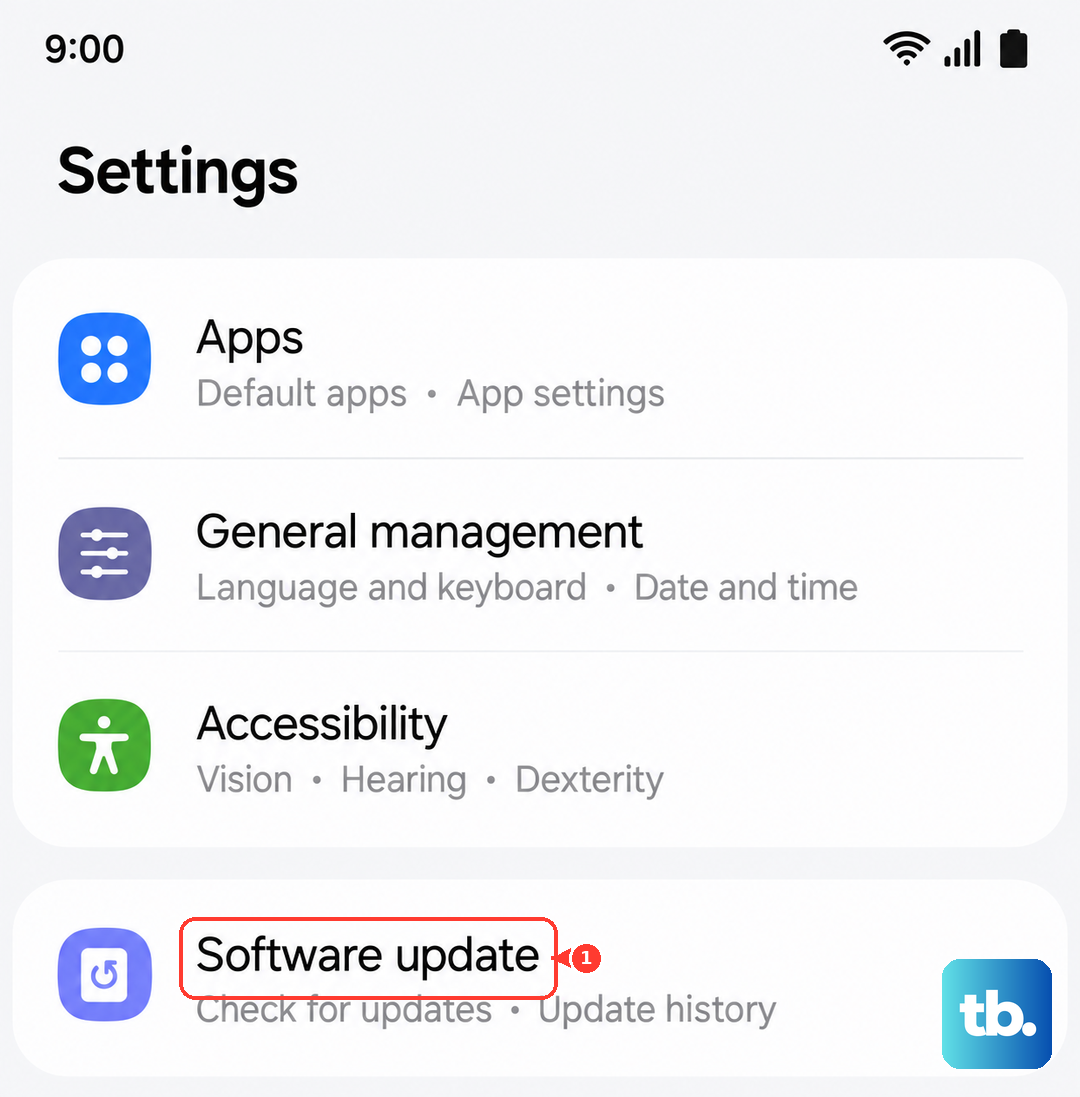
Make sure your phone is connected to Wi-Fi and has at least a 50% charge. If an update is available, install it and restart your phone when prompted. After the update, test your microphone again, as the fix could be included in the patch notes.
Reset App Preferences or All Settings
If microphone permissions seem corrupted across multiple apps, you can reset all app preferences without losing your personal data. This resets permission denials, background data restrictions, and default app assignments. Go to Settings > Apps > Menu (three dots) > Reset app preferences.
For a more comprehensive reset, you can try resetting all settings. This will revert your Wi-Fi passwords, Bluetooth pairings, and custom display settings back to default, but it won't touch your photos or apps. Navigate to Settings > General management > Reset > Reset all settings. This often clears up obscure software conflicts affecting hardware like the microphone.
Boot into Safe Mode
Safe Mode temporarily disables all third-party apps you've downloaded. If your microphone works perfectly in Safe Mode, then a recently installed app is likely causing the conflict. To enter Safe Mode, press and hold the power button until the power menu appears.
Then, tap and hold the "Power off" option on your screen. You'll see a prompt to reboot into Safe Mode. Tap it. Once in Safe Mode (you'll see "Safe Mode" in the bottom corner), test your microphone. If it works, you'll need to uninstall apps one by one, starting with the most recently installed, to find the culprit.