When your Samsung Galaxy A55 starts rebooting on its own, it's more than just annoying. It can interrupt calls, stop you from finishing a task, and make the phone feel unreliable. This kind of random restarting is usually a software hiccup, but it can sometimes point to a deeper issue with an app or, less commonly, the hardware itself.
Before you try anything, it's a good idea to make sure your important stuff is backed up. You can use Samsung Cloud or Google One to back up your photos, contacts, and settings. This way, if you need to take more serious steps later, your data is safe.
Force Restart Your Galaxy A55
This is almost always the first thing I'd try. A force restart clears out the phone's temporary memory and can stop a minor software glitch that's causing the loop. It's different from just turning the phone off and on.
For the Galaxy A55, press and hold the Volume Down button and the Side key (power button) together for about 10 seconds. You'll see the Samsung logo appear, and the phone will boot up normally. This doesn't delete any of your files or settings.
Check for App Updates in the Galaxy Store and Play Store
An outdated app, especially one that runs in the background, can conflict with your phone's system and cause instability. Since your A55 runs One UI 6 on Android 14, it's important to keep everything current.
Open the Google Play Store, tap your profile icon, and go to Manage apps & device. Tap "Update all" if any are available. Don't forget about the Galaxy Store, either. Open it, tap the menu icon, and go to Updates to check for any Samsung-specific app updates.
Update Your Phone's Software
If your apps are up to date but the phone is still restarting, the system software itself might need a patch. Samsung regularly releases updates that fix bugs and improve stability.
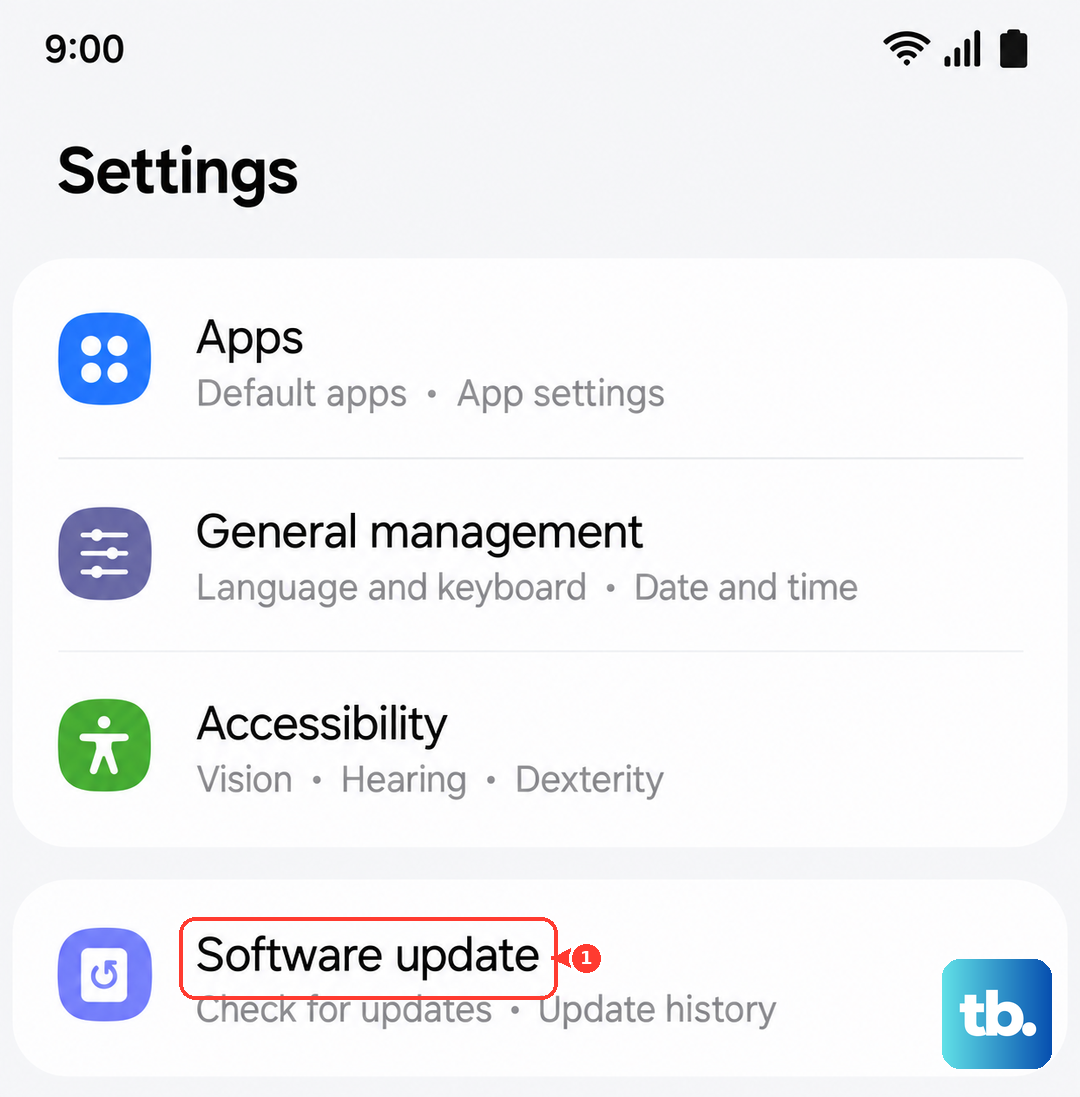
Go to Settings > Software update and tap Download and install. Make sure you're connected to Wi-Fi and have at least a 50% battery charge before starting. Installing the latest update resolves a huge number of these random restart issues.
Boot Into Safe Mode
Safe mode temporarily disables all third-party apps you've downloaded. If the phone stops restarting in Safe Mode, you know for sure that one of your installed apps is the culprit. It's a great way to narrow things down.
To enter Safe Mode, press and hold the Side key until the power menu appears. Then, press and hold the "Power off" option on your screen. You'll see a prompt to restart in Safe Mode. Tap it. If the phone is stable now, you'll need to find the problematic app by uninstalling your most recent downloads one by one.
Clear the System Cache
Over time, temporary system files can get corrupted and cause strange behavior. Clearing this cache is like giving your phone's software a fresh start without touching your personal data. You need to use the Recovery Mode menu to do this.
First, power off your phone completely. Then, connect it to your computer with a USB-C cable. Now, press and hold the Volume Up and Side keys together. When you see the Samsung logo, let go of the Side key but keep holding Volume Up until the Android Recovery menu appears.
Use the volume buttons to navigate to Wipe cache partition and press the Side key to select it. Confirm the action, then select Reboot system now when it's done.
Review Your Recent App Installs
Think back to when the restarting problem began. Did you install a new game, launcher, or utility app around that time? Sometimes a single app is the root cause.
Go to Settings > Apps, then sort by "Recent" to see the last apps installed. Try uninstalling the most suspicious ones, especially any that claim to boost performance, clean memory, or modify system animations. Restart your phone normally after uninstalling to see if the problem is fixed.
Check Your Charger and Cable
This is a specific tip for the A55. Samsung doesn't include a charger in the box, so many people use old, underpowered chargers or cheap cables. A faulty charger or cable can cause power delivery issues that make the phone act erratically, including restarting.
Your Galaxy A55 supports up to 25W wired charging. Try using a different, high-quality USB-C cable and a charger that supports USB Power Delivery (PD). Avoid using the phone while it's charging with a suspect cable to see if the reboots stop.
Reset All Settings
If you're still having trouble, this step resets all your preferences, like Wi-Fi passwords, Bluetooth pairings, and display settings, back to factory defaults without deleting your photos, messages, or apps. It can fix conflicts caused by a setting that's been misconfigured.
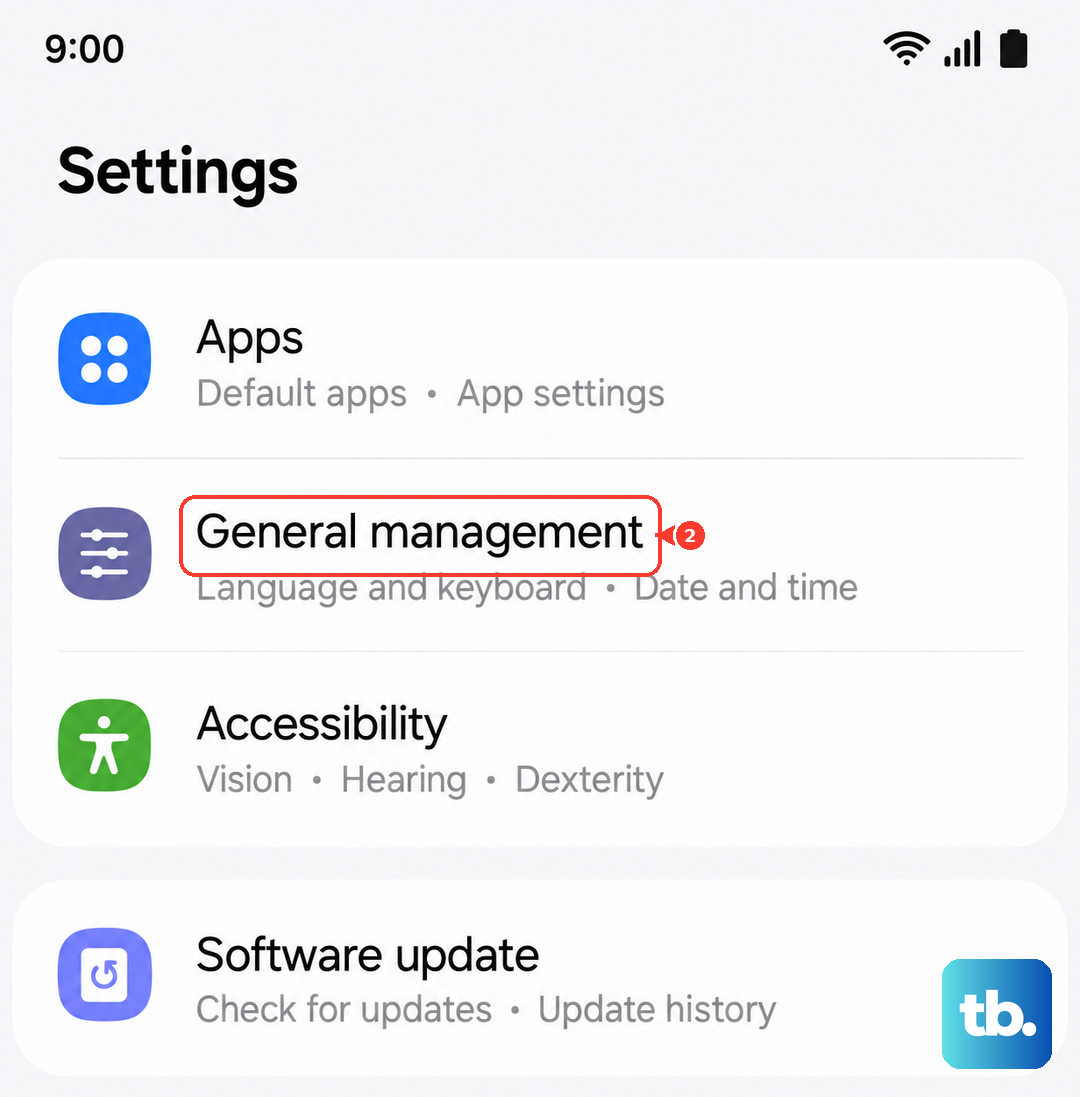
Go to Settings > General management > Reset. Tap on Reset all settings, enter your PIN if prompted, and confirm. You'll have to set up your connections and preferences again, but it often clears up persistent software bugs.
Perform a Factory Reset
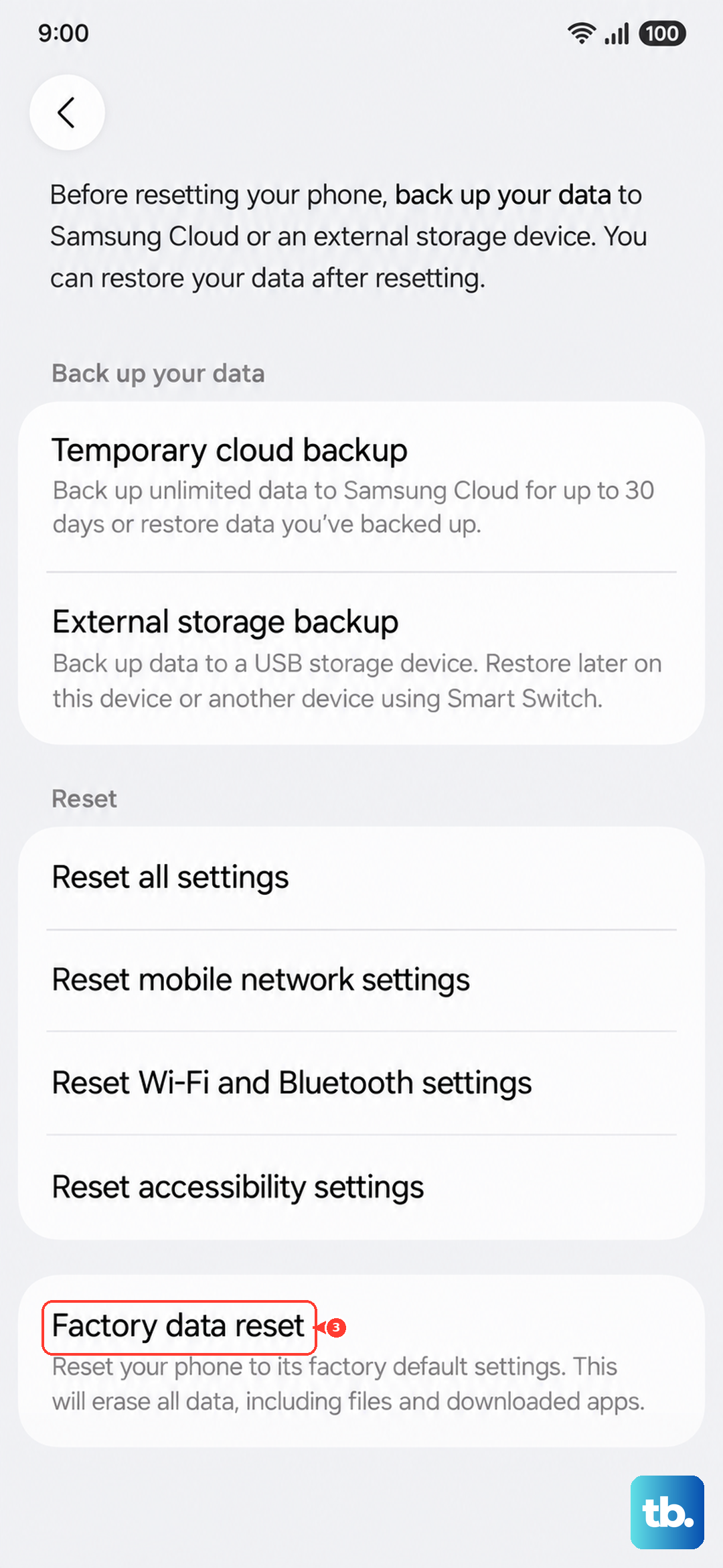
This is the last software step. A factory reset erases everything on your phone and returns it to the state it was in when you first took it out of the box. This will eliminate any deep-seated software corruption. Please ensure you have a complete backup before proceeding, as this cannot be undone.
You can do this from the settings menu. Go to Settings > General management > Reset > Factory data reset. Scroll down and tap Reset, then enter your password. The phone will erase itself and reboot. After the reset, set it up as new initially to see if the restarting issue is gone before restoring your backup.