
Seeing that "No SIM" or "SIM card not detected" message on your Samsung Galaxy A55 is a real headache. You can't make calls, send texts, or use mobile data. The good news is this is almost always a simple fix you can handle yourself, whether it's a quick software refresh or a bit of physical cleaning.
Let's jump straight into the most common solution that fixes this issue for a lot of people.
Restart Your Galaxy A55
It sounds too simple, but a restart clears out temporary software glitches that can confuse the SIM card reader. Don't just tap restart in the menu. Instead, press and hold the Volume Down button and the Side (power) button together for about 10 seconds.
You'll feel a vibration and see the Samsung logo as the phone forces itself to reboot. This is more thorough than a standard restart and often gets the SIM recognized again immediately.
Check the SIM Card Tray and Contacts
If a restart didn't work, the next step is a physical check. Power your A55 off completely. Use the SIM ejector tool that came in the box (a paperclip works in a pinch) to pop out the tray.
Carefully remove the SIM card and look at the gold contacts on it. Look for any scratches, dirt, or a dull, corroded appearance. Gently wipe both sides of the SIM with a clean, dry microfiber cloth.
Also, peek into the empty SIM slot on your phone. Use a can of compressed air to blow out any dust or lint that might be blocking the connection. Reinsert the SIM, making sure it's seated firmly and correctly in the tray, and power the phone back on.
Toggle Airplane Mode On and Off
This trick forces your phone's radio to reset and re-establish a connection with the network. Swipe down from the top of your screen twice to open the full Quick Settings panel.
Tap the Airplane Mode icon to turn it on. Wait for about 10-15 seconds, then tap it again to turn it off. You should see the network bars disappear and then hopefully reappear along with your carrier name.
Verify Your SIM is Enabled in Settings
Sometimes, a software update or glitch can accidentally disable the SIM card in your phone's settings. It's easy to check. Open your Settings app and go to Connections.
Tap on SIM card manager. Here, you'll see your SIM listed. Make sure the switch next to it is turned on. If it's already on, try turning it off, waiting a moment, and turning it back on.
Update Your Phone's Software
Outdated software can have bugs that affect how the phone communicates with the SIM card. Samsung regularly releases updates that fix these kinds of issues.
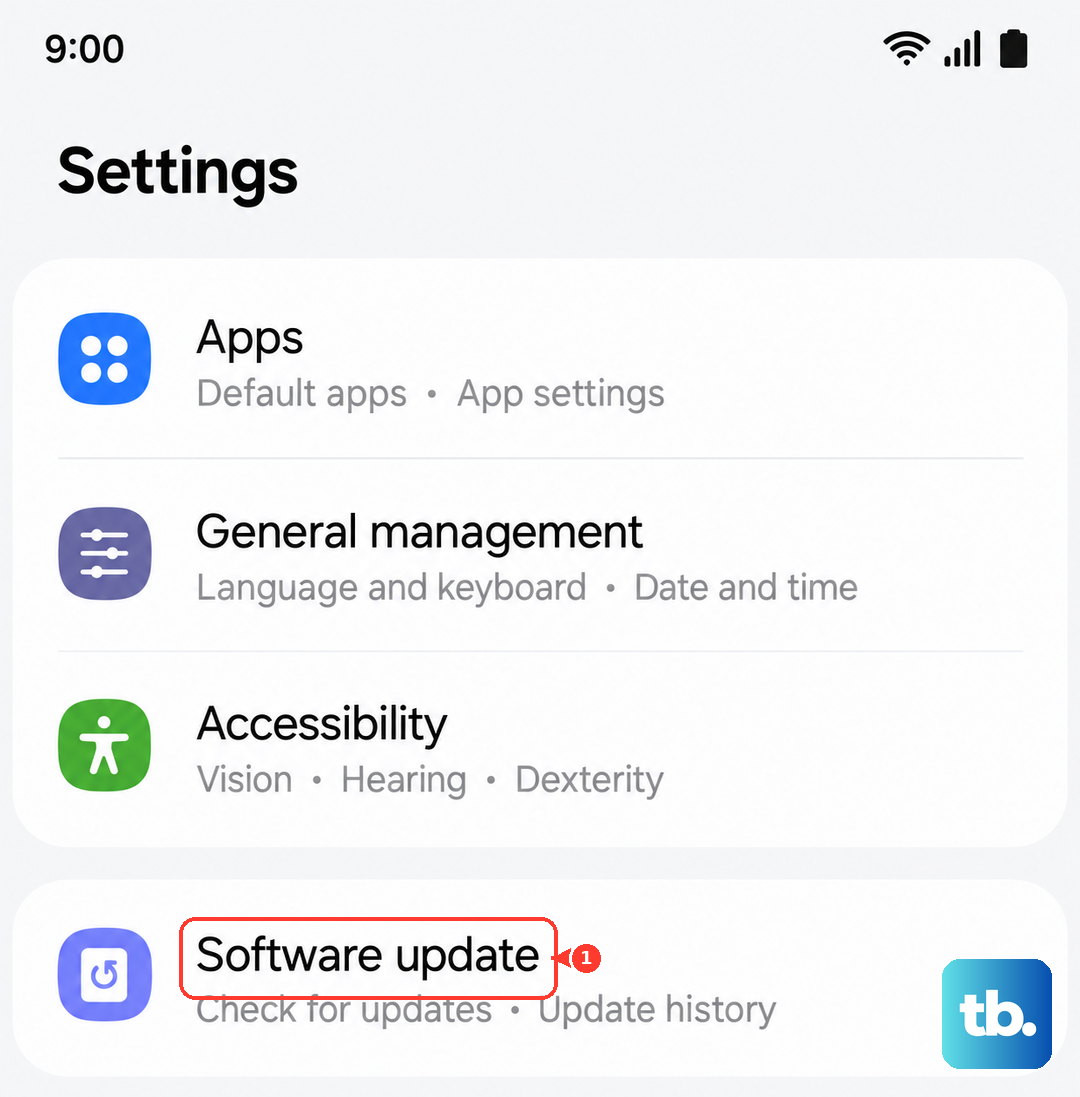
Go to Settings and scroll down to Software update. Tap Download and install. If an update is available, let it download and install, then restart your phone. I've seen minor One UI updates resolve persistent SIM detection problems on other Galaxy models.
Reset Your Network Settings
This is a very effective step that clears out any corrupted network configuration data without touching your personal files, photos, or apps. It will reset Wi-Fi, Bluetooth, and mobile network settings back to factory defaults.
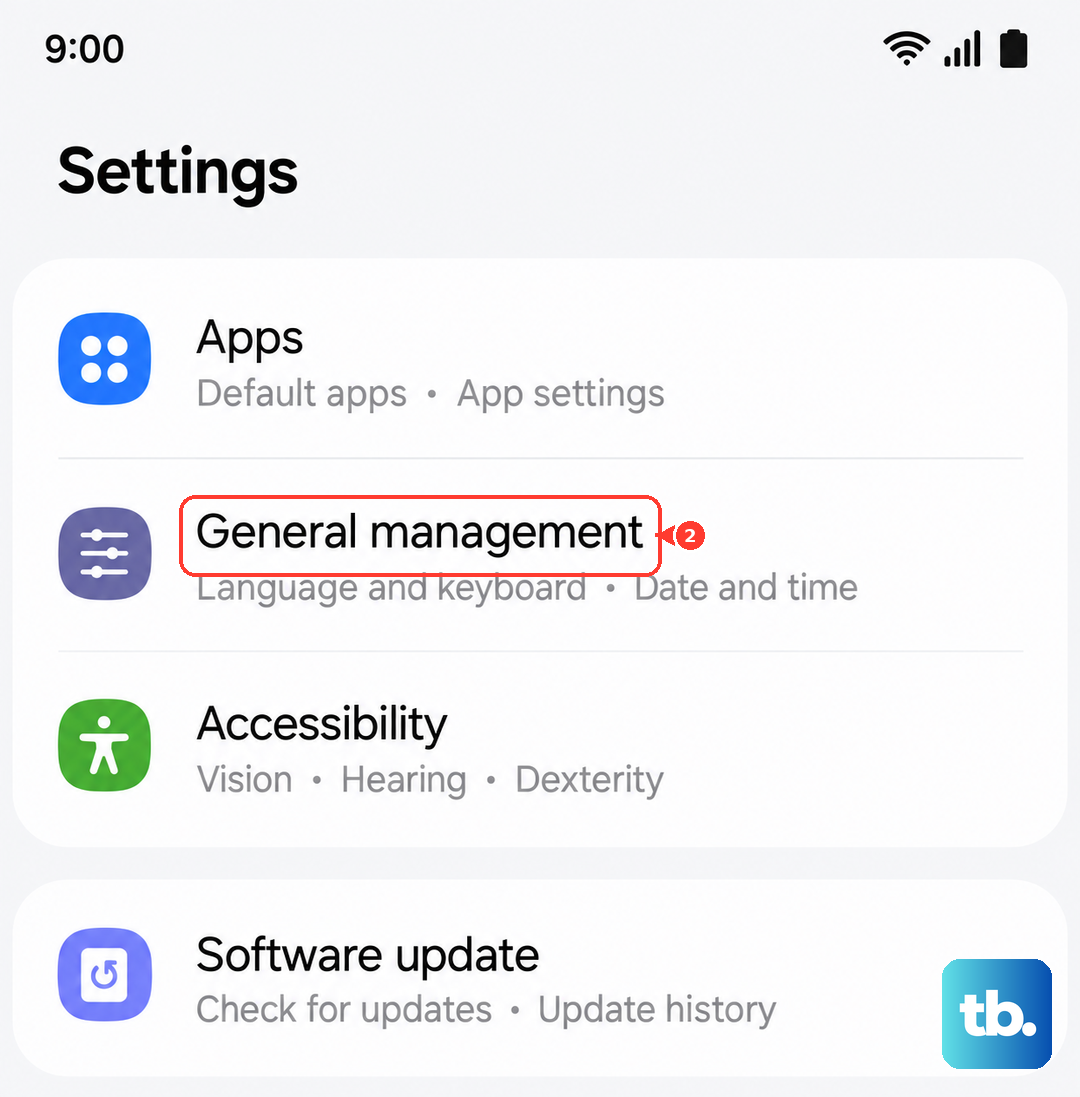
To do this, open Settings and go to General management. Tap on Reset, and then select Reset network settings. Confirm the action. After the phone reboots, you'll need to reconnect to Wi-Fi and re-pair Bluetooth devices, but it often fixes the "No SIM" error.
Check and Reset APN Settings
The Access Point Name (APN) tells your phone how to connect to your carrier's mobile data network. If these settings are wrong or corrupted, it can cause all sorts of connection issues, including SIM errors.
Go to Settings > Connections > Mobile networks > Access Point Names. You'll see a list of APNs. Tap the three-dot menu in the top right and select Reset to default.
Your phone will load the standard settings for your carrier. If you had to enter custom APN details before, you may need to re-enter them after this reset. You can get the correct settings from your carrier's website.
Try Manual Network Selection
By default, your phone automatically chooses the best network. Sometimes this process gets stuck. You can manually tell it which network to use.
Navigate to Settings > Connections > Mobile networks. Tap on Network operators. Your phone will search for a moment. When the list pops up, select your specific carrier from the list (e.g., "T-Mobile" instead of "T-Mobile LTE").
Clear the Cache for SIM Services
System apps that manage the SIM card can accumulate corrupted cache data. Clearing this cache can help. Go to Settings > Apps.
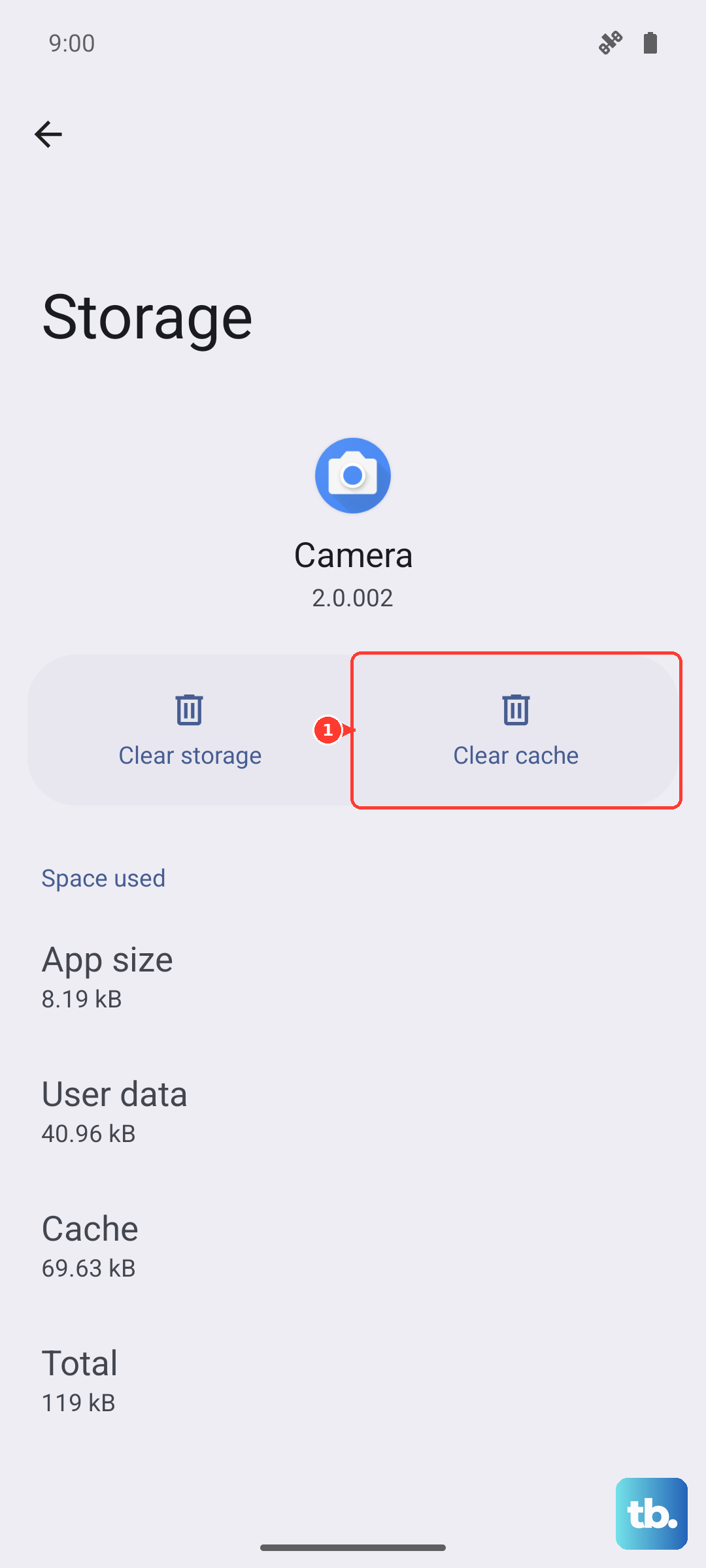
Tap the three-dot menu and select Show system apps. Now, search for "SIM" or scroll to find apps like SIM card manager or SIM Toolkit. Tap on one, go to Storage, and tap Clear Cache. Do this for any SIM-related system apps you find.
Test Your SIM Card in Another Phone
This is the definitive test to see if the problem is with your SIM card or your Galaxy A55. If you have access to another unlocked phone, power it off and insert your A55's SIM card.
Turn that phone on. If it also shows "No SIM" or fails to connect, the SIM card itself is likely faulty or deactivated. You'll need to contact your carrier's support to get a replacement SIM card, which they usually provide for free or a small fee.
If the SIM works perfectly in another phone, then the issue is isolated to your Galaxy A55, confirming it's a hardware or software problem with the device itself.