When your Samsung Galaxy S26 Ultra starts having apps crash or freeze, it can really throw you off. A software hiccup may be the cause. I'd start with a simple restart, but if that doesn't stick, there are several other effective fixes to try.
Force Restart Your S26 Ultra
This is the quickest fix and often solves temporary glitches, especially on a new device. Press and hold the Volume down button and the Side button together for more than 7 seconds until the device restarts.
This is different from a normal restart and can clear out minor software conflicts that cause apps to misbehave. It's the equivalent of giving the system a fresh, clean boot.
Update All Your Apps
Some apps may need updates to work properly with your phone's software. Check the app's compatibility information in its store description, and install available updates for the latest features and performance improvements.
Open the Galaxy Store and Google Play Store separately. In each, go to the updates section and install everything available. The Galaxy Store handles Samsung-specific apps and services, which are crucial for system stability.
Check for a System Update
Check for available software updates. Go to Settings > Software update and tap Check for updates, then follow the on-screen instructions. Depending on your carrier, the option may be labeled Download and install, Check for system updates, or Check for software updates.
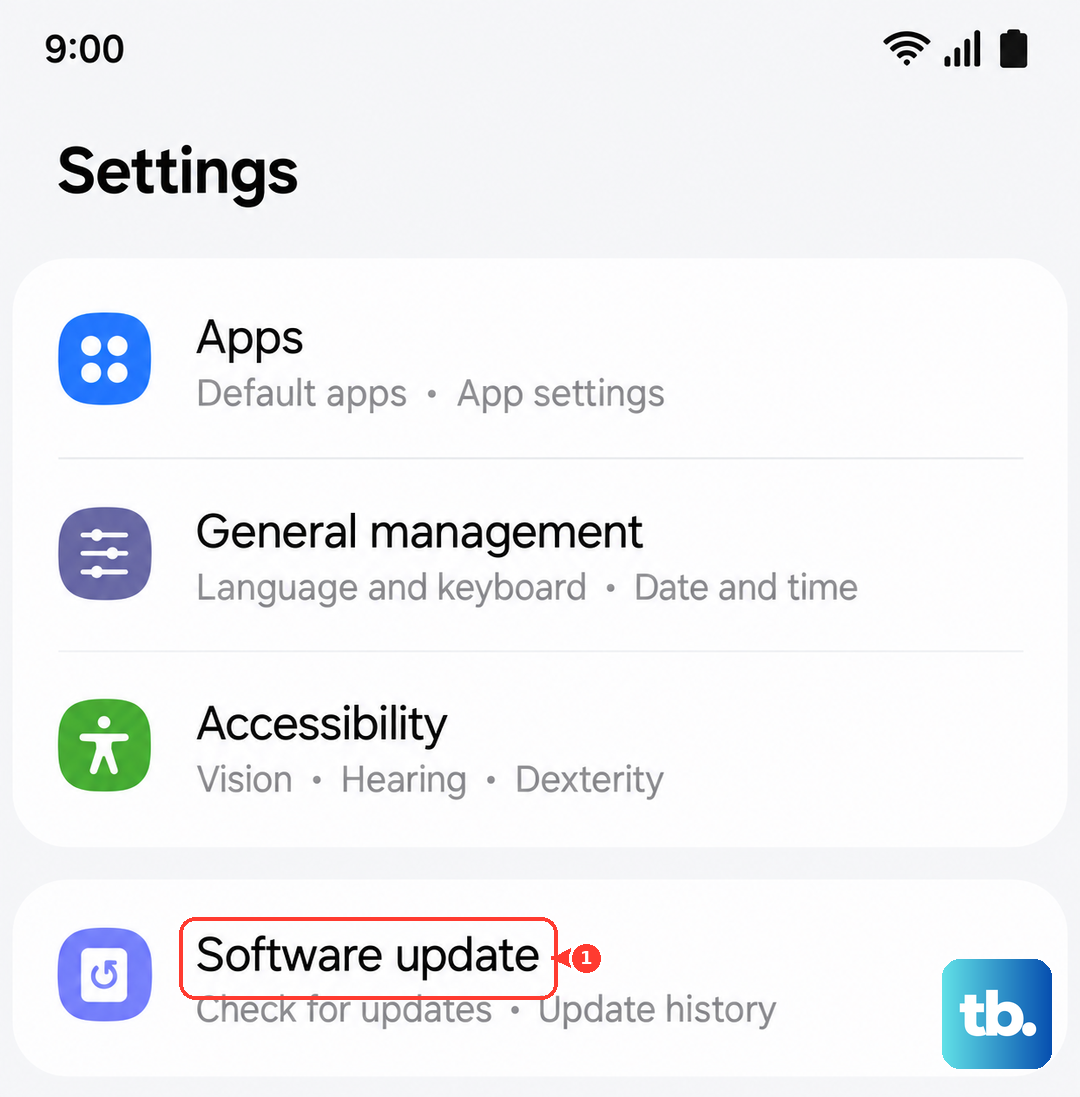
Make sure your phone is connected to Wi-Fi and has enough battery charge to complete the update. A major One UI update can fix underlying system issues that are causing widespread app instability.
Clear the App's Cache and Data
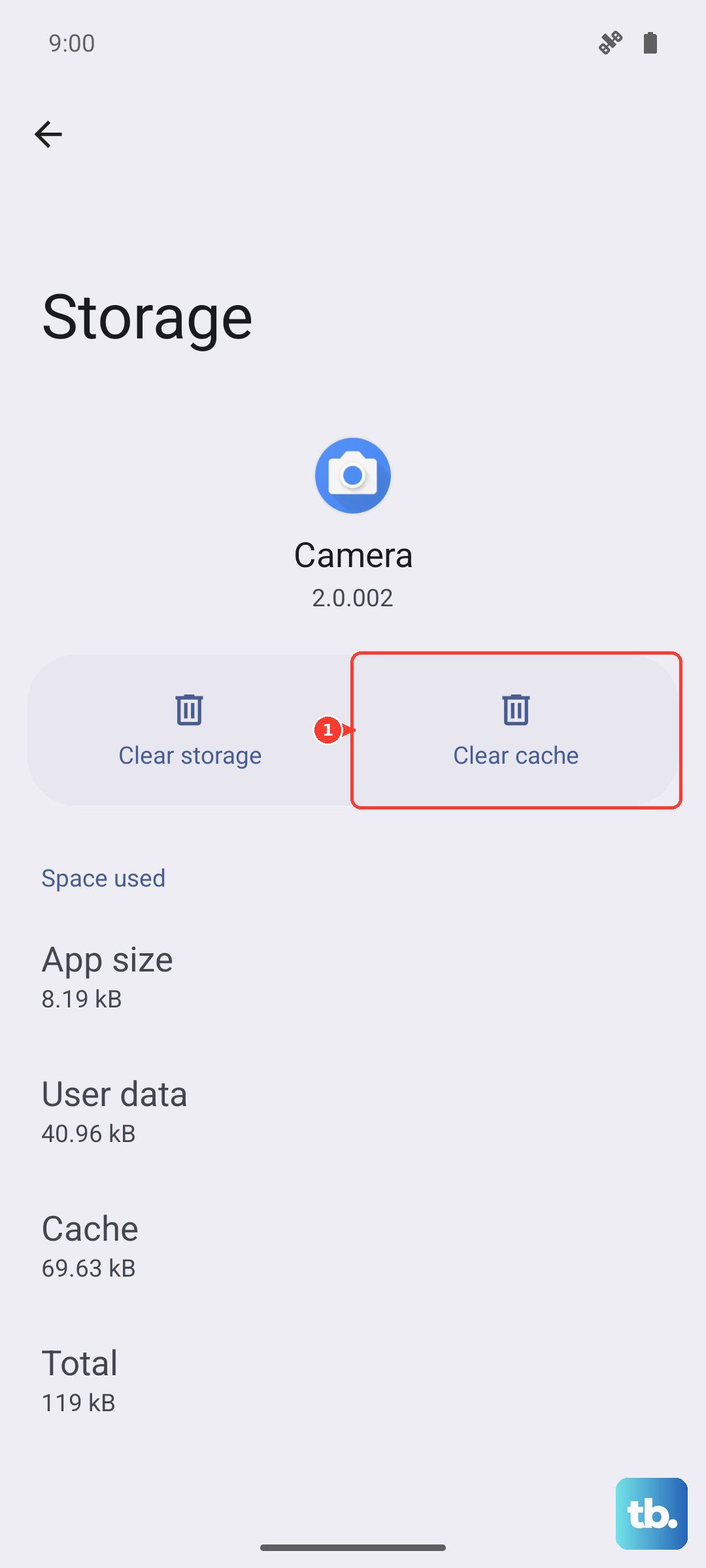
Corrupted temporary files are a common culprit. Clearing the cache is safe and won't delete your login info. Clearing data will reset the app and remove its saved personal settings and data, so back up anything important and have your login details ready.
Go to Settings > Apps, select the problematic app, then tap Storage. Tap Clear cache first. If the app still crashes, go back and tap Clear data, then tap Delete to confirm.
Free Up RAM and Storage Space
Even with lots of memory, too many apps running in the background can cause conflicts. Swipe up from the bottom and hold to enter the recent apps view, then tap Close all.
Also, check your storage. Go to Settings > Device care > Storage to see the available space under Internal storage. If needed, review Trash, Unused apps, Duplicate files, or Large files to remove excess data and free up space.
Review Your Device Care Settings
Device care can scan apps for crashes, close background apps, and check for malware. It can also help manage your phone's storage and memory when apps are slowing down or becoming unresponsive.
Go to Settings > Device care and tap Optimize now, then Done. If your phone is already rated as being in Great condition, the optimization option may not appear.
Boot Into Safe Mode
This starts your phone with all third-party apps disabled. If the crashing stops in Safe Mode, a downloaded app may be causing the problem.
To enter Safe Mode, press and hold the Side button and Volume down button together until the power menu appears. Touch and hold Power off, then tap Safe mode. Start by removing apps installed or updated when the problem began. To exit, just restart your phone normally.
Reset All App Preferences
This resets permissions, background restrictions, and notification settings for all apps without deleting any of your data. It can fix issues where an app is being blocked from a system resource it needs.
Navigate to Settings > Apps > tap the three-dot menu in the top right > Reset app preferences. You'll need to re-grant permissions like location or microphone the next time you use each app.
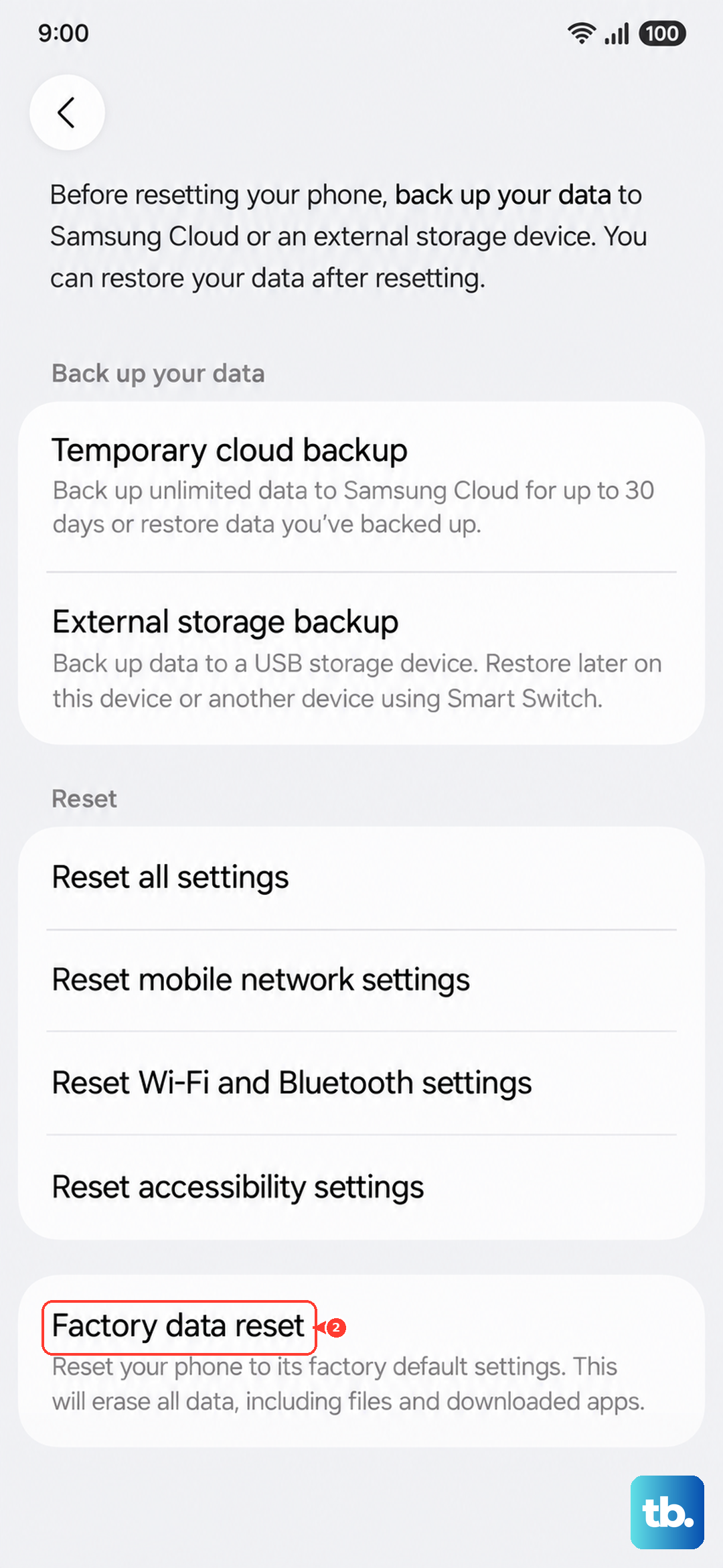
Perform a Factory Reset
This is the last resort, but it's effective for persistent, unexplained software issues. Back up everything important to your Samsung account or a computer first, as this erases the phone completely.
Go to Settings > General management > Reset > Factory data reset. Review the information, tap Reset, enter your screen lock or Samsung account password if prompted, and tap Delete all. Keep a network connection available to sign out of your Samsung account. After the reset, set up the phone as new initially to see if the problem is gone, rather than restoring from a backup which could bring the problem back.